The PowerPoint® Blog

I work with PowerPoint on a daily basis and I am very honored to be a Microsoft PowerPoint MVP. We have a talented team of presentation designers at TLC Creative Services and ThePowerPointBlog is our area to highlight PowerPoint tips, tricks, examples and tutorials. Enjoy! Troy Chollar

It’s All About The Gadgets (#4)

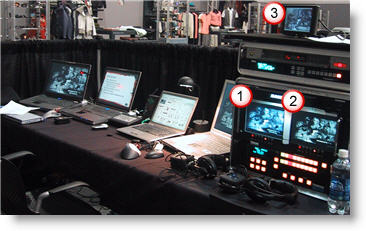
Even the straight forward shows need some nifty gadgets. In addition to having multiple sources (one set of computers for widescreen projection, second set for coordinated graphics on plasma displays throughout room). Note the three preview monitors that give me a heads up on what is being sent, and going to be sent – including the very cool 6” high-resolution widescreen display (#3).

– Troy @ TLC

By |2016-11-17T15:24:38-08:00December 21st, 2006|Personal|

It’s All About The Chair (#5)

It is the holiday time, so I have compiled a fun “5 Holiday Treats” series. And here is #5:

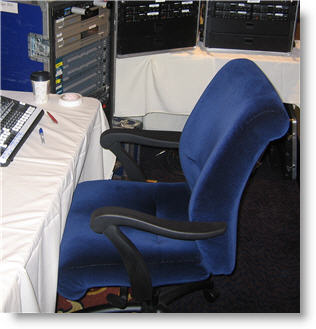
Running corporate presentations means sitting in ballrooms, convention centers, conference rooms and basically any place that is generally uncomfortable. As a matter of personal preservation, it often comes down to what chair you are going to be stuck sitting in for the next several days.

At this particular show I managed a very comfortable seat! Hey, maybe all ballrooms are not that uncomfortable.

– Troy @ TLC

By |2016-11-17T15:24:18-08:00December 20th, 2006|Personal|

Multiple Bandwidth (Streaming vs. Standard Server)

Not all streaming media is created equal. The most advanced streaming media formats are a two-part strategy; first the streaming media is created in multiple versions, second it uses a special streaming media server.

The advantage of multiple bandwidth media is that a viewer with a slow connection gets a lower-quality movie. A viewer with a high speed connection gets a higher quality, larger bandwidth movie. The simple explanation is the movie has several versions all contained in a single file. The streaming media server has the ability to determine the speed of the connection of the viewer and shows them the file that is optimum for their connection.

A Streaming Server is designed specifically for streaming media. It runs specialized software that allows it to “see” the viewer’s connection speed, work through most firewalls, handle large simultaneous connections, implement DRM (Digital Rights Management) and stream without downloading. The last point is the “magic”, it literally plays the streaming media directly from server not the (progressive) downloaded file.

A (standard) Web server is not designed for streaming media, but it is the most common server and tons of streaming media is hosted on it. It streams using a method called progressive downloading. The file is downloaded to the computer’s browser cache and can only play what has been downloaded. Seeking, or jumping, ahead does not work until the entire file is downloaded. Playback is also more likely to be interrupted by periods of buffering (when the player is not receiving the file fast enough) and playback can be affected by the number of people trying to view it at the same time.

Note: A multiple bandwidth file can be hosted on a web server, but because a web server cannot recognize the various speeds built into the file it simply plays the highest bandwidth option (which is most likley poor playback quality as most viewers will not be able to support the super high bandwidth version). It’s like putting a square peg in a round hole – a bad idea…

– Troy @ TLC

By |2016-11-17T15:23:46-08:00December 19th, 2006|PowerPoint, Resource/Misc|

High Bandwidth Media on Lower Bandwidth Connections

In the Bandwidth Math posts, the formulas figured how a movie would play if it was just sent directly to the computer playing in real-time. To play a movie of any decent size and audio quality you would need a pretty fast connection. Fortunately we have ways to get around that!

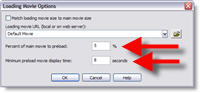
1. Buffer a portion of the movie before playback begins with a PreLoader. People are patient for a short time. So without stretching that patience, let their computer buffer a portion of the movie, so as it plays, the next sections download. This could allow a high bandwidth movie, that according to the formula would need a 1.1 Mbps connection, to play smoothly on a 768 Kbps connection – because even though it is not downloading fast enough for the connection, we gave it a head start which allows it to outrun the viewer’s connection speed.

Most software makes this very easy. Here is Camtasia’s Preloader options:

2. Self-Paced Presentations have a built-in PreLoader effect. When the presentation pauses between slides, the person is busy reading the content on the slide AND their computer is busy downloading even more of the movie!

3. Break into a series of smaller linked movies. The smaller the file size (even if it has a large playback area) the faster it will play. So if the 20 minute presentation with 10 slides at 320×240 is a 50 MB file, it is geared towards High Bandwidth viewers. But if it is broken into 10 (seamlessly) linked movies that are roughly 2 MB each, now the same movie and playback size is viewable by much lower bandwidth connections.

4. Lower the Audio quality. If your presentation has music in the background, it does not need to be high fidelity stereo quality. Same goes for sound effects and speaker narrations. This will make the file size smaller. Encode it as:
– Mono vs Stereo.
– .MP3 vs .Wav
– 8 bit vs 16 or 24 bit
– 22,050 or 44,100 Hz vs 96,000 Hz

These are just a few tips. Look through all of the options offered with the software you are using to develop the streaming media and take the time to experiment with them by creating multiple versions.

– Troy @ TLC

By |2016-11-17T15:23:26-08:00December 18th, 2006|PowerPoint, Resource/Misc|

What is a “Key Frame”

A movie is a series of images played rapidly to create movement. Remember webcasts are all about throwing away unneeded data. The Key Frame is a critical component in what the file size will be.

Video software takes the original movie and compresses it. The Key Frame compression process only keeps the changes from one frame to another. So if you have a PowerPoint slide on Frame 1 and the only difference in Frame 2 is the mouse moves, Frame 2 will only consist of the part that shows the mouse movement.

With compression there are two types of frames:
1. Key Frame: the entire frame
2. Delta Frame: only has the area that changed

Key Frames
Within video software is the option to change the Key Frame Rate. The fewer Key Frames you use the smaller the file size. Here are two examples:
1. For PowerPoint content, where little changes from frame-to-frame, use a high Key Frame Rate (10-80).
2. For live video, where the constant motion has lots of change from frame-to-frame, use a low Key Frame Rate (1-12).

Frames Per Second and Key Frame Rate
Within video software the Frames Per Second (fps) can be adjusted. We need to consider the fps when setting the Key Frame Rate. We need to really consider how much changes from frame-to-frame how often. Here are to examples:
1. If encoding at 30 fps and the Key Frame Rate is 80, a new Key Frame will occur very quick – about every 2.5 seconds.
2. If encoding at 5 fps and the Key Frame Rate is still set at 80, the Key Frames are nearly 40 seconds apart.

– Troy @ TLC

By |2016-11-17T15:23:04-08:00December 18th, 2006|PowerPoint, Resource/Misc|

New Look For Microsoft Website

Just a quick weekend note:

Earlier this week Microsoft, after several months of testing, Microsoft replaced its official home page. It now has a more translucent style, more standardized code, and a new avatar (icon/logo in address bar).

– Troy @ TLC

By |2016-11-17T15:22:24-08:00December 16th, 2006|Personal|

Analogy of a File Too Large for the Bandwidth

Tim Kennedy, an expert on bandwidth from the beginning (around 2000) made this analogy to describe what happens when your streaming file is too large for the viewer’s connection bandwidth.


“Imagine someone gives you a garden hose hooked up to a fire hydrant. Then they turn the hydrant on full. The hydrant is now feeding more water than the garden hose can physically handle. You discover pretty quickly that hooking up a garden hose to a fire hydrant is all wet. Of course, if you turn the hydrant on slowly and keep the volume of water turned down, it works.”

– Troy @ TLC

By |2016-11-17T15:21:43-08:00December 15th, 2006|PowerPoint, Resource/Misc|

What is Your Connection Speed?

We are now all experts on understanding bandwidth math! But the real-world question is “how long will it take for someone to view?” There is no easy answer. Because all streaming media is dependent on the viewer’s connection speed, let’s take a look at your connection speed.

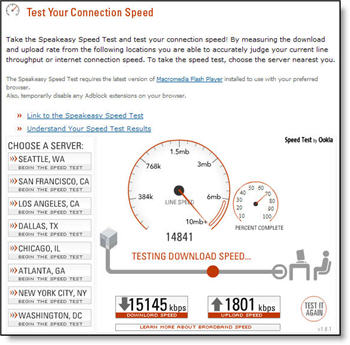
There are several great, and free, online tools to test your connection speed. My favorite is Speakeasy.net. From their home page click the “speed test” button in the lower right.

Then click on a city near you. The test will run and you can see your connection speed. For streaming media it is all about the viewer’s ‘download’ connection speed. Interestingly, the results are both for File Size (KB ) and Bandwidth (Kbps). The speedometer shows file size (KB and MB ) and the results section shows bandwidth size (Kbps).

One of the reasons I like the Speakeasy speed test is that it covers super-high speed connections that many do not. My connection shown here shows a solid 15 MB download connection (most top out 3 MB ). I have the very fast Verizon fiber optic system (FIOS) for my internet provider.

Another reason I like the Speakeasy speed test is that it shows your connection speed to distant cities when going across the country – try it… it has a huge impact on your overall connection speed!

– Troy @ TLC

By |2016-11-17T15:20:35-08:00December 14th, 2006|PowerPoint, Resource/Misc|

Bandwidth Math and Connection Speed Needed

There are 5 Categories of Internet Connections:
1. 5+ Mbps = Very High Broadband
2. 1-5 Mbps = High Broadband
3. 786 Kbps = Fast Broadband
4. 384 Kbps = Standard Broadband
5. 56 Kbps = Dial-up

To figure the bandwidth a viewer will need to view the streaming media file with perfect playback, we need to work through these formulas (one for a Standard Web Server, one for a Streaming Server (note: Streaming Servers are overviewed a few posts from now).

A: Figuring Bandwidth Needs From A Standard Server. Here things are easy because we get to figure things directly in ‘bandwidth’ math using bits not bytes.
1. Figure “Bits Per Second”
Video Height x Video Width x Frame Rate (fps) = Bits/second (Kbps)
eg. (320 x 240 video dimensions) x 15 fps = 1,152,000 Bits/second

2. Convert Bits Per Second (Kbps) to Megabits Per Second (Mbps)
Bps (Total from #1) / 1,024 (1 Mbps = 1,024 Kbps) = Needed Connection Speed
eg. 1,152,000 Kbps / 1,024 = 1,125 Mbps (so the person watching should have a, category 2, high broadband connection)

B: Figuring Bandwidth Needs From A Streaming Media Server. Here there are a few extra steps because streaming servers encode everything in Bytes Per Second (Bps), which needs to then be converted to Kbps to know the bandwidth need.
1. Figure Total Bits Per Second
Video Height x Video Width x Frame Rate (fps) = Total Bits/second
eg. (320 x 240 video dimensions) x 15 fps) = 1,152,000 Bits/second

2. Figure the Bytes Per Second (Bps)
Bps (total from #1) / 8 = Bps (divide by 8 because there are 8 bits in 1 byte)
eg. ((320 x 240 x 15) / 8) = 144,000 Bps

3. Convert Bps to Kbps
Bps (total from #2) / 1,000 = Kilobytes/second (Kbps)
eg. 144,000 Bps / 1000 = 1,152Kbps (which is rounded to 1.2 Mbps)

Conclusion:
These formulas do not take into account your server’s bandwidth limitations, the number of simultaneous viewers, network congestion or a host of other variables. Now we know how to anticipate the needed connection speed for our streaming media.

Up next are some of the ways we can make a larger bandwidth file playback smooth on a low bandwidth connection.

– Troy @ TLC

By |2016-11-17T15:14:25-08:00December 13th, 2006|PowerPoint, Resource/Misc|

Bandwidth Math and Estimating Monthly Bandwidth

Definition: Bandwidth is how much data you can move in a given amount of time.

Real-world: If your streaming media is too big for the connection of a viewer, they see choppy and incomplete playback.

The file-to-bandwidth ratio is important when you get into developing streaming media. So before beginning to develop streaming media, a bandwidth strategy is needed (or at least understood). The goal is to provide the quality needed, work with the viewers connection speed and not overload your hardware (the server).

1. The Bandwidth Math Numbers
The problem with “bandwidth math” is that two different sets of numbers are used. There is one for data transmission (Kbps) and another for data storage (KB ).

Files are measured in “KB” – kilobytes
Bandwidth is measured in “Kbps” – kilobits per second

Note that files use kiloBYTES and bandwidth uses kiloBITS (note one is “byte” and the other “bit”). Here is the trick – there are 8 bits in a byte. So when we have a 2MB streaming media file we are not transferring the 2,048KB (1MB = 1,024KB ), we are transferring 8x’s that much (2,048KB x 8 bits = 16,384Kbps).

2. Estimating Monthly Bandwidth:
This formula makes sure you stay within your hosting plans bandwidth allotment (usually hosting plans give bandwidth in GB per month – go over this amount and you risk additional charges or termination of your account). Here’s the formula:

(Average Daily Visitors x Average # Views x Average Media Size (in KB )) x 31 days x 1.5 (this is the “guesstimate” factor that gives a 50% buffer)

As example:
(40 daily visitors x 60 views x 20,480 KB (= 20 MB ) average media size) x 31 days x 1.5 = 2,285,568,000 KB
2,285,568,000 KB / 1,024 (1 MB ) = 2,232,000 MB, which is approx. 2 GB of bandwidth per month.

– Troy @ TLC

By |2016-11-17T15:13:06-08:00December 11th, 2006|PowerPoint, Resource/Misc|
Go to Top