The PowerPoint® Blog

I work with PowerPoint on a daily basis and I am very honored to be a Microsoft PowerPoint MVP. We have a talented team of presentation designers at TLC Creative Services and ThePowerPointBlog is our area to highlight PowerPoint tips, tricks, examples and tutorials. Enjoy! Troy Chollar

Make the “Hidden” Marker Disappear

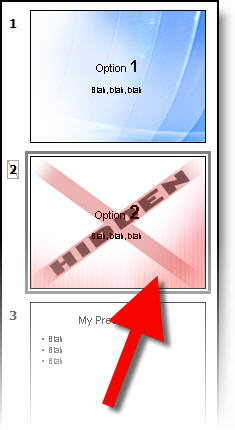
So you designed a presentation using a ‘hidden’ graphic to identify the hidden slides during review. Then during the show you manually enter the slide number to show the hidden slide. Now the audience sees the slide AND the full slide ‘hidden’ graphic – oops.

In this case all can work out with a little custom animation. Here is our example slide:
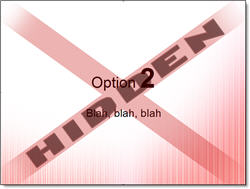
The animation for this slide has both lines of text with animated entrances:
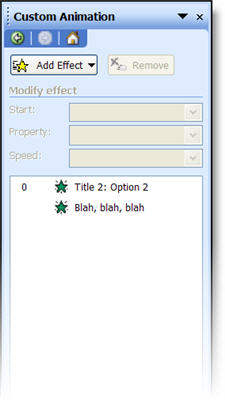
The solution is first to apply an Exit animation to the hidden image. I use EXIT >> DISAPPEAR >> WITH PREVIOUS.
The second step is to make this the first animation in the sequence.
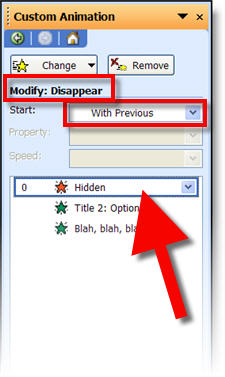
Now you have added a custom graphic that makes it easy to identify which slides are hidden – in slide sorter and printouts. The slide can also be used during a presentation, because the hidden graphic is never shown in slide show mode!

– Troy @ TLC

By |2016-11-17T14:22:27-08:00September 19th, 2006|Tutorial|

Show A Hidden Slide During A Presentation

A hidden slide does not show up during a slide show – unless the slide is manually brought up.

If slide 3 contains optional information that you have hidden, it can be show by typing “3” + “ENTER.” This brings up the hidden slide #3 for your presentation.

– Troy @ TLC

By |2016-11-17T14:21:15-08:00September 15th, 2006|Tutorial|

Make a Hidden Slide Seen

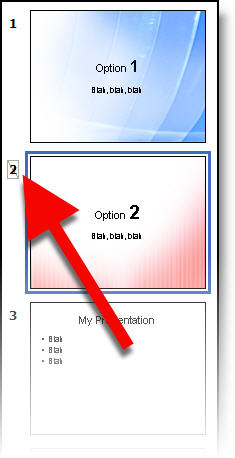
The ‘hidden slide’ feature is great. It can be used to design a master presentation that contains a couple of versions of key slides – just hide the ones that do not apply to that audience. Or you want to edit a slide, but keep the original for that ‘just in case’ scenario.

No matter what the use, the one constant is that it is difficult to identify which slides are hidden. You have to look for the small hash mark here:

Not only is small, put the is no way to identify hidden slides on a printout. This poses a large problem when supplying printouts to clients for review. What I have done is create a semi-transparent, slide-sized “hidden” graphic in PhotoShop that is inserted on hidden slides. Easy to see in the slide sorter and very obvious in printouts.

– Troy @ TLC

By |2016-11-17T14:20:53-08:00September 13th, 2006|Tutorial|

Defining PowerPoint

Just a quick little interesting note. Here is the Wikipedia definition of PowerPoint:

“Microsoft PowerPoint is a ubiquitous presentation program developed for the Microsoft Windows and Mac OS computer operating systems. Being widely used by businesspeople, educators, and trainers, it is among the most prevalent forms of persuasion technology: according to its vendor, Microsoft Corporation, some 30 million presentations are made with PowerPoint every day.”

I just like the phrase “persuasion technology.”

-Troy @ TLC

By |2016-11-17T14:20:06-08:00September 9th, 2006|Resource/Misc|

What is the File Name of that Image?

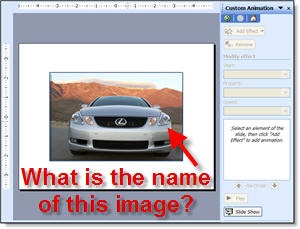
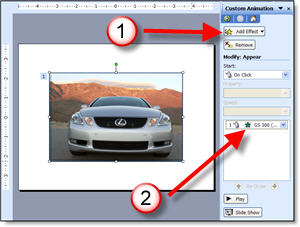
You carefully label all of the layers and saved out images from Photoshop with descriptive names. But once imported into PowerPoint you lose all reference to what image it is… Take this example:

You have a dozen very similiar images in the presentation, but you need to verify what model this one is. Is it a 300, 350, 430… You know the file name says exactly what it is, but where is the file name to be found?

If you have an animation applied, open the CUSTOM ANIMATION PANE, click on the image and reference the animation, it contains the file name! If you do not have an animation applied – temporarily apply one so you can read the info. Here I quickly applied the first animation in my list, APPEAR. Now I can read the file name, verify what model vehicle it is, delete the animation and move on.

Note: Hovering over the animation will let the pop-up info appear, which is helpful for reading long file names that become cut off in the animation bar.

– Troy @ TLC

By |2016-11-17T14:19:35-08:00September 5th, 2006|Tutorial|

Use PowerPoint Presenter View

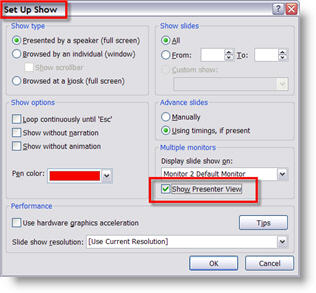
After activating Extended Desktop (Oct. 1 post) and setting up PowerPoint to display the presentation on the secondary monitor (Oct. 3 post), you have the option of displaying the Presenter View on your local monitor.

In PowerPoint go to: SLIDE SHOW >> SET UP SHOW. In the Multiple Monitors section check “Show Presenter View.”

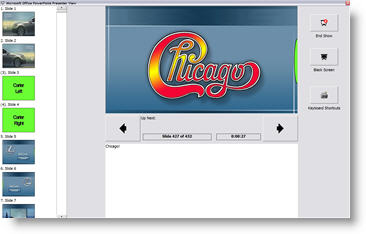
When you go into show mode your computer will display this view:

– Troy @ TLC

By |2016-11-17T14:19:16-08:00September 5th, 2006|Tutorial|

64 GIGABYTE USB Drive

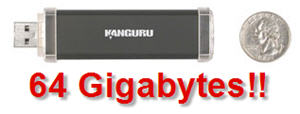
Okay, so my earlier post seemed great. But of course they are not in full production yet. But today you can order the biggest USB drive available – 64 GB!!!

That is bigger than most laptop harddrive’s! Over 2X’s larger than my first computers hard drive and over 8X’s larger than my first laptops hard drive. And it can be yours for just over $2,500.00 (U.S.). Check it out here.

Troy @ TLC

By |2016-11-17T14:18:57-08:00September 3rd, 2006|Personal|

Need a BIG USB Drive…

Yesterday I read a post at GeekZone about an incredibly large in capacity, but small in size USB “thumb” drive. This is not a “pocket” drive, but a standard sized USB stick. And it is 16 Gigabytes!

I figure this is perfect when a client needs to hand me their 1.2GB PowerPoint presentation (true story) and the 4GB of support photos (now you see why the presentation was over a Gig). Check out the post here.

– Troy @ TLC

By |2016-11-17T14:16:58-08:00September 3rd, 2006|Personal|
Go to Top