The PowerPoint® Blog

I work with PowerPoint on a daily basis and I am very honored to be a Microsoft PowerPoint MVP. We have a talented team of presentation designers at TLC Creative Services and ThePowerPointBlog is our area to highlight PowerPoint tips, tricks, examples and tutorials. Enjoy! Troy Chollar

Stock Photography Site – “Big Stock Photo”

Years ago when I specialized in print design and royalty free/stock photography was a bit more expensive (think $300-500 for a CD with 20-50 images) and much harder to find just the right image (it is much easier and more economical to be a designer now!).

Another great resource I have been making use of recently is “Big Stock Photo. This online stock photography site has a very good library of images with lots of diversity of topics. The cost is incredible at just a couple of dollars each.

Add this one to your resources – “Big Stock Photo

– Troy @ TLC

By |2016-11-17T14:58:23-08:00November 19th, 2006|Resource/Misc|

The PowerPoint Fairy

Here is a humorous little cartoon about “The PowerPoint Fairy” (and it may answer a few questions about unprepared presenters – the PowerPoint Fairy didn’t visit them before to the meeting).

Click here to view (sorry for the link, but respecting the website’s do-not-copy-my-images policy).

– Troy @ TLC

By |2016-11-17T14:57:55-08:00November 17th, 2006|Personal, PowerPoint|

Pick the Exact Color – Fast and Easy

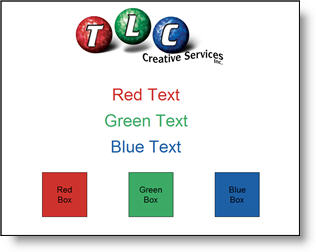
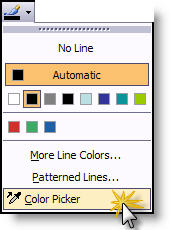
A perfect compliment to any version of PowerPoint is PPTXtreme’s Color Picker. The great thing about this sample slide is the text and box fills are the exact same color and colors pulled from the logo. No guessing, just point and click to select the exact color!

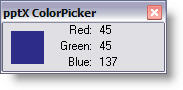
When one of the Color Picker tools is selected a small information window opens and wherever your cursor is, the color is displayed. Click on anything on your monitor and that color is selected.

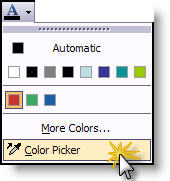
Color Picker can select the color for Text:

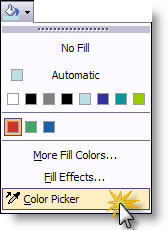
For Autoshape Fills:

For Lines:

It also works with selecting dropshadows. At $20 this is an invaluable tool to add to PowerPoint.

– Troy @ TLC

By |2016-11-17T14:57:33-08:00November 15th, 2006|Software/Add-Ins|

Presentation Stage

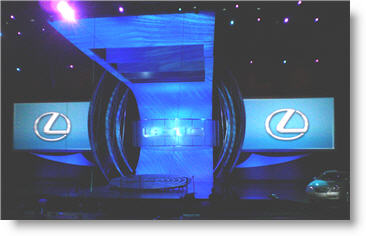
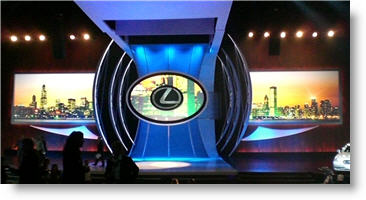
Here is a photo of the stage for the event I developed the presentations for a few weeks ago.

The left and right screens supplied most of the speaker support slides (separate presentations from two computers running in sync). In addition additional screens would fly in from the slotted openings seen in the top-center of the staging (16×9 rectangle, floor to ceiling LED wall, and an oval (which you can see in the photo below)).

– Troy @ TLC

By |2016-11-17T14:57:04-08:00November 13th, 2006|Personal, Portfolio|

3 Slides for a Template

PowerPoint by virtue of providing a Content Master and a Title Master has conditioned the world that presentations only need two looks. When I design a template it generally includes 3 to 4 master slides that go beyond the standard two slide system. Here is a recent example:

(1) Theme Graphic
This slide is used for pre/post-meeting (walk-in/walk-out) or during extended Q&A. Usually with a strong branding image.

(2) Title Slide
Used for introducing major topics, speakers, etc.

(3) Content Slide
Used for all of the content…

– Troy @ TLC

By |2016-11-17T14:47:23-08:00November 9th, 2006|Portfolio|

Create a Glow with PPTXtreme SoftShadow

With creative use of PPTXtreme’s SoftShadow add-in instanst “Soft-Glows” can be created. If you have not checked out this very useful add-in go here.

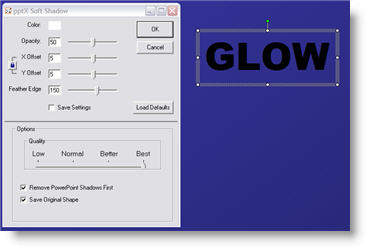
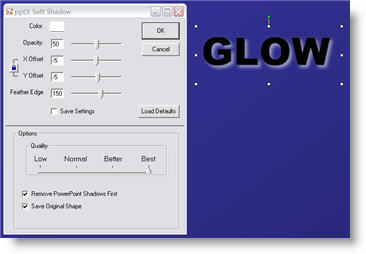
(1) Select text, autoshape or image. Here are my setting for adding a white drop-shadow.

(2) Select the object again and apply a second softshadow. Note the negative (-5 and -5) X and Y positions, so the 2nd softshadow is positioned in the upper left. Here are my settings for this second softshadow.

(3) The result is a photoshop quality glow.

– Troy @ TLC

By |2016-11-17T14:47:06-08:00November 7th, 2006|Software/Add-Ins, Tutorial|

PowerPoint Timers

Countdown timers can be created fairly easy in PowerPoint. There are lots of needs for timers and I recently had a client call me from there event (that was already underway) asking for a countdown timer to run for the breaks.

Microsoft has some good resources available on its website. I simply emailed a link to the Microsoft Online where they have a few dozen ready-made countdown timers. My client found one they liked, added their logo to the master slide and was ready to go in less than 15 minutes.

To check out the countdown timer presentations Microsoft has available (for free), click here.

– Troy @ TLC

By |2016-11-17T14:37:15-08:00November 3rd, 2006|Software/Add-Ins|

Hands-On PowerPoint Training

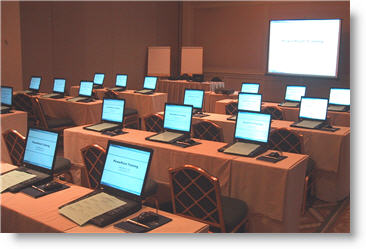
There is a big difference between hearing a PowerPoint skill explained – having it demonstrated – and being able to do it hands-on.

Here is a photo of a recent hands-on training session that I developed the training course materials for (of course setting up the rental computer settings made for a very early morning before attendees arrived).

– Troy @ TLC

By |2016-11-17T14:36:47-08:00November 1st, 2006|Resource/Misc, Software/Add-Ins|
Go to Top