The PowerPoint® Blog

I work with PowerPoint on a daily basis and I am very honored to be a Microsoft PowerPoint MVP. We have a talented team of presentation designers at TLC Creative Services and ThePowerPointBlog is our area to highlight PowerPoint tips, tricks, examples and tutorials. Enjoy! Troy Chollar

PowerPoint Quotes – Funny and True.

Reading the latest edition of PC World I came across a quote that had me rolling in laughter. Peter Norvig (an executive at Google) said, “Powerpoint is like having a loaded AK-47 on the table. You can do very bad things with it.”

Funny – and true. It is not a bad program as Mr. Tufte says. But it can be used very poorly. So I went online and found a few more good quotes:

“PowerPoint is the Rodney Dangerfield of software: it gets no respect.”
– Ken Goldberg, the Berkeley engineering professor

“If you like overheads, you’ll love PowerPoint.”
– Edward Tufte

Hmmm… maybe some things to ponder today…

-Troy @ TLC

By |2016-11-17T14:11:19-08:00August 12th, 2006|PowerPoint, Resource/Misc|

Template and Tutorial Highlighted in August Newsletter


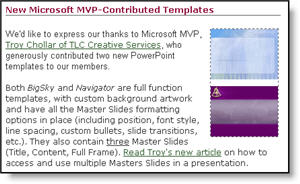
Presenter’s University asked if TLC Creative Services would contribute some PowerPoint templates to their resource library. I was very excited to find out the templates and adjoining tutorial were highlighted in their August newsletter that just went out.

There are now two full function PowerPoint templates available for anyone. Because one of the templates I developed included an additional master slide I also developed a tutorial on accessing and using additional master slides in a presentation.

Click here to download templates from Presenter’s University (may need to go through free registration process).

Click here to see the tutorial on accessing and using additional Master Slides.

– Troy @ TLC

By |2016-11-17T14:10:45-08:00August 10th, 2006|Personal, PowerPoint|

Visio is Nifty, But Not Pretty

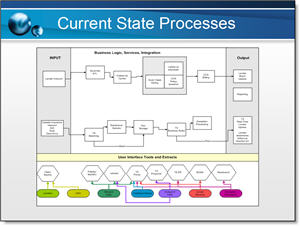
MS Visio is a great tool for putting complex processes into a visual layout. But, like most business applications, it does not have a lot of visual aesthetics. Here is a slide from a recent project:

The best thing about this slide (to me), is the client was able to quickly create something that showed me exactly what they wanted.

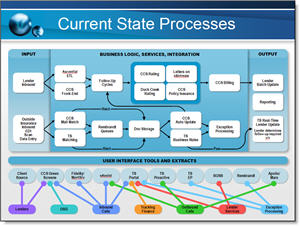
My job was to inject some visual dynamics to the presentation. So a few hours of working in PhotoShop and PowerPoint the same information now looks like this:

Same information – just a slightly enhanced presentation of it!

– Troy @ TLC

By |2016-11-17T14:10:25-08:00August 8th, 2006|Portfolio|

Ugly Hyperlinks in Your Presentation?

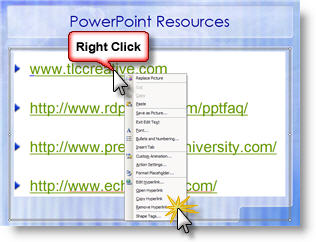
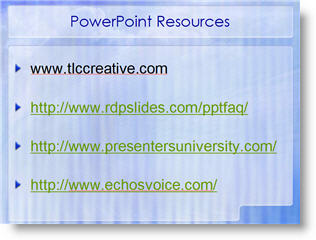
For reference you add a URL to a slide. But the text changes color, an underline is added, and in general is ugly!

You have options to bring back the aesthetics of your slide – here is the easiest. Select the text box and right click on the hyperlink and choose REMOVE HYPERLINK.

This strips out the active link programming and changes the URL into plain text. It will not be able to be clicked as an active link after this. The result is happy, beautiful, text once again!

– Troy @ TLC

By |2016-11-17T14:09:45-08:00August 6th, 2006|Tutorial|

Use “Blank” for Your Browser Home Page

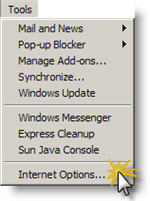
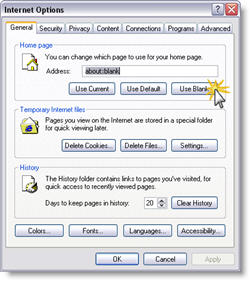
My preference when it comes to a browser Home Page is to have the browser open with nothing (zip, nada, white space). It takes time to load a page, which is usually not the one I want to see. Here is how to setup Internet Explorer:

(1) Go to TOOLS >> INTERNET OPTIONS

(2) On the General tab, click USE BLANK button.

-Troy @ TLC

By |2016-11-17T14:09:25-08:00August 4th, 2006|Tutorial|

Set Home Page in Internet Explorer FAST

Thanks to Brad Hagen, owner of Video Resources, for showing me this nifty shortcut! On a recent project I was responsible for setting up an event’s internet cafe. Set up a wireless network, configure the dozen computers and set up with custom wallpaper, set the browser homepage, etc.

Here is how to set the browser homepage in three easy steps:

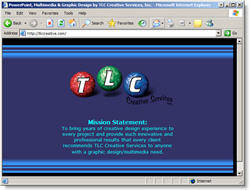
(1) Browse to URL you want to be the home page
Set TLCCreative.com as your homepage!

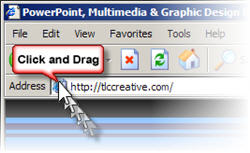
(2) Click-and-drag the webpage icon in the address bar

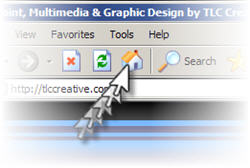
and drag on top of the “Home” icon

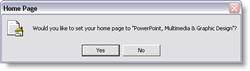
(3) Click “Yes” to the dialog. Done!

-Troy @ TLC

By |2016-11-17T14:09:01-08:00August 2nd, 2006|Software/Add-Ins, Tutorial|

Download Office 2007 today (or pay)

In an interesting move, Microsoft will begin charging a $1.50 to download Beta 2 of Office 2007.

“We are thrilled with the incredible excitement around the upcoming 2007 Microsoft Office system as evident by more than 3 million people using the beta 2 since its release two months ago. Having exceeded our beta 2 participation goals by 500%, we have had to make the business decision to implement a cost recovery measure for future downloads of beta 2 beginning 2 August, 2006.” (source: The Register.com)

By |2016-11-17T14:08:40-08:00August 1st, 2006|Software/Add-Ins|

New Ribbon UI Movie

Microsoft’s Jensen Harris recently posted this movie showing how the new Ribbon can be minimized and still used. While not a big fan when I first viewed the ribbon in the pre-beta, there has been A LOT of good work going on at Microsoft and my expectations are looking better! Check this 38 second movie here (or high-bandwidth version here).

-Troy @ TLC

By |2016-11-17T14:08:12-08:00July 28th, 2006|Software/Add-Ins, Tutorial|

Line Spacing and the Magic of F4

Here is our sample text.

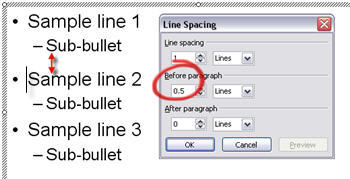
To help visually cluster the information by the primary bullets we position the cursor on the second bullet and add additional spacing BEFORE PARAGRAPH of 0.5

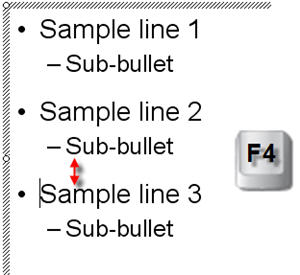
Now to do the same for the third bullet we can either position the cursor on the third bullet line, open the Line Spacing dialog and enter the new distance OR we position the cursor on the third bullet line and click the F4 button!

F4 is a keyboard shortcut in PowerPoint that repeats whatever the last action was. In this case it automatically changes the BEFORE PARAGRAPH line spacing from 0.2 to 0.5, matching the bullet above!

-Troy @ TLC

By |2016-11-17T14:07:36-08:00July 24th, 2006|Tutorial|
Go to Top