The PowerPoint® Blog

I work with PowerPoint on a daily basis and I am very honored to be a Microsoft PowerPoint MVP. We have a talented team of presentation designers at TLC Creative Services and ThePowerPointBlog is our area to highlight PowerPoint tips, tricks, examples and tutorials. Enjoy! Troy Chollar

Circle and Triangle Shadow Boxes

The Shadow Box concept is not constrained to rectangles. I use variations of Shadow Boxes in every conceivable way, always with the goal of adding depth and visual dynamics to the slides. Here are two samples I created that use a circle and triangle.

Circle Shadow Box Applied
Here I duplicated the circle, removed the outline/stroke and went into the Fill Effects exactly the same as described in the previous post. But here I am using a color for the center and I manually distorted the circle to give it the cast shadow effect.
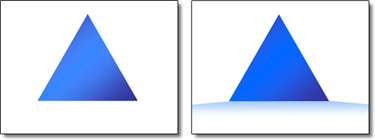
Pyramid Shadow Box
Here I duplicated the Pyramid, removed the outline/stroke and went into the fill effects. The difference is that I set the Shading Styles to be Horizontal so the gradient went from the top of the image to nothing at the bottom. I then really distorted the autoshape (extending it far beyond the boundary of the viewable slide) and positioned to create the drop shadow effect.

Troy @ TLC
By |2016-09-16T11:45:17-07:00April 22nd, 2006|Tutorial|

Create Shadow Boxes

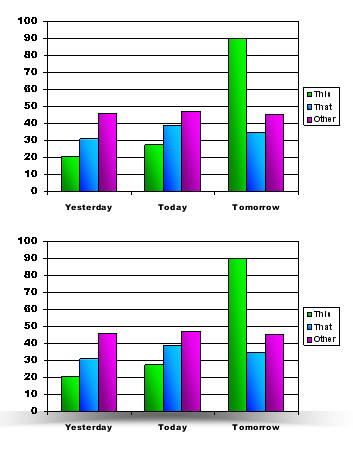
A simple shadow element can add depth and eliminate some of the flat look and feel of a slide. In the last post I added a simple shadow box to a list box and a chart, here is how to create the shadow box – using PowerPoint autoshapes.

First create a rectangle. Set the fill to black and no outline/stroke.
PowerPoint rectangle autoshape

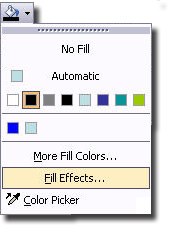
With the rectangle selected go to the Fill Effects.
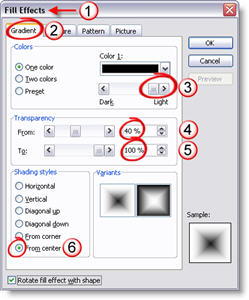
Fill Effects

(1) In the Fill Effects window
(2) Go to the Gradient tab
(3) Move the slider all the way to the right/lighter
(4) Adjust the From opacity to 40%
(5) The To opacity should be at 100% (set when we moved the slider in #3)
(6) In the Shading Styles select From Center
Fill Effects Settings

Your rectangle will now look like this:
Smooth Gradient Filled Rectangle

The best thing about this rectangle is that it is a native PowerPoint autoshape. It can be adjusted as large or small as needed without any distortion or loss of quality. In addition you can go back into the Fill Effects and change the color and the inner opacity to best suite your slide!

Troy @ TLC

By |2016-09-16T11:44:50-07:00April 20th, 2006|Tutorial|

Visual Appeal to “Standard” Elements

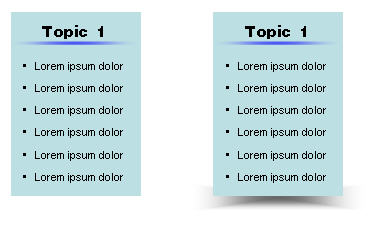
If you look at these two examples, there is only one difference between the “before and after” elements; the addition of a shadow box to add depth.

The wonderful thing about both of these is the shadow box element was created using native PowerPoint autoshapes. So in just a few clicks elements in your presentation can get a little extra pizzaz!

(Up next, how to create shadow boxes)

Troy @ TLC

By |2016-09-16T11:44:18-07:00April 18th, 2006|Portfolio, Tutorial|

Acura Show and Versatubes

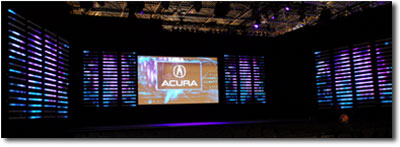
Just wrapped up work at the New York Auto Show (weather was perfect!). Here is the staging for the Acura meeting. The large screen in the center is a traditional (high-definition) rear-projection screen. All of the bars on the sides are called Versatubes.
Acura NY Auto Show staging
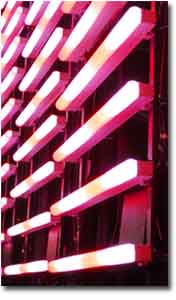
1 computer for center screen graphics. 1 computer for LED Versatubes on the immediate left/right of center screen. 1 computer for LED Versatubes on the left/right sidewalls. The versatubes are literally a grid of “light bars” that interpret the video signal and display the PowerPoint slide across them. Think of pointillism(eg. seraut)when looked at up close is just a bunch of dots, but from a distance it is a picture; same idea with versatubes.
Close up of the Versatubes

By |2016-09-16T11:43:30-07:00April 16th, 2006|Personal, Portfolio|

Making Movies SMALL and making them WORK

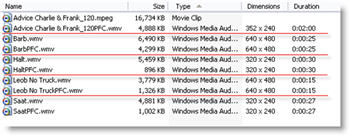
So the best way to assure (as much as possible) that linked movies play is to create them using a standard Windows Codec and use the most native Windows format (.wmv). The easiest way to accomplish this, reduce the file size and maintain quality is to have the PFCMedia add-in handle inserting and converting the movie.

One of the surprises is how well it optimizes the video files. Take a look at these before and after file sizes. The .mpeg1 files were supplied by client and the **PFC.wmv files created with PFCMedia, almost a 50% file size reduction and no noticeable quality loss during playback!

PFCMedia shrunk my movies by 50%!

Troy @ TLC

By |2016-09-16T11:42:56-07:00April 14th, 2006|Software/Add-Ins|

Computer Cables Gone Wild

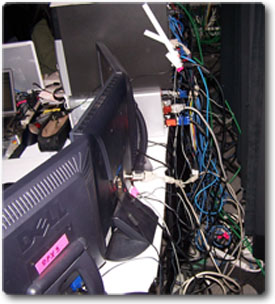
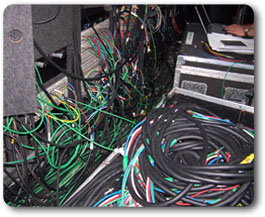
I am spending the week at the New York Auto Show working on press event presentations for both Honda and Acura. Tons of very cool presentation technology in action, but it just dawned on me how big of a mess I’ve created over the past two days.

Here is what happens when you have no room to work and you setup eight computers, power for stage lighting, controls for car turntables and I’m not sure what else is down there at this point…
Cables for my 8 computers and the other stuff...

Of course it could always be worse. Here is the just one of the video production area cabling!
Cables for just one section of "video village"

Troy @ TLC

By |2016-09-16T11:42:23-07:00April 12th, 2006|Personal, PowerPoint|

How many people are suppose to be at this meeting…

Okay, for most this will not apply. But I am in meetings at convention centers and resorts every week. It is always a bad day when someone miscalculated and to many people are squished into to small of meeting room. Here is an interesting online calculator that estimates how big a room should be reserved based on the seating type, and type of table used, and number of people attending. Check it out here.

-Troy @ TLC

By |2016-09-16T11:40:50-07:00April 10th, 2006|Personal, Resource/Misc|

Is it a Good Seat? Find Out on SeatGuru.com

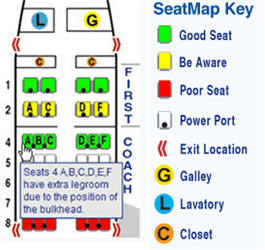
I travel to a different show virtually every week, so I am constantly on airplanes (this week L.A., next week New York for the NY Auto Show). Of course with a cross country flight I want to make sure I have a good seat, preferably with a power port.
Seat Guru .com
You may have noticed that some seats seem better than others – I have. After booking my flight, my first stop is SeatGuru.com. With your airline and flight info, look up the seating chart for that airplane, make sure you do not have a ‘yellow’ seat, check if it has a powerport and make sure you have the best seat in your category!

– Troy @ TLC

By |2016-09-16T11:40:02-07:00April 8th, 2006|Personal, Resource/Misc|

What is an .M4A?

.MP3 and .Wav are audio file formats that PowerPoint recognizes. Another very common format is .M4A (audi-only version of an .MP4), and you have heard of even if you do not think so.

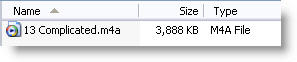
.M4A is the format of Apple iTunes music files. It is for the most part a higher quality file than an .mp3 and a smaller files size. Here is what an “M4A” looks like:
.M4A is an audio-only version of an .MP4

Unfortunately PowerPoint does not support the .M4A format, so if you download a song from iTunes it will need to be converted to another format (.mp3 or .wav).

-Troy @ TLC

By |2016-09-16T11:39:30-07:00April 6th, 2006|Tutorial|

What’s an “Ogg”?

.MP3 and .Wav are audio file formats. Another is .ogg, which is much common but with many .mp3 players supporting it you are likely to encounter one when developing a presentation at some point.

Vorbis is the group behind the .ogg format and it is for the most part a higher quality file than an .mp3. The Ogg Vorbis is a fully open, non-proprietary, patent-and-royalty-free, general-purpose compressed audio format for mid to high quality audio and music. Here is what an “ogg” looks like:

Unfortunately PowerPoint does not support the .ogg format, so if someone sends one to you for a presentation you will need to convert it to another format (.mp3 or .wav) in an audio editing application.

-Troy @ TLC

By |2016-09-16T11:38:38-07:00April 4th, 2006|Tutorial|
Go to Top