I work with PowerPoint on a daily basis and I am very honored to be a Microsoft PowerPoint MVP. We have a talented team of presentation designers at TLC Creative Services and ThePowerPointBlog is our area to highlight PowerPoint tips, tricks, examples and tutorials. Enjoy! Troy Chollar
Why Separate Text Boxes Over Shapes is BAD
Continuing on from the previous post, “Circles and Text (that does not fit)“, with some best practice reasons for NOT stacking a text box on top of a shape.
- It is lazy formatting.
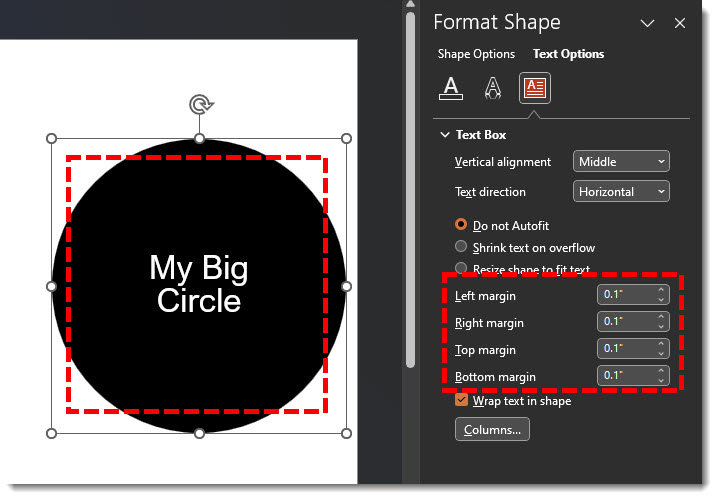
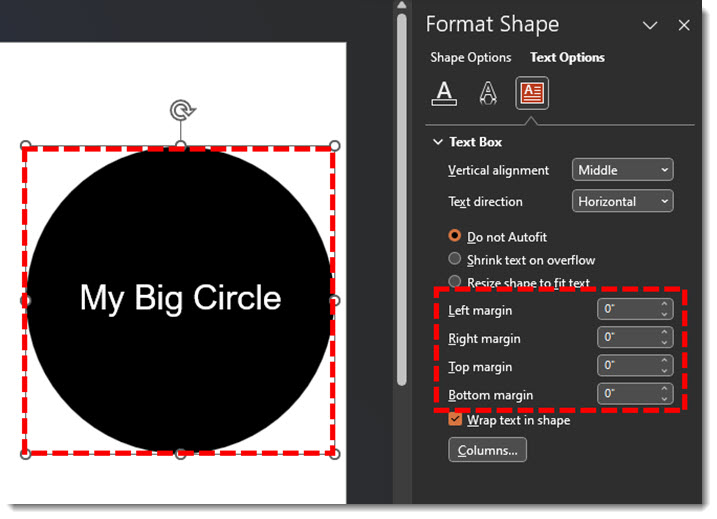
- Often it is because knowing how to control PowerPoint’s text formatting within a shape are not features used (see the previous post on using shape internal margins as an example of formatting options that are not commonly used).
- It makes future edits to the slide tedious. As an example, two elements, the shape and the text box, need to be moved together to stay aligned.
- Text boxes stacked on top of a shape generally are not truly horizontally aligned to the shape. As example, a text box stacked on top of a shape with the text horizontally centered is most likely not actually centered, because the text box margins push the text off center – ugh!
- Animation seems easier, but again, a shape and text within the shape can be set as independent elements on the animation timeline – overcoming almost every instance where the two separate elements have been stacked and animated separately.
- The Office/PowerPoint accessibility tools do not work, because they have several limitations on identifying stacked elements. As example, white text on top of a light blue shape is (currently) not seen by the accessibility checker as a flagged low contrast item, because PowerPoint looks at a text box, what that text box shape fill color is, and then the slide background. It ignores layered elements.
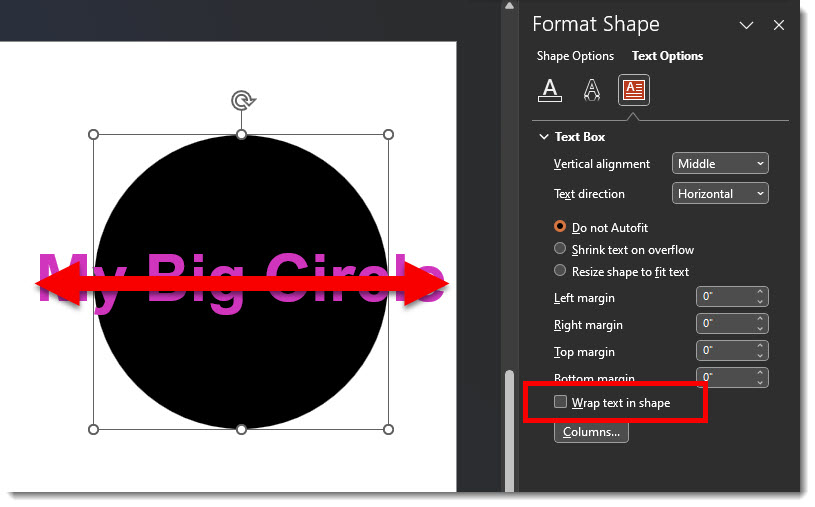
- It is easier to manage text line wraps if the text is within a shape vs. manually adjusting – and the line wrap needs are automatically updated when the shape, or the text size, is updated – if the text is part of the shape.
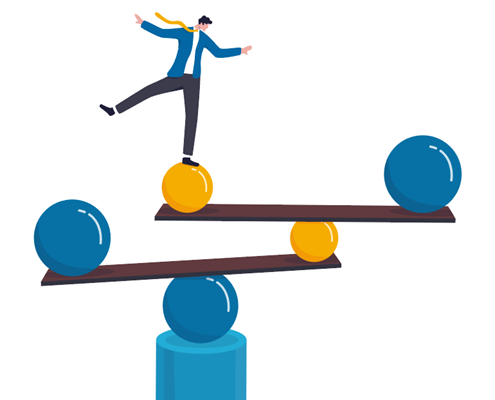
The important message is, creating PowerPoint slides is a balancing act of what is fast and looks okay vs. using best practices to create slides that are future-proofed for easy formatting and use.
Troy @ TLC