The PowerPoint® Blog

I work with PowerPoint on a daily basis and I am very honored to be a Microsoft PowerPoint MVP. We have a talented team of presentation designers at TLC Creative Services and ThePowerPointBlog is our area to highlight PowerPoint tips, tricks, examples and tutorials. Enjoy! Troy Chollar

The Office Toolbar – New – Collapse and Expand Options

Here is my standard PowerPoint toolbar configuration. Tabs + Ribbon (toolbar) + QAT

With the Office Visual Refresh, the view options. Click the icon in lower right of the TOOLBAR to show the display options. And my standard toolbar configuration above is the ALWAYS SHOW RIBBON option.
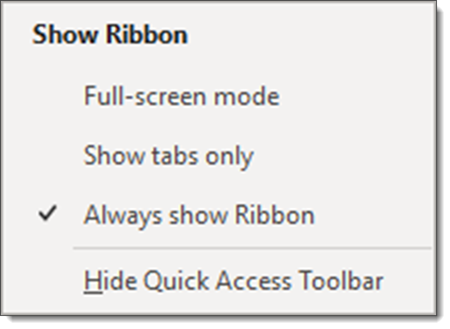
Clicking the FULL-SCREEN MODE option removes everything in the toolbar; tabs, toolbar, QAT. Note: click the very top of the screen, or PowerPoint app window, and the full toolbar temporarily is added over the slide edit view (then click the right icon to show the display options menu).

 

SHOW TABS ONLY is basically the same view we had previously when the toolbar was collapsed.

And now the SHOW/HIDE QUICK ACCESS TOOLBAR is an option in all 3 of the toolbar display options.  By hiding the QAT, here is my standard toolbar setup without the QAT available (something I would never do!)

Troy @ TLC



By |2021-11-15T09:46:30-08:00November 22nd, 2021|PowerPoint|

Collapse/Expand PowerPoint’s Toolbar – the Legacy Buttons

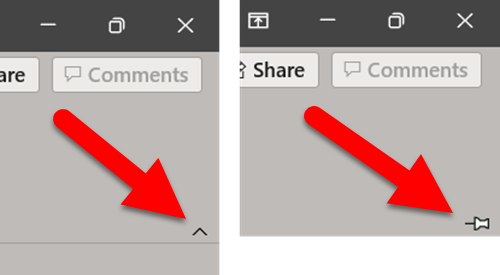
This blog post is more for our long term memory as the Office Visual Refresh has changed way the toolbar visibility has changed. So when you look at the toolbar (after the Visual Refresh has installed) and think, “this looks different” – well it does and this is what it previously looked like. Two buttons; collapse and a pin to keep it expanded.

Troy @ TLC

By |2021-11-15T09:26:27-08:00November 18th, 2021|PowerPoint|

Lori Chollar on The Presentation Podcast!

Lori Chollar of TLC Creative Services takes control of The Presentation Podcast with Sandra Johnson for an amazing conversation about the presentation industry from the women’s perspective. Join Lori Chollar, Sandra Johnson, Jude Barak, Wendy Gates-Corbett and Yulia Barnakova for a conversation they recorded at the Presentation Summit!

Listen to the podcast here.

By |2021-11-16T07:35:58-08:00November 16th, 2021|Resource/Misc|

New PowerPoint Animation!? Basic Zoom Effect Options

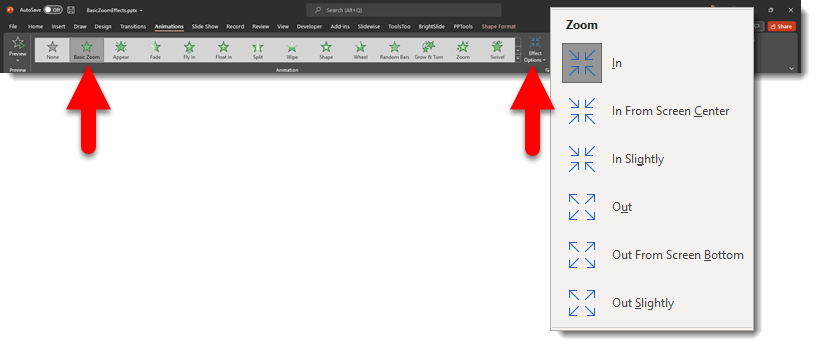
So, I do not know the answer to this, but I believe this is something new in the PowerPoint animation options!

Maybe the better question to start with is, does anyone recall if the IN SLIGHTLY and OUT SLIGHTLY effect options to the BASIC ZOOM animation have been there?

I do not recall these options being available and have long used a combination animation of a Zoom + Fade to create the effect (Tip: use the Brightslide PPT add-in “My Animations” to create a quick to apply library of custom animations!). I also reached out to Steve Rindsberg and sent him the above screen capture. He looked in a few legacy installs of PowerPoint and commented that the In Slightly and Out Slightly effect options were not there. So… is this an exciting new addition, or something I just cannot remember was there?

[videopack id=”15397″]https://thepowerpointblog.com/wp-content/uploads/2021/11/BasicZoomEffects.mp4[/videopack]

Troy @ TLC

By |2021-11-13T10:56:45-08:00November 15th, 2021|PowerPoint, Resource/Misc|

Windows 11 Date Calculator!

I am getting familiar with Windows 11 and discovered this gem. I am assuming it is new with Windows 11, but maybe it has been there for awhile and I have been missing out!

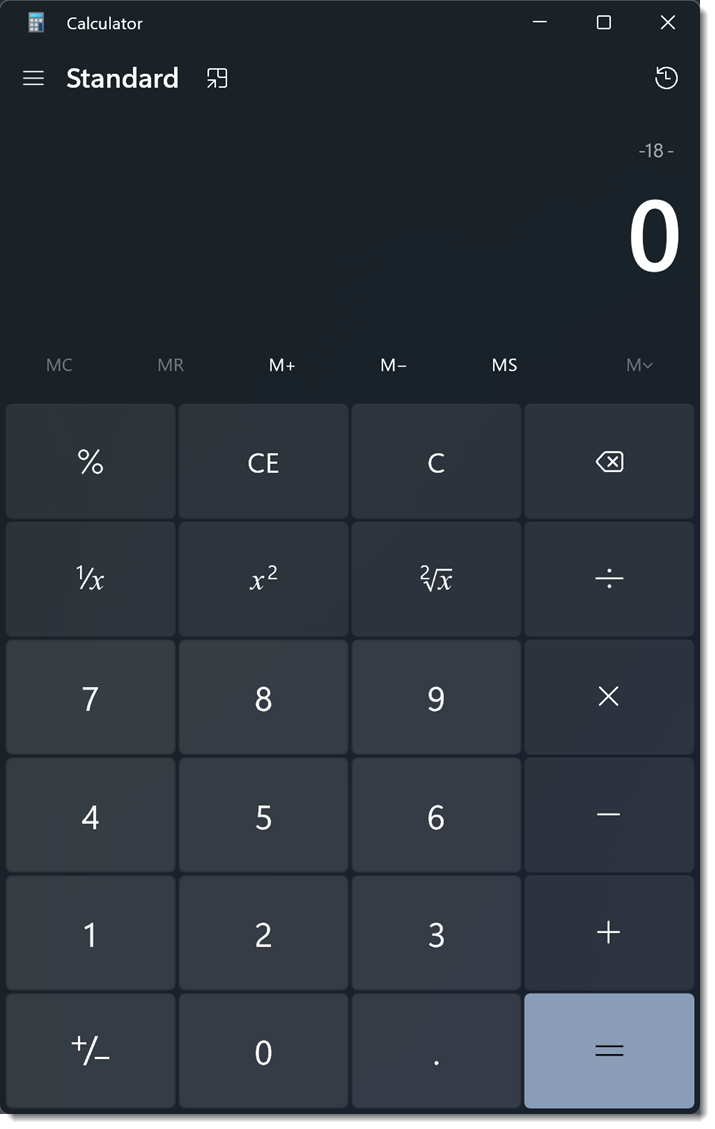
Here is the Windows calculator (I seem to use it multiple times each day).

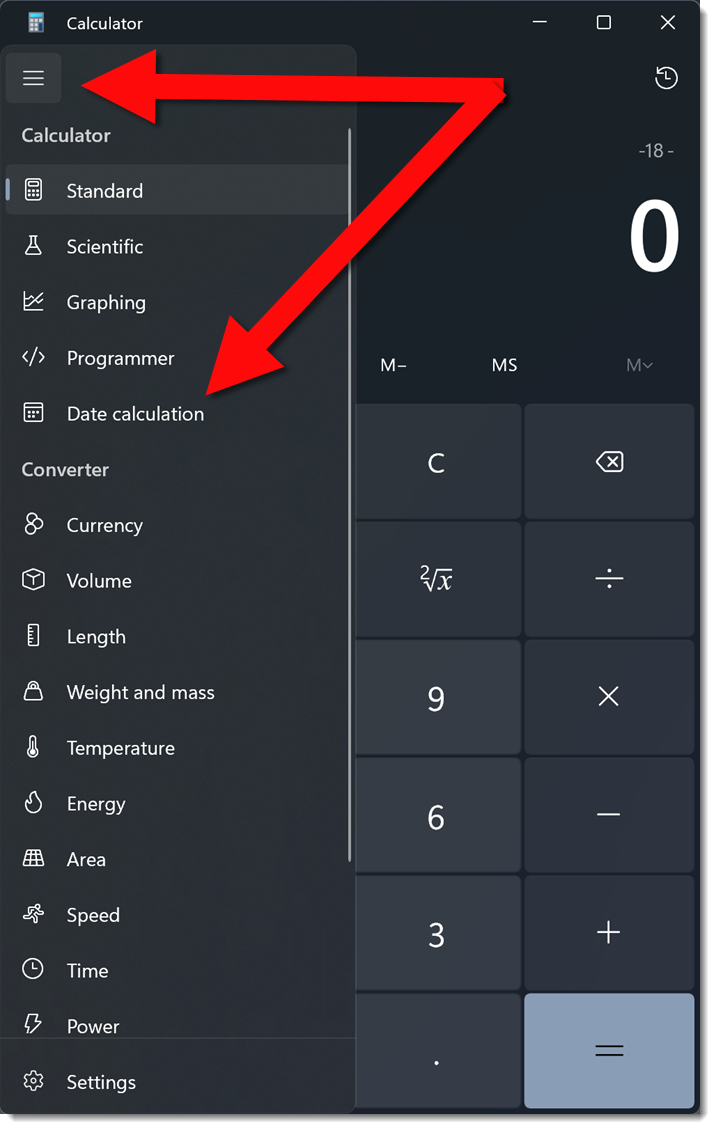
Clicking the upper left menu shows the list of various types of calculators. I discovered the DATE RANGE calculator function, and I am thrilled!

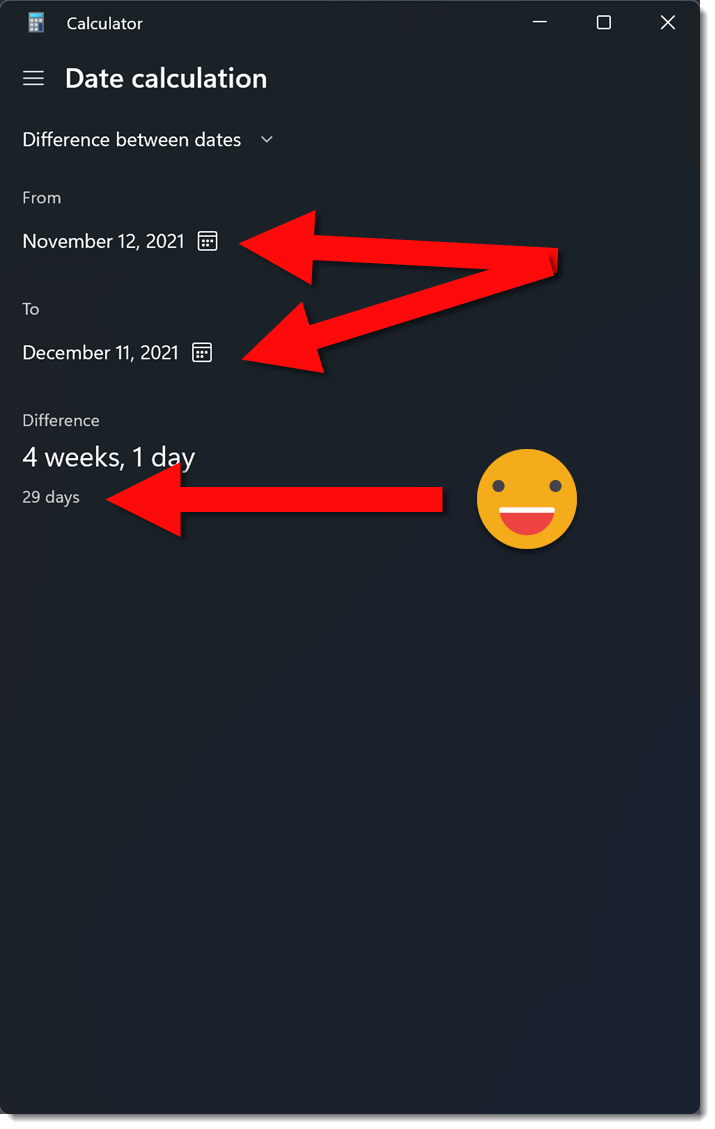
Select DATE CALCULATION. Pick a starting date and an end date from calendar pickers. The bottom row instantly displays the number of days in the range selected. No more counting days in the Outlook calendar!!

Troy @ TLC

By |2021-11-04T06:47:40-07:00November 11th, 2021|Resource/Misc, Software/Add-Ins|

Convert Keynote file to PowerPoint File Online, Free and Fast!

Do I know Apple Keynote for Presentation design? Absolutely!

Is Apple Keynote your main presentation design app? No, not for a long time.

Can I give you a Keynote file? Absolutely, but all of our Mac computers are at the studio and everyone is working remote, so I will convert the file to PowerPoint.

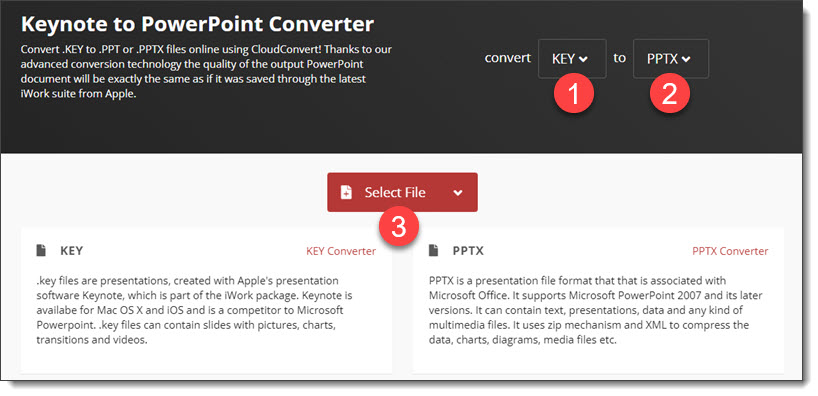
Now, the big question is, how do you convert an Apple Keynote file to PowerPoint if you do not have a Mac computer available? The answer is easy – and free – and fast – and very accurate conversion! I use cloudconvert, an online file convert app. The website lists they support “nearly all audio, video, document, ebook, archive, image, spreadsheet, and presentation formats.” And I have used this resource for many file types – and just last week, for converting another Keynote presentation to PowerPoint format so I could integrate a presenters slides into the master show presentation (which is being run in PowerPoint).

Go to cloudconvert.com

In the CONVERT menu select PRESENTATION and KEY (Keynote)

In the TO menu select PPTX (PowerPoint)

Click SELECT FILE

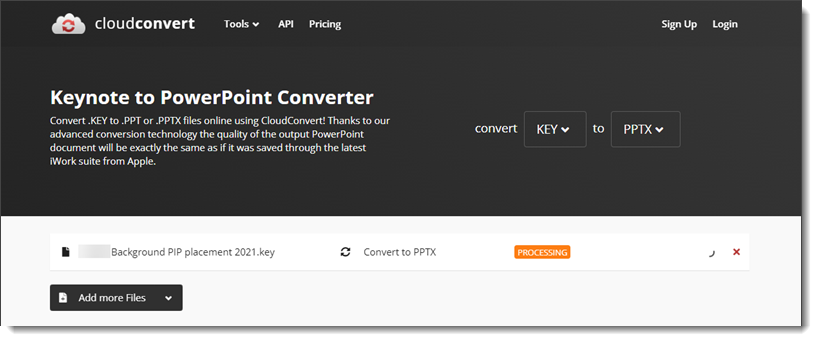
Click CONVERT

When done processing, download the .pptx version of the presentation to work with (knowing the conversion process does not provide a full feature PowerPoint template file, no matter how good or bad the Keynote file is setup).

Troy @ TLC

By |2021-11-04T06:48:15-07:00November 9th, 2021|Resource/Misc, Software/Add-Ins|

Your vs. You’re

When we put out a hiring listing Lori and I have the task of evaluating 200+ resumes. One of our rules is if there are typos in the cover letter or resume, that person is removed from the review process.

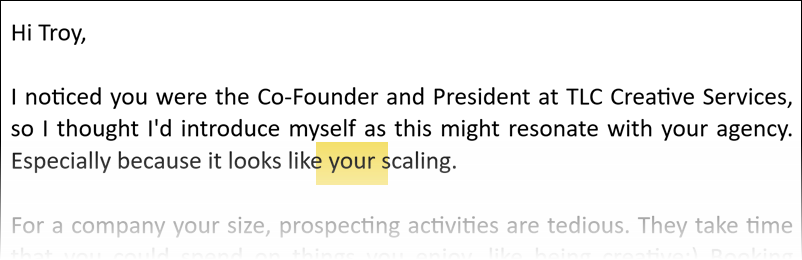
In a recent email, a solicitation, this one did not make it past the first paragraph before I deemed it ready to delete. Then I went back to it to capture the above screen capture for this blog post!

The email contained several spelling, punctuation, and content errors… I have read the statement multiple times and I not certain if the meaning was “you are” (you’re) or that I was physically scaling (which just is a creepy weird thing) – either way, this is a poor prospecting email and I am guessing does not receive much traction in people following up.

Troy @ TLC

By |2021-11-04T06:45:42-07:00November 5th, 2021|Personal|

SlideWise – Turn Off Auto-open

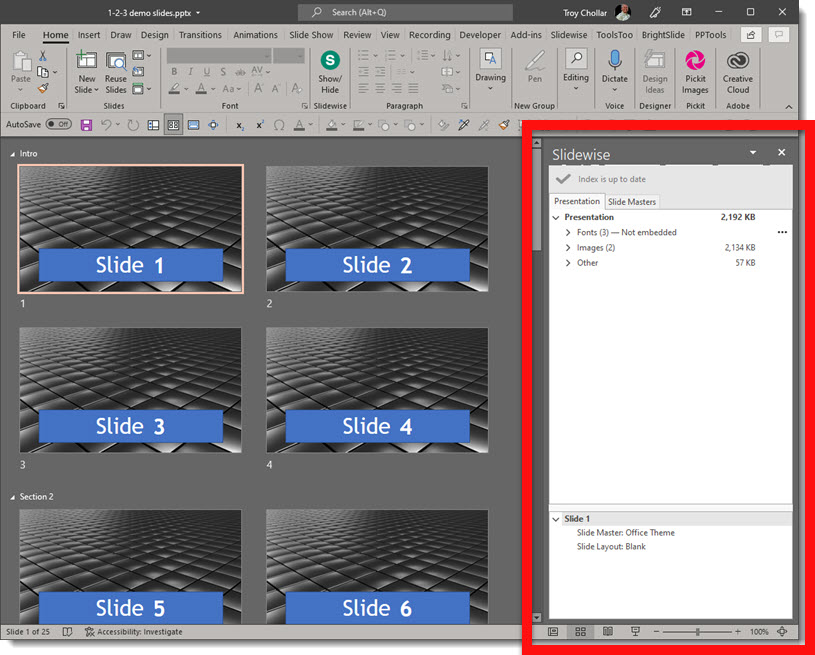
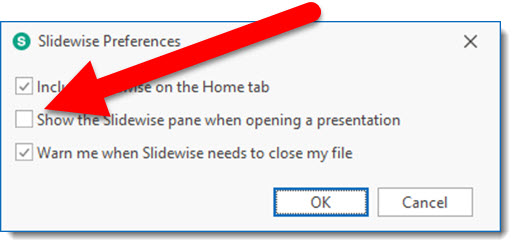
Starting with Slidewise v1.2, the default is for Slidewise to auto open with each presentation opened. For some, this is good. For me, I want to focus on the slides and open Slidewise when I need it. So, how do we turn off the auto open setting?

Go to the SLIDEWISE tab and click the PREFERENCES button to open the Slidewise Preferences dialog. The middle option, “show the slidewise pane when opening a presentation” is checked. Now, for me, unchecking this, click OK and closing PowerPoint to lock in the settings, did not work. Opening the next presentation, Slidewise again auto launched – frustrating.**

**Note: in talking with the good people at Neuxpower (developer of Slidewise), this behaviour of the Preferences not sticking was a v1.2 bug and resolved with v1.3 and above. Because I have already applied the below registry update, and then updated to v1.3, I cannot confirm the preference settings now stick and work, so the below may be informational and not needed at this point! (as of this post date, slidewise v1.3 is available)

I am guessing my experience is not isolated as Neuxpower has a specialty action tool to force Slidewise to not open. Go to the Neuxpower website’s Slidewise support page here.

Download the “DisableAutoOpen.reg” installed that will change the Slidewise OS registry to force it to not auto launch (there is also a download installer that re-enables the auto launch in the registry if needed). Follow the instructions on the webpage to install.

Troy @ TLC

By |2021-10-26T08:44:18-07:00October 29th, 2021|Software/Add-Ins|
Go to Top