The PowerPoint® Blog

I work with PowerPoint on a daily basis and I am very honored to be a Microsoft PowerPoint MVP. We have a talented team of presentation designers at TLC Creative Services and ThePowerPointBlog is our area to highlight PowerPoint tips, tricks, examples and tutorials. Enjoy! Troy Chollar

What is “Free”?

Using “free” images in presentations has become a dilemma over the past several years – at least from my perspective as a professional designer working with end clients in dozens of industries. To help protect our clients and TLC Creative Services from potential implications from using unlicensed images, we have in recent years added specific clauses in our client agreements. These statements detail that we are not responsible for the licensing of any images supplied by our clients, and that images we provide are only for use in the specific presentation or project they are being supplied for. There is a lot of confusing legal language coming from the various image companies, each with their own twists as to what is, and is not, permitted.

So a “free” image may be a gamble for everyone. The biggest issue over the past decade has been the ease of searching for a photo online and then pasting virtually any online image into a presentation without regard to image ownership. I have read in several places that up to 85% of images downloaded from the internet are unlicensed and used illegally! This isn’t easy to control, and when an employee uses an online sourced image in their presentation, tweet, blog post, print project, or other publicly viewed creation, it is the company that is at risk of legal action.

Recently, Pickit introduced a new and very clearly defined image licensing model called “Legally Cleared(TM)”. I believe Pickit has done a superb job of not only providing a great image resource but also explaining the big picture (pun intended) of what the legal issues surrounding image use are. I encourage everyone to take 3 minutes to read this informative page on the Pickit site.

Burst, by Shopify, is a good example of how licensing agreements should be worded for end users. They make everything very clear, in non-legalese language, what royalty free means for their images (just scroll to bottom of the home page here).

At TLC Creative Services we annually select an image resource subscription (Adobe Stock, Getty Images, iStock, etc.) and include access to it with all our projects. We purchase images of course, but when possible, we have our client purchase the image licenses and supply those images to us for use in their projects. We also recommend image resource sites that provide licensed images at low or no cost to our clients (The PowerPoint Blog is highlighting several of these images sites throughout the month of July).

The bottom line is, there are legal responsibilities every time an image is added to a presentation, or any project. In this new era of GDPR (General Data Protection Regulation), the potential for legal action for using “borrowed” images is increasing. So, “what is free”? From my perspective, it’s not about the price paid to license an image, it’s about understanding the proper licensed uses of your images, which in turn should keep you free of legal issues.


Troy @ TLC 
By |2018-07-06T14:00:47-07:00July 6th, 2018|Resource/Misc|

Happy 4th of July, America!

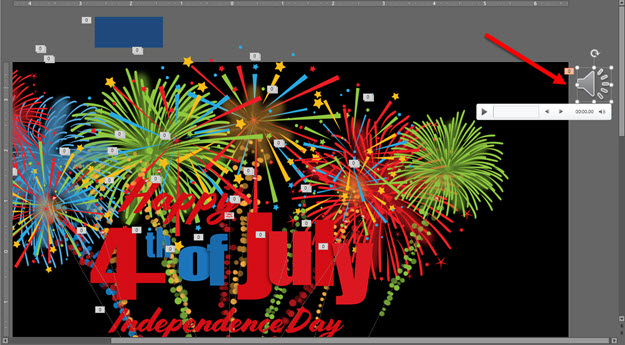
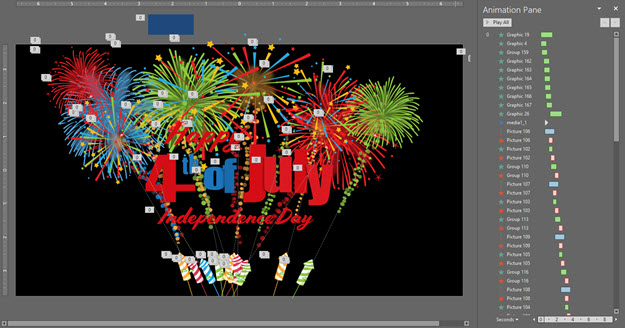
Happy 4th of July from the TLC Creative design team! Christie on our design team developed this fun animated slide to share with everyone.

[KGVID]https://thepowerpointblog.com/wp-content/uploads/2018/07/unnamed-file-1.mp4[/KGVID]

This fun PowerPoint slide has a lot of layers of images, lots of animation, and a fireworks audio track!

4th of July 2

Fireworks SFX sourced from one of our go to resources, AudioBlocks

4th of July 3

Enjoy the Fireworks this evening, America! Download the editable PowerPoint slide here.


Troy @ TLC

By |2019-10-30T05:56:16-07:00July 4th, 2018|PowerPoint|

The Presentation Podcast Episode #57 Released Today!

A new episode of The Presentation Podcast with Troy, Nolan, and Sandy is available today! 

PowerPoint Sections, first introduced in PowerPoint 2010 are still a hidden feature to many. Troy, Nolan and Sandy spend a whole episode to talking about this great, and underutilized feature. How they use, when they use, and reasons to use PowerPoint sections, along with tips & tricks, asks of Microsoft and examples. Enjoy another PowerPoint conversation!

By |2018-07-03T16:01:24-07:00July 3rd, 2018|Resource/Misc|

Change Shape of a Video

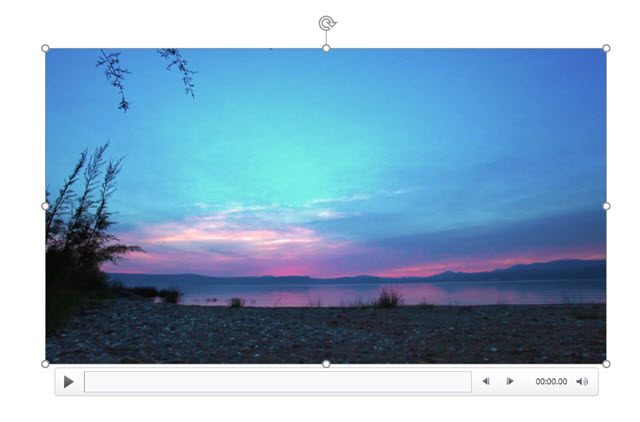
Earlier this month, was how to use PowerPoint’s Change Shape tool. Using the same tool, videos are not limited to rectangles! Essentially the Change Shape for videos crops any video to a new shape.  

First, insert your video and select it.

Change Shape on Video 1

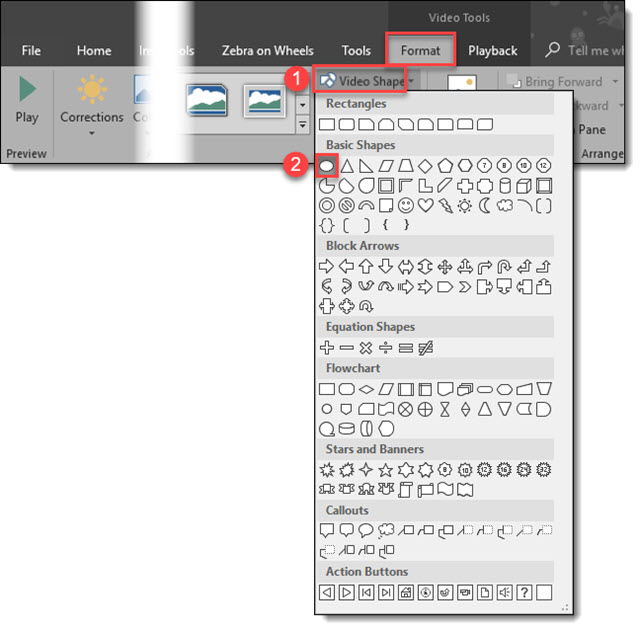
Go to Video Tools > Format Tab, click Video Shape > Oval (or other desired shape).

Change Shape on Video 2

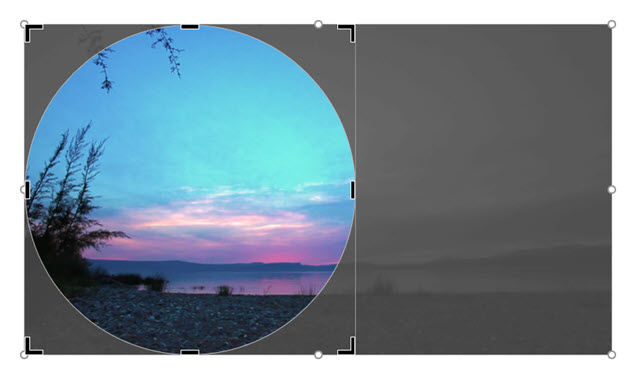
The video is now cropped to an Oval.

Change Shape on Video 3

The same crop tool functionality used on images works on videos. By default, the Video Shape tool crops to the existing rectangle aspect ratio. To make the video playback a perfect circle, use the crop tool to manually change the aspect ratio to 1:1. 

Note: adjust the viewable area of the video by repositioning the video in the cropped area while the crop tool is selected.

Change Shape on Video 4

The video is now a circle, or a star, a heart, or any other shape in the Video Shape library!

Change Shape on Video 5

Whichever shape you select, the video will export and play in that format.

Troy @ TLC

By |2018-06-10T07:51:05-07:00June 29th, 2018|Tutorial|

Lock Aspect Ratio

When it comes to design, there are few things worse than seeing distorted shapes, pictures, and text. In presentations, we often see distorted headshots, picture place holders, callout shapes and more. Powerpoint’s “Lock Aspect Ratio” feature helps ease the task of resizing any shape, photo, or placeholder.

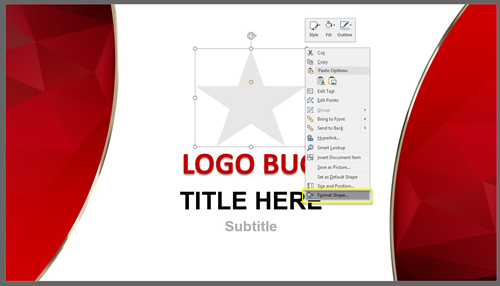
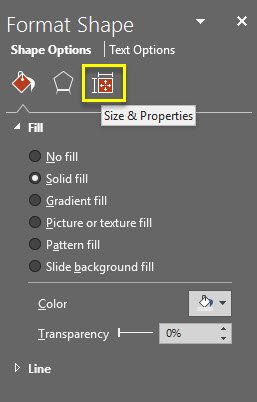
  • Right click on the object you wish to resize and select “format shape.” This will open the right format shape panel, select the size & properties tab.

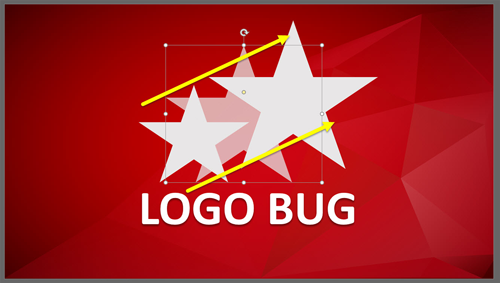
  Lock Aspect 1 LockAspect2


Under the size dropdown, check the Lock aspect ratio box. You now can grab any of the four corners of the bounding box and resize without any distortion. Previously, this was only achievable by holding down alt.

Lock Aspect 3 Lock Aspect 4


  • Now, drag and resize your shape to your desired size.

Lock Aspect 5


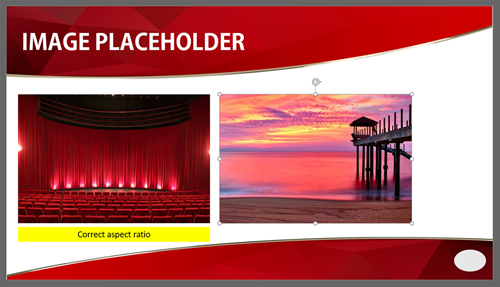
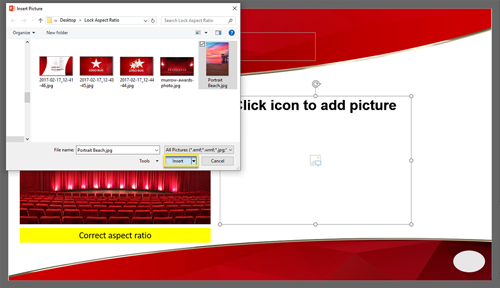
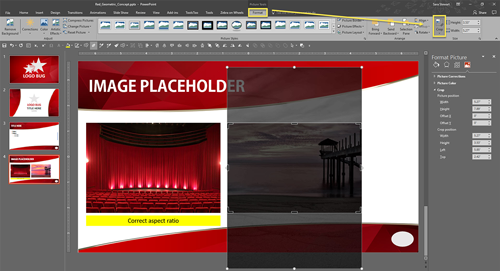
This trick comes in handy in many situations, but for us, its most effective when it comes to images and placeholders. For example, we see a lot of org charts or presentations that have speaker slides with images, where you want your image size and proportions to be consistent. Selecting the “Lock Aspect Ratio” box in the master for these placeholders, allows us to add an image that will be cropped to this size. (You can easily change how the image is cropped in the Format tab > Crop)

Lock Aspect 6  Lock Aspect 7Lock Aspect 8

Troy @ TLC

By |2018-03-23T09:28:24-07:00June 27th, 2018|Tutorial|

Making Text Align to the Edge of the Text Box

Text boxes in PowerPoint are like mini-word documents. Each one has its own margins, tabs and formatting.

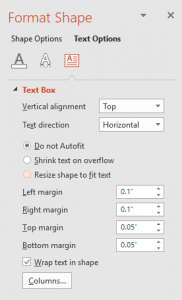
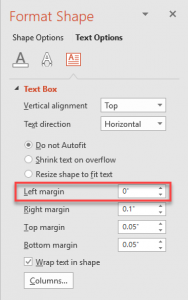
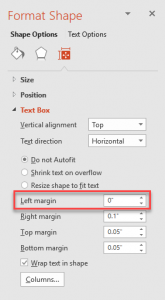
The text box formatting options (margins, tabs, line spacing, etc.) for each text box can be modified in the Format Shape dialog. Select a text box > FORMAT > open the FORMAT SHAPE pane > TEXT OPTIONS > TEXT BOX. Or right-click any text box and select FORMAT TEXT EFFECTS > TEXT BOX.

Just one example of where modifying a text boxes internal margins can help the visual layout is when a design needs the text to flush align with other objects, vertically and/or horizontally, the text box margins interfere with the results.

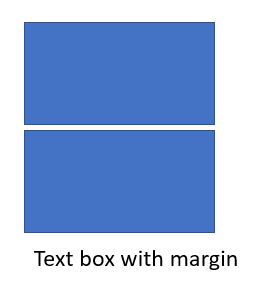
For this example, it is making the 3 objects, 2 boxes and 1 text box, all with the ALIGN LEFT tool, vs. manually adjusting the position of the text box so the text inside it is visually aligned with the objects above it. 

The left edge of all three align, but visually the text is indented, but they are actually aligned to the left edge.

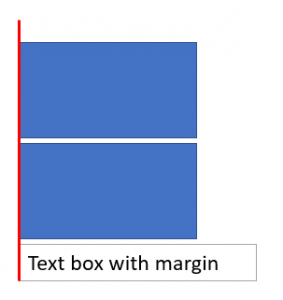
Instead of manually moving the text box left to visually align the text with the two boxes, adjust the text box margins – set the left margin to zero.

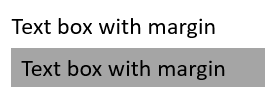
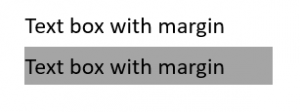
To illustrate, here is are two text boxes. They have identical formatting, but the lower one has a solid fill to show the text margin. The top text box has a zero left margin. The bottom text box has the default .1″ inset margin pushing the text away from the true left edge.

To make the text align to the left edge, go to the Format Tab and click on the small arrow under the text portion for the FORMAT SHAPE menu.

Select TEXT BOX in the left column and on the right in the INTERNAL MARGIN section change the LEFT to “O”.

The text now aligns flush to the left edge.

At TLC Creative we are constantly working with text box internal margin settings to create visual layouts. It is easier if each text box is visualized as a mini-Word document with it’s own settings.

Troy @ TLC


By |2018-06-25T08:06:11-07:00June 25th, 2018|Tutorial|

What is the Tab Selection Order on a Slide?

Many times, in PowerPoint, you may find yourself with layered content that makes it difficult to format, adjust animations, etc. A great tip is to know about the TAB key. Select any object on the slide, then click the TAB key to rotate through selecting every visible object on the slide. Bonus tip: use SHIFT + TAB to reverse the selection order.

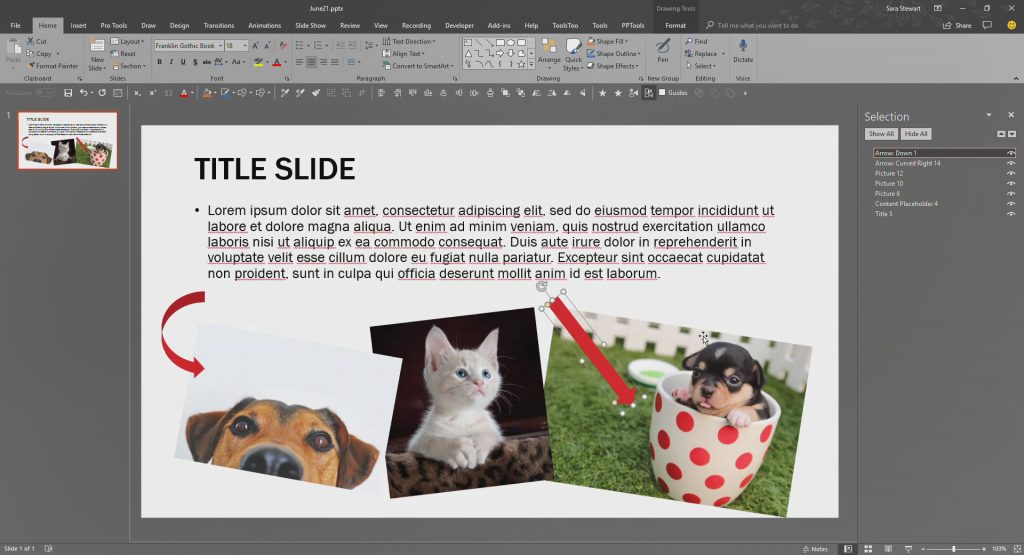
So, how is the selection order of tabbing chosen? Look to the SELECTION PANE. The Selection Pane is the order that the TAB key follows. It not only shows every element on a slide, but has the functionality to change the name of each element, and enables turning on/off the visibility of any element on a slide.

To turn on your selection pane, go to HOME > SELECT > SELECTION PANE from the drop down. Or for all of TLC Creative we have the Selection Pane on our custom QAT.

Selection Order 1

With the Selection Pane open, use the TAB key and the selected objects go down (or up with SHIFT + TAB) the object list. Or click on any element in the Selection Pane to select any object on the slide.

Selection Order 2

[KGVID]https://thepowerpointblog.com/wp-content/uploads/2018/06/unnamed-file-1.mp4[/KGVID]

Use the TAB key to move through the layers of objects on the slide. The tabbing order follows the Selection Pane order, also referred to as the z-order, or the stack order.

Troy @ TLC

By |2019-10-30T05:53:46-07:00June 21st, 2018|Tutorial|

The Presentation Podcast Episode #56 Released Today!

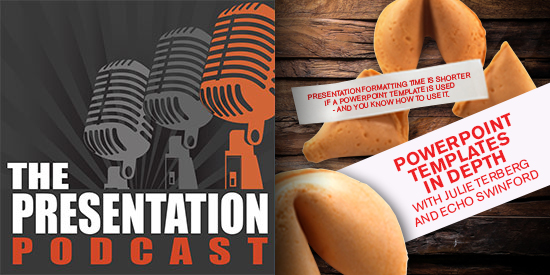
A new episode of The Presentation Podcast with Troy, Nolan, and Sandy is available today! Check out the latest episode, #56 – PowerPoint Templates In Depth with Julie Terberg and Echo Swinford.

PowerPoint templates are a key, and fundamental, feature of PowerPoint. We have all seen “templates” that are far from a true, functional and helpful PowerPoint template. Troy, Nolan and Sandy are joined by two industry experts in PowerPoint template development who literally wrote the book on PowerPoint templates, Echo Swinford and Julie Terberg.

By |2018-06-11T10:19:04-07:00June 19th, 2018|Resource/Misc|
Go to Top