PowerPoint

PPT 2013 – Equidistant with the New Smart Guides

Smart Guides were introduced in PowerPoint 2010 and are a great feature. PowerPoint 2013 has made the good tool even more usable. Smart Guides can now visually show when shapes are equally spaced apart from one another.

This feature is easier to see than explain, so here is a demo showing 6 boxes being aligned and equally spaced (and another great selection of background music).
[youtube src=”https://www.youtube.com/embed/vZmppYSsuhI?rel=0″]

– Troy @ TLC

By |2016-08-16T09:14:48-07:00August 15th, 2012|PowerPoint|

PPT 2013 – The Eye Dropper is Here!

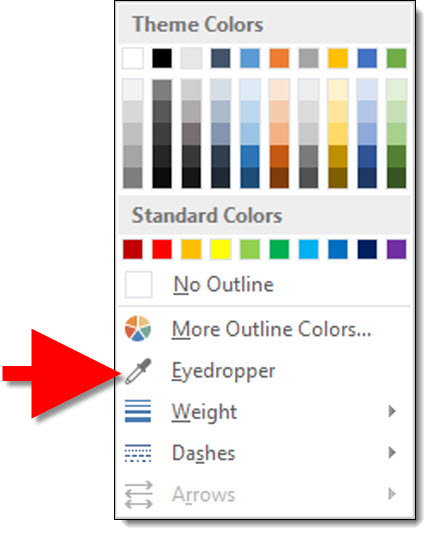
The Eye Dropper tool is common in virtually all image and graphics programs – but not PowerPoint. An Eye Dropper tool lets you select a color from anything on your screen, without entering a color value (RGB, CMYK, Hex, etc.). It is just a point-click-select-done tool. For many years, I have made great use of the PPTXtreme Color Picker add-in to add the Eye Dropper tool to PowerPoint and it has been invaluable.

PowerPoint 2013 introduces a new Eye Dropper tool!

Here is the Eye Dropper in use (and the music is kind of catchy…).
[youtube src=”https://www.youtube.com/embed/14jC_a3jtdk?rel=0″]

– Troy @ TLC

By |2016-08-16T09:15:06-07:00August 13th, 2012|PowerPoint|

PPT 2013 – New Page Curl Transition!

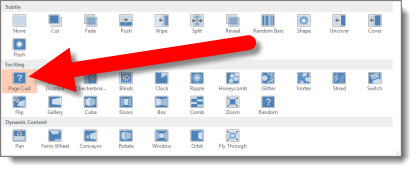
PPT 2013 has lots of subtle updates and additions. One great addition is a new slide transition – Page Curl.

The transition does exactly what its name implies, it visually mimics a book page being turned.
[youtube src=”https://www.youtube.com/embed/TAH85_q8R-U?rel=0″]

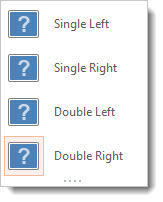
There are 4 options: 2 mimic a single large page turning and 2 mimic an open book and one half turning over the other half.

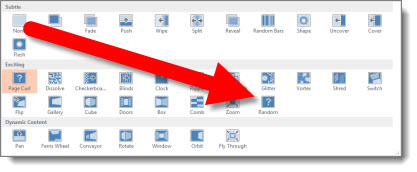
In the Public Beta of PowerPoint 2013, one additional transition is in the options – Random. This transition option disappeared in PPT 2007, so it is not really new.

I am guessing (hoping) more exciting options will be in the full release (time will tell).

– Troy @ TLC

By |2016-08-16T09:15:43-07:00August 10th, 2012|PowerPoint|

PPT 2013 – New Format Picure Dialog

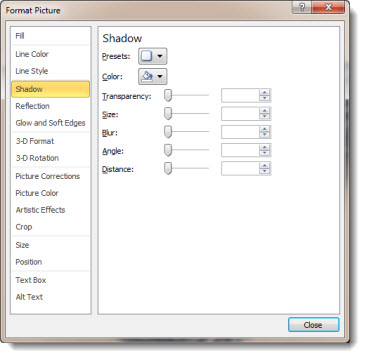
Here is the familiar Format Picture dialog from PPT 2010:

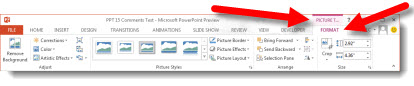
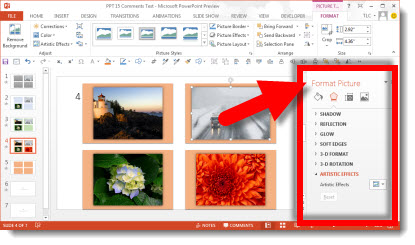
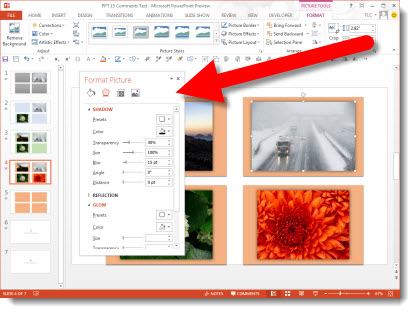
In PPT 2013, the tools options and features remain the same, but the dialog gets a remake. The Format Picture ribbon shows the Metro icons:

Opening the Format Picture dialog opens a new pane on the right:

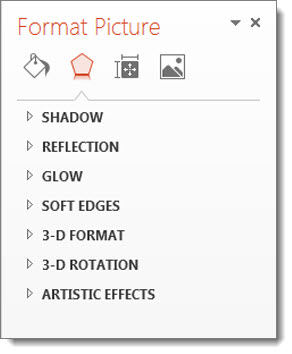
This new single pane is where all of the formatting options are accessed:

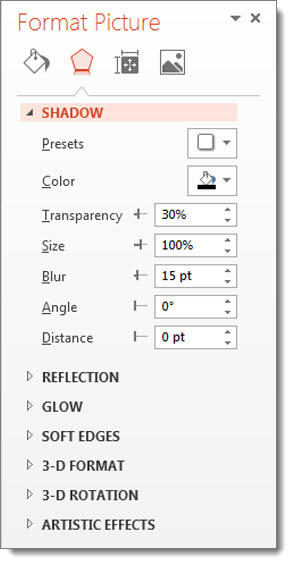
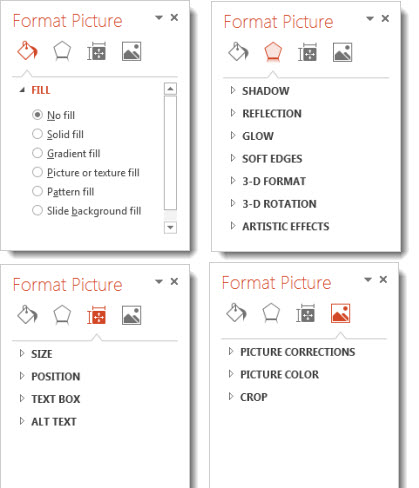
Select a tool and the dialog box extends to show the formatting options.

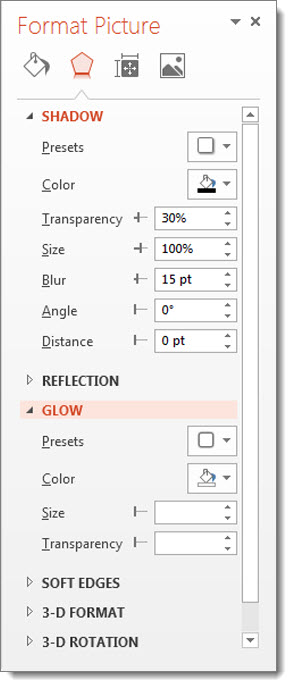
Select another tool and the box continues to extend and reveal those formatting options.

In addition, the Format Dialog pane can be detached from the UI and become a free floating dialog box. When floating, the same expanding list and organization of tools is seen. The floating dialog is not bound to the application window and can be positioned on a second monitor.

Using the icons across the top of the Format Dialog brings up the options for:
– Fill and line
– Effects
– Size and properties
– Picture

– Troy @ TLC

By |2016-08-16T09:16:02-07:00August 8th, 2012|PowerPoint|

How Do I know if Service Pack 1 For Office 2010 is Installed?

There is a lot of confusion over the recent (and much anticipated) SP1 (Service Pack 1) for Office 2010. The install process was easy, but verifying it was installed has been a source of confusion.

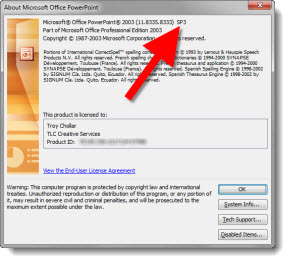
Back with Office 2003, it was very easy and clear to know if a Service Pack was installed. Open PowerPoint, go to HELP and ABOUT and just read the first line of information:

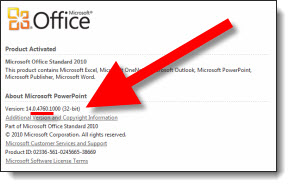
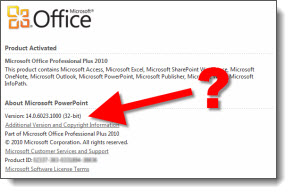
But in Office 2010, that simple information is missing… Go to FILE >> HELP >> and in the right section is the install information – but where is the “SP1?”
(Before SP1 install)

(After SP1 install)

The answer is in the numbers. Thanks to PPT MVP Steve Rindsberg for figuring this out.
– Base build = 14.0.4760.1000
– Service Pack 1 = 14.0.6023.1000

The “6023” is the important number as it equals SP1. Now you know.

– Troy @ TLC

By |2016-08-16T10:06:10-07:00July 13th, 2011|PowerPoint, Resource/Misc|

Office 2010 SP1 Released

This week Microsoft released Service Pack 1 (SP1) for Office 2010.

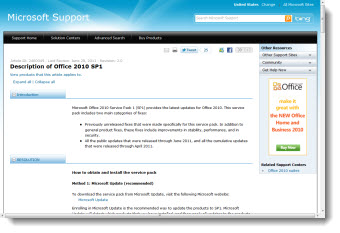
Service Packs are major updates, same as when software companies adjust a version number (eg. version 10, becomes 10.1). This Microsoft webpage has all the details. Here is the list of PowerPoint related fixes (paraphrased by me):

– Presenter View now defaults to showing the slide show on the secondary monitor.
– Animation preview fixes.– Mouse pointer does not disappear with extended desktop (multiple monitors) and slide show being viewed on second monitor
– “PowerPoint Viewer is now included with the Package for CD option.” Note: This is only a text edit in the Package for CD dialog, no new feature/fix/or improvement (thanks Echo and Steve for letting me know about this one).
– If an Excel object has VBA) code, fixes error messages when you try to edit it (which is mainly seen with the error message “Microsoft PowerPoint can’t start the application required to open this object. An error occurred and this feature is no longer functioning properly. Would you like to repair this feature now?”).
– Coding issue fixed which gives wrong Runs.Count value is returned when a PowerPoint 2003 format presentation runs a PowerPoint 2010 object model command.
– Fixes issue with audio or video media not playing in presentation that was created on Mac and played on Windows.
– Fixes issue where .emf image displays incorrectly when you save a slide as an Enhanced Windows Medafile (EMF) file which is then printed.
– Fixes issue in which a pen cannot persist through the Slide Show mode when you use the pen as a pointer.
– Fixes issue where default language change is not used on new slides or new presentations.
– Fixes issue where a linked image is not saved when you insert the linked image in a presentation, and then save the presentation an Open Document Format (ODF) file.
– Note: updates in Excel and office wide fixes are not listed here, but also work with PowerPoint.

SP1 is part of Microsoft Updates (if turned on), or a direct download link is on this Microsoft webpage.

– Troy @ TLC

By |2016-08-16T10:11:46-07:00July 1st, 2011|PowerPoint, Resource/Misc|

Get Office 2010 for $59 – really

Read about this deal at Techinch which is a great deal – if you are a college/university student or faculty.

To summarize the deal:
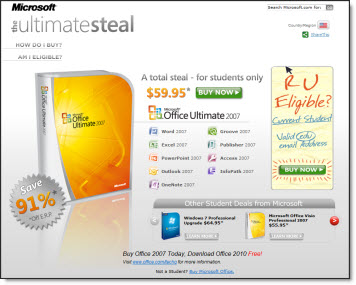
– Purchase Office 2007 at super price at Ultimate Steal here. Need a valid .edu (education) email address to purchase
– When Office 2010 is released in June, use Microsoft’s free upgrade offer

– Troy @ TLC

By |2016-08-16T11:37:34-07:00May 4th, 2010|PowerPoint|
Go to Top