Resource/Misc

iPhone Hotspot Fix for Windows 10

With continuous travel, I use my iPhone Hotspot option to get my laptop online quite often – it is often faster than the hotel or airport WiFi and keeps me from paying ridiculous $20/day internet fees. Recently, something went awry and the connection would not connect – very frustrating. I tested with 3 different Windows 10 computers, all 3 did not connect. Then, I tested with an iPad, which connected fine. So I identified that the phone Hotspot works and it was not one specific computer, so it had to be with the iPhone setup.

iphone hotspot 3

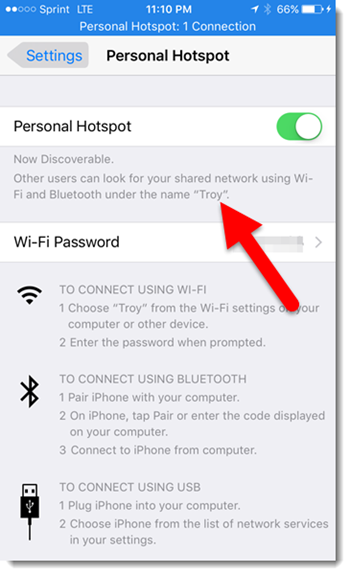
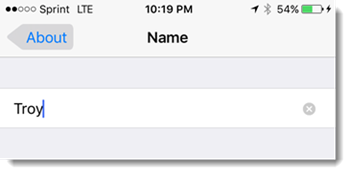
After doing some online research and more testing, I solved the issue. Windows 10 does not allow any special characters in the phone name. In my case, the phone name was “Troy’s iPhone.” As soon as I removed the apostrophe (special character), every computer was able connect to the iPhone Hotspot. My phone is now simply named “Troy.”

iphone hotspot 4

To change an iPhone name, go to SETTINGS > GENERAL > ABOUT > NAME (this does not affect iTunes account in recognizing iPhone).

iphone hotspot 5

– Troy @ TLC

By |2016-08-10T08:43:51-07:00January 25th, 2016|Resource/Misc|

PowerPoint 2016 and the QAT (it doesn’t fit!)

I have been moving TLC Creative Services to Windows 10 and Office 2016 in small groups. The new OS and updated version of Office are stable and provide a great work environment (with a lot of customization of settings to be what I want!). One item I have not been able to figure out a solution for is how PowerPoint 2016 displays the QAT.

Here is my QAT with Office 2013 (captured last month) with PowerPoint full screen on a 1920×1080 resolution. There are 37 quick access buttons to make my design time more efficient. Note: The last button is close to the middle of the PowerPoint ribbon.

2016_QAT_3

Now here is the exact same QAT, on the exact same resolution monitor and full screen app. The only change is a move to PowerPoint 2016. Note: The last button on my QAT is not visible, the QAT buttons are incredibly spread apart and now span the entire ribbon width – and the last few buttons do not even fit, they are cut off!

2016_QAT_1

I do not have a solution (yet). I did think of the Touch Mode that adjusts the interface, but it does not affect the QAT, just the ribbon buttons. I will report back if (when) I find a QAT display solution.

– Troy @ TLC

By |2016-08-10T08:51:16-07:00October 16th, 2015|PowerPoint, Resource/Misc|

Presentations are Getting Bigger and Hard Drives are Getting Smaller!

We have been building up and optimizing a number of new presentation show computers. Standard spinning platter hard drives have been pretty much banished from all TLC Creative computers (far left silver drive). Everything has SSD hard drives because of the reliability and incredible performance boost (middle black drive – Samsung Evo series being my preferred), and we have these in every computer, designer and show, usually with a standard spinning 1TB drive for file storage.

HD_Size_1

But it took some time to figure out our newest set of show computers hard drive setup (Sager NP9700 series). They are spec’d with 256GB Samsung Evo Pro drives (again, my current preference), and these notebooks have 4 hard drive bays! But after looking everywhere, I could not find the drive. I was looking for the middle black drive and these are the first laptops I have that use the M.2 drive connector. The far right thing that looks like a stick of memory is also a 256GB Samsung Evo Pro drive (so the middle and right drives are the same specs)!

Just more amazing things to be found in the TLC Creative computer room.

– Troy @ TLC

By |2016-08-10T08:52:25-07:00October 12th, 2015|Resource/Misc|

The PowerPoint QAT – A Designer’s Best Tool

The Quick Access Toolbar (QAT) is one of the best options for making your design work faster, if setup properly. The PowerPoint QAT is basically a collection of the top used “buttons” always accessible without having to change tabs on the ribbon.

PowerPoint QAT 3

Setting up the QAT is fairly easy, but tedious. But Microsoft has made it very easy to leverage someone else’s effort. In this case, my effort, think of it as my gift to everyone that reads this post, and instantly setup your QAT with 37 buttons to speed up design.

Download the QAT file HERE (unzip and “PowerPoint Customizations.exportedUI”).

In PowerPoint, go to FILE > OPTIONS > QUICK ACCESS TOOLBAR > IMPORT/EXPORT > IMPORT > select the downloaded file > say YES to the dialog > done.

PowerPoint QAT 2

– Troy @ TLC


By |2016-08-10T08:54:31-07:00September 28th, 2015|PowerPoint, Resource/Misc, Software/Add-Ins|

Office (PowerPoint) and Windows 10

With the move to Windows 10, I have been concerned with what would, and would not, work in PowerPoint. Being that both Windows and Office are Microsoft products, I expected few issues, and my assumption has been correct. Microsoft recently posted a list of all known issues between Windows 10 and Office which you can read here.

Win10Issues

– Troy @ TLC

By |2016-08-10T08:57:11-07:00September 16th, 2015|Resource/Misc|

Windows 10 Start Menu

Windows 10 has a lot of good stuff going for it, from stability to media playback – all topics for future posts. After months of testing (poking, prodding, and looking at virtually any feature I find), I have moved a few key computers to Windows 10 – including my personal design computer.

The Start Menu, while different than Windows XP (and the Classic Shell version of Windows XP I run on all Windows 8.1 computers), has everything there and can be laid out in the logical and usable way. I am sure this will evolve more, but here is my current Windows 10 Start Menu layout.

Win10-StartMenu

– Troy @ TLC

By |2016-08-10T08:57:37-07:00September 15th, 2015|Resource/Misc|

Windows 10 Desktop & Mobile, PowerPoint Desktop, Universal & Web Explained

Many thanks to Peter at Microsoft for helping clear up the confusion I was having on what the various editions of Windows and Office options and versions are now apart of the ecosystem. Here is my recap:

Win10-Office-Explained

Windows 10:

– Windows 10 is available in 2 editions; Desktop and Mobile (and really several other versions for Hololens, IoT devices, etc. – but we are only concerned with the 2 that can run Office apps).

– Windows 10 desktop is for Intel-based computers and can run Office Win32 apps and the new Universal apps.

– Windows 10 Mobile is for ARM-based mobile devices (phones and tablets) and can only run Universal apps.

Office Desktop:

– Desktop apps are the traditional “full” application and only run on full power (Intel) computer devices.

– Desktop apps are available in 32-bit and 64-bit versions.

– Desktop apps can install 3rd party add-ins.

– Desktop apps can run in a window of any size (or multiple side-by-side).

– Desktop apps are named just the app name; PowerPoint, Word, Excel, etc.

Office Universal:

– Universal apps are a new build option.

– Universal apps can be installed on both the Windows 10 Desktop and Windows Mobile operating systems.

– Universal apps are available through the Windows Store, as individual apps (there is no single install that includes all Office apps).

– Universal apps run in full screen mode only (eg. the application fills the entire screen, so no task bar or other apps until it is minimized or closed).

– Universal apps (this is a confusing point) are named different depending on where they are installed:

  • On Windows 10 Desktop, they have “mobile” in the app name; PowerPoint Mobile, Word Mobile, Excel Mobile, etc.
  • On Windows 10 Mobile they have just the app name; PowerPoint, Word, Excel, etc.

Office Web:

– Web apps are separate from Desktop and Universal apps.

– Web apps do not require installation, which allows them to work on both desktop and mobile devices.

– Web apps use HTML/CSS/JavaScript browser-based coding hosted on Microsoft servers.


The main recap is that today there are a lot more options available than in the past. The good news is, virtually every computing device and platform is covered for Office/PowerPoint. The bad news is that every option has slightly different capabilities and limitations. Things are filled with different frustrations today, and tomorrow we will have different frustrations – but solving those frustrations for our wonderful clients is what keeps us busy!

– Troy @ TLC

By |2016-08-10T08:58:55-07:00August 31st, 2015|Resource/Misc|

PowerPoint 2016 (for Windows)

office2016

Microsoft has a lot of new versions of apps released or in beta. The new Office 2016 (for Windows, not to be confused with the recently released Mac version) is getting close. The PowerPoint team at Microsoft has put together a blog post that lists off most of the updates to the 2016 version.

Take a look at what is coming our soon here.

– Troy @ TLC

By |2016-08-10T08:59:38-07:00August 26th, 2015|Resource/Misc|

The Presentation Summit 2015 – see you there!

In just over a month from now the (unofficial) annual conference for the presentation industry is going to be happening in New Orleans. I look forward to seeing you there!

PresentationSummit-1

Website: www.betterpresenting.com/summit

 Who: 200 attendees, 20 presenters, 14 PPT MVPs, “PowerPoint” people from Microsoft, and representatives from many industry companies

When: September 27-30

Where: The Astor Crowne Plaza, New Orleans, LA

Discount Code: Add NOLA15 to the Client Code filed for a $75 registration discount (there were only 20ish seats left when I talked with the conference organizer earlier this week)

What is Troy Doing There:

  • I attended the very first Presentation Summit, and have been a presenter at every one since (minus 1 – and that was New Orleans!)
  • My first priority is spending time with my fellow PowerPoint MVPs.
  • My second priority is putting on 2 fantastic sessions: (1) The Great PowerPoint vs. Keynote Clickoff. (2) Alignment & Balance – Designing for your audience with intention. The schedule for this year’s conference looks great, and there are going to be a lot of difficult choices – I am just saying, these two sessions will be fantastic!
  • My third priority is enjoying time talking with anyone about anything! (okay – related to computers, presentation design, running a design studio, and my favorite restaurants in New Orleans)
  • And my beautiful and talented wife and business partner, Lori, will be there too!

– Troy @ TLC

By |2016-08-10T08:59:58-07:00August 21st, 2015|Personal, Resource/Misc|

Introducing Office UserVoice!

UserVoice-1

Microsoft is (finally) taking the input of its user more seriously, and not just their large enterprise customers (where the lead IS contact was the input person) and the MVP teams. This is for their entire user base! Microsoft has partnered with an external company to “engage with customers about new features and ideas.” UserVoice is something I am very excited about.
UserVoice-2

  • Covers all platforms: Windows (Desktop & Mobile), Mac, iOS, Android, and the Web
  • Separate pages for each Office app: PowerPoint, Excel, Word, Outlook, OneNote, Sway
  • Goal is to gather end user input (that’s you and me!) on features we see as needed in an Office app. Microsoft, from what I have been told, is going to have this data be a factor in determining what they need to focus on.
  • Vote for the ideas you like. This is a big part of the data that Microsoft will be receiving – “how many people agree with this being a needed feature?” NOTE: Each user only gets 10 votes!
  • UserVoice is not a forum for tech support. Its purpose is hearing what people want to see. This is great for me to see as Microsoft continues to move toward a constant app evolution and roll out of new and improved features vs. new version every 2+ years.

UserVoice-3

Bookmark and make entries when you have a great idea (or major frustration in the middle of project about what would make life better!). Here are links to each app:

PowerPoint

Excel

Word

Outlook

OneNote

[br]

– Troy @ TLC

By |2016-08-10T09:01:38-07:00July 30th, 2015|Resource/Misc|
Go to Top