Resource/Misc

PowerPoint Shows in Barcelona and Lisbon

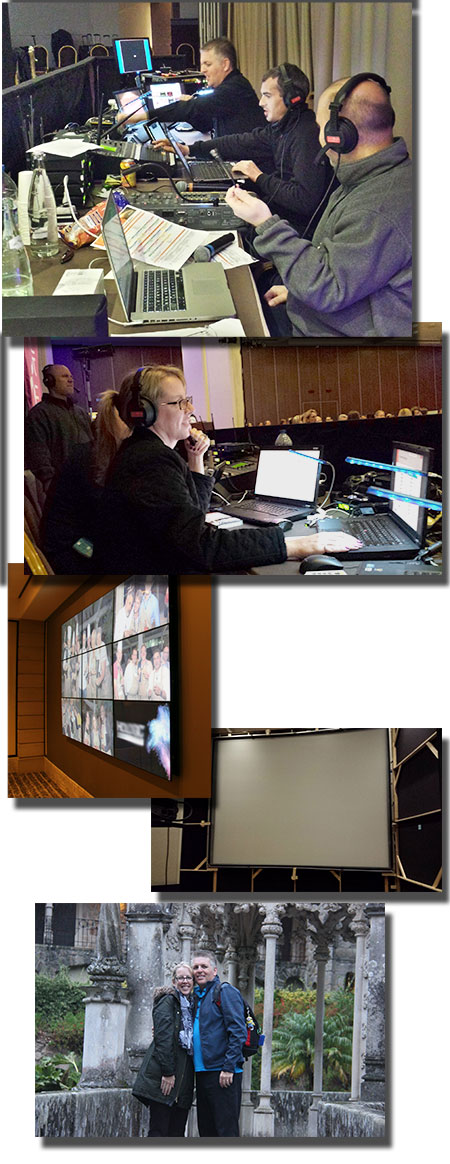
In November, Lori and I were happy to support one of our great clients at their Barcelona, Spain and Lisbon, Portugal international sales meetings. TLC developed the event PowerPoint templates, coordinated all presenter support needs, worked with the local in-country AV and assisted the meeting planning group – plus, we enjoyed a few days of amazing site seeing after each event.

Barcelona-Spain

Troy and crew in Barcelona, Lori in Lisbon, Video wall, solid stage set, being tourists in Sintra.


– Troy @ TLC
By |2016-08-10T09:14:56-07:00December 17th, 2014|Personal, Resource/Misc|

Olaf PowerPoint Slide

Special recognition to TLC designer Jennifer for this wonderful 3D illustration all developed in PowerPoint 2013!

Olaf-1

The video shows the development of Olaf in flip-book style animation. The first part of the video is a fast animation, followed by a slower version that shows each design step. Enjoy!

In addition to the obvious PowerPoint 3D and shadow options, most of the development relied on PowerPoint’s Merge Shapes tools.

Olaf-4

– Troy @ TLC
By |2025-04-02T12:40:37-07:00December 15th, 2014|Portfolio, PowerPoint, Resource/Misc|

Image + PowerPoint Graphic for Complete Slide Message

This is a slide from a recent project that I think is a good demonstration of seamlessly integrating PowerPoint content and graphics with photos. We developed from a script, so no design was done before our design team created the presentation – but I can easily see something like this being the “standard” PowerPoint slide:

CloudData1

Here is the TLC Creative Services slide for the presentation:

Complete Slide Message 2

Here is the development process for the complete slide message:

1. Review script, understand message, outline needed slide content to support message.

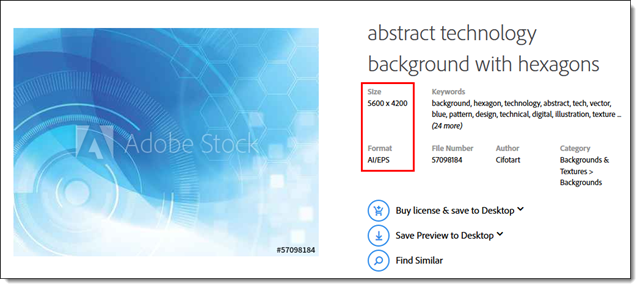
2. Research images, or develop image. For this slide we used this stock image:

CloudData3

3. Develop a cloud graphic in PowerPoint to animate and carry the message.

4. Use a combination of PowerPoint shapes and custom shapes that will become our PowerPoint cloud:

CloudData4

5. Turn all of the shapes into a single cloud using the MERGE SHAPES tool:

CloudData5

5. Adjust the color and fill/outline options:

CloudData6

6. Add the text (direct in the cloud shape):

CloudData7

7. Final step is to add an animated entrance effect:

CloudData8

Download the final slide here: CloudData

– Troy @ TLC

By |2016-08-10T09:16:06-07:00December 8th, 2014|Personal, Resource/Misc|

Providing More Than Just Slide Beautification

Here is a graphic supplied by the client for a recent presentation design project . Quick – what is wrong?

numbers-1


In developing ideas for a new way to show this information we noted the pie chart numbers add up to greater than 100% (108.4%). We let our client know of this and received a great soundbyte “Wow, you guys actually look at the content you are working with!”

Yes, TLC is very picky about the aesthetics (color scheme, alignment, consistency) AND the message.


– Troy @ TLC
By |2016-08-10T09:19:16-07:00November 10th, 2014|Portfolio, PowerPoint, Resource/Misc|

Building Project (Bucharest)

This is not about PowerPoint, or a project I have worked on, but it is about presentation. This is a massive video project that is truly amazing (not so much for it story telling, but just technology and scope).

[original video no longer available from source]

– Troy @ TLC
By |2016-08-10T09:19:39-07:00November 7th, 2014|Resource/Misc|

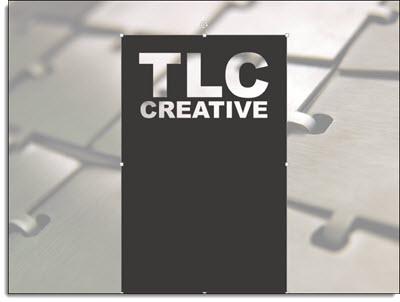
Create Puzzle Pieces in PowerPoint

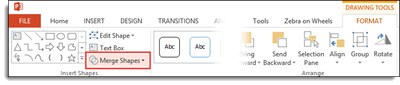
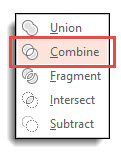
PowerPoint 2010 introduced the Merge Shapes toolset (trust me, it was hidden, but there). In PowerPoint 2013, the Merge Shapes toolset is much more accessible and refined. Here is an example we developed creating a much requested graphic element – puzzle pieces (download link below).


Here are the 4 puzzle pieces.

puzzle pieces-1

All are PowerPoint shapes


Here is a 4 step process to create your own:

1. Add 4 squares AND 4 small circles, so there are 8 shapes on the slide. COPY the 4 circles.

puzzle pieces-4

Select all shapes and subtract the circles from the squares to get these 4 shapes.

puzzle pieces-5

Paste in the 4 circles, so there are 8 shapes on the slide again.

puzzle pieces-6

Select all 8 shapes and use the Merge Shapes tool to unite the circles to adjacent squares to create the 4 puzzle pieces.

puzzle pieces-7

Each puzzle piece is a separate PowerPoint shape.

puzzle pieces-2

Each puzzle piece is a separate PowerPoint shape that can be resized, animated and recolored directly in PowerPoint.

puzzle pieces-9


Download a slide with the 4 puzzle pieces: PowerPoint_Puzzle_Pieces


– Troy @ TLC
 

By |2016-08-10T09:20:05-07:00November 6th, 2014|Resource/Misc, Tutorial|

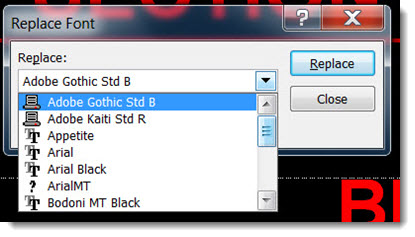
Replace Font Dialog, PowerPoint 2010 vs. 2013

PowerPoint is very weak in the area of font management. One of the few features PowerPoint does offer, Replace Font, has unfortunately become even less useful in PowerPoint 2013.

Here is the Replace Font dialog in PowerPoint 2010 (it remains the same for PowerPoint 2003 and 2007):

ReplaceFont-2010

Note that the drop down menu provides some good information. It indicates the type of font (True Type, Open Type, etc.) and if the font is not installed on the computer (indicated by a “?” next to the font name).


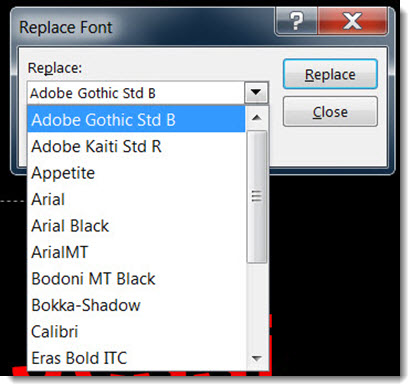
Here is the Replace Font dialog in PowerPoint 2013:

ReplaceFont-2013

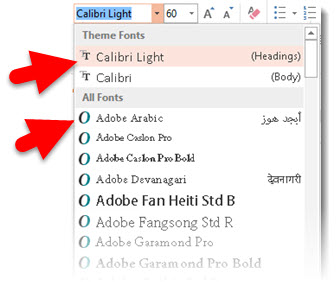
The drop down menu no longer displays any of the icons indicating format and if missing from computer (arghh!).

Hopefully I will be able to update this post in the future with a note that Microsoft has returned these features to the dialog (or better, they have implemented new features to provide true font management!).

– Troy @ TLC
By |2016-08-10T09:24:33-07:00October 10th, 2014|Resource/Misc|

My Microsoft Surface Pro Setup

I have been using the Microsoft Surface Pro since they debuted (I have not spent the money upgrading to the Surface Pro 3, but it looks great!). The Surface Pro is not my primary computer, it is not powerful enough to run everything I use on daily basis and also cannot compete with the 2TB of storage (almost all used) on my primary design laptop. But I do use the Surface Pro as my travel computer – carrying lots of project files on an external drive and using VPN access to the office server a lot, and as a backup show computer. The Surface Pro has proven it is a real computer.

(Surface Pro 2 with all of the below accessories) SurfacePro-4

Over the past 6 months I have received a number of calls from various friends and emails about how I set my Surface Pro up and what accessories I recommend. So here is my recommendation list (note: all items apply to Surface Pro, Surface Pro 2, Surface Pro 3):

1. Classic Shell: This not just for the Surface Pro, but for every Windows 8/8.1 computer!  It is free and lets your computer go direct to the “Windows 7” interface where we are all more productive and do our real work. Website link.


2. Unitek USB 3.0 hub with Ethernet (model Y-3045): The Surface Pro has 1 USB slot, which is not enough for productivity. It also has no Ethernet port for wired internet/network access. This small unit takes care of both shortcomings (note: this unit also works with MacBook Pro laptops that do not have Ethernet or enough USB ports). Amazon link.


3. Mini DisplayPort to HDMI/DVI/VGA Adaptor: carry one adaptor for all video connections! Handles HD (1920×1080) perfect and I have used every connection option (note: this unit also works with MacBook Pro laptops Thunderbolt™ Port). Amazon link.


4. Bluetooth Mouse: the Surface Pro only has 1 USB port (it is USB 3.0, but it is still only 1). Don’t occupy it, or one of you hub ports, with a mouse USB dongle, go Bluetooth.

If you are using the Surface Pro for light duty, I really like the Microsoft Wedge Mouse – Amazon link.

If you are using the Surface Pro for more daily work, I like the Microsoft Sculpt Comfort Mouse ( model H3S-00003) – Amazon link.


5. Type Cover Keyboard: the Surface Pro does not come with a keyboard, we all get to choose which one we want – and pay additional for it. First, get the Microsoft keyboard vs. third party, it just works. I have several and for real work I definitely recommend the keyboard with ‘real’ keys. The ultra thin and light touch cover keyboard does not provide any typing feedback and I have not found anyone saying it is a great experience for real work. For the Type Cover keyboard there are a few variations – I will say I prefer the version with the ‘real’ touchpad that has clickable left/right buttons. Amazon link. 

(MS Surface Pro on Stage running software demo)SurfacePro-3


(MS Surface Pro as Backup Show Computer)
SurfacePro-2


– Troy @ TLC

By |2016-08-10T09:26:27-07:00October 1st, 2014|Resource/Misc|
Go to Top