Resource/Misc

New TLC Website is Live!

It is busy here at TLC Creative, but thanks to a lot of super HTML coding and Word Press design over the past few months (great job making sense of all my notes and requests Amber!) the new TLC Creative Services website is finally ready for use! Okay, 90% of the site is ready, so just ignore any lorem ipsum text or “coming soon” sections…

The previous TLC Creative Services website was developed almost 9 years ago (a lifetime on the web!) and this is a wonderful step forward in design, coding and information. Check back as this is phase 1, with another big phase being finished in a few months with lots of PowerPoint tutorials and information being added, then integrating ThePowerPointBlog.com directly into the site by the end of the year, and ongoing updates to the portfolio samples.

– Troy @ TLC

By |2016-08-10T10:26:13-07:00August 9th, 2013|Portfolio, Resource/Misc|

Microsoft MVPs – How Many Are Out There???

All of the current Microsoft MVPs, for every application and from every part of the world are listed here: https://mvp.microsoft.com/en-us/find-an-mvp.aspx

Microsoft’s description of the MVPs is something I like:
“Being an MVP – MVPs represent the best and brightest in technical communities, generously sharing their deep knowledge and hands-on expertise with people around the world.”

But how many MVPs are there, and for how many specialties? Here is the current break down (and I am one of the 10 MVPs (35 worldwide) for PowerPoint):

USA
– Access (36)
– Consumer Security (28)
– Excel (25)
– Info Path (4)
– Internet Explorer (8)
– Office for Mac (5)
– Office Systems (4)
– OneNote (2)
– Outlook (7)
– PowerPoint (10)
– Project (13)
– Publisher (1)
– Visio (3)
– Windows Phone Consumer (6)
– Windows Phone Development (7)
– Word (4)
– Xbox (21)

Worldwide
– Access (58)
– Consumer Security (76)
– Excel (118)
– Info Path (9)
– Internet Explorer (45)
– Office for Mac (9)
– Office Systems (35)
– OneNote (3)
– Outlook (16)
– PowerPoint (35)
– Project (56)
– Publisher (1)
– Visio (15)
– Windows Phone Consumer (16)
– Windows Phone Development (37)
– Word (22)
– Xbox (44)

Countries:
Argentina, Australia, Austria, Bangladesh, Belgium, Brazil, Canada, Chile, China, Denmark, Egypt, Finland, France, Germany, India, Indonesia, Israel, Italy, Japan, Korea, Malaysia, Mexico, Netherlands, New Zealand, Norway, Pakistan, Portugal, Russia, Saudi Arabia, Singapore, South Africa, Spain, Sri Lanka, Sweden, Switzerland, Thailand, Turkey, United Kingdom, United States


By |2016-08-10T10:26:57-07:00August 5th, 2013|Resource/Misc|

Infographic on Car Forecast

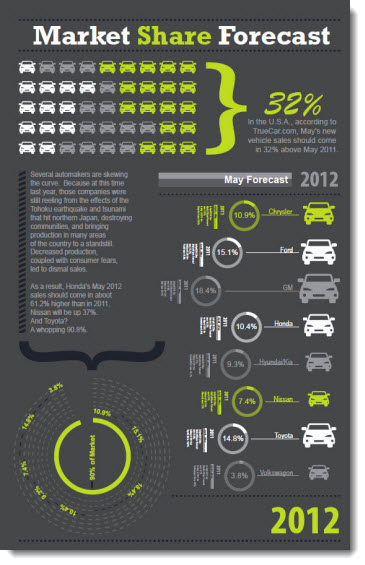
Here is another example of an infographic TLC developed. The overall goal was to pull the information from a written piece and put it into a visual format.

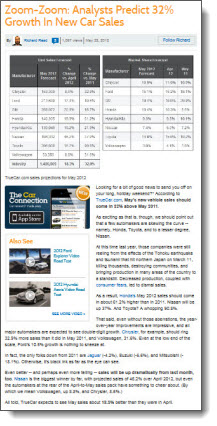
Truecar.com published new statistics regarding the market share forecast for automotive sales growth over the past year. The story lists the statistics; however, they do it in a way that requires you to read the entire article to understand the numbers. Using the article for our source, we created an infographic and pulled out the key data from the article to create a visual representation of the data. Using icons, bars, and charts the data can be displayed in a variety of ways that are interesting as well as informative.

(infographic of information)

(original written story format)

– Troy @ TLC

By |2016-08-10T10:27:31-07:00July 29th, 2013|Portfolio, Resource/Misc|

Does PowerPoint Know I Need a Font?

There are dozens, actually 1,000s, of ways to display your ABC’s. Font styles are created to display each letter in unique ways. Microsoft supplies a set of fonts with Office. Adobe supplies many fonts with the Creative Suite (now Creative Cloud) software packages. And there are many ways to download and add custom fonts to your computer.

If you use a custom font in a presentation, and that custom font is not installed on the computer that is viewing the presentation, a font default – or substitution – is used. We cannot control which font is used as the default and we cannot guarantee what the slide will look like with the default font in use.

PowerPoint has a few tools to help with this situation. The tools are not extensive, and definitely do not do enough to aid us users in identifying font issues and resolving font issues.

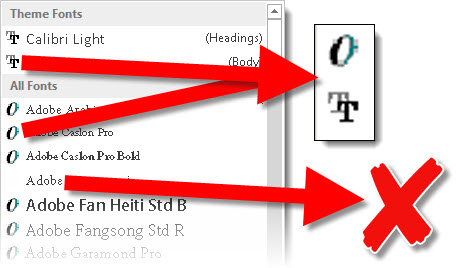
The first step is to identify if PowerPoint is using fonts on the computer or substituting fonts. The tool is very simple, and simplistic. Select a text box, then on the home tab click the font selection drop down. In this menu, each font has 1 of 3 icon options to the left of the font name.

1. The Open Type icon is a large stylized “O.”
2. The True Type icon is two letter “T”s overlapping.
3. NO ICON, just blank space, lets you know PowerPoint recognizes a font is needed, but it is not installed on this computer. When there is no icon, PowerPoint is substituting that font with a default font (of its choice).

– Troy @ TLC

By |2016-08-10T10:28:04-07:00July 22nd, 2013|Resource/Misc, Tutorial|

PowerPoint Animation Jitters Update

This is a quick (and great!) update to last week’s post “Stop PowerPoint from Getting the Animation Jitters!

The incredibly talented coder, Chirag, quickly put together (in his words) “a very simple and small utility… that toggles the (regedit) setting when you execute it. When it states that sprite clipping is disabled, you get smooth animations. Ensure that PowerPoint is not running when you execute this utility.”

I have not tested, partly because I have manually updated all computers at TLC with the registry update. Download the free utility – https://www.officeoneonline.com/download/SpriteClipping.exe (61KB).

– Troy @ TLC

By |2016-08-10T10:29:11-07:00July 17th, 2013|Resource/Misc, Templates/Assets|

Add Twitter Feed To Slides

We were recently at a show to handle the presentations, and the presenter encouraged the audience to tweet about the conference daily events. During the break, we were asked to show the twitter feed. Advanced planning is great – this was not it.

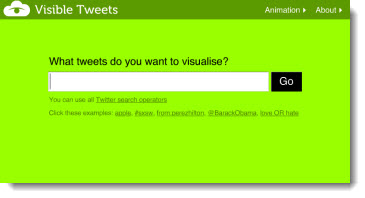
We used Visibletweets.com to provide a solution. Visibletweets.com is a Flash based website with no download (other than the Flash player if not installed). On the website, you are prompted to type in a hash hag, search a term, or use someone’s twitter id.

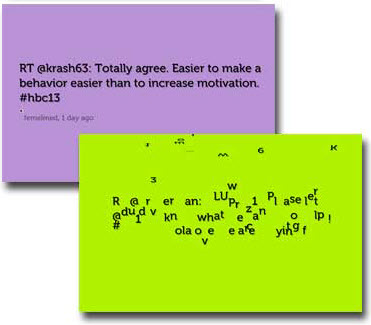
Then one tweet at a time fills the page, each animates to the next. There are 3 types of animation to choose from: Letter by Letter (which is our favorite), Rotation, and Tag Cloud.

If you use the option to run the show in the web browser full screen, the background automatically changes colors.

There are 3 options for using visibletweets.com during a presentation.
Option 1: Run the website from a backup computer (with internet access) and toggle it to the screen.
Option 2: Have a link to the website on a slide and use it to switch from presentation to web browser (going back to the presentation requires using ALT+Tab or closing the web browser – so not as seamless and elegant).
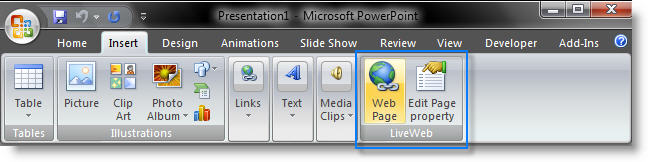
Option 3: Use Shyam’s LiveWeb add-in to display a webpage directly on your presentation slide (this is a FREE add-in that can be downloaded here).

– Troy @ TLC

By |2016-08-10T10:31:07-07:00July 10th, 2013|Resource/Misc, Software/Add-Ins, Tutorial|

Stop PowerPoint from Getting the Animation Jitters!

Long scrolling animations worked great back in PPT 2003. But with the new .xml format (.pptx) came a new render engine for animations and it caused these same animations to stutter and “jitter” as they played.

You can fix these with a registry edit (Note: the registry controls the computer and in general mistakes in here can be very bad).

First, download this test file and run (download here, 3.7MB). Take note of how smooth, or jittery, the text animation is.

Close PowerPoint.

To update a computers PowerPoint settings:

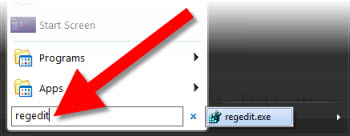
1. Start >> search bar “regedit”

2. Go to Hkey Current User>>Software>>Microsoft>>Office>>15.0>>PowerPoint>>Options
– Note: This is the path for PPT 2013. For PPT 2010, it will be “12.0” vs. 15.0.

3. In the right section, right-click and select NEW >> DWORD (32-BIT) VALUE

4. Name it “DisableSpriteClipping”

5. Find the new entry and right-click and select MODIFY

6. In the VALUE DATA box, enter “1” (BASE can be Hex or Dec) and click OK

Start PPT and run the test file again. Take note of how smooth, or jittery, the text animation is.

Many thanks to Steve Rindsberg of PPTools for making me aware of Microsoft’s Chris Maloney’s shared bit of coding that works wonders for anyone fearful of animation jitters!

– Troy @ TLC

By |2016-08-10T10:31:29-07:00July 8th, 2013|Resource/Misc, Software/Add-Ins, Tutorial|

Happy 4th of July 2013!

Have a great 4th as we celebrate the start of the USA! Staff designer, Josh, created this great patriot slide for the occasion. The background and fireworks were developed in Photoshop and the 3D text in PowerPoint 2013.

Download slide here.

– Troy @ TLC

By |2016-08-10T10:32:06-07:00July 4th, 2013|Resource/Misc|

PowerPoint Outline – inside/outside/middle ???

A stroke and an outline are the same thing, but called different things based on the program being used. It is a line around the perimeter. The line can be any color, even a gradient of colors and any width. But PowerPoint has a flaw in its outline/stroke feature:

When you apply strokes to shapes in Illustrator or Photoshop, you have the option to align the stroke to the outside, inside, or center of the shape:

In PowerPoint, the stroke is automatically applied to the center of a PowerPoint, or vector, shape:

However, with inserted images, the stroke gets applied to the outside:

And for text, the stroke is applied to the center:

This makes it difficult if you are trying to align shapes with images, the strokes don’t align even if they are the same weight simply because PPT aligns to the edge of the shape/image and now the same size elements with the same width stroke are different sizes, because on one the stroke makes the shape wider than the other. With the text, the actual text starts to disappear (above example is the base text and then a 10pt stroke applied – which almost completely eliminates the black text). There is not a solution for PowerPoint as of PPT 2013, but we can hope for user control over the placement (inside-outside-center) by the designer to improve PowerPoint.

– Troy @ TLC

By |2016-08-10T10:33:55-07:00June 24th, 2013|Resource/Misc, Templates/Assets|

Florida in September – Yes!

Fort Lauderdale, Florida in September is perfect! I, and hopefully you, will be there for the 2013 Presentation Summit. I will be hanging out in the Help Center answering PPT questions throughout the event and have 2 presentation sessions.

Here is the session schedule, which is packed with great topics by the top people in the presentation industry. My talk titles are:
1. “PowerPoint is my Creative Suite”
2. “Don’t Be the Presenter the AV Crew Hates!”

On the schedule webpage, the talk titles link to a more detailed description of each talk. Hope to meet up with lots of you there!

– Troy @ TLC

By |2016-08-10T10:34:30-07:00June 21st, 2013|Personal, Resource/Misc|
Go to Top