Software/Add-Ins

PowerPoint 2010 Viewer

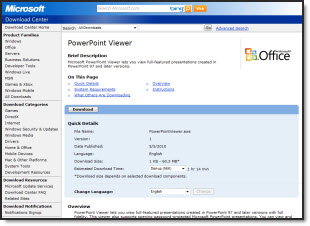
The new PPT viewer was released last week and I have spent some time testing presentations with it.

First, this is not a light weight, quick download – but a full application at 60MB! It also needs to be truly installed vs. the previous versions that could be run directly from a CDROM or USB drive.

Aside from those two factors there is nothing but praise for the viewer at this point! It handles ALL animations, transitions, trigger events, media, etc. From what I have tested, it runs everything that the full application runs – yeah!

I do not have a KB article or other official document to verify this, but I was told the PPT 2010 viewer is basically the full PowerPoint application when it comes to viewing a slide show (hence the large install file). This allows the viewer to play everything the full application does AND it does all the backend stuff like hardware acceleration (not available in any previous viewer).

Get it from Microsoft, free here.

– Troy @ TLC

By |2016-08-16T11:35:12-07:00May 20th, 2010|Software/Add-Ins|

Animation Pane is Smart Enough To Disappear

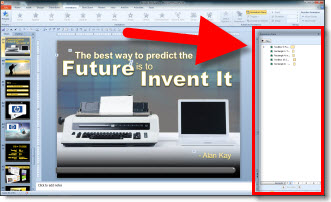
With PPT 2010 the animation has a new trick. When editing a slide the Animation Pane can be opened in its standard right-side position.

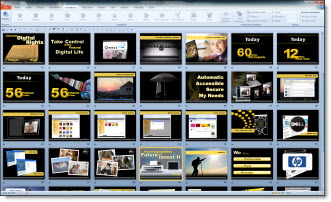
But when switching to Slide Sorter view it automatically closes.

It is a minor thing, but the animation pane is of no use in slide sorter view. In all early versions it remained open/visible just taking up screen realestate. And when you go back to editing a slide it appears open again until you close it.

– Troy @ TLC

By |2016-08-16T11:36:55-07:00May 10th, 2010|Software/Add-Ins|

PPT 2010 and Addins

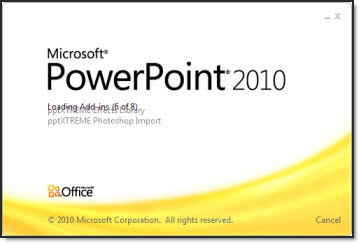
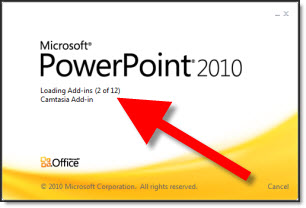
After installing Office 2010 one of the items I noticed is at launch it lists the add-ins being loaded (previous versions did not display this information).

This is most noticeable the first time the application is launched as each addin is recognized and setup. Subsequent launches go much faster, which is very good.

– Troy @ TLC

By |2016-08-16T11:40:18-07:00April 26th, 2010|Software/Add-Ins|

#9 – Export Presentation as Video

This one could easily be in my top 5, but there is so much good stuff in this version of PowerPoint it makes the top 10 list.

Yes, PowerPoint for Mac has had an export to video function for a few versions. Yes, Keynote has had an export to video function. Yes, I like everyone else has wanted, needed, hoped for this function and have invested lots of money in third party solutions. Well it is here and it works incredibly well!

1. It is easy to do. Go to BACKSTAGE >> SHARE >> CREATE A VIDEO

2. Pick a quality level (High Quality = 720p (1280x720px))

3. Watch the progress bar and when done, watch your presentation as a video!

Observations:
– Only exports to .wmv format
– Appears to be be frame accurate (eg. no gaps or jumps in animation)

– Troy @ TLC

By |2016-09-16T09:19:21-07:00November 20th, 2009|Software/Add-Ins|

MS Security Essentials (AntiVirus)

A year ago I was happy letting Microsoft’s Live OneCare handle the antivirus, update notification, backup duties and firewall management on a dozen computers. Then the service was discontinued and over the past 4-5 months I have migrated to a number of antivirus applications. And I have experienced more computer grief over firewall, virus and other issues as a result.

Well last week the follow-up to OneCare, Microsoft Security Essentials, was released to the public!

This is a FREE antivirus application, based on the same engine as OneCare (which kept all my computers safe and running for 2 years) and has a super easy interface. Microsoft Security Essentials is FREE and can be downloaded from Microsoft here.

– Troy @ TLC

By |2016-09-16T09:30:16-07:00October 19th, 2009|Software/Add-Ins|

Use Nvidia Control Panel to Set Mirrored or Extended Desktop

PowerPoint presentations given to a live audience usually involve the computer being attached to a projector. And sometimes the technical issues of getting the computer and projector to cooperate are the downfall of the presenter…

Here is what I hear a lot:
– I have a great laptop!
– I hooked up the projector (via VGA or DVI cable).
– I clicked the Function + F4 keys.
– Nothing happened, my presentation would not show up!

It happens and there are technical complexities, but I run anywhere from 1 to 12 computers outputting to projectors for any given meeting. Here is my approach to assuring the presentation shows up on the projector (note: the following tutorial is based on the Nvidia Control Panel as most of show computers currently run their graphics cards).

1. First, I do not use the Function+F4 key. This is just a shortcut to the control panel that does not show me any of the real settings.

2. I open the graphic card control panel. My preferred method is to right-click the desktop and select “NVIDIA CONTROL PANEL”

3. This opens the Nvidia Control Panel. From here you can see and adjust every aspect of how images are put onto any monitor, or projector, connected to the computer/laptop.

4. I first go to CHANGE RESOLUTION. I can quickly see on the right if the computer ‘sees’ the 2nd monitor/projector by the two display icons.

5. If 2 icons are seen I go to #6. If only 1 icon is seen (the laptop monitor) I then have a few steps:
A. Check cable is plugged into computer.
B. Check cable is plugged into projector (or switcher).
C. Verify projector is powered on and set to correct input.
D. If using a docking station for the laptop (as I do), check docking station has power by checking power supply has light, is plugged into dock and dock has power lights (video out from all docks is not passive and will not work if dock does not have active power).
E. Run the RUN MULTIPLE DISPLAY WIZARD to force the graphics cards to identify and recognize the external monitor.

6. To setup a projector I go to the SETUP MULTIPLE DISPLAYS option.

7. On the right I can tell the computer how I want to use the projector.

1. Do not connect to projector
2. Mirror output to projector (most common setting)
3. Extend desktop to projector

8. Click APPLY.

9. Then go back to CHANGE RESOLUTION. Now the focus is on the resolution setting on lower part of the right side. This number has to be set to match the projector’s resolution.

– If the resolution is set to high, the projector may be unable to use it (and will display nothing).
– If the resolution is set to a widescreen format (as many laptop monitors are) and the projector is not widescreen it will either compress the image or add black letterbox bars (neither is a good option), so the resolution will need to be set to a 4×3 aspect ratio (eg. 1024×768 is the most common).

10. Click APPLY, exit the control panel and get on with the presentation – yeah!

– Troy @ TLC

By |2016-09-16T09:45:10-07:00August 28th, 2009|Resource/Misc, Software/Add-Ins, Tutorial|

Delete a File That Refuses to Delete with “Unlocker”

I just wrapped up a quick project where I created a custom installer that created a folder, added presentations and videos, added shortcuts and an uninstaller. All pretty standard stuff, but I always test everything to make certain all works before a client distributes it. Well, I discovered an error with my coding. Actually all ran perfect except the uninstaller did not uninstall… hmmm, not good. I figured out the problem, edited the code and all worked perfect on my next test. Time to send to client – yeah!

Maybe it is because my main production computer is still running Windows XP (although there are several Vista Ultimate computers here and I am running Windows 7 on a my Office 2010 test computer), but the folder from my first test install (the one where the uninstaller errored out)would not delete. Every time I attempted to delete I ended up with some message like this:

Then I remembered this little (265k install) application that I installed long ago and is just waiting to be used. Unlocker does exactly what it says. It unlocks a file, or folder full of files this time, and allows me to delete it – yeah!

It is a handy utility that is a solution to otherwise frustrating occurrences. Oh, and it’s free (donation option). Here’s the Unlocker website.

– Troy @ TLC

By |2016-09-16T09:46:00-07:00August 26th, 2009|Software/Add-Ins|

Shapes Menu in Different Shapes

I get this question a lot – even from people that have been using PPT 2007 for awhile. “where is my insert shapes?” It is obvious, but we get used to things being a certain way and when it changes we overlook things. This also happens most often when the computer is hooked up to a projector, where the screen resolution is reduced to the projector resolution (eg. my monitor is 1900×1200 but most projectors are lower at 1280×1024 or 1024×768).

Here is what most see on their ribbon:

But with a smaller screen resolution, the ribbon adjusts to smaller options and the shapes library becomes a simple button:

– Troy @ TLC

By |2016-09-16T09:54:53-07:00August 18th, 2009|Software/Add-Ins|

Video Preview from Bing! Search

Sometimes you just discover things by accident. As example I did a video search using Bing! and discovered that if you roll your mouse over any of the thumbnail images it plays the movie in the thumbnail without going to the webpage – very cool!

Here I did a search for “PowerPoint”, clicked the ‘video’ link at the top and was able to view all by just putting my cursor over it.

– Troy @ TLC

By |2016-09-16T09:58:23-07:00August 14th, 2009|Software/Add-Ins|

Tools On My QAT

With PPT 2007 we are very limited in how to customize the application. The one customizable “toolbar” is the QAT – Quick Access Toolbar. So here is what I have mine:

1. Save
2. Open Slide Master
3. Subscript
4. Superscript
5. Insert Symbol
6. Align to objects (works with #23-24)
7. Align to Slide (works with #23-24)
8. Text Color
9. Fill Color
10. Line Color
11. Insert Shape
12. Crop
13. Pickup Style
14. Apply Style
15. Format Painter
16. Change Shape
17. Align Left
18. Align Right
19. Align Center
20. Align Top
21. Align Bottom
22. Align Middle
23. Distribute Horizontally
24. Distribute Vertically
25. Bring to Front
26. Send to Back
27. Rotate Left 90′
28. Rotate Right 90′
29. Flip Horizontally
30. Flip Vertically

What do you have on your QAT?

– Troy @ TLC

By |2016-09-16T10:00:55-07:00August 6th, 2009|Software/Add-Ins|
Go to Top