Tutorial

What is the PowerPoint color scheme name of this file?

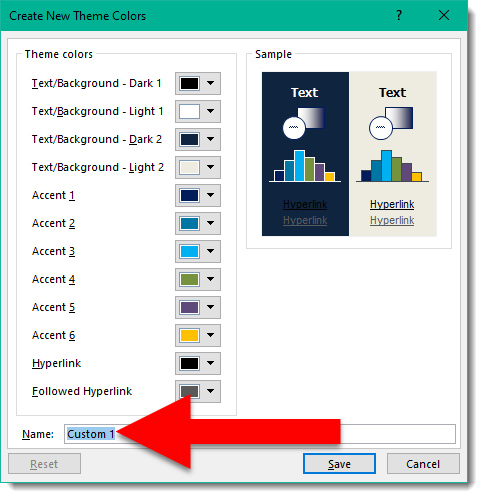
Every custom color scheme has a name. But when the CREATE NEW THEME COLORS dialog is opened, the color scheme name is a generic “custom 1” name. It is not intuitive on finding the color scheme name, so here is a tutorial on how to see the color scheme name currently being used by a file.

— Note: I am reposting what I put online back on April 29, 2016

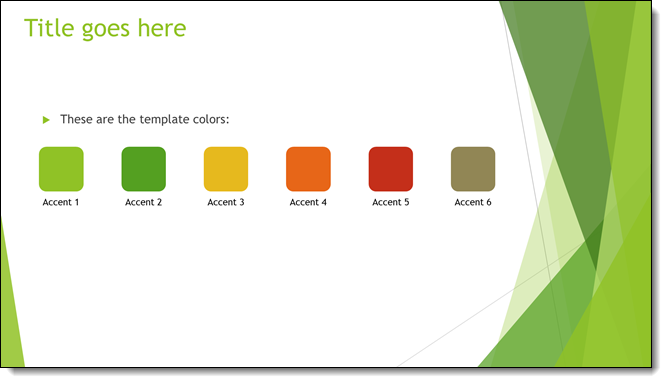
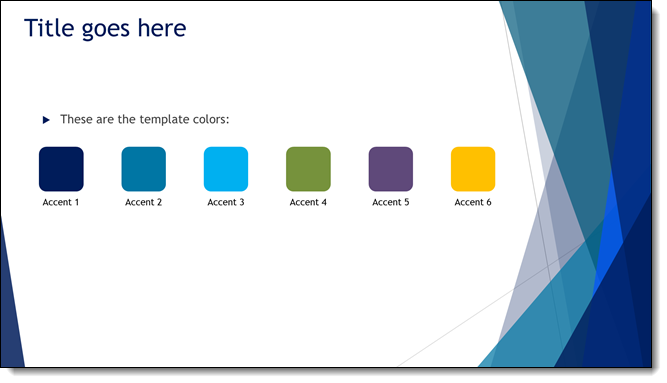
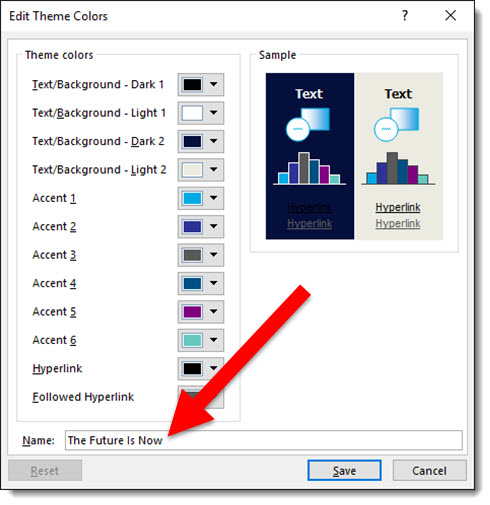
Every template has a Custom Color Scheme. And every color scheme has a custom name. For example: Here is a custom PowerPoint template I am working on, and I named the template color scheme “The Future Is Now” which is the theme name of the event where it will be used.

Template Color Scheme -1

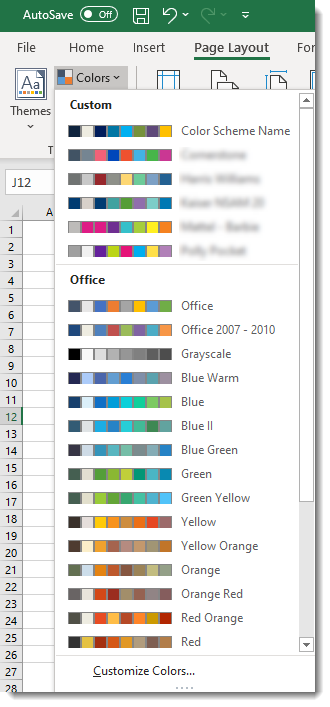
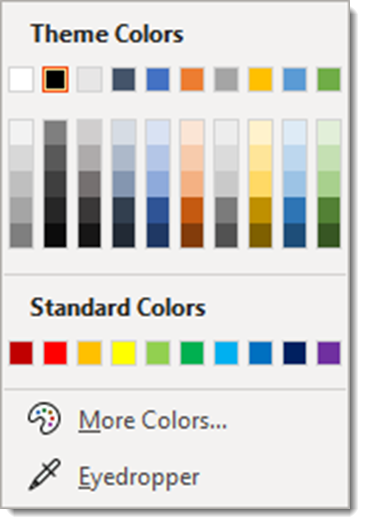
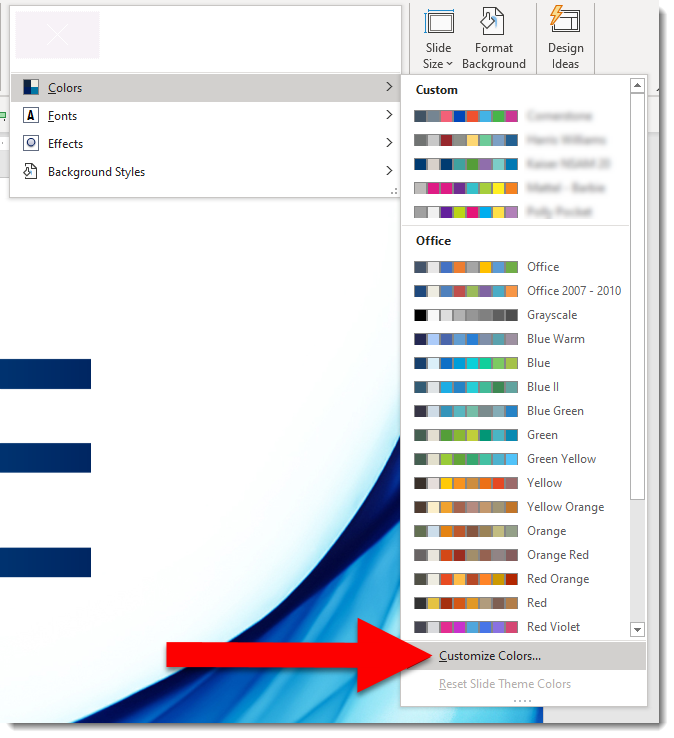
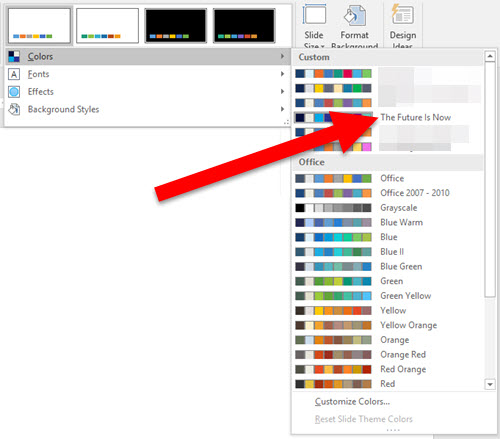
And when I look at the color schemes available on my computer, this theme is listed – because it was created on this computer:

Template Color Scheme -5

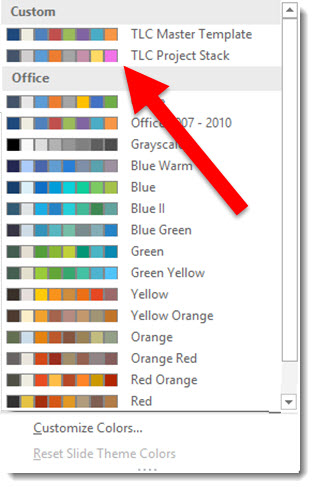
But on any other computer, with the template open, if I look at the color schemes, The Future Is Now is not listed:

Template Color Scheme -2

To find the Custom Color Scheme name, do this:

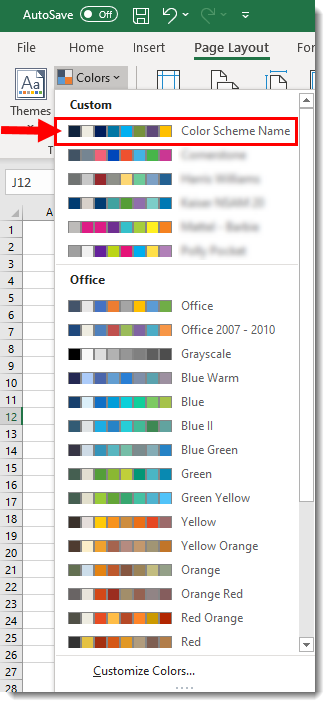
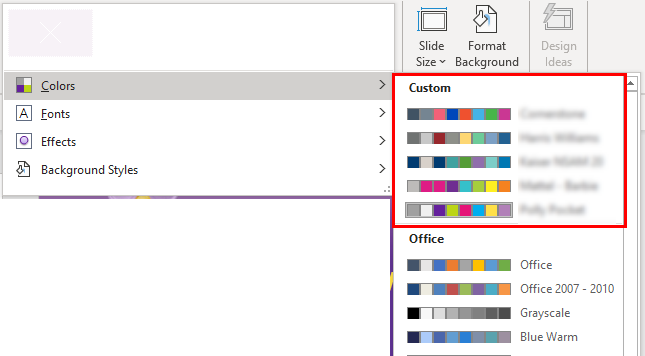
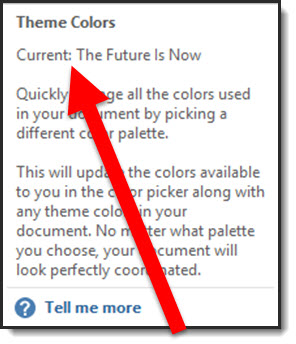
  • Go to VIEW > SLIDE MASTER > BACKGROUND > mouse over (do not click) COLORSTemplate Color Scheme -3
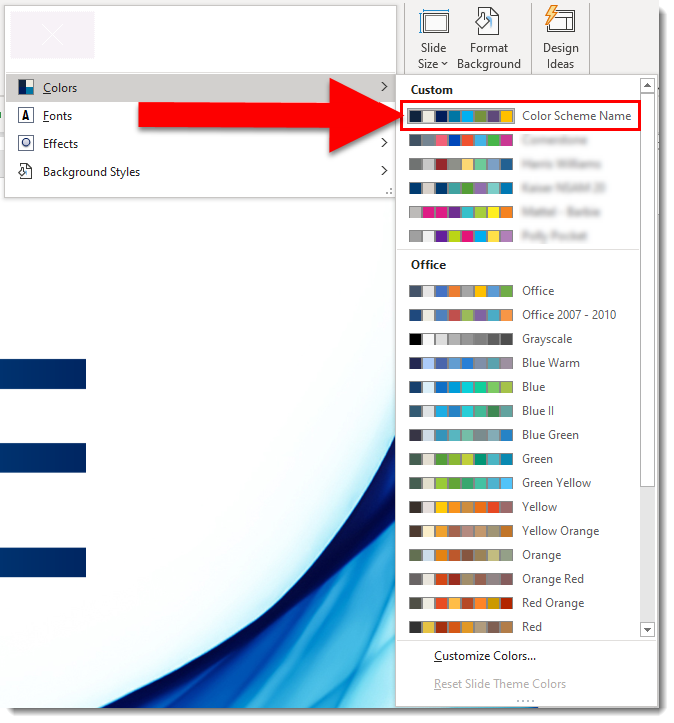
  • The pop up dialog shows the current template color scheme name
    Template Color Scheme -4

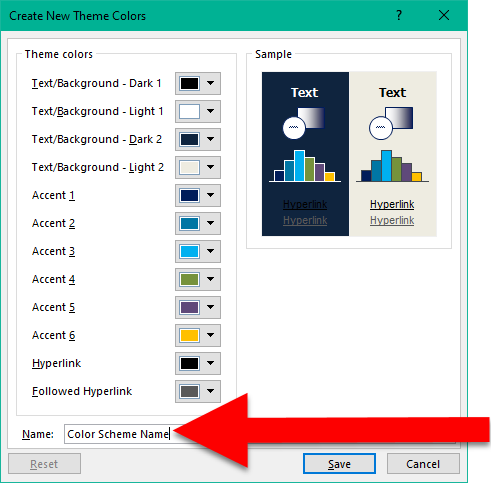
Now you can edit the existing color scheme and know what name to give it.

-Troy @ TLC

By |2020-04-24T18:08:16-07:00May 8th, 2020|Tutorial|

Image Transparency in PowerPoint

From a recent conversation about how a slide design was created, I realize that it is difficult to keep up with the number of new features being added to PowerPoint. If you have a familiar workflow, you might not be looking for a new workflow. This blog post is about a new, but not really that new, feature in PowerPoint – setting the transparency level of an image.

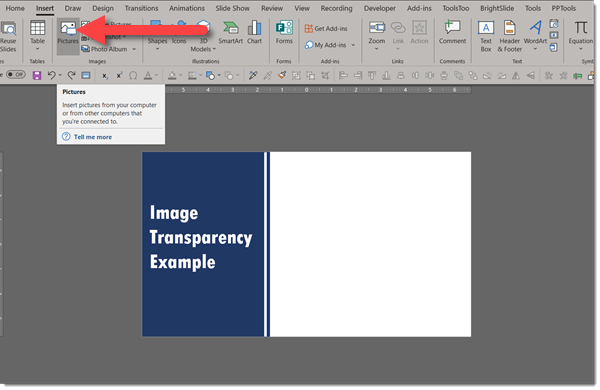
Here is a slide design scenario (inspired by the conversation noted above) and how to use PowerPoint’s image transparency. Starting with this example slide and inserting an image onto it.

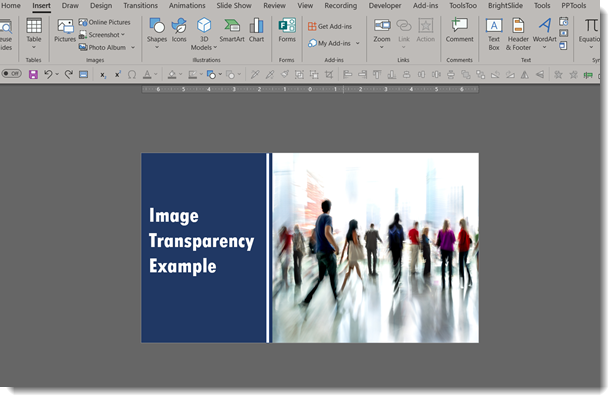
Here is the image, positioned and cropped to fit the open right side of the slide.

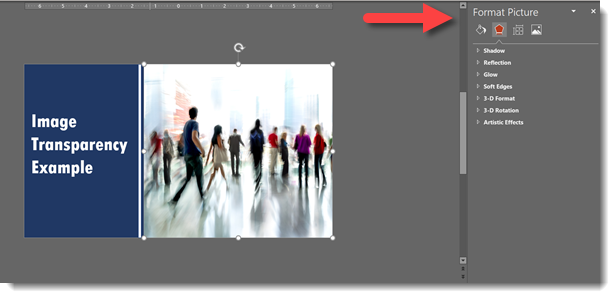
The goal is to make the right side have a stylized background element (this photo) with content on top. Open the “Format Picture” pane on the right side.

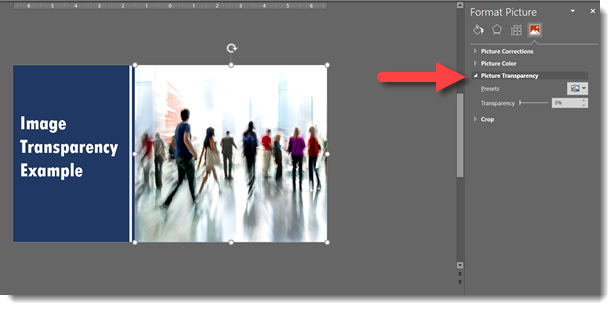
Go to the PICTURE section and expand the PICTURE TRANSPARENCY options.

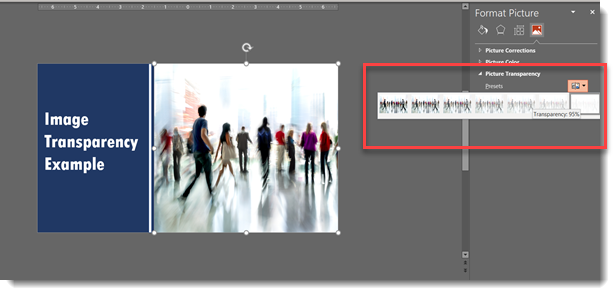
Use the presets to quickly change the opacity/transparency of the image.

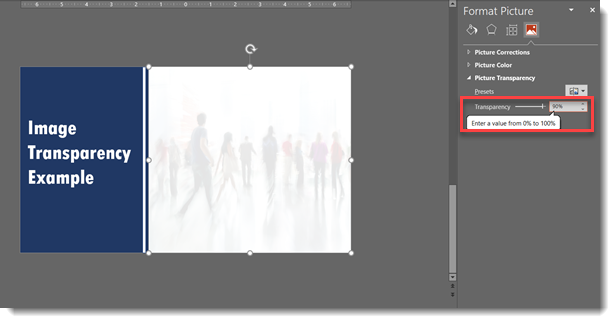
Or use the Transparency slider, or select the number field and enter an exact percentage. The image on this slide was set to 90%.

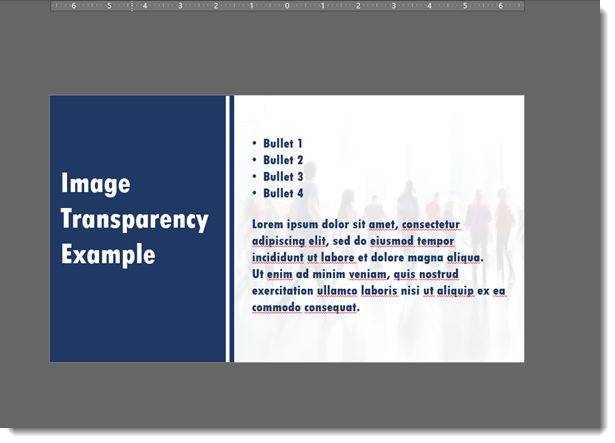
All within PowerPoint we have placed an image. Sized, positioned and cropped an image. And adjusted the image transparency – no Photoshop needed. This faint image over the white background can now be the stylized background for the slide content.

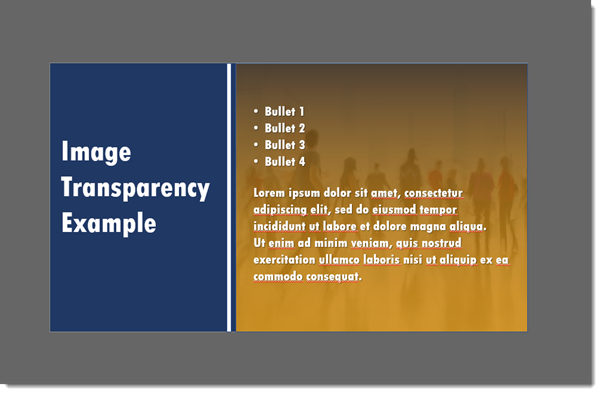
Going one styling further, a golden gradient image was placed under the image, making this slide layout quick to update to any color accent (and the content text was updated to white to provide adequate contrast for legibility).

Troy @ TLC
By |2020-04-16T23:13:24-07:00April 17th, 2020|Tutorial|

An Animated GIF Created in PowerPoint

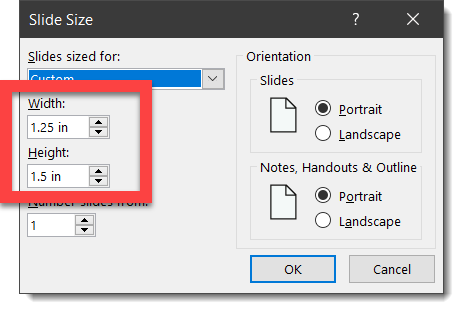
To create this animated .gif we created a small slide size PowerPoint deck. The page size is 1.25″ x 1.5″

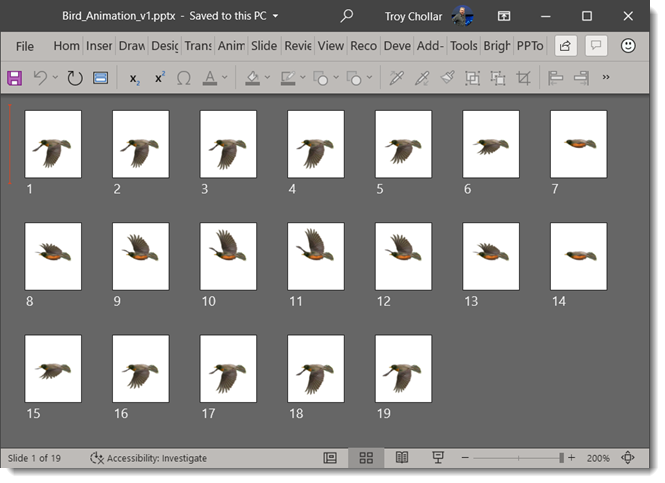
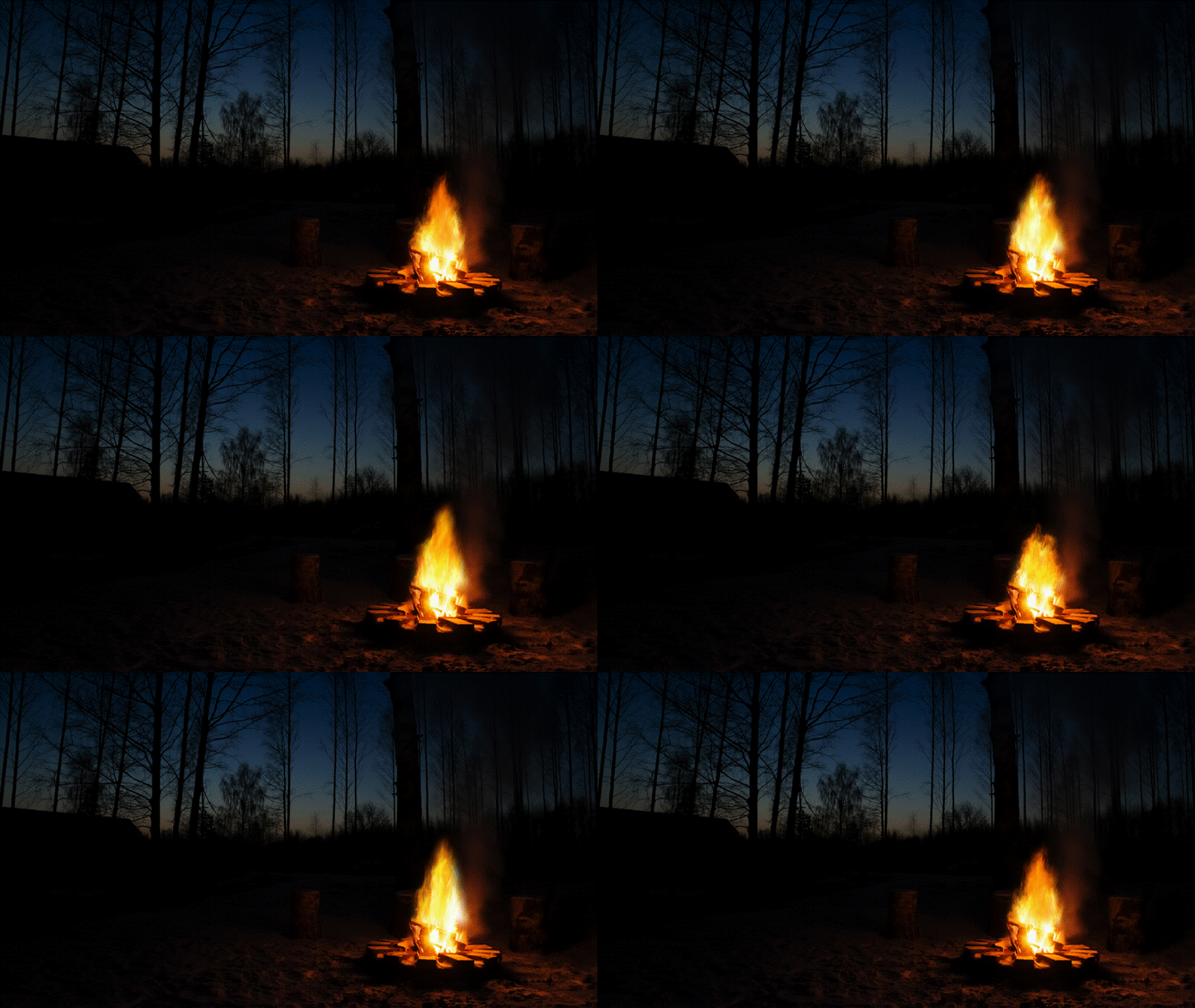
From an image from Adobe Stock (TLC Creative has a Teams account to Adobe Stock for project art), we cropped and added the image sequence to 19 slides. No PowerPoint animation and even slide transitions – just multiple slides and a fast auto advance timing.

Troy @ TLC
 

By |2020-02-27T13:56:20-08:00March 2nd, 2020|Tutorial|

How To Create Animated .GIFs in PowerPoint!

Exporting slides as a self contained animated .gif is easy (see previous post). Here is an example of creating PowerPoint slides to be exported as an animated .gif.

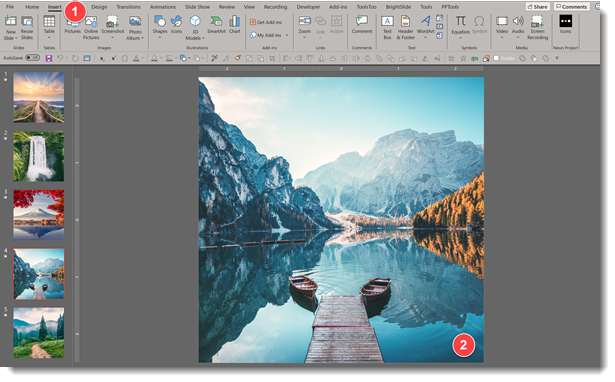
Adjust page size if needed. For this example the goal is an online add ready square and the PowerPoint slides page size is 4″ x 4″.

1 Insert the photos, 1 per slide.

In this example, for the scenic photos, each was sized, positioned and cropped to fit full frame on the square area.

2. Preset the slide transition effects for each slide. Note: do not set the Auto Transition timing, we will set this in the export step.

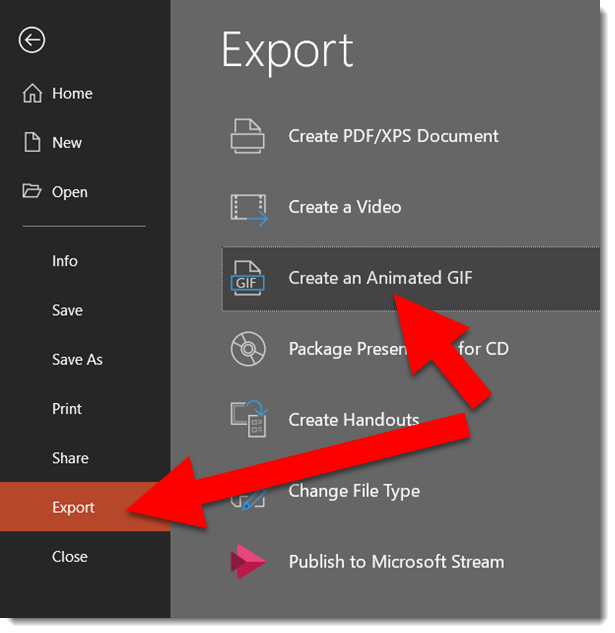
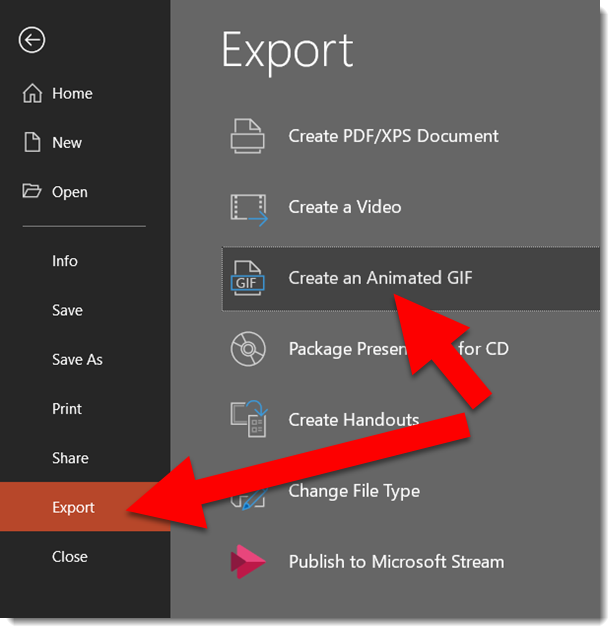
3. Go to FILE > EXPORT > CREATE AN ANIMATED GIF

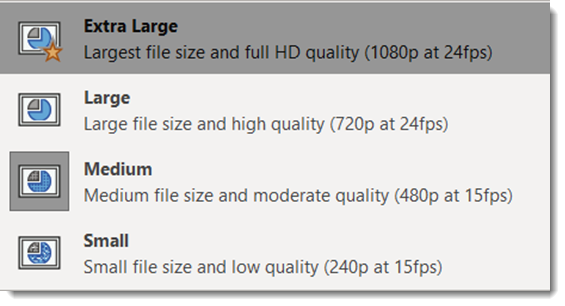
4. There are 4 size options:

     Small (240p at 15fps)

     Medium (480p at 15fps)

     Large (720p at 24fps)

     Extra Large (HD quality 1080p at 24fps)

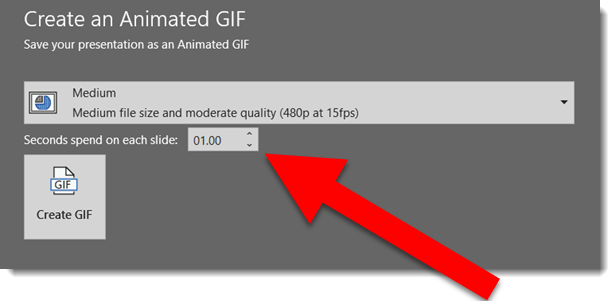
5. Add the delay between each slide in the SECONDS SPEND ON EACH SLIDE dialog

6. Click CREATE GIF

TIP: For this scenic imagery, we can successfully use the lower FPS (frames per second) of 15fps. For animated gifs with more complex animation, the higher 24fps is going to be better, even if you do not need the larger pixel size. With PowerPoint the pixel size and frame rate (fps) are connected and cannot be selected independently.

Troy @ TLC (thanks Jake for creating the sample file!)
By |2020-02-26T18:54:57-08:00February 28th, 2020|Tutorial|

Create Animated .GIFs in PowerPoint!

Microsoft has added a feature to PowerPoint, export as .GIF. 

Export a single slide, or a series of slides as an animated .gif. Our tests have done a good job with capturing animations, slide transitions and timing – all with good size files.

The Export as Animated GIF is very similar to the Export as Video.

  • Go to FILE > select EXPORT
  • Select CREATE AN ANIMATED GIF
  • Select a size and quality option


By |2020-02-26T18:31:23-08:00February 26th, 2020|PowerPoint, Tutorial|

Cut Out PowerPoint Text

An example, and tutorial, of using PowerPoint for text styling. Here is the simple, all caps, text:

I am updating the text to a white fill, on a white background, with a light grey outline 

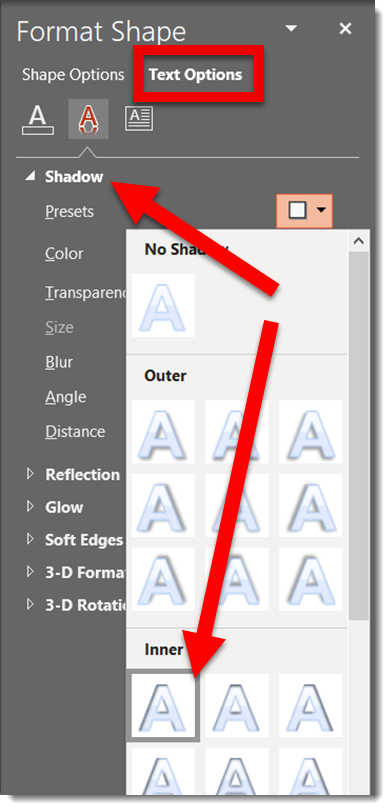
To create the cut out effect, an inner shadow is applied.

Done. A text styling effect, created in PowerPoint and text remains editable.

– Troy @ TLC
By |2020-02-07T08:11:22-08:00February 14th, 2020|Tutorial|

Overlapping PowerPoint Text

Typography: The art and technique of arranging type to make written language legible, readable, and appealing when displayed.

PowerPoint is a flexible design app. Sometimes it is not easy to accomplish design ideas as in other apps. As example, text kerning. PowerPoint does not use the design industry term “kerning” and the feature is not easily accessed.

For example, here is some simple, all caps, text on a slide.

To add some visual design, letter colors are updated to the TLC color scheme (RGB).

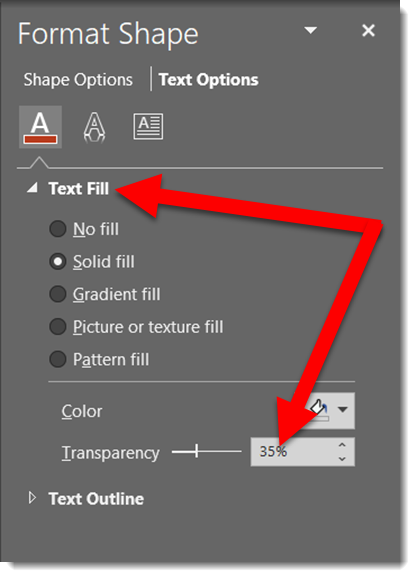
In preparation for the next effect, the opacity is lowered to

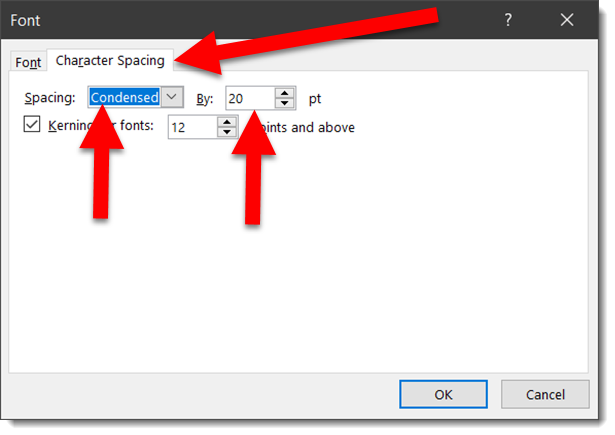
Now the actual kerning, what PowerPoint labels CHARACTER SPACING. Select the text, open the FONT dialog, view the CHARACTER SPACING tab. Change the spacing option to CONDENSED, which essentially is negative spacing (so the 20 pt used is really -20 pt).

The result is the text slightly overlaps and the transparency overlap creates a dynamic visual.

Done. Custom typography styling created all within PowerPoint and remains editable text.

Download the editable slide HERE.


– Troy @ TLC
By |2020-02-07T07:55:00-08:00February 12th, 2020|Portfolio, Tutorial|

Stacked and Mixed Text

Typography: The art and technique of arranging type to make written language legible, readable, and appealing when displayed.

PowerPoint is flexible. Like many design applications, text can be more than bullet lists of black text on a white background. One aspect of graphic design is creating visually engaging layouts with just text. As example, here is a slide one of the TLC Creative design team created – all in PowerPoint.

  1. Add text to a slide. Boring start, but now we know what we are working with.

2. To start the layout, the first section of the quote was set with a new font, ALL CAPS, and new color

3. The final word of the quote has some more extension PowerPoint styling. Starting with using a custom font and applying a text gradient fill.


4. The custom font was a purposeful selection because the font family includes an outline version. The “everything” text box was duplicated, changed to the outline version of the font, set to a purple outline and white fill. Stacked, the two text boxes look great!

5. Last is adding the name as simple, small text in same blue as the top line.

6. As a final design flare, a background image was added and sent to back.

Done. A complete graphic design text layout, completed in PowerPoint.

– Troy @ TLC

 

By |2021-06-18T08:16:06-07:00February 10th, 2020|Portfolio, Tutorial|

Use PowerPoint Text as Part of Background Design

PowerPoint is flexible. This is both a design idea and PowerPoint how-to. The end goal is to add a light/ghosted pattern of text across the background of the template or set of slides.

This could be created in Photoshop, Illustrator, or PowerPoint!

1. Start with creating the text to fit the slide. Insert a text box, add the word or phrase. Pick font and guess at best size. Set the text box settings to DO NOT AUTOFIT, zero margins, and check WRAP TEXT IN SHAPE.

2. Copy the text and paste – paste – paste to fill the entire slide. Adjust font size and line breaks to have a slide full of the background message.


3. Add the background image – your choice of adding as inserted image and send to back or set as slide background.

4. For the sample background in this demo, I want to coordinate with the gold confetti. Update text color to a gold.

5. Select the text box and adjust the text transparency to 88%.

6. Final result is a custom slide background design effect created in PowerPoint.

By |2020-02-07T07:09:42-08:00February 7th, 2020|PowerPoint, Tutorial|

Fire & Ice Text (Image Fill)

Finalizing our text treatment series, another way to make text more visually interesting is to fill text with a picture. Here is the image used for the next styling effect. Note that the fire and ice are within the same image:

To fill the text with the image, on the ribbon go to SHAPE FORMAT (A), click TEXT FILL (B), select PICTURE (C)

PowerPoints default is to make the image fill the selected text. In this case the image is “squished” to fit. But we want to show only the fire portion of the image on the FIRE text. To adjust the image, work from the FORMAT SHAPE and TEXT OPTIONS pane. Note: We cannot use crop tool to adjust fill image size/position, we must use the legacy fill offset tools.

  • Go to the TEXT FILL tab
  • Select “Tile picture as texture”

Here is our image fill BEFORE checking “Tile picture as texture”

And here is our image AFTER checking “Tile picture as texture”

Now that the fire flames portion of the image is filling the entirety of the text, we have a few customizing refinements, but for the most part the default settings work:

  • Check TILE PICTURE AS TEXTURE
  • Set the Offset X & Y to 0 pt (default)
  • Set the X & Y SCALE to 100% (default)
  • Set the ALIGNMENT to TOP LEFT (default)

Similar adjustments for ICE:

  • Check TILE PICTURE AS TEXTURE
  • Set the Offset X & Y to 0 pt (default)
  • Adjust the X SCALE (width) to 62% which let’s us see some black area of the image for more visual interest
  • Set the Y SCALE (height) to 100% (default)
  • Set the ALIGNMENT to RIGHT

Text is still editable in PowerPoint. Styling options such as drop shadows and beveling can also be applied – be creative! Download the sample slide Here.

Troy @ TLC

By |2020-01-04T17:19:08-08:00January 10th, 2020|Tutorial|
Go to Top