Tutorial

Organize and Enhance Movies in Presentation (1)

Do you think of the aesthetics of the slide when adding a movie? Are you satisfied with the fact that the slide is now “high-tech” because it has a movie? Well, that must be the thinking of lots of presentations I receive, as there is often no thought of the overall slide layout and aesthetics.

(1) If there is no other content on the slide, center it.

(2) Respect the template background elements and position the movie within these boundaries (ie. don’t have it overlap the title bar or other framing elements of the background design).

Sounds simple but I see dozens of presentations where movie placement is an after thought.

– Troy @ TLC

By |2016-11-17T16:22:33-08:00August 27th, 2007|Tutorial|

Designer Look for Tables

Tables contain lots of data – but often they do not blend with a presentations overall color scheme or design cues. Here is one example from a recent project that incorporated both the color scheme and design elements.

Color Scheme:
I filled the header bar with same color used for the bullets, bold text, and slide title area. The body of the table is filled with the presentation secondary color that was used throughout on several elements.

Design Cues:
The upper-left and lower-right feature rounded corners. Circles and rounded corners where a major design element throughout the presentation.


Up Next: How the rounded corners where created.

– Troy @ TLC

By |2016-11-17T16:09:13-08:00June 26th, 2007|Portfolio, Tutorial|

PPT Overlays To Graphics (4)

The final element was to create a placeholder for the financial information. I added another custom fill autoshape, this time a rectangle. After sized it was ‘sent to back’ and the appropriate text was added.

If you would like to download this slide, click here.

– Troy @ TLC

By |2016-11-17T16:07:33-08:00June 18th, 2007|Portfolio, Tutorial|

PPT Overlays To Graphics (3)

Because the globe is an animated .gif, not a Flash or movie file we are able to overlay elements (Flash and all movie formats always play on top of all PowerPoint content). The green semi-transparent circle overlay is the first layer. The next layer was each division logo – in this case I have added the TLC Creative logo.

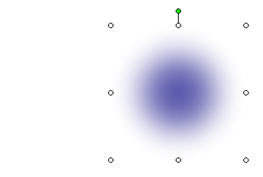
The Problem here is that the logo is a bit flat and the black text is lost. Again, the solution was using a PPT autoshape. This time I created a glow, which was simply a white circle with a custom fill from center. Here is one done in blue (so it can be seen on this white background).

The result is a nice highlight spot that not only makes the logo text legible, but adds a 3D element to the overall globe.

– Troy @ TLC

By |2016-11-17T16:06:35-08:00June 16th, 2007|Tutorial|

PPT Overlays To Graphics (2)

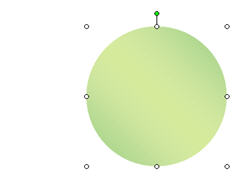
Because the globe is a circle, the solution to making it tie in with the template color scheme was to use a semi-transparent autoshape. I added a circle, sized it to the globe, then gave it a subtle 2-color fill.

This altered the “blue” globe to a “green” globe – without affecting the animated .gif

– Troy @ TLC

By |2016-11-17T16:05:20-08:00June 10th, 2007|Tutorial|

PPT Overlays To Graphics (1)

This was a nice effect I worked on for a recent presentation. The goal was to use an animated globe to visually bring in a “global” element while discussing a corporations global sales.

The problem was the blue earth did not tie in with the template color scheme.

– Troy @ TLC

By |2016-11-17T16:04:59-08:00June 8th, 2007|Tutorial|

PPT Autoshape BG (6)

Here is the finalized background with the title area drop shadow.

Click here to download PowerPoint file.

For virtually all presentations I develop the custom background art and elements in Photoshop. But with creative use of the available tools in PowerPoint, some great effects can be achieved!

– Troy @ TLC

By |2016-11-17T16:03:09-08:00May 31st, 2007|Portfolio, Templates/Assets, Tutorial|

PPT Autoshape BG (5)

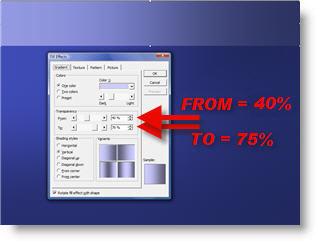
Depth creates shadows. So adding a drop shadow is an easy way to add depth to this background. Using a very thin gradient autoshape is all that was needed.

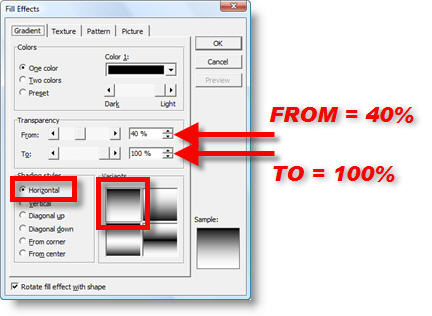
Here are the FILL EFFECTS settings to create the drop shadow (note I am using black, but not starting with a solid color, 40%, to create a “dark grey” that mixes with the other colors).

– Troy @ TLC

By |2016-11-17T16:02:23-08:00May 29th, 2007|Tutorial|

PPT Autoshape BG (4)

Using another gradient autoshape I created the title text area.

By having the more transparent area over the already darker right corner another sense of depth is created.

– Troy @ TLC

By |2016-11-17T16:02:47-08:00May 29th, 2007|Tutorial|

PPT Autoshape BG (3)

Next is an easy step, because I just use the previous gradient again. Here are the steps:
1. Select gradient
2. Duplicate
3. Go to DRAW >> ROTATE OR FLIP >> ROTATE RIGHT 90′
4. Position at bottom of slide
5. Stretch left/right to width of slide

With another layer a nice effect has been achieved leaving a lighter area in the top left, which creates a subtle visual motion with the darker streak (from the first autoshape)on the opposite axis:

– Troy @ TLC

By |2016-11-17T16:01:51-08:00May 27th, 2007|Tutorial|
Go to Top