Tutorial

Use the RECOLOR tool

So you have a slide like this with an imported Excel table:
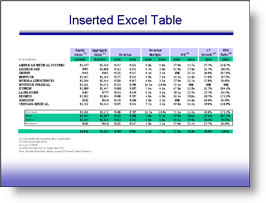
And you need to adjust the colors of the excel chart to coordinate with the presentation template. You double-click the table and get the image format box, not the Excel data:
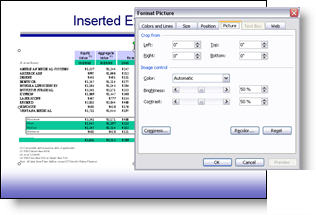
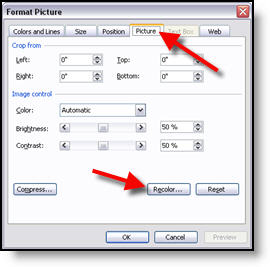
But all is not lost! Some information is still there. On the PICTURE tab, click the RECOLOR button to access this “secret” data.
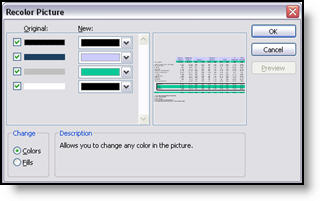
In the RECOLOR PICTURE dialog you can see the original colors formatted in Excel and have the ability to change to any other color in a few easy clicks.
This is an invaluable tool within PowerPoint to know of and use when faced with pasted in Excel tables.

-Troy @ TLC

By |2016-11-17T14:14:01-08:00August 26th, 2006|Tutorial|

Great “PhotoShop” Shadows Inside PowerPoint

Often you have a nice, well designed slide such as this title slide. It does not really need any images or animation, but it would be nice to give it a bit of depth.

Adding a soft, PhotoShop, drop shadow to the title text helps the slide differentiate itself from the “standard” PowerPoint content and add some depth and appeal.

This effect was created in less than 4 seconds using PPTXtreme‘s SoftShadow add-in. I selected the text box and clicked on the QuickShadow button.

Looking closer you can see the smooth feathered black shadow that was applied to each letter. Something that helps the text float above the background artwork.

– Troy @ TLC

By |2016-11-17T14:12:17-08:00August 18th, 2006|Software/Add-Ins, Tutorial|

How Long Was Each Slide Displayed?

Turning PowerPoint presentations into webcasts has become a fairly routine request. One of the more difficult aspects of recreating a presentation is knowing when the presenter advances the slide. This is critical in syncing video of the presenter with the slides. Here is one method I have used – and best of all it is built into PowerPoint!

A few points about this process:
1 – This is at larger conferences where I am backstage running the presentations.
2 – I am running a backup computer and I run this timer on it.
3 – I use a remote system so both computers advance simulataneously.

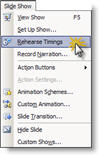
(1) With the presentation open go to SLIDESHOW >> REHEARSE TIMINGS

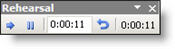
(2) The slide show begins and a pop-up timer is visible.

TIP 1: As soon as the Timer window is visible click the PAUSE button. When the meeting begins click the PLAY button (the last thing I want is to have to many things distract me at the beginning of a meeting!).

TIP 2: Even though the timer is running on the backup computer, drag the timer to the very bottom so it is virtually invisible – just in case you have to switch to it!

(3) When the presentation is done click YES to the save the timings.

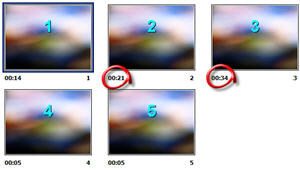
(4) Each slides time onscreen is seen next to the slide thumbnail. Be sure to do a SAVE AS to keep these timings for reference when building the webcast.

– Troy @ TLC

By |2016-11-17T14:11:56-08:00August 16th, 2006|Tutorial|

Ugly Hyperlinks in Your Presentation?

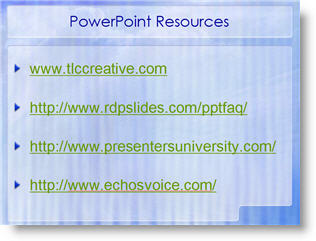
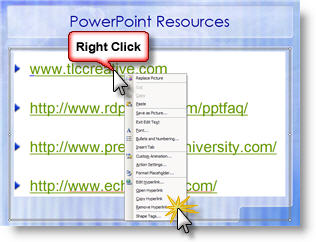
For reference you add a URL to a slide. But the text changes color, an underline is added, and in general is ugly!

You have options to bring back the aesthetics of your slide – here is the easiest. Select the text box and right click on the hyperlink and choose REMOVE HYPERLINK.

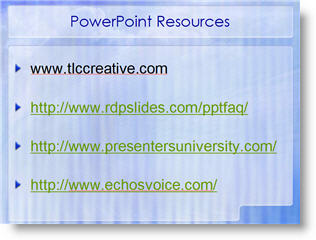
This strips out the active link programming and changes the URL into plain text. It will not be able to be clicked as an active link after this. The result is happy, beautiful, text once again!

– Troy @ TLC

By |2016-11-17T14:09:45-08:00August 6th, 2006|Tutorial|

Use “Blank” for Your Browser Home Page

My preference when it comes to a browser Home Page is to have the browser open with nothing (zip, nada, white space). It takes time to load a page, which is usually not the one I want to see. Here is how to setup Internet Explorer:

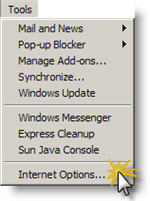
(1) Go to TOOLS >> INTERNET OPTIONS

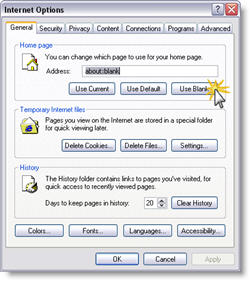
(2) On the General tab, click USE BLANK button.

-Troy @ TLC

By |2016-11-17T14:09:25-08:00August 4th, 2006|Tutorial|

Set Home Page in Internet Explorer FAST

Thanks to Brad Hagen, owner of Video Resources, for showing me this nifty shortcut! On a recent project I was responsible for setting up an event’s internet cafe. Set up a wireless network, configure the dozen computers and set up with custom wallpaper, set the browser homepage, etc.

Here is how to set the browser homepage in three easy steps:

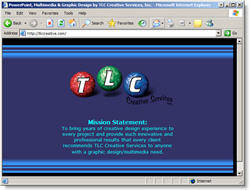
(1) Browse to URL you want to be the home page
Set TLCCreative.com as your homepage!

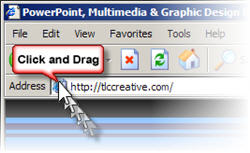
(2) Click-and-drag the webpage icon in the address bar

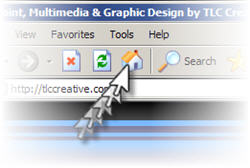
and drag on top of the “Home” icon

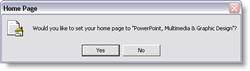
(3) Click “Yes” to the dialog. Done!

-Troy @ TLC

By |2016-11-17T14:09:01-08:00August 2nd, 2006|Software/Add-Ins, Tutorial|

New Ribbon UI Movie

Microsoft’s Jensen Harris recently posted this movie showing how the new Ribbon can be minimized and still used. While not a big fan when I first viewed the ribbon in the pre-beta, there has been A LOT of good work going on at Microsoft and my expectations are looking better! Check this 38 second movie here (or high-bandwidth version here).

-Troy @ TLC

By |2016-11-17T14:08:12-08:00July 28th, 2006|Software/Add-Ins, Tutorial|

Line Spacing and the Magic of F4

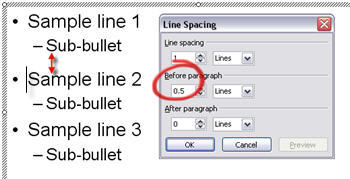
Here is our sample text.

To help visually cluster the information by the primary bullets we position the cursor on the second bullet and add additional spacing BEFORE PARAGRAPH of 0.5

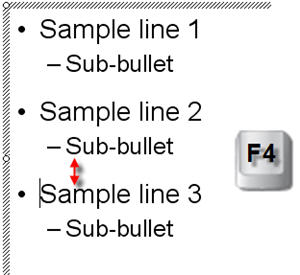
Now to do the same for the third bullet we can either position the cursor on the third bullet line, open the Line Spacing dialog and enter the new distance OR we position the cursor on the third bullet line and click the F4 button!

F4 is a keyboard shortcut in PowerPoint that repeats whatever the last action was. In this case it automatically changes the BEFORE PARAGRAPH line spacing from 0.2 to 0.5, matching the bullet above!

-Troy @ TLC

By |2016-11-17T14:07:36-08:00July 24th, 2006|Tutorial|

What Does Line Spacing Do?

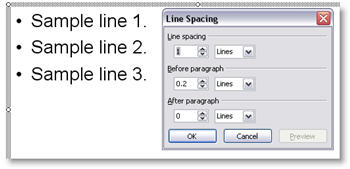
Here is a sample three lines of text and the default line spacing dialog.

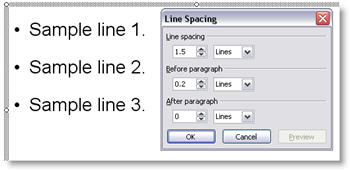
If I select the entire text box and change the LINE SPACING all of the lines move further apart as you can see here.

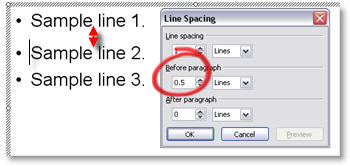
If I place the cursor in line 2 and add BEFORE PARAGRAPH space, the distance between line 2 and line 1 increases. The distance between line 2 and 3 remains the same.

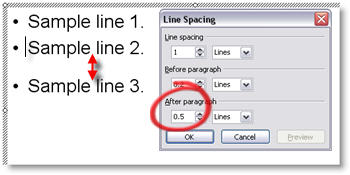
If instead I place the cursor on line 2 and add AFTER PARAGRAPH space, the distance between line 2 and 3 increases. While the distance between line 1 and 2 remains the same.

-Troy @ TLC

By |2016-11-17T14:07:17-08:00July 22nd, 2006|Tutorial|
Go to Top