
Today! The Presentation Ideas Online Conference
Join me (Troy Chollar) today at the Presentation Ideas Conference – it is FREE and a virtual online conference HERE.
I am presenting today (November 28, 2018) at 11:00 AM (PST). My talk is all about “ultrawide” PowerPoint presentations, covering not only insights into the design process, but the technical how-to’s of developing super wide, super size presentations!
Website: https://www.presentationpoint.com/presentation-ideas-conference/
When: November 28-29, 2018
Cost: Completely free!
Speakers:
- Chantal Bossé – Your Key to Audience Engagement: PowerPoint’s Zoom Feature
- Troy Chollar – Really, Really BIG PowerPoint (Screen Size, Not File Size)!
- Ellen Finkelstein – 9 Techniques to Make Your Presentations Modern — So You Don’t Look So Old!
- Garland Coulson – 10 Creative Ways to Use Data In Presentations
- Geteesh Bajaj – 7 Secrets of Using Images in PowerPoint
- Kurt Dupont – The Simplest Way to Make Real-Time Data Presentations
- Sharyn Fitzpatrick – Best Practices on How to Transition to Online Presenting
- Garland Coulson – The Lazy Man’s Method to Fast Easy Content Creation

New PowerPoint Page Number Print Feature!
A new feature snuck into PowerPoint unannounced (PowerPoint for Windows, Mac version coming soon, mobile/web versions – uncertain), and it is either fantastic or a frustration, depending on what you need!
Traditionally making a print of slides for reference was a bit confusing as to what slide number was being referenced. We had the print page number, but this 6-up layout meant manually counting slides to know which slide number the thumbnail represented.
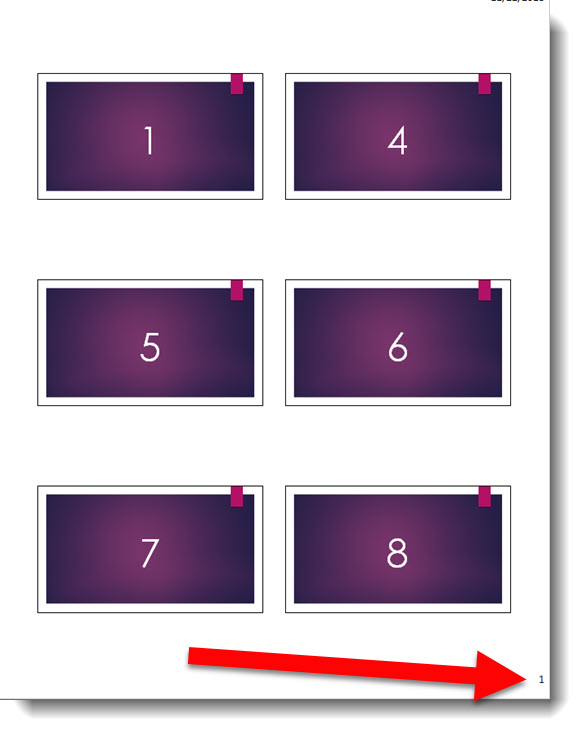
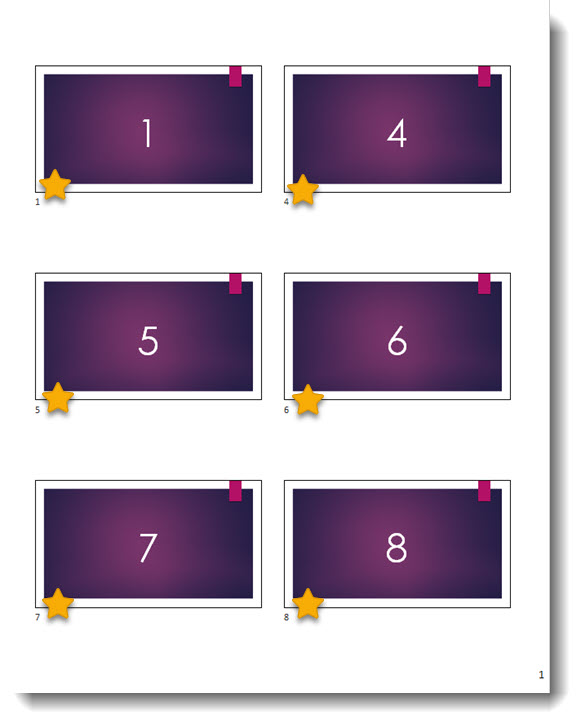
But now there is an option to add slide numbers outside the thumbnails!!
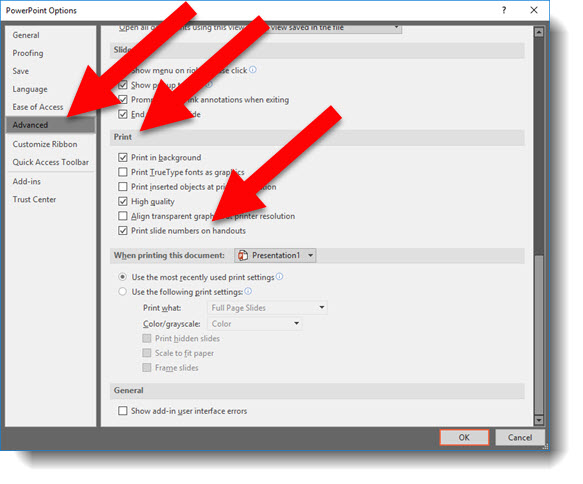
This feature has been turned on by default with a recent Office update (note: I am currently running the Insider Fast, or Monthly Targeted, build and have not verified if this feature has rolled out to all update cycles – if you do not see it, it is coming soon). Go to FILE > OPTIONS > ADVANCED > PRINT > PRINT SLIDE NUMBERS ON HANDOUTS
Let’s look at this feature a bit closer and a scenario where it may not be as helpful as you had hoped. Here is my sample slide deck, 15 slides and 2 slides (#2 and #3) hidden.

Printing this slide deck as a 2-up handout WITH hidden slides included looks like this. We have the print page number and the thumbnail slide numbers look perfect:
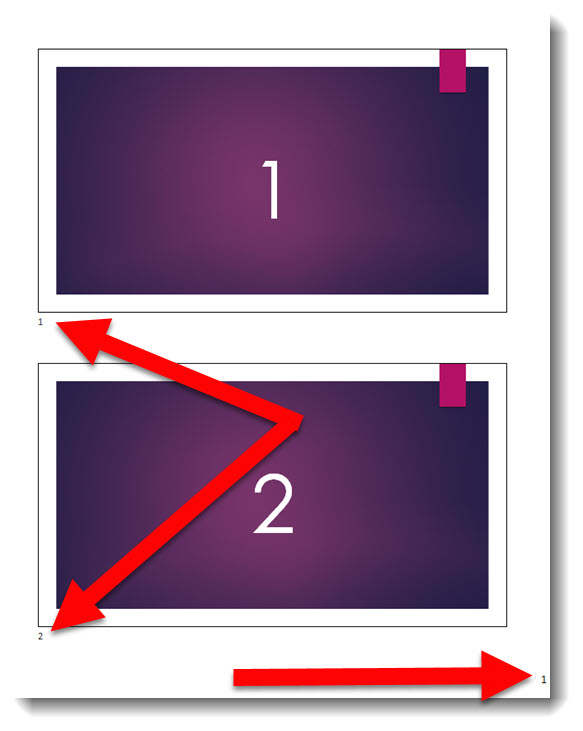
But if we do not print the hidden slides, things may be a bit confusing. The print page number is still perfect, but the thumbnail slide numbers match the actual slide number not the slide show number. The hidden slides still count as numbers to the print out jumps from slide 1 to slide 4:
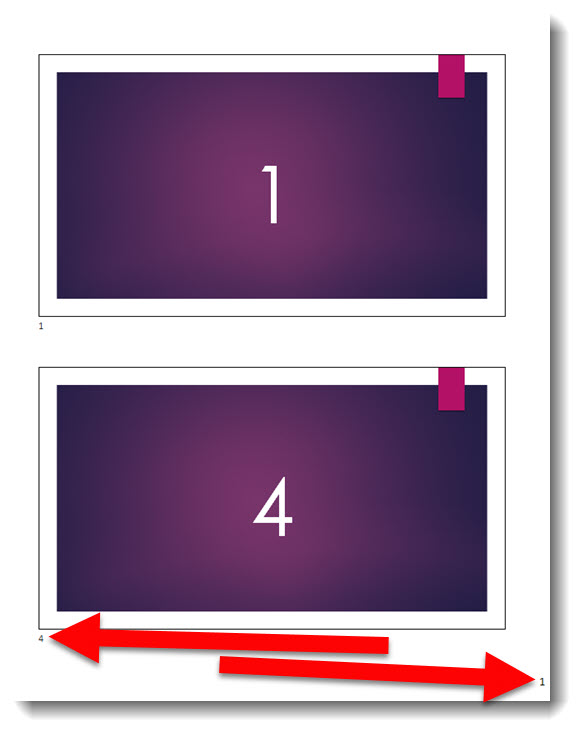
Good? Bad? Confusing? Helpful? Not Helpful?
I find the all of the above to be possible answers. The way I am explaining the thumbnail page numbers is they are the slide number, not the slide show number. So if you need to manually jump to a specific slide in a presentation – while presenting, that is the number to use. If you are looking to confirm how many slides are in a presentation, this may not be the accurate number (if there are hidden slides in the deck).
Troy @ TLC
Happy Thanksgiving Animation
[KGVID]https://thepowerpointblog.com/wp-content/uploads/2018/11/unnamed-file.mp4[/KGVID]
Happy Thanksgiving everyone! Enjoy time with family and full of fun and food 🙂
Thanks to Christie on the TLC Creative presentation design team for creating a fun Thanksgiving themed PowerPoint animation – it only took 82 animations for the above animation!
[KGVID width=”484″]https://thepowerpointblog.com/wp-content/uploads/2018/11/unnamed-file-1.mp4[/KGVID]
Troy @ TLC
The Presentation Podcast Episode #66 Released Today!
A new episode of The Presentation Podcast with Troy, Nolan, and Sandy is available today! Check out the latest episode, #66 – Scope Creep and the Boiling Frog.
- All Presentation projects all have parameters; what is needed, when it is needed, who needs to approve, how you will be paid. Project scope can be very simple or very robust. One thing that is almost inevitable, the project scope changes before the final design piece is approved. Join Troy, Sandy, and Nolan as they talk about how they setup project scope, and stories of Project Scope that slowly expanded throughout the project timeline.
Make it ALL CAPS
“How Did They Do That? When I type into the title text placeholder, all of the text is automatically ALL CAPS.”
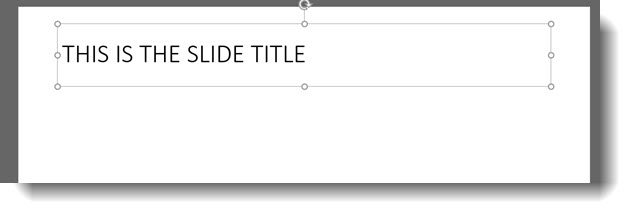
When developing a template or custom layout, this is a great way to help everyone using the template with consistent formatting.
Go to the Master Slide or specific Master Layout and select the title text placeholder.
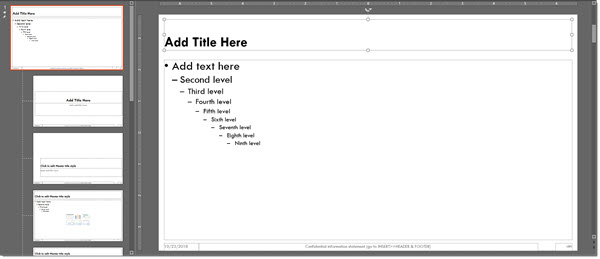
On the HOME tab, in the FONT section, click the FONT DIALOG icon.

From the FONT dialog, check the ALL CAPS option, and OK.
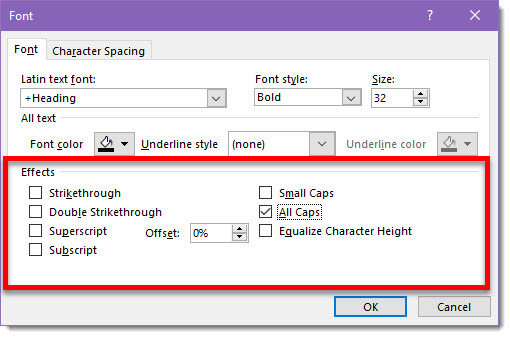
That’s all the programming needed. That text placeholder will now be ALL CAPS text as it is added.
-Troy @ TLC
Placeholder Prompt Text – Make it Helpful
Every new slide, with text placeholders, have some informational prompt text to let users know it is available.
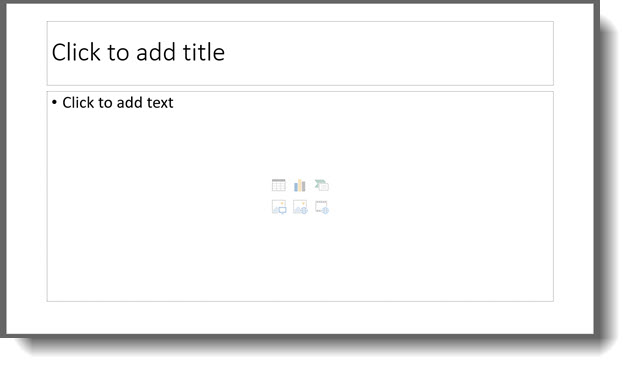
But the prompt text does not need to be the Microsoft supplied text! The prompt text can be updated to personalize to the audience, topic, or content needs.
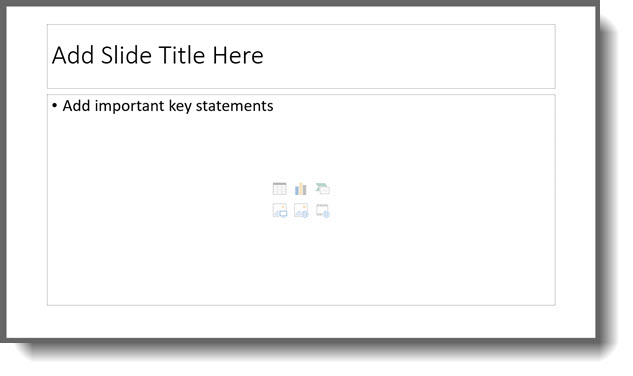
-Troy @ TLC
Free Thanksgiving Template
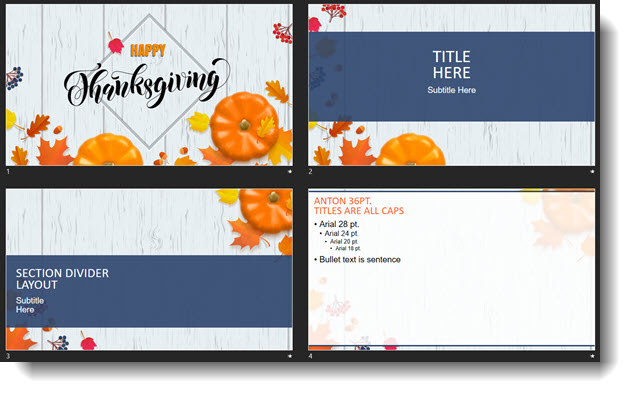
It Fall time and November is a time for family and friends to gather for a Thanksgiving feast (yum!). Enjoy a FREE PowerPoint template from our team that is Fall and Thanksgiving themed (thanks for the design Christie). Download here.
Troy @ TLC