PowerPoint’s Arrange All
PowerPoint has an almost hidden feature, that has been there for quite awhile, and can be very useful when there are several presentations open – Arrange All.
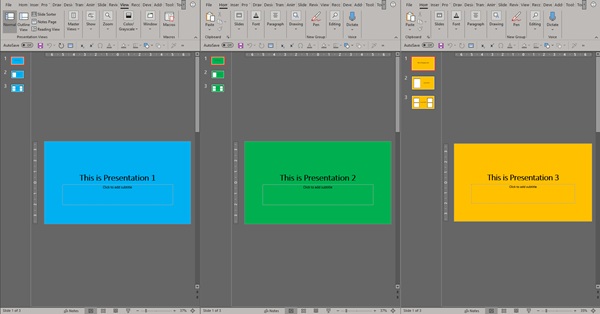
When working with multiple presentations in PowerPoint, there are times where you will have to switch back in forth between them. PowerPoint can make this easier and instantly layout all the presentations across the monitors like this:
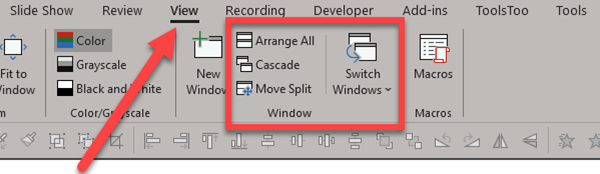
Go to the VIEW tab and the WINDOW section. There are a few options:
- Arrange All
- Cascade,
- Move Split
- Switch Windows
First, we will take a look at Switch Windows.
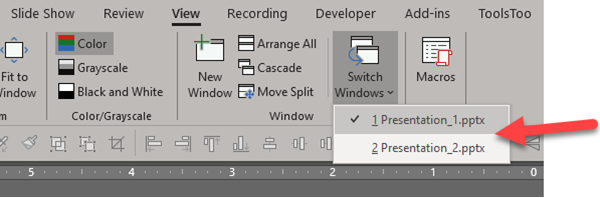
The SWITCH WINDOWS drop down menu shows a list of all currently open presentations. Select a presentation file name to bring that one to front.
CASCADE resizes and repositions all currently open presentations onto a single montior, slightly offset so you can see their separate windows.
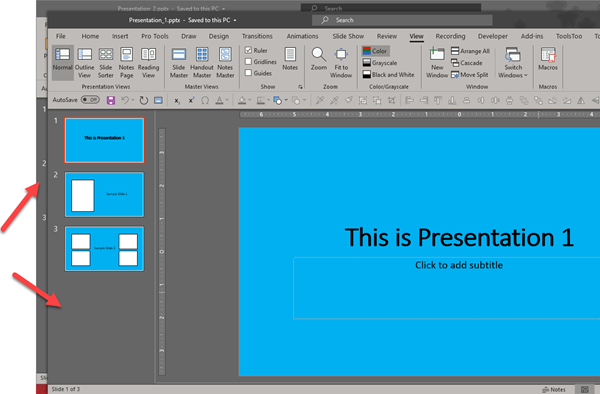
ARRANGE ALL is one of our favorite features. This will evening divide all currently open presentations across the screen. This is particularly helpful when working on one presentation while referencing the other(s).
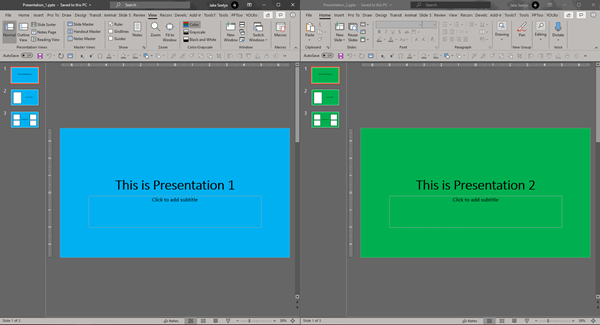
Here are 3 presentations instantly positioned on 1 screen.
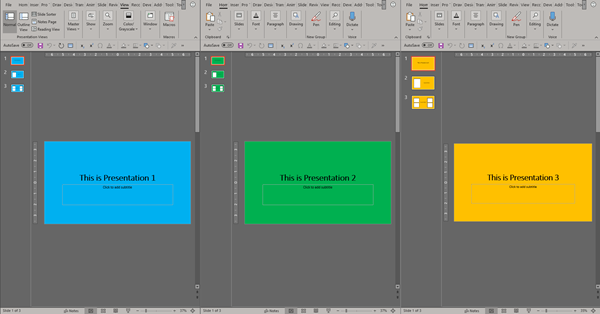
When working on multiple presentations simultaneously, things can get a bit hectic. This particular feature in PowerPoint makes life a little easier by making it simple to cycle to each presentation or by quickly displaying all presentations on screen.
Jake @ TLC
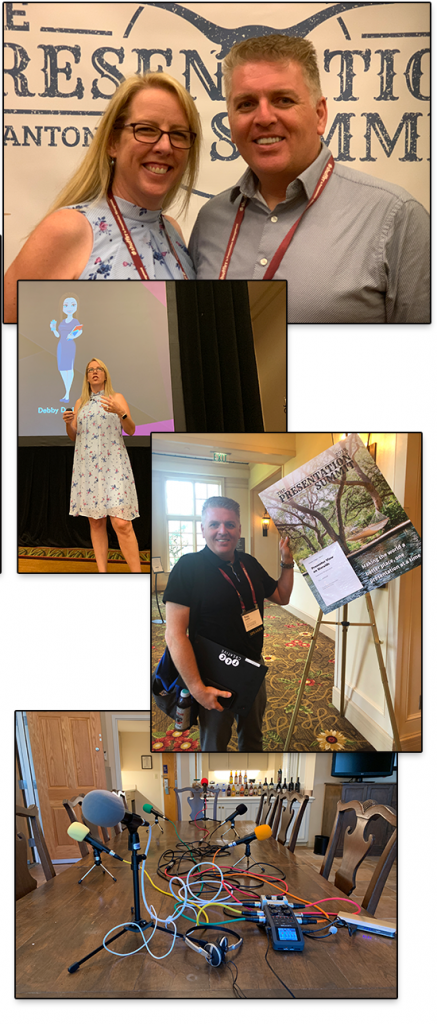
Enjoying the 2019 Presentation Summit!
This week is San Antonio, TX at the 2019 Presentation Summit – definitely the place to be for all presentation designers! Lori wowed a full house with her talk on Collaborating with everyone on a design project. Troy had a great walk-through of PowerPoint’s Presenter View from corporate meeting use perspective – and later today is walking through how to design PowerPoint template for Ultrawide screens in his REALLY BIG session. And there is more fun to go!
Sketched Outlines (Part 2)
I wanted to create a Part 2 to the PowerPoint Sketched Outline tool and share a more advanced shape consideration with using the Sketched outline styling. In this case, what happens when you use the Merge Shapes tools to create a new shape – and those shapes already have the Sketched outline styling applied?
1. For this demo, I am inserting two 2 PowerPoint shapes
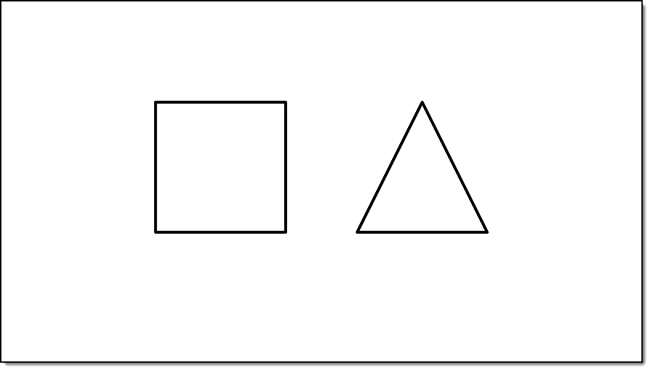
2. Apply a Sketch Styling to both shapes
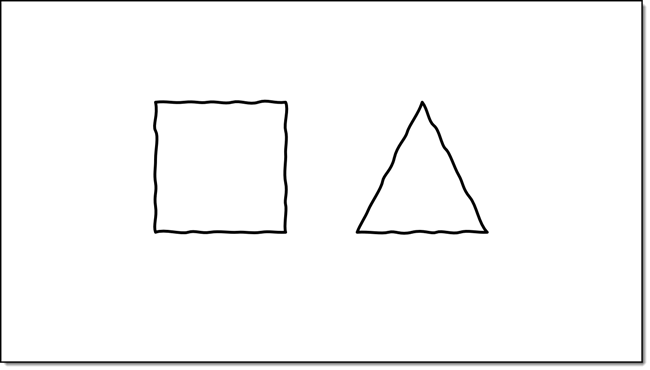
3. Then combine them by using the PowerPoint MERGE SHAEPES “Union”
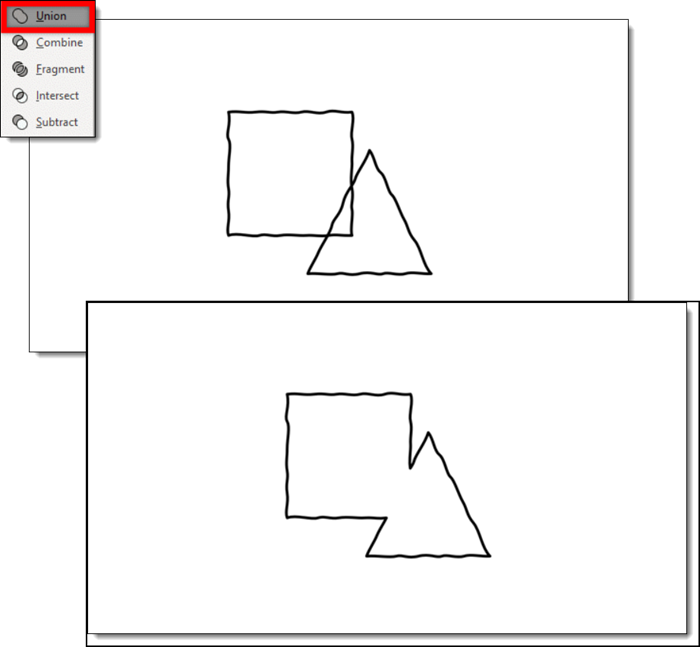
4. The new shape, which looks great, does have the Sketched outline permanently applied. Selecting the straight line optioncannot be selected to revert it back to smooth/straight lines.
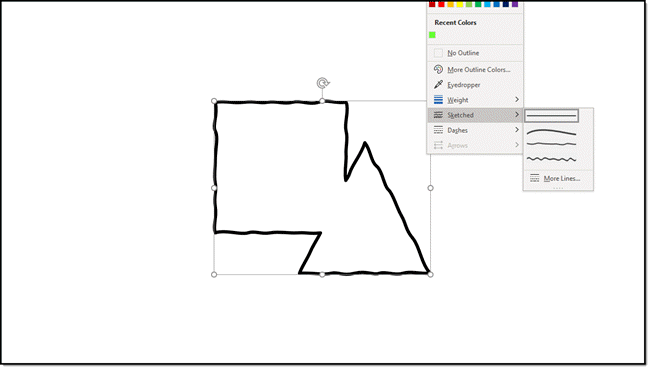
5. The way to avoid this permanent styling is to pre-plan. Before merging the two shapes together change the outline to the smooth/straight outline. Then re-apply the sketched outline styling to the new (merged) shape.
Troy @ TLC
PowerPoint “Sketched” Shapes
Outline Sketched is one of the newest design features in PowerPoint O365 version (on Windows, Mac, but on Online version yet). It applies a hand drawn, or “sketched” styling to shapes. As example:
The 1st step is to create any shape or insert a ppt object (read below for details)
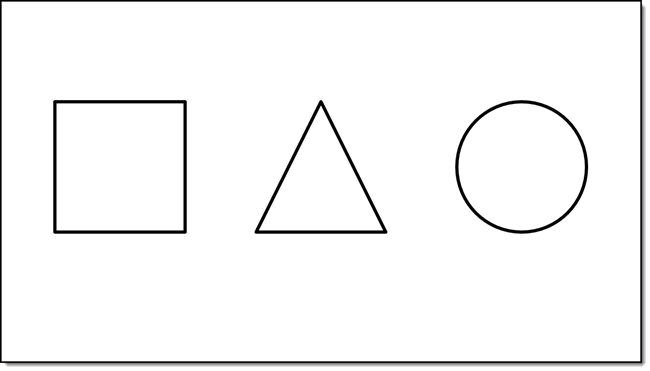
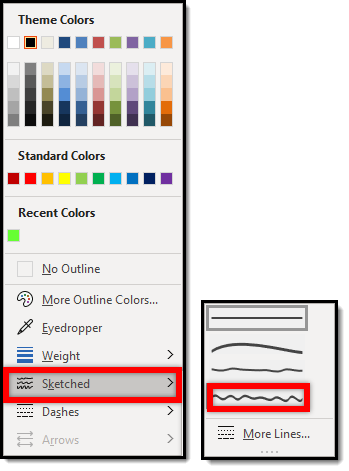
Select the object(s) and go to Shape Format > Shapes Styles tab > Shape Outline

In the Shape Outline drop down menu go to the new SKETCHED option that offers serveral preset “sketched” styles
Notes:
There are several ways to access the Shape Outline menu (at TLC Creative we have it on our QAT).
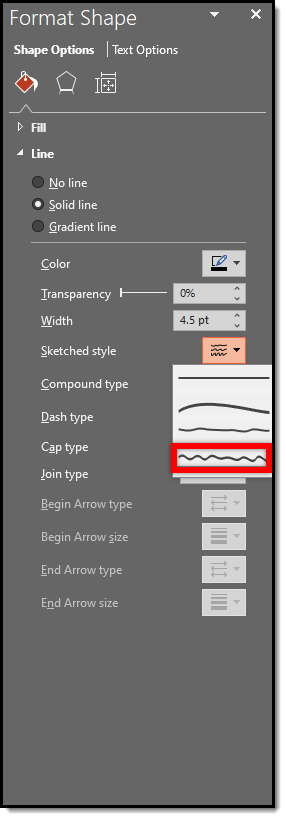
Also, the Sketched settings are available in the “Format Shape” pane
Applying a Sketched outline to the example objects does this:
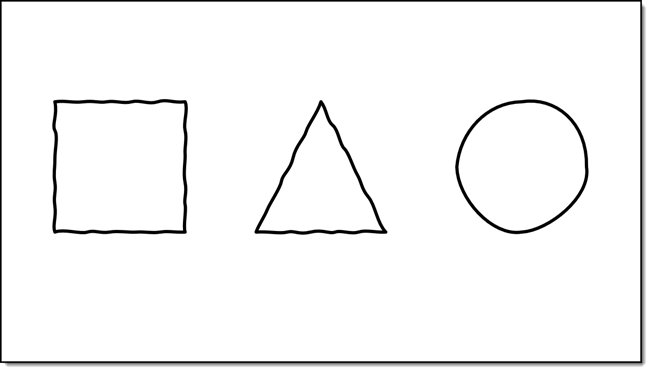
- The PowerPoint shapes remain completed editable!
- Objects can be filled and with the ability to still apply a sketch outline.
- Inserted .SVG graphics
- The only way to apply this outline to an inserted .svg art is to ungroup the svg file within ppt. However, this will ultimately change the svg into an emf shape and might change the look of the svg, i.e. if the svg is inserted with a gradient style and the object is ungrouped the object might become distorted in color etc.
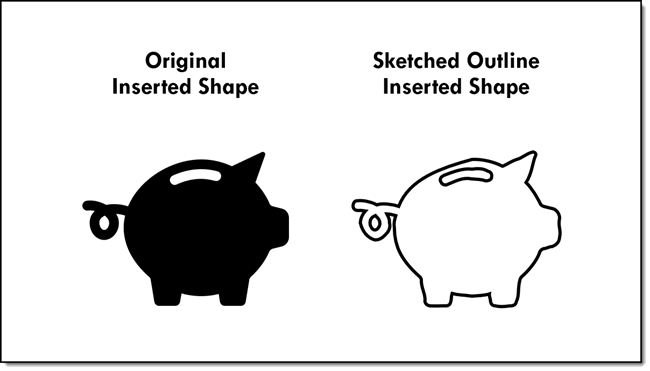
- Inserted PowerPoint icons
- The native icons are basically an internal library of .svg graphics. The sketched styling can be applied the same way it can be applied to .svg graphics described above
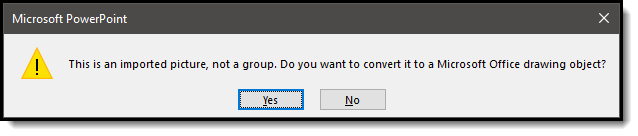
- Ungroup the icon > click yes at the warning pop up, click yes > apply sketched outline styling
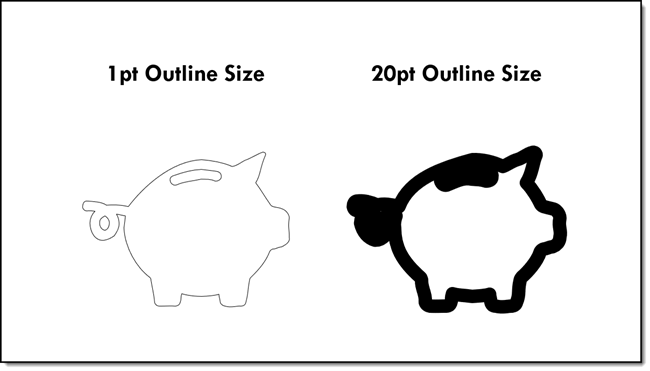
- Outlines can vary in weight (thickness). Test different weights to find the one that best works with the graphic. As example, our sample PowerPoint icon looks very different with a a thin 1pt outline and a thick 20pt outline
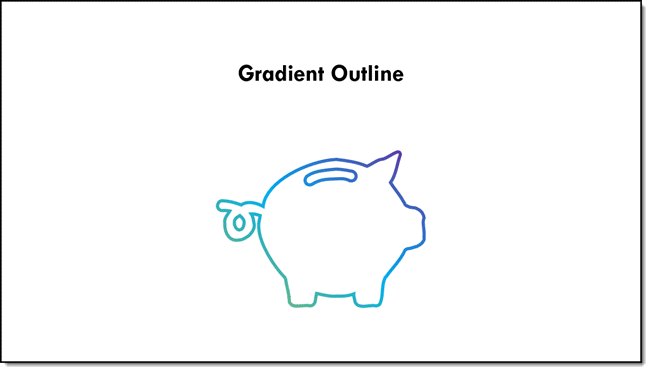
- Sketched outlines can have all PowerPoint styling options applied; color, shadow, or gradients
Troy @ TLC
When Scientists Present – a new PowerPoint Podcast Episode!
A new episode of The Presentation Podcast is available today! This episode listen in as Troy, Nolan and Sandy are joined by Mike Morrison. Episode, 87 – When Scientists Present is a fantastic conversation about the scientist mindset to presentation content and a new approach to Poster Presentations!
Listen in on Apple Podcasts, Stitcher, Google Play, Spotify and Soundcloud – just search for “The Presentation Podcast” – or go direct to the episode page here: https://thepresentationpodcast.com/podcast/87
The Power of Feedback – Morph and Microsoft MVPs
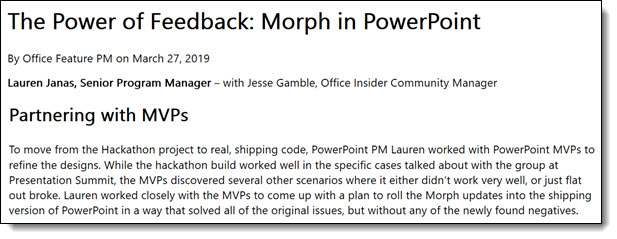
A recent article from Microsoft talks about PowerPoint’s Morph and how internally it continues to improve. In addition, I am often asked what it means to be awarded as an MVP from Microsoft – this article gives a nice callout to how Microsoft interacts with the PowerPoint MVP group for real-world use testing and input on features/bugs/problems/needs. I am happy to report I was part of this discussion – and yes, I had many recommendations on updates that would make Morph even better for our real-life uses 🙂
Full article here.
Troy @ TLC
Lettering Workshop
This is the banner ad for a hand lettering workshop my daughter is leading later this month (Kelli graduated from Cal Poly San Luis Obispo in graphic design, is active with the AIGA leadership and has been asked to lead a workshop in Orange County, California (yes, I am a proud father).