
The Presentation Podcast Episode #26 Released Today!
A new episode of The Presentation Podcast with Troy, Nolan, and Sandy is available today! Check out their latest discussion – “Typography, Part 2” and add to your favorite Podcasts on iTunes, Google Play, Stitcher, SoundCloud and more at The Presentation Podcast.

The Presentation Podcast Episode #25 Released Today!
A new episode of The Presentation Podcast with Troy, Nolan, and Sandy is available today! Check out their latest discussion – “What is the Page Size of 16×9?” and add to your favorite Podcasts on iTunes, Google Play, Stitcher, SoundCloud and more at The Presentation Podcast.
ToolsToo Tip from Troy @ TLC
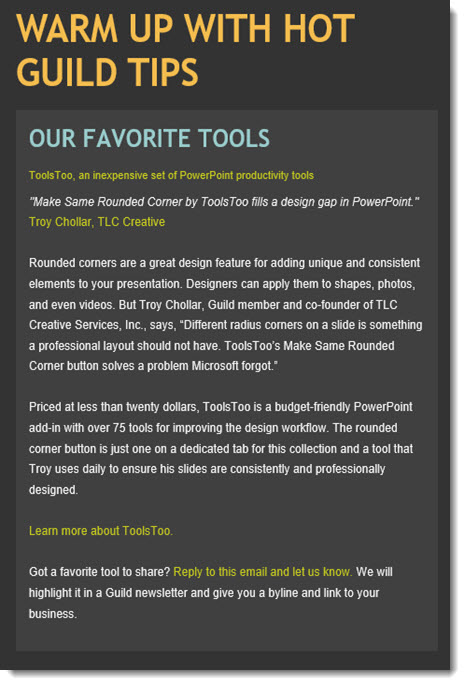
If you are a member of the Presentation Guild, the February email newsletter featured a quick tip from Troy @ TLC Creative on one of our team’s go-to tools for PowerPoint, which shapes rounded corner rectangles, from the ToolsToo add-in.
The Presentation Podcast Episode #24 Released Today!
A new episode from The Presentation Podcast with Troy, Nolan, and Sandy is available today! Check out their latest discussion on “Archiving Projects” and add to your favorite Podcasts on iTunes, Google Play, Stitcher, SoundCloud and more at The Presentation Podcast.
The Presentation Podcast Episode #23 Released Today!
A new episode from The Presentation Podcast with Troy, Nolan, and Sandy is available today! Check out their latest discussion on “Typography & Typesetting” and add to your favorite Podcasts on iTunes, Google Play, Stitcher, SoundCloud and more at The Presentation Podcast.
PowerPoint Icons Library!
If you are running Office 365, PowerPoint 2106, a new addition was added to the ribbon – Icons!
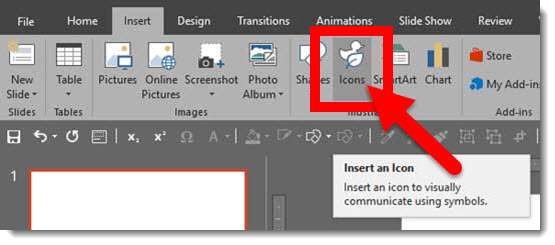
This is a Microsoft offering, not an add-in from a 3rd party. It is also linked to our new .svg image support. Click the Icons button and there is a large library of professional and modern icons available.
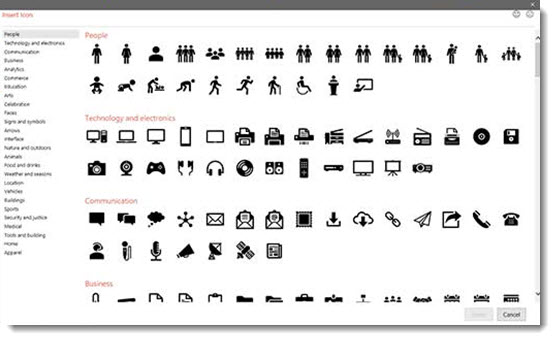
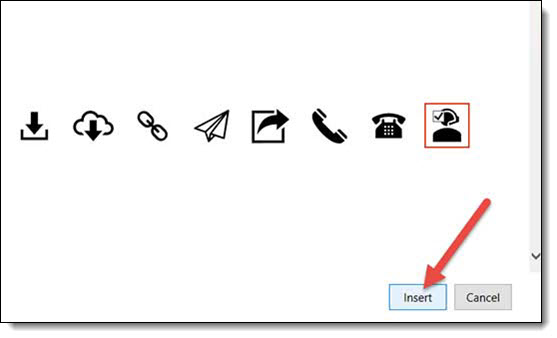
Just search through the many categories, select an icon and click INSERT to add to a slide.
Every icon is provided in the .svg format. So, all icons can be resized with no quality loss, are very small file size, and can be recolored and offer limited styling options within PowerPoint (see previous post for overview of PowerPoint SVG formatting options and limitations).

Troy @ TLC
.SVG and Windows
SVG is a fantastic vector image format for PowerPoint. But it is not completely Windows OS friendly, and I think everyone should be prepared for a few frustrations that can be there when using .svg images.
Windows Preview App:
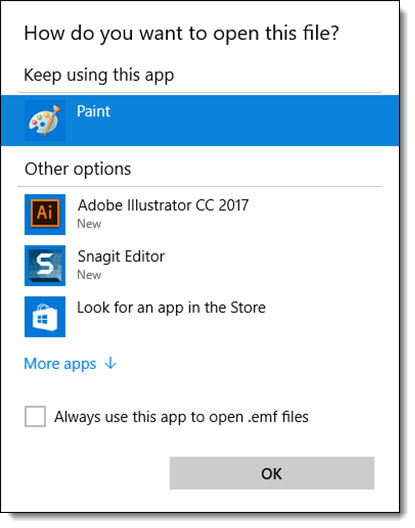
- There is no image app that can open and view an .svg image, including Windows 10 Photos, Paint, Windows Media Player, etc.
- So if you double-click to open a .svg you will get the “I don’t know what to do with this image dialog”. Note: I currently have set SVG files to open with a web browser, as that is an app that can preview the file format.
Windows File Explorer:
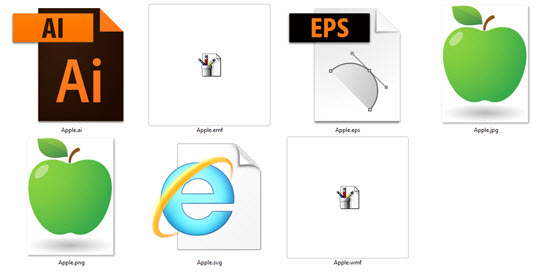
- Because there is no application that can preview an .svg, an .svg icon is blank.
- Note 1: I have setup the Microsoft Edge web browser as the application to open a preview .svg images, which is why this Windows File Explorer image shows a web page icon for the .svg
- Note 2: .svg is not the only image file format that Windows does not support. .wmf, .ai, .eps, .psd, and many others all cannot display a thumbnail image.
Troy @ TLC