
Applying Line and Paragraph Spacing
Quick Shortcut to Apply Line and Paragraph Spacing
The F4 key reapplies the last action. It’s a great timesaver for those repetitive actions – an especially helpful task in customizing the line and paragraph spacing in a text box where not every paragraph gets the same spacing. Here is my sample slide with several text boxes and several paragraph spacing opportunities to improve the legibility.
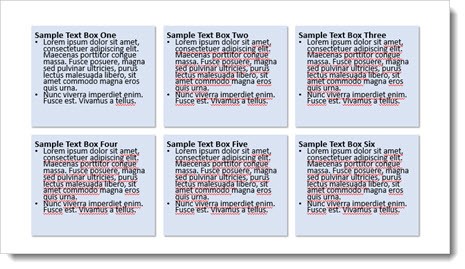
If the formatting goal is to add some additional paragraph space between the bullets on each text box, the process unfortunately involves selecting the bulleted text in one text box, opening the paragraph spacing dialog, adjusting, closing dialog and then repeating the process in the next text box.
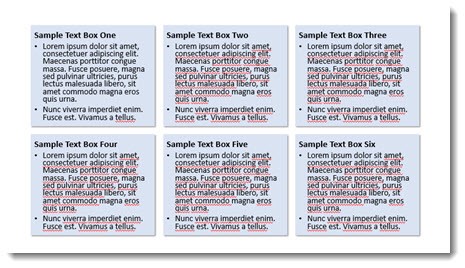
As a shortcut, adjust the Line and Paragraph spacing, then select the next text box and position cursor on the next bullet line. Use F4 to repeat the step automatically! F4 applies the last action made, so in this case you can go from the above sample slide to the one below in less than 30 seconds vs. several minutes selecting text boxes and opening/adjusting the Line and Paragraph dialog 6 times.
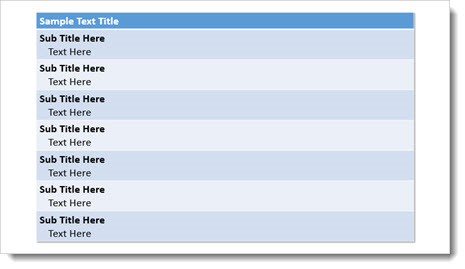
The F4 repeat works on virtually any command while editing slides. Another great use is formatting text in Tables – in this sample F4 was used to quickly add the text indenting for each 2nd line.
Also, Ctrl Y is another key command that does the same thing. So F4 or CTRL+Y repeat the last command. Test it out and see how it can save you time.
-Troy @ TLC
Crop to Shape in PowerPoint
Images within PowerPoint can be formatted to have many different effects. In addition, a formatted image can also be cropped to any shape without affecting any existing formatting using the Crop to Shape tool.
1. Begin with an image that has been formatted within PPT.

2. Select the image, and then click the drop down arrow below the Crop button under the Picture Tools Format tab.
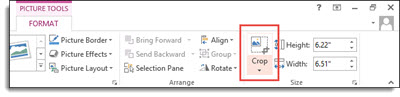
3. Hover over Crop to Shape to show the many different shapes available to crop the image to.
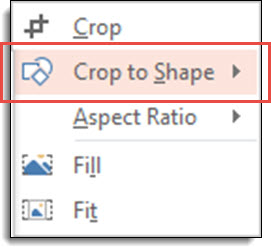
4. Select the shape you wish to crop the image to.
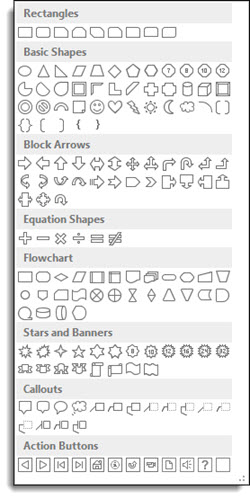
5. The image is now cropped to the new shape and all original formatting is still in place. Here are some examples of the image cropped to different shapes:




-Troy @ TLC
PowerPoint Guides: Master vs. Slide
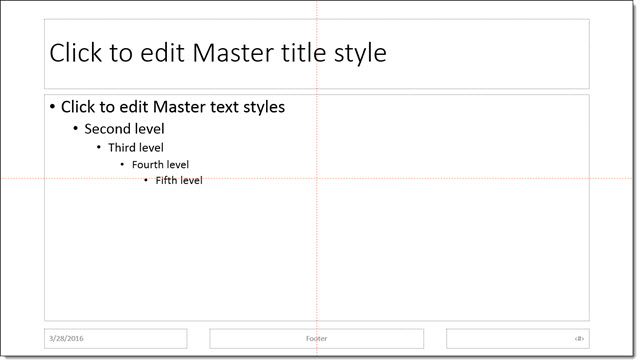
In PowerPoint, guides help with formatting, positioning and slide-to-slide consistency. The PowerPoint guides have evolved over the past few versions. Here is a quick overview of the three different types of guides:
Master Slide Guides (Orange by default): Editable only on the master slide and display on all layouts and slides using that master slide.
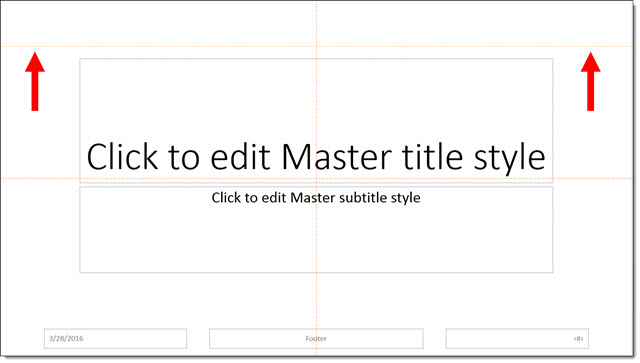
Master Layout Guides (Yellow by default): Apply to individual master layouts only and are only editable on that particular master layout. Here an additional guide is added to the TITLE layout, so only TITLE layout slides will see this new guide.
Slide Guides (Gray by default): These are guides added and editable on slides (in edit view, not master view or slide show). In this example, 2 new guides have been added to the slide.
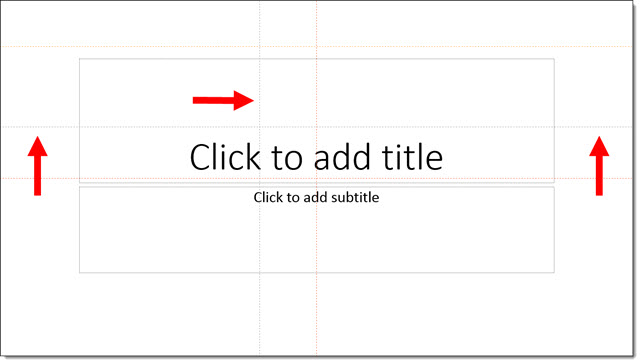
Existing guides can be adjusted by clicking and dragging them . The easiest way to remove a guide is to drag it off the slide.
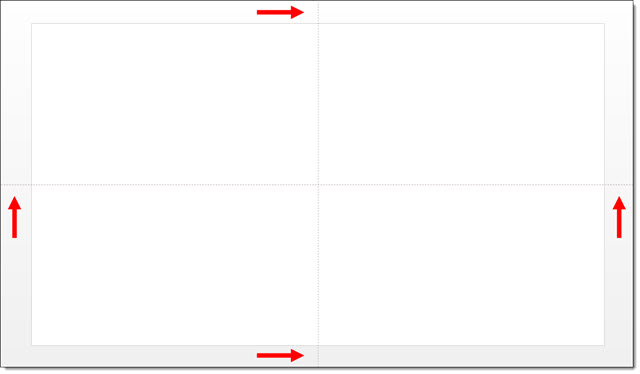
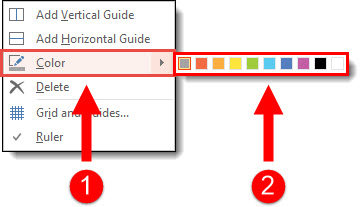
In addition, you can change the color of guides. To change the color of a guide:
- Right click the guide you want to change the color of (be sure it is in an area off the slide or on an empty area of the slide)
- Hover over Color
- Select a color option
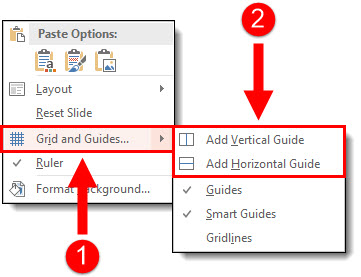
To add PowerPoint guides to a slide or layout:
- Right click off slide or on an empty area of the slide
- Go to Grid and Guides
- Choose Add Vertical or Add Horizontal
– Troy @ TLC
PowerPoint Text Box Cell Padding (Margins)
One great feature of PowerPoint is knowing that every text box is basically a mini Word document which means adjusting the cell padding can be done quickly and easily.
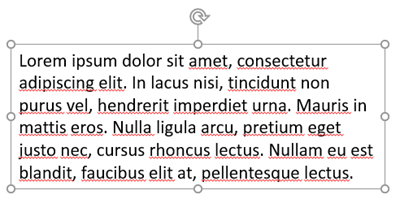
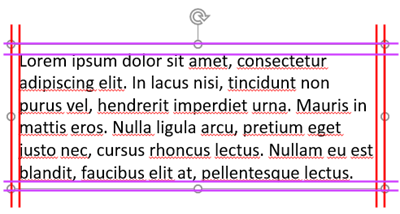
By default, all text is inset a small amount in each text box. Here is an example from the Microsoft PowerPoint 2016 default template. There is .1″ all the way around.
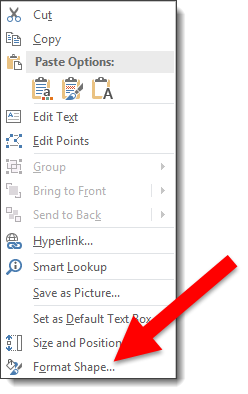
The cell padding, or inset, is easily customized. Select a text box, right-click and select Format Shape.
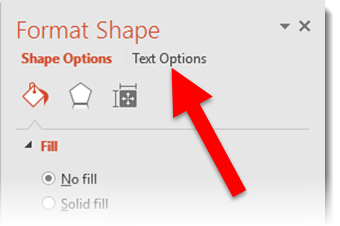
In the Formatting text pane, click the Text Options.
Click the text box icon.
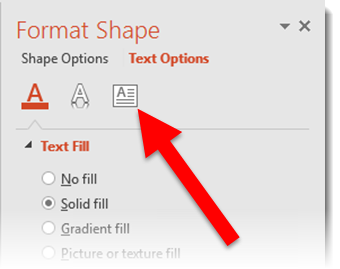
Adjust the Left/Right/Top/Bottom margins exactly as needed.
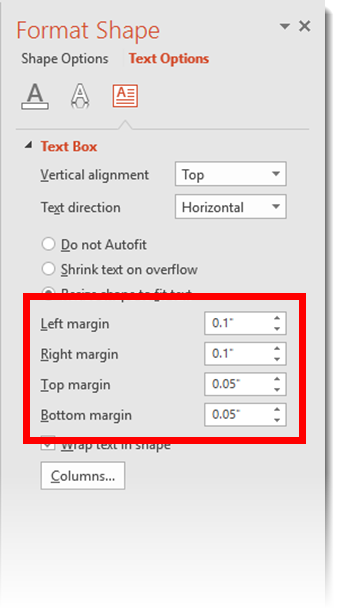
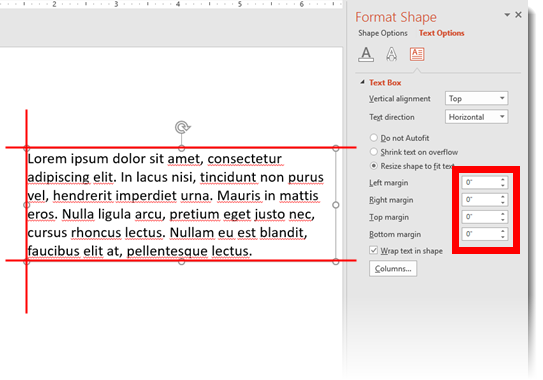
Here is the same text box with a 0″ margin all the way around so the text is right next to the placeholder now.
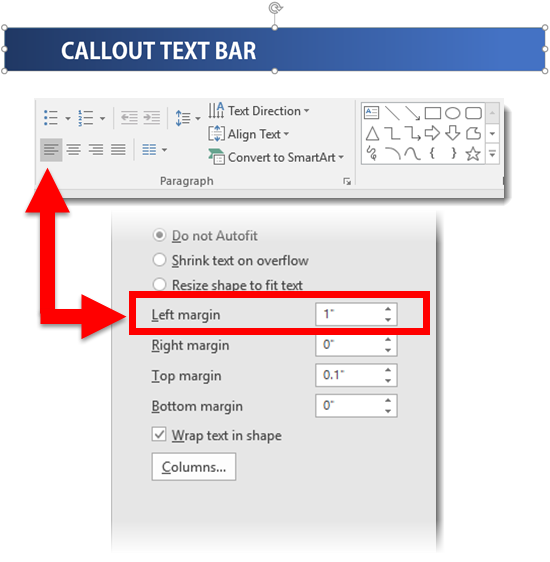
And here is a callout bar with the text set to start 1″ in from the left edge.
Just some formatting ideas for your next presentation. Otherwise, you are stuck wondering why the text in a shape is not in the position it should be.
– Troy@TLC
New Podcast Today!- How, and When, To Hire a Presentation Design Professional
This is the 1st Tuesday of April and Episode #3 is now live at The Presentation Podcast! Check out the show notes and subscribe on iTunes to listen in.

-Troy @ TLC
2-Up PDF Printout of PowerPoint Slides
Printing slides is a common need. But the Microsoft presets are not optimal. For example, let’s look at “2-up” printouts directly from PowerPoint and then we’ll look at my preferred option which is using Adobe Acrobat to create the 2-up PDF printout.
Using Microsoft’s PowerPoint preset:
1. Go to File > Export > Create PDF/XPS Document
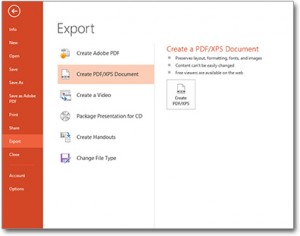
2. In the PUBLISH OPTIONS section, change the drop down menu to HANDOUTS. Slides per page = 2. Keep HORIZONTAL setting. A print preview of the pages will be on the right.
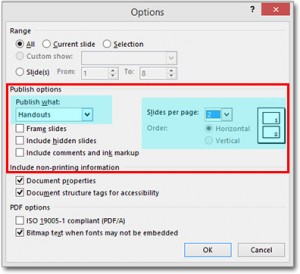
Select OK and your PDF will be created.
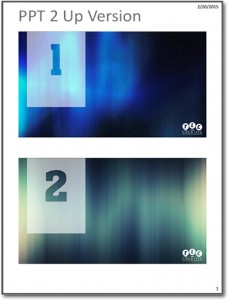
But, these can be larger images of each slide if we do not use the PowerPoint preset.
To create 2-up printout using Adobe Acrobat (Note: This is a multi-step process, but the result is great):
1. Go to File > Export > Create PDF/XPS Document. This time don’t worry about the options, just create PDF with 1 slide per page (the default print setup).
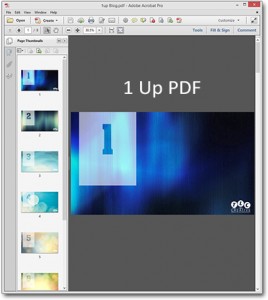
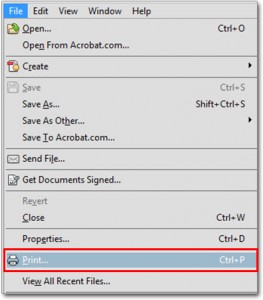
2. Now we are going to print the PDF again. From the PDF of the slides, Go to File >Print
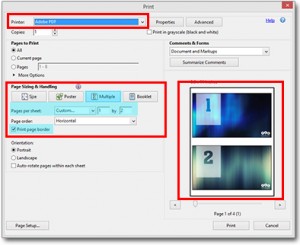
3. Select ADOBE PDF as your printer.
4. In the Page Sizing and Handling select MULTIPLE.
5. In Pages Per Sheet select Custom.
6. Set to 1 by 2, the small print preview should look like the below example.
7. PRINT.
As you can see, side-by-side, the Adobe Acrobat 2-up PDF printout on the left has larger slide images than the PowerPoint 2-up printout, the Adobe Acrobat 2-up takes up the page significantly more than PowerPoint does.
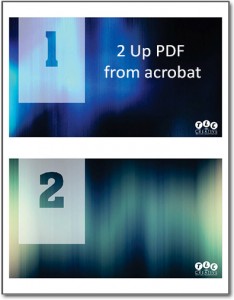
Just a simple option to provide better printouts. It also works for 3-4-6-8-up printouts!
-Troy @ TLC
Where is PowerPoint’s Ruler?
This is a very common question that we’ve encountered on many occasions. By default, the Ruler is not visible when PowerPoint is launched.
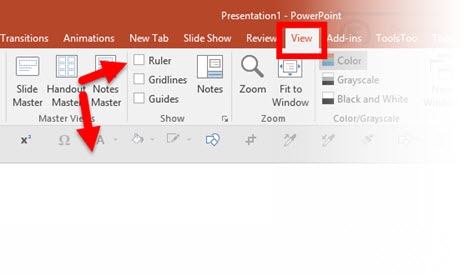
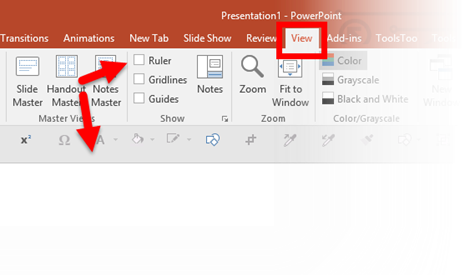
To see the Rulers, go to the View tab, Show section and turn on Ruler.
That’s it! Now the rulers will be visible automatically when PowerPoint is used.
-Troy @ TLC