
Good Bye Microsoft MVP Summit
I am heading home from a great 5 days at Microsoft as an invited guest at the 2016 MVP Summit. Each day was spent on the Microsoft campus in Redmond, WA in conference room meetings seeing the future of PowerPoint and providing input on the current version needs, feedback on concepts and giving examples of real-world use of the application the very dedicated dev team works on. Here are a few photos of the week:
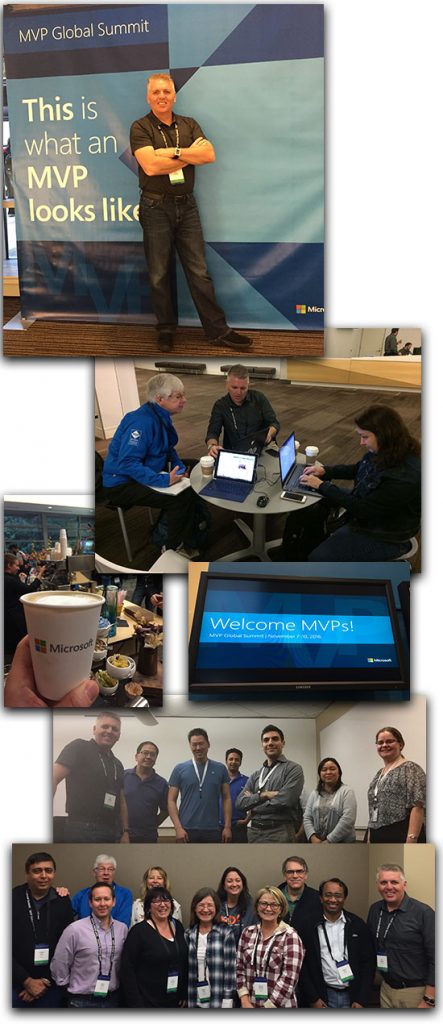
(Top to Bottom)
- Fun photo opportunity at the main conference center.
- Comparing PowerPoint notes and files with PowerPoint MVPs Steve Rindsberg and Heather Ackmann.
- Multiple espresso bars for the event were fantastic!
- Some of the signage found across the Microsoft buildings
- Troy with a number of the amazing PowerPoint dev team
- 11 of the 15 North America MVPs for PowerPoint were here!
-Troy @ TLC
Office 365: Change to First Release Channel
The big, and confusing question, is how to change from CURRENT CHANNEL version of Office 365 to FIRST RELEASE version. This is accomplished in the Office 365 Admin Console – so you will most likely need to be an administrator on the account to access these options. One of the confusion points is Office 365 Admin Console itself. If you search the web for tutorials on where to find the settings, the older tutorials often reference an older build of Office 365, which shows how quickly Microsoft is changing and updating things. I have been using Office 365 to run TLC Creative Services since its release in 2011 and the Admin area has had many overhauls during that time, which makes things difficult to keep things running smooth when the entire interface changes.
Based on the 2016 Office 365, Business Premium account admin console, here are the steps to change which Office Channel you have:
- Log into your Office 365 account
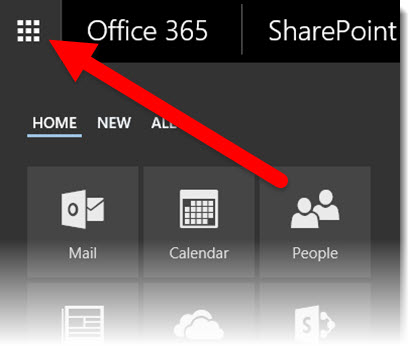
- Click the “checker board” selection button in the upper left
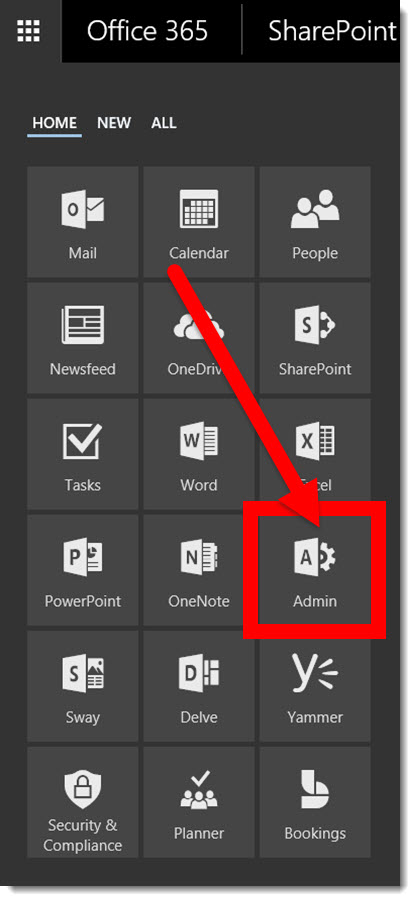
- Find and click the ADMIN button
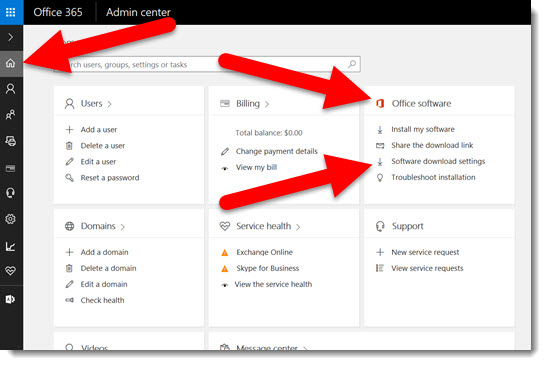
- In the Admin Center > HOME > OFFICE SOFTWARE > click SOFTWARE DOWNLOAD SETTINGS
- The SOFTWARE DOWNLOAD SETTINGS dialog will open. In the SOFTWARE FOR PC section, confirm 2016 VERSION is on, and the “How often do you want users to get feature updates for Office apps” is set to EVERY MONTH (CURRENT CHANNEL)
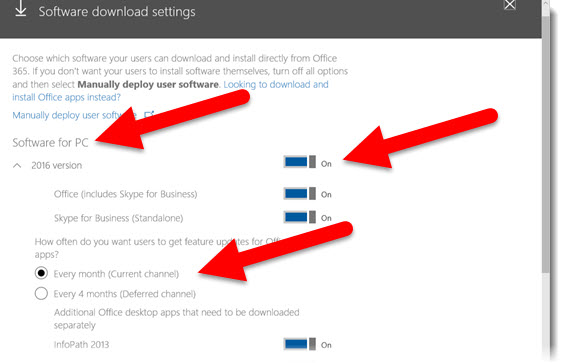
- Click SAVE
- Someone with Admin Rights to the Office 365 needs to complete these next 3 steps
- Log into the Office 365 Account
- Go to SETTINGS > ORGANIZATION PROFILE
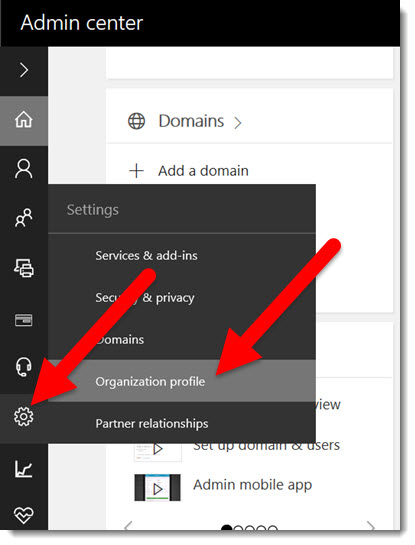
- In the RELEASE PREFERENCES section, click EDIT
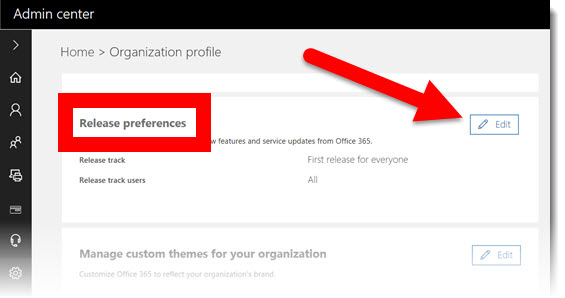
- Select a RELEASE TRACK (a “track” is going to be the “channel” option) and go through the settings process
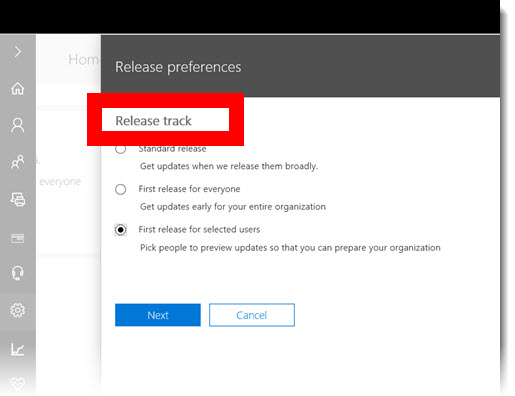
- When the above items are complete, go to this web page: https://portal.office.com/OLS/MySoftware.aspx
- Log into your Office 365 account
- If the above steps were completed, you will see this message that your Office 365 account can be changed to the FIRST RELEASE CHANNEL
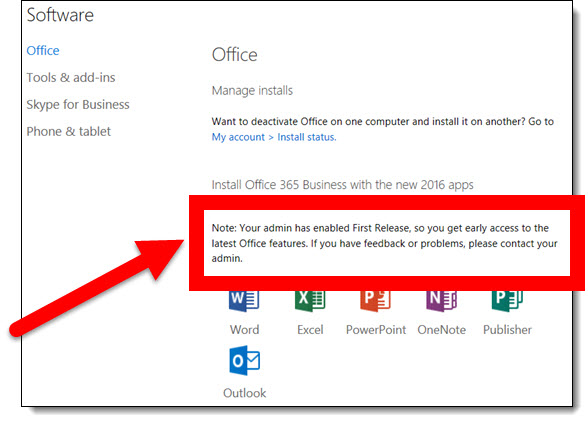
- Note: if you already have Office 2016 installed (which I am guessing most everyone will), this next step is installing the First Release version, but it will not (at least from my testing and use) affect your current install – it automatically upgrades the current install and keeps all settings, files and data
- Close all Office apps (PowerPoint, Outlook, etc.)
- Click INSTALL
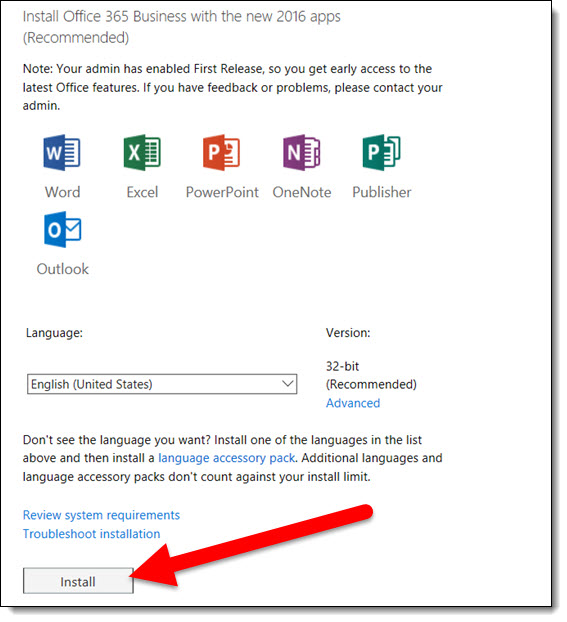
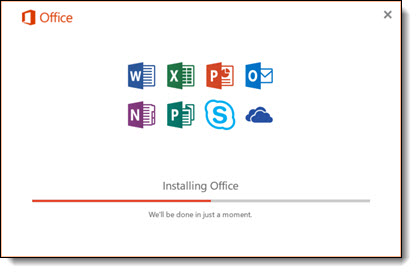
- The Office installer will run
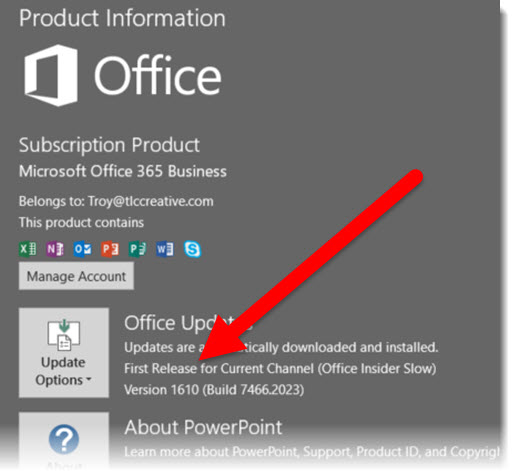
- Open PowerPoint, go to FILE > ACCOUNT > OFFICE UPDATE and it should now list FIRST RELEASE
-Troy @ TLC
Office 365: Current Channel vs. First Release
Microsoft Office 365 has been a huge leap forward for PowerPoint (and all Office apps) if nothing more than it has enabled Microsoft to easily release updates small and large to the applications. One item that is causing lots of confusion is the idea of “Current Channel” and “First Release.”
Here is how to determine what your install of Microsoft Office is.
- Open PowerPoint
- Go to File > Account
- On the right side under Product Information and Subscription Product, look for the OFFICE UPDATES section
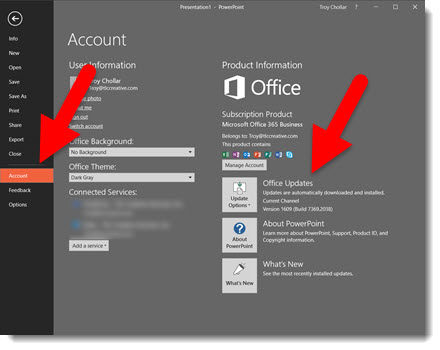
- This will list either CURRENT CHANNEL or FIRST RELEASE
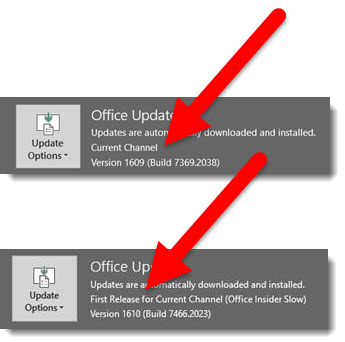
Note: the FIRST RELEASE option is also called OFFICE INSIDER, which has 2 levels: Insider Slow and Insider Fast.
Next Post: how to change which channel you have in the Office 365 Admin console.
-Troy @ TLC
The Presentation Podcast Episode #17 Released Today!
A new episode from The Presentation Podcast with Troy, Nolan, and Sandy is available today! Check out their latest discussion “Live From The Presentation Summit!” and add to your favorite Podcasts on iTunes, Google Play, Stitcher, SoundCloud and more at The Presentation Podcast.
Halloween Stop-Motion Animation #2
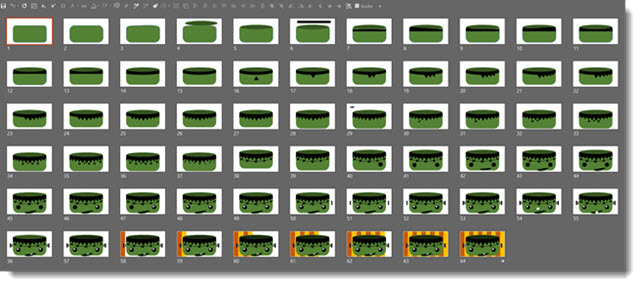
Happy Halloween! Here’s another PowerPoint Stop-Motion animation with a fun Halloween theme. All vector art created entirely in PowerPoint, spread across 64 slides.
[KGVID]https://thepowerpointblog.com/wp-content/uploads/2016/09/unnamed-file.mp4[/KGVID]
Download the final slide here.
– Troy @ TLC
Halloween Stop-Motion Animation #1
Here is a PowerPoint Stop-Motion animation with a creative Halloween theme, designed by a member of the TLC design team. All vector art was created entirely in PowerPoint, spread across 122 slides.
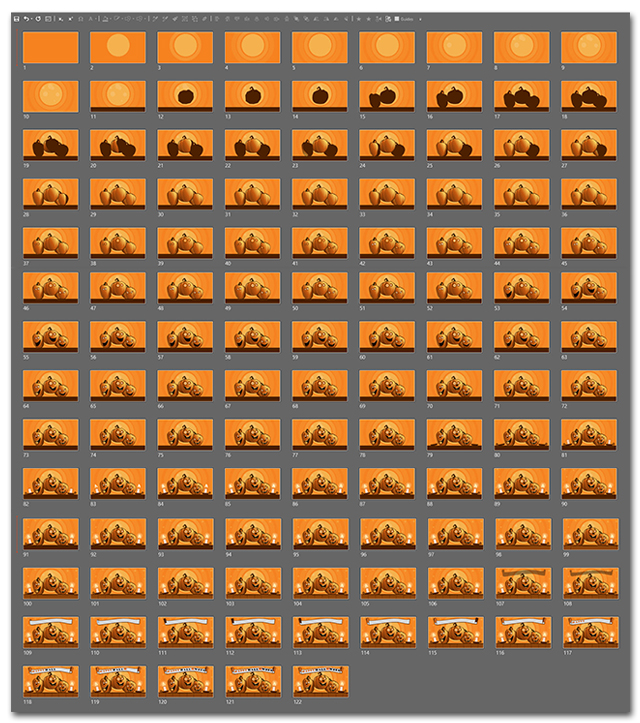
Download the final slide here.
– Troy @ TLC
Halloween PowerPoint Template
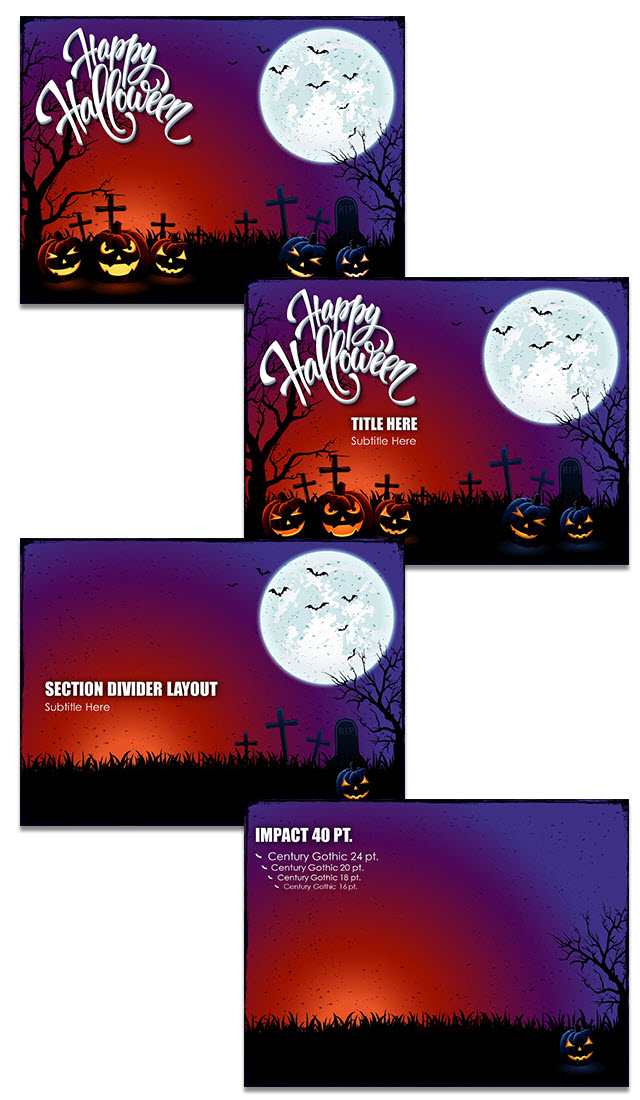
Thanks to Amber on the TLC design team for developing this FREE, full-featured Halloween PowerPoint template developed in PowerPoint 2016, we can all embrace the Halloween spirit!
[KGVID]https://thepowerpointblog.com/wp-content/uploads/2016/09/unnamed-file-2.mp4[/KGVID]
Everyone at TLC hopes you have a fa-boo-lous Halloween!
This template is sure to put a spell on you!
Download here.