
Labor Day 2014 – Free PowerPoint Template!
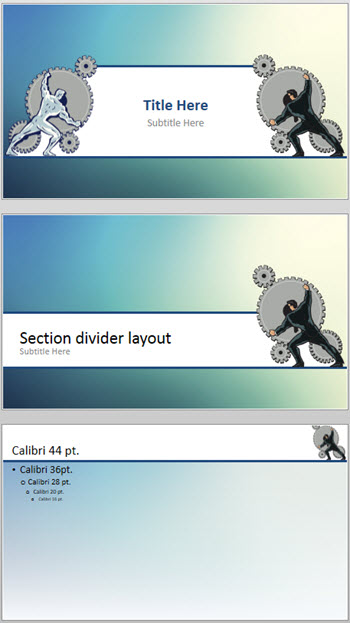
Free for all to use is a Labor Day themed PowerPoint template.
– Designed by TLC staff designer Josh Clarke
– PowerPoint 2007-2010-2013 (.pptx)
– 16×9 (widescreen)
– Download here: LaborDay2014
– Troy @ TLC
Welcome to the WP Version of ThePowerPointBlog!
A bit of a bumpy conversion for us from the legacy blog platform that was used for the past 7 years to our Word Press platform with a coordinated layout and styling to the TLC Creative.com site. Now give me a week or so to get familiar with the new interface and options and we will be back with PowerPoint tips, tricks and examples!

– Troy @ TLC
16×9 in a 4×3 world
If you have a 16×9 aspect ratio presentation like this:
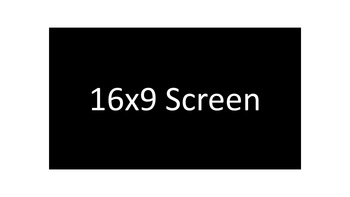
This is what it looks like when projected on to a 4×3 screen:
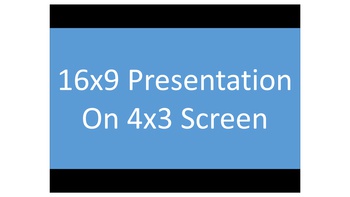
The presentation is vertically centered and goes left to right. The top and bottom are not used (but the projector will show black in these areas). This is called Letter boxing.
– Troy @ TLC
4×3 in a 16×9 world
If you have a 4×3 aspect ratio presentation – like this:
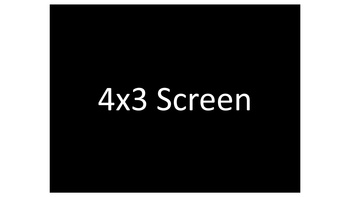
This is what it looks like when projected on to a 16×9 screen:
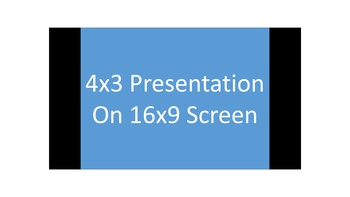
The presentation is vertically centered and goes top to bottom. The left and right sides are not used (but the projector will show black in these areas). This is called Pillar boxing.
– Troy @ TLC
Showsite in Denver
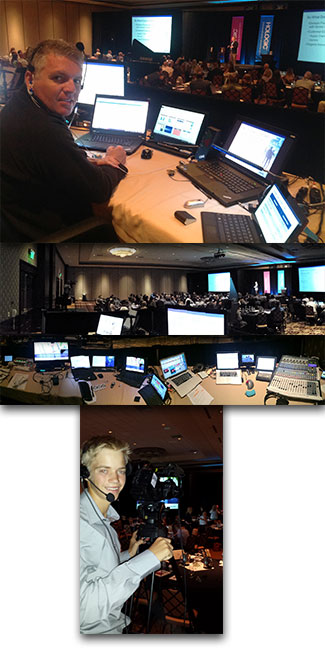
It has been a great week here in Denver. Thanks to Paul for the great photos (I take no credit for any photos this time) and to my nephew Justin for stepping in as our last minute camera op!
– Troy @ TLC
Using PowerPoint’s Shape Merge (3)
Part 3 of the Shape Merge real-world, presentation design examples is a Key shape.
BATTERY
Goal is to create a single PowerPoint shape of a classic battery that can be stylized in any way using Point’s features.
Shape(s) 1 – two rounded corner rectangles to create the battery shape.

Shape 2 – the power/lighting shape is a standard shape in PowerPoint. Rotate, size a position on battery shape (color does not matter – we are going to delete it in the next step).
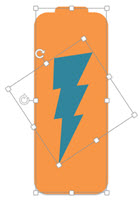
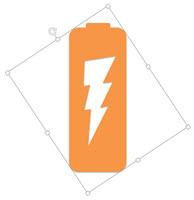
Shape 3 – select the battery shape, then the lightning bolt shape, use the Shape Merge SUBTRACT. Note: PowerPoint does some interesting things, in this example, the final shape is created visually in the correct orientation, but is actually rotated 326′.
– Troy @ TLC
Using PowerPoint’s Shape Merge (2)
Part of the Shape Merge real-world, presentation design examples is a Key shape.
KEY
Goal is to create a single PowerPoint shape that can be stylized with different fill colors for an analogy slide of the 3 corporate program “keys.”
Shape(s) 1 – design the key using a circle and set of rectangles.
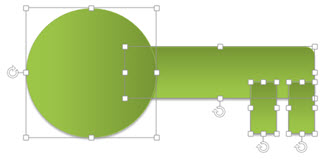
Select all shapes and use the UNION tool to create a single shape.

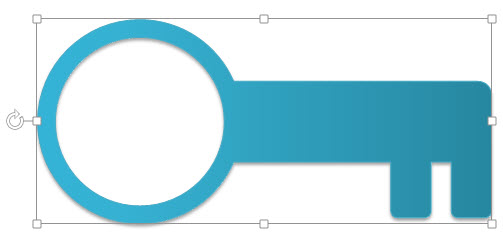
Create a new circle, size and position over the handle part of the key.

Select the key 1st, then the circle and use the SUBTRACT tool to create the final, single shape Key (shadow added, fill changed).
– Troy @ TLC