
Arrghh – the frustration of moving to new technologies

“Hello, Tech Support. Yes, I have a problem, my blog is now offline!”
Well as you may have noticed, ThePowerPointBlog went offline for over a week. I moved TLC Creative Services to the new Microsoft Office 365 for the exchange email, SharePoint and Lync features. The first few days down accounted for the time needed to figure out how to change over the DNS settings to maintain the TLCCreative.com website at the same hosting (eg. I did not want to use the Microsoft website design option, just the backoffice features). After that was resolved, it was only then that I discovered sub-domains are not supported by Office 365 (at least on the plan subscribed to). So now ThePowerPointBlog is on its own dedicated domain and no longer a sub-domain of tlccreative.com.
What does this mean to everyone? For general reading and searching for old posts, nothing, it is all the same. But if you have bookmarked or linked to any specfic post over the past 6 years, those links will no longer work… I am incredibly sorry for that inconvienence. The only difference is the URL to access things:
Old = https://pptblog.tlccreative.com/bloglink
New = https://thepowerpointblog.com/bloglink
Now, on to updating the blog posts to catch up!
– Troy @ TLC
Arghhh – the frustration of automation!
Hello, Tech Support. Yes, I have a problem, none of my blog posts have shown up…
Happily, it is very busy here at TLC Creative Services. But I am not happy with the blog. I setup 2 weeks of posts that everyone should have been enjoying while I bury myself in presentation design, new office build out and other design tasks. But apparently you have to click the “publish” button to make those spooled up posts show up on the days they are suppose to! Sorry, my oversight. The good news is between the posts that did not show up, the new ones I have been working on, and the great upcoming events I have the next two months of posts covered! I will reorganize things and start the process (again) tomorrow.
– Troy @ TLC
Review of FreeVectors.net
Free Vectors .net is an online resource to find a large variety of professional and free vector graphics (click here to open).

Navigating the site is not easy as the images are not organized into categories, but there is a good search bar at the very top that helps find the image type needed.
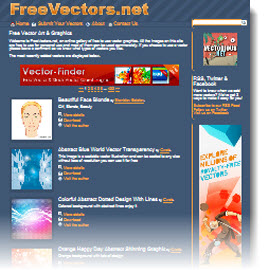
Once an image is found, click the download button. The Free Vectors.net website is an aggregator of images from lots of other small sites, so clicking the download button sends you to another web page. Each webpage has different download processes, but all images are assured to be free (of cost and use rights).

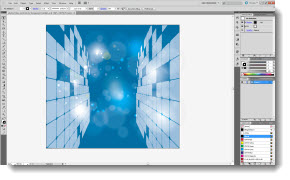
Because PowerPoint does not do well with .eps images, after downloading the image, it is best to open in Illustrator. Then use the “Save for web and devices” to create a PNG. image or “Export” as a .emf for a scalable vector image (Saving files from Adobe Illustrator will be next set of posts).
– Troy @ TLC
Digital Signage Via PowerPoint – On It’s Side
This is the digital signage at a recent show. It was updated every morning with the attendee schedule for that day. There were a number of these 52″ plasma screens outside each ballroom entrance, all displaying a PPT slide.
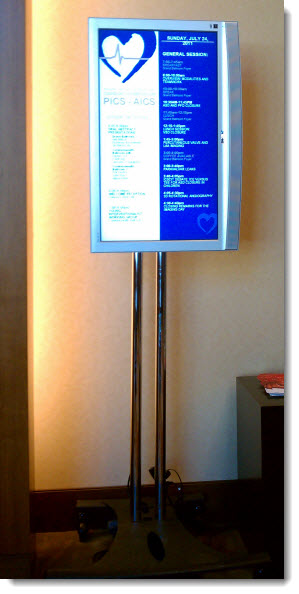
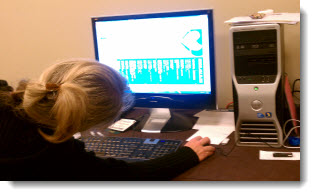
But designing these slides is a bit challenging. The plasma screen is rotated, but the computer still sees a horizontal 1920×1080 display. The solution is to create a sideways slide, as Lori is skillfully doing.
– Troy @ TLC
Really Big Tech Area
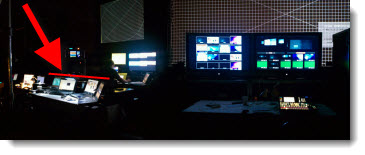
This was a much bigger production over previous posts with my graphics tech area backstage with a several other tech departments. My department and five computers are highlighted by the red line.
– Troy @ TLC
Bigger Tech Table
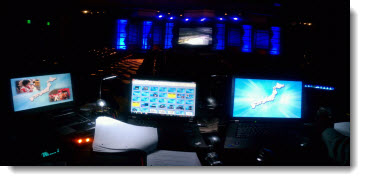
This recent show was another where I was “front of house” (where the tech area is in the audience area, facing the stage). You can see my 3 show computers in the foreground and the fantastic staging design and work of the lighting director.
– Troy @ TLC
Graphics Tech Table
Just a quick photo of a recent show, I was onsite leading the onscreen graphics/presentations.

– Troy @ TLC