
Make a Movie Play Automatically in PPT 2010
Because the default action requires the mouse to be seen during the presentation – something not allowed in any large stage production, I change the play animation on every movie. Here is my process:
1. Insert the video: INSERT tab >> VIDEO

2. Locate movie on computer
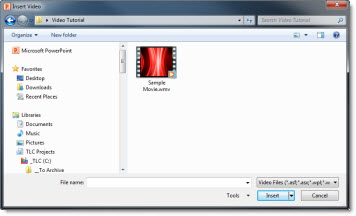
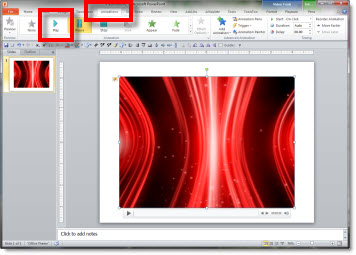
3. Select movie >> ANIMATIONS tab >> click PLAY to change from PAUSE
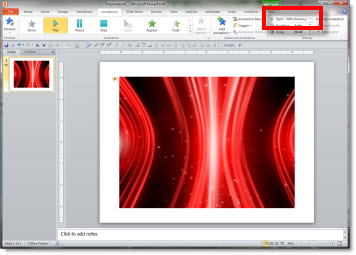
4. Change ON CLICK to WITH PREVIOUS
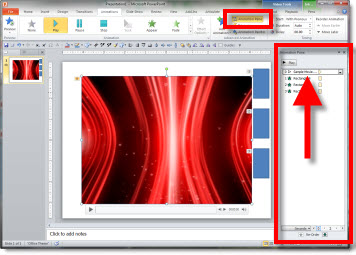
5. Open the Animation Pane and verify the movie play animation is the first in list
– Troy @ TLC
Movie Playback Default in PPT 2010
PPT 2010 has a different default when inserting videos than previous versions. Basically it no longer asks how you would like the movie to play and simply inserts the movie with a preset play action. Unfortunately for me, the default action is not the one I ever need…
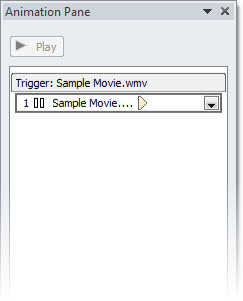
The default action sets up the video to play when clicked on with the mouse. In the animation pane, this is what you see – a trigger animation.
To be fair, I see this animation setting used by many presenters, so it is a vailid option as a default action. What makes it difficult is that there is no option to change the default behavior – we are all forced to go with what the Microsoft analysis deemed the best default action.
– Troy @ TLC
Rethinking PowerPoint – The DVD
Ron Galloway, who also produced the documentary “Why Wal-Mart Works” has released his latest documentarty “Rethinking PowerPoint: Conversations About Slide Design & Presenting” to DVD this month.
I don’t think it will be available at the local Blockbuster video or Red Box, but it can be ordered here. The website also has sound bytes from some of the people interviewed in the documentary. I will hold my opinion until I have opportunity to view it all, which I am sure will have some interesting points about presentation design.
– Troy @ TLC
The Script Binder Is Very Important
Here is my workspace (or part of it). Question: what is the most important item here?
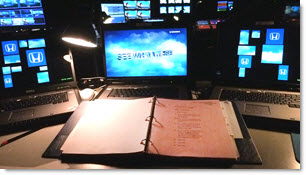
For large, multi-screen (multi-computer) shows that have lots of cues (slide animations/advances, video rolls, etc.) the script binder reigns supreme. It has the exact script the presnter has on teleprompt. I have added my cue marks and notes throughout. During the show I literally read along as the presenter presents and I do nothing unless it is noted in this binder (no improvisation, everything is rehearsed and set to occur at specific words).
How important? At the end of the day I shutdown computers, lock them away, but the script binder goes with me and never leaves my control (seriously).
– Troy @ TLC
Lots and Lots of Videos In Presentations This Week
Coordinating presentations for a medical conference this week. In addition to the typical slides for 100+ doctors, the number of video clips is amazing. Here is an example:
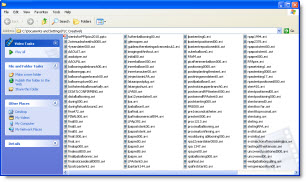
1 presentation, 85 slides and 102 movie clips.
– Troy @ TLC
ThePowerPointBlog Cards
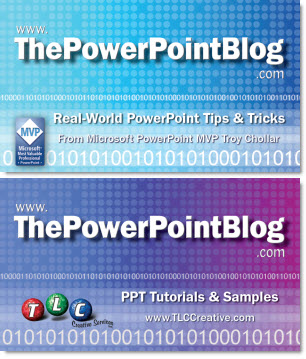
As a company we do virtually nothing in the way of advertising, and that is fine with me. But I did create some promo cards, actually 2-sided business cards a while back that I occassionally hand out or have available at different speaking or training programs I am doing. Just something fun, visually cool and small.
– Troy @ TLC
Sprint 4G Connection
I am working in Chicago this week and Chicago is the first Sprint 4G city I have been in since getting my new phone (HTC EVO). My typical 1-2MB connection jumped to over 5MB!
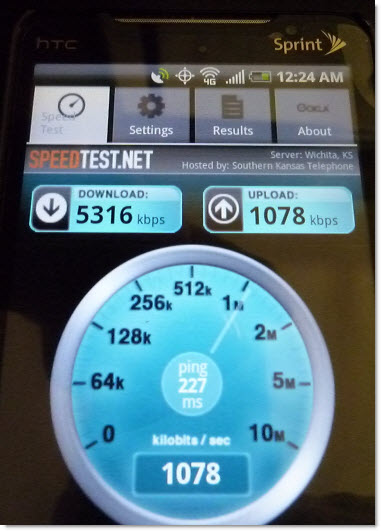
Definitely not as quick as my office (50MB connection), but faster than the hotel connection.
– Troy @ TLC