
Where is ‘Backstage’ and How to Close It
With Office 2010 the circle ‘office button’ in the upper left of all applications is replaced with a simple ‘File’ button that opens the Backstage.
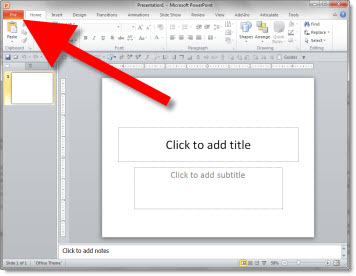
Click the ‘File’ button the Backstage takes over the full application window.
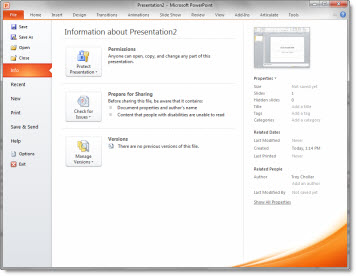
The Backstage is a great consolidation of tools and options. But I have seen many users struggle with how to close, or go back to their slides. If you click the ‘EXIT’ button, it closes the presentation vs. closing the Backstage.
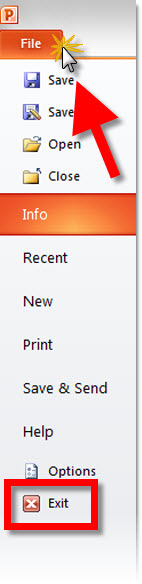
The way to go back to the slides/close the Backstage, click on the ‘FILE’ button again or any of the tabs – home, insert, design, etc.
– Troy @ TLC
Office 2010 Available – In 5 Versions
Office 2010 is officially available to all, and I highly recommend upgrading. Microsoft has released Office 2010 in 6 versions/bundles. The good news is PowerPoint is in all versions!
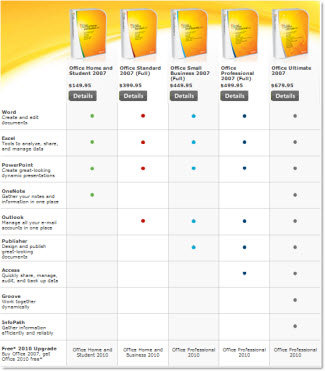
Pricing ranges from $150 to $680. Microsoft has a free upgrade from Office 2007 promotion going and I have seen deals as low as $60 using the promo!
– Troy @ TLC
Checkered Flag Template
Inspired by a recent project that highlighted the Indy 500, here is a full PowerPoint 2007/10 template with a racing theme.
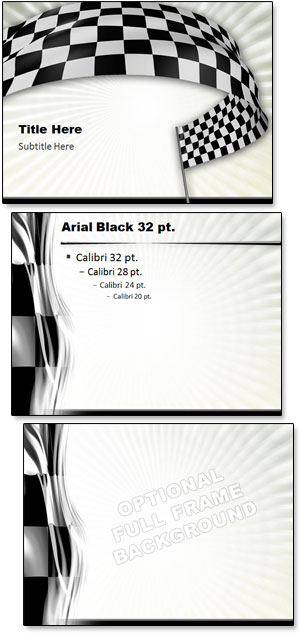
Download the template here (800K) .
– Troy @ TLC
Design For Speed Slide
This is from a recent presentation project.

The slide started with 2 original images:

In photoshop I dropped out the background of each and saved as .png images with transparency.
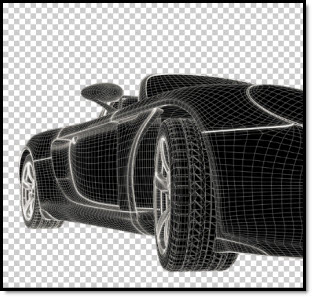
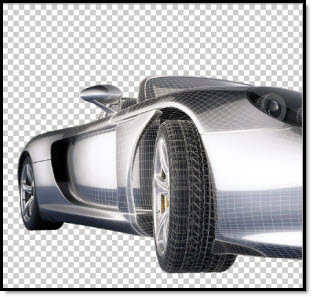
Then each image was inserted to the slide, a simple FADE IN animation applied to the top image for the transformation.
– Troy @ TLC
Las Vegas Themed Template
Flying to Las Vegas today to coordinate the presentation graphics for a show. In the spirit of Vegas, here is a previous show’s template I developed that was in Las Vegas, with a visual Las Vegas Blvd/Strip theme.
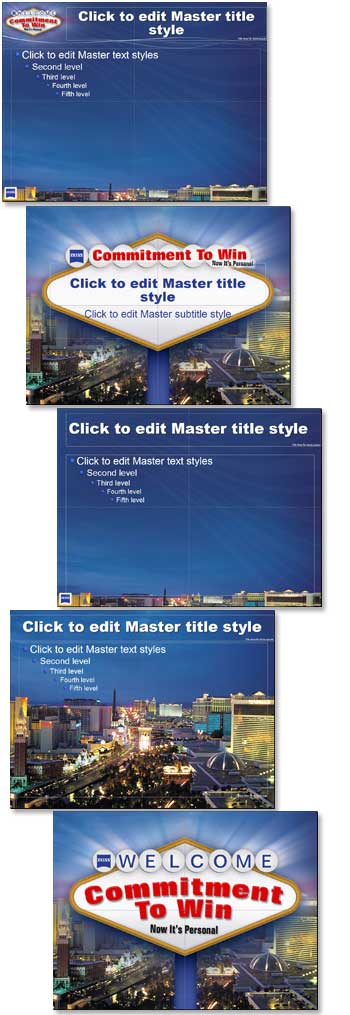
From the top:
1. Content
2. Title
3. Full Frame Content (no logo or title area graphics)
4. Specialty slide for section dividers
5. Theme graphic (no text)
– Troy @ TLC
Warning – Bad/Dangerous Presentation Ahead
Sometimes presentations are just put together so poorly they should have a warning sign at the beginning…

– Troy @ TLC
Why Can’t I Move The Logo on the Master Slide?
Here is my sample slide:
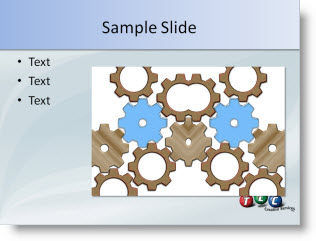
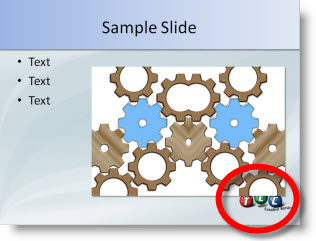
I decide the logo, on the master slide, needs to be moved down for more content area.
When go to VIEW >> SLIDE MASTER and try to move the logo I cannot click and select it.
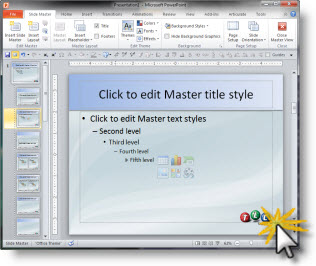
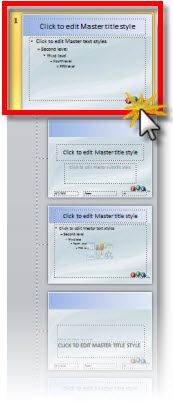
Because the master slide view opened to the layout slide.
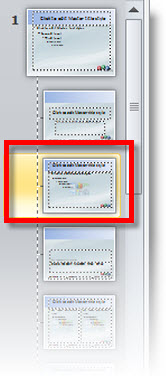
If I click the Master Slide above the layouts I can select the logo, move it and it will update on all of the layout masters.
– Troy @ TLC