
Custom Template (YPA ’10)
Quick sample of a custom template from a recent project.
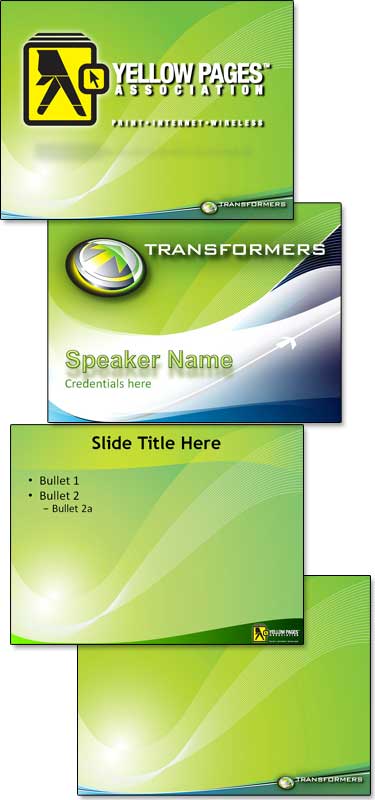
1- Theme graphic slide
2- Title Slide
3- Content Slide
4- Full Frame Slide (content slide with no title area)
– Troy @ TLC
PPTStyles Templates Review
The PowerPoint Styles website had over 200 PowerPoint templates when I reviewed it recently. The templates are image based with stock images for the background and text placeholders formatted to coordinate with the background image.

I have not yet reviewed a stock template resource that I have found worth the expense. In this case all templates are free – and that gives you a nice background image, but not a very functional template (you get what you pay for). The images used for the template backgrounds are very nice, modern and work well for templates. I also appreciated that each image has a credit to its source/photographer. All templates I looked at where the legacy .ppt format.
When I first opened the template I downloaded, all looked good from the thumbnail view. Multiple layouts, PowerPoint placeholders positioned well within the background image, etc.
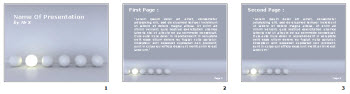
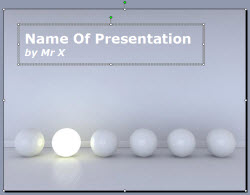
But the Title slide (viewed in edit view, not master slide view) showed a single text box vs. separate text boxes for the title and subtitle text, which have different formatting. And the background was a placed .jpg (eg. not from a preset master slide).
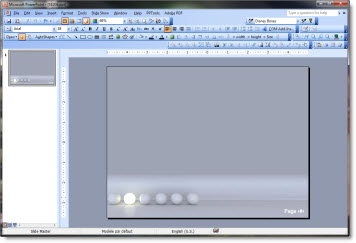
The Master Slides revealed no formatting, just a placed .jpg for the background. No text placeholders, named master, title slide master, etc.
If you are familiar with the basics of setting up templates with default placeholders, color scheme and transitions the PowerPoint Styles templates offer nice backgrounds to start with.
– Troy @ TLC
Where Are The Add-Ins in Windows 7?
Finding the general Microsoft add-ins folder is very different in Windows 7 vs. Windows XP (I skipped Vista and just recently have been updating office computers from Windows XP to Windows 7). Here is the path the folder:
Windows7_OS (C: ) >> Users >> (Name) >> AppData >> Roaming >> Microsoft >> AddIns
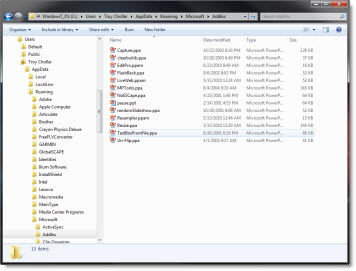
– Troy @ TLC
When Troubleshooting, What is Your Combination?
When PowerPoint does something unexpected and unexplained, the desire to toss the computer out the window increases (a lot!). But there are lots of online resources to find solutions (here at ThePowerPointBlog, forums, and searching google or bing).

But now there are more variables with multiple OS’s, version of PPT, etc. So what is your combination?
– Windows XP – 32 bit, PPT 2007
– Windows Vista – 64 bit, PPT 2003
– Windows 7 – 64 bit, PPT 2010 64
– Etc.
Finding files in Windows 7 can be different than XP. Add-ins that work in Windows 7 32-bit may not work in Windows 7 64-bit. And the list goes on.
As a best practice, I recommend at a minimum listing:
1. What Operating System (OS)
2. If your OS is 32-bit or 64-bit
3. What version of PowerPoint (or what versions if you have multiple installed on same computer)
4. If PowerPoint 2010, is it 32-bit or 64-bit
– Troy @ TLC
Where is the PPTools Expert Mode Setting?

I have been using the PPTools “Starter Set Plus” Memorize Position tool.
Here is a typical use:
1. I have a reference/source line at the bottom of a slide
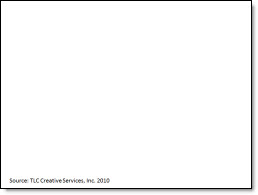
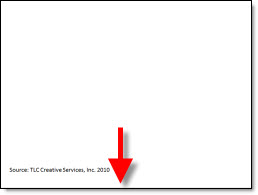
2. I want to have all other reference/source lines throughout the presentation in the exact same position. So on this slide the text box needs to move down
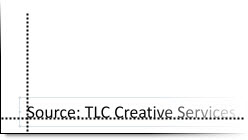
3. A common way to do this, without additional add-ins, but very tedious is to zoom in and position guidelines on the original text and then manually move other text boxes to align with the guidelines
4. The easier and more accurate solution is to select the original text box and pick up its position with the “Memorize Position” addin (left tool)
5. But work is interupted by this information dialog
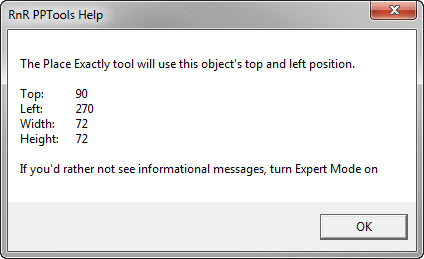
– Note the last line about turning on Expert Mode to not show the dialog – so where is the expert mode?
6. Click this icon on the Master Toolbar (one of the toolbars installed with any PPTool add-in)

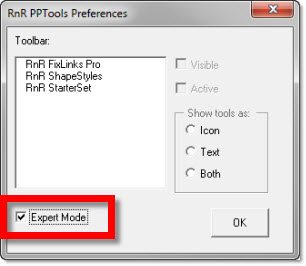
7. The RNR PPTools Preferences dialog opens. It shows all of the PPTools add-ins installed and at the bottom is the check box to turn on/off expert mode
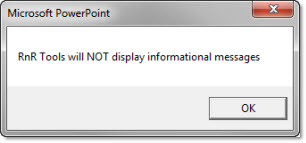
8. This dialog message pops up, click OK
9. Done! Now use the Memorize and Place tools without having an extra dialog interupt the work.
– Troy @ TLC
4 Ways To Zoom In/Out While Editing
In the lower right is the zoom options.
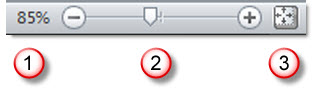
(1) The first option is largely unknown to many users, partially because it is not needed often. Clicking the percentage number opens the zoom dialog that has presets and ability to manually enter a specific zoom.
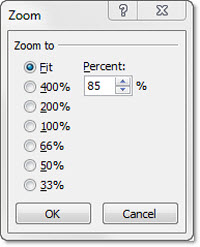
(2) The zoom slider was introduced in PPT 2007 and a is a great way to adjust the zoom level. Zoom ranges from 10% to 400%.
(3) Clicking the far right box is the ‘Fit to Screen’ option which I use a lot!
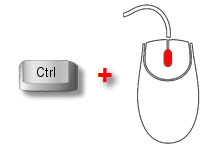
(4) The fourth option is a combination keyboard/mouse feature.
– Hold the CTRL key
– Roll the mouse scroll wheel. Forward = zoom in. Backward = zoom out.
– Troy @ TLC
The Magic of the Background Removal Tool
With Office 2010 now in full release this is one of those great new features that is difficult to explain, but a great asset to the new features of PowerPoint 2010 and several other Office applications. Back in the November Top 15 PPT 2010 features I listed the new Background Removal tool as #11. Tucker Hatfield is the Microsoft Program Manager I was quoting when I said it worked with “magic coding” – his words, not mine.

Around the same time, Tucker had a detailed post on the Microsoft Office 2010 Engineering blog (I know we all read it daily) about the Background Removal Tool. It is worth revisiting to grasp what this tool is capable of. The next few posts here will be examples and tips of my use of the Background Removal Tool.
View Tucker’s full post on the Microsoft Blog here.
Tucker also did a follow post on MS Engineering Blog here that went into more detail and a pretty cool example of the Background Removal tool in action.
– Troy @ TLC