
And I Don’t Even Speak the Language
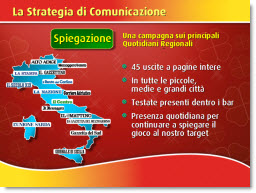
Received a call from a past client with request to help update a series of presentations. Project was great and super to reconnect with clients I consider friends. Of course working on presentations in a language you are not familiar with has its challenges…
– Troy @ TLC
PowerPoint Contest (by SlideBoom)

SlideBoom, the online presentation sharing site, has announced a new PowerPoint competition!
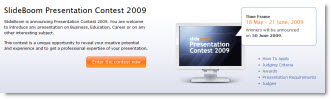
Here’s what they say:
This contest is a unique opportunity to reveal your creative potential and experience in creating PowerPoint presentation on Business,Education, Career or other interesting subject.
The top three winners will be awarded valuable prizes like SlideBoom Presentation Contest 2009 Winner Cup, a lifetime subscription for PRO account, advanced iSpring Presenter software and Gold Award badge.
Applicants are welcome to submit their works from 18 May to 21 June inclusive. Winners will be announced on 30 June 2009.
Learn more at the official contest page.
– Troy @ TLC
Touch Screen Simulation Presentation
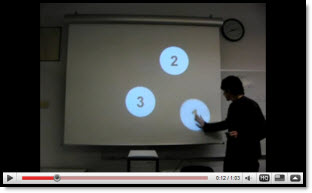
Here’s a fun video on YouTube where the presenter was clever (and practiced) to create a well rehearsed and animated presentation. Take a look here.
– Troy @ TLC
Creativity Boost with MoodStream
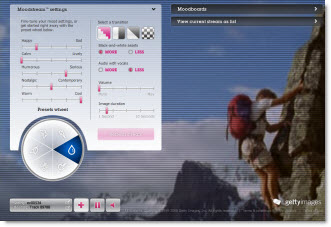
Here is a nifty online tool for those days creativity is just not there (or if you have some time to stare at the computer and be entertained). Getty Images has MoodStream.
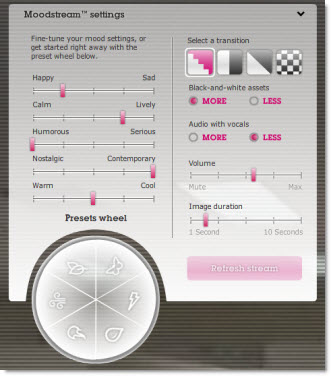
Pulling from its vast image and video libraries you can have a full screen never ending stream of images and video based on your parameters. Adjust the sliders or use a preset, click ‘Refresh Stream’ and watch.
– Troy @ TLC
Office 2010 The Movie
Two things:
1. Microsoft is definitely showing they know how to have fun. Check out the movie trailer for the upcoming release of Office 2010 here.
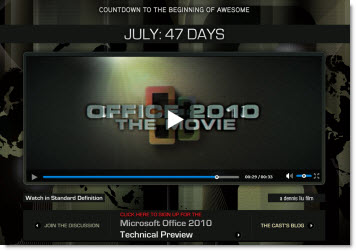
2. Microsoft has officially announced a Technical Preview (aka ‘Beta’) of Office 2010 – so we are getting closer to the release date! It is a limited invitation program…
– Troy @ TLC
Oh My Eyes – Bad Diagram
Here is a slide from a recent show that just made me cringe (presentation was supplied, so I had no editing or design input).
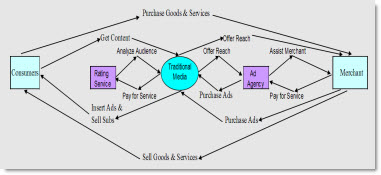
It does show all of the important information. But it does not have a balanced/aligned layout. It is difficult to figure out the message, text is small, and it did not animate to help show the flow. And it was a background slide for over 5 minutes…
– Troy @ TLC
Office 2010 in 2010
Well it’s official. Steve Balmer commented earlier this week that the next version of Office will not be available there year, but next.
“Microsoft Office 2010, Microsoft SharePoint Server 2010, Microsoft Visio 2010, and Microsoft Project 2010 are scheduled to enter technical preview in the third quarter of 2009 and become available in the first half of 2010.”
– Troy @ TLC