
Outline and Glow Per Word – Absolutely!
Just like the drop shadow to select text in the same text box, we can also now add outlines and glows! Here I have added a nice bold red outline to one key phrase and a blue glow to another key phrase – all within the same text box.
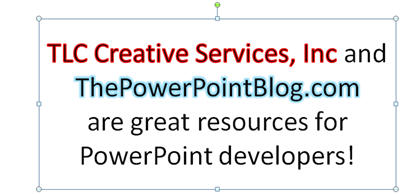
– Troy @ TLC
Drop Shadow on Select Text Same
One of the frustrations of earlier versions was that drop shadows were applied to all or none in a text box. Fortunately PPT 2007 solves that limitation!
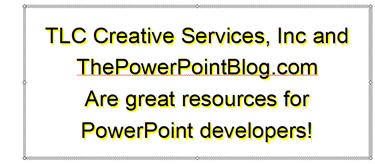
As example, PPT 2003 you cannot apply a drop shadow to just one word – here I want to apply the yellow drop shadow to just certain words … can’t be done.
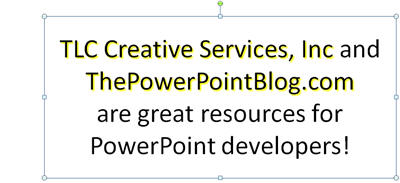
And here is the same text in PPT 2007 – now you can apply the drop shadow to any selected text desired
– Troy @ TLC
Applying Effects Inside One Text Box
With previous versions select words could be a different color, font or size. With PPT 2007 the same is true and now to an even greater degree. Several of the new visual effects can be applied to select words in the same text box.
As example, here I have selected a few key words and given them a multi-colored gradient fill.

– Troy @ TLC
Text is Word Art
One of the great features is that ALL text is now basically Word Art. That means it can have lots of visual customization:
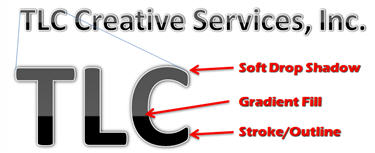
This sample is standard text I typed in and then applied visual formatting to – these new capabilities have opened huge design options within PowerPoint!
– Troy @ TLC
Awesome has Great Examples of PPT 2007
Why reinvent something that already exists… I am coming to the party later than many, so I thought my first stop would be to point out some already great examples of what can be accomplished with PPT 2007.
Taj at Awesome Backgrounds has a page that showcases many of the great effects that can be achieved with the graphics engine in PPT 2007.
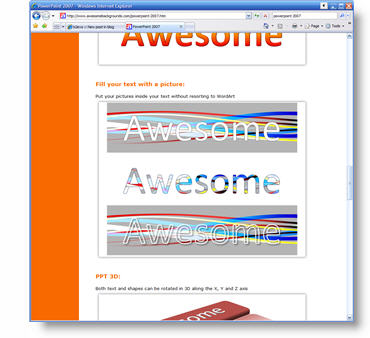
Click here to go to Awesome Backgrounds.
– Troy @ TLC
PowerPoint 2007 Examples, Tips & Tricks
PowerPoint 2007 has been out for a while now and I have finally caught up with things. Actually I have spent the past months working extensively in it. To be honest, my list of “issues” is really long, but those annoyances almost balance out with my list of praises.

Over the next few weeks I have cued up dozens of examples of the visual effects possible with PPT 2007 as well as many real slides and some tips on maximizing the new capabilities!
– Troy @ TLC
Logo Sample
Here is one of the logo concepts developed for a series of presentations.

All design was done in Illustrator to create scalable vector art (logo was used from presentations to print pieces to large banners). From there it was imported into photoshop and saved as a .png with transparency for use in presentations.
Note: we developed many logo concepts and this was my favorite, but not the “winner”.
– Troy @ TLC