
PPT 2007 and Imported Photos
Well I just finished a series on lots of the great things that can be done with text in PowerPoint 2007. Next up is a series of posts on what can be accomplished with imported photos!
And as a sneak peak, here is the image everything is going to happen to:

– Troy @ TLC
3D Perspective to Text
The Z-Axis is a common item in 3D applications. It is one of the axes in a three dimensional system that gives things a 3D perspective. Now PowerPoint has some z-axis features, which Microsoft refers to as ‘3D Rotation.’ All three of these text boxes were created from the same one. The top one shows the visual effect applied to the text (bevel and reflection). The bottom two apply 3D Rotation for some GREAT Visual effects!

And all of these remain editable text.
– Troy @ TLC
Kerning!!
If you have used desktop publishing software you are familiar with the concept of kerning. With (variable width) fonts, different pairs of characters are spaced differently. Kerning is the adjustment of spacing between letters to obtain a more pleasing appearance. The great news is that PowerPoint now has some basic kerning capabilities. Microsoft calls it ‘Character Spacing’ and here is the quick menu.
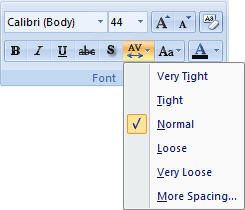
We can also get more fine control over the Character Spacing by opening the Character Spacing dialog window.
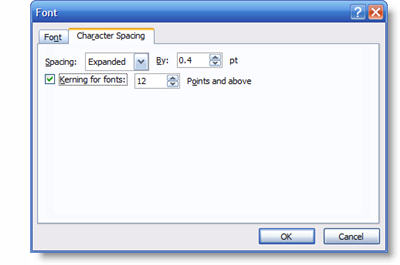
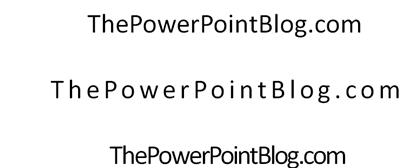
Here are a few examples of kerning in use. The top text is the standard, or normal, kerning. The second one is expanded and the third is condensed. All is still editable text and can be applied to select text within a single text box.
– Troy @ TLC
Modify Text Preset Visual Effects
All of the presets are based on the template color scheme. But perhaps you like one effect, but it is not in the needed color – here the subtle gradient and subtle reflection are the effect desired.
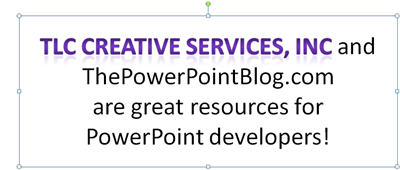
But what is really needed is a blue gradient. Instead of going in and manually setting options, I can apply the preset effect (shown above), then open the manual settings dialog and just adjust the colors to achieve the needed graphic.
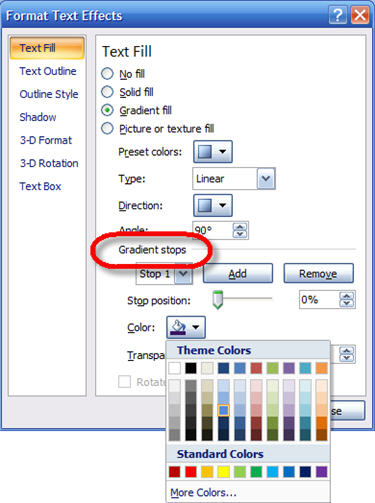
So you can create this effect in a matter of seconds:
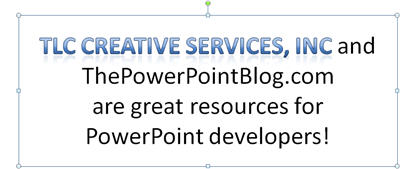
– Troy @ TLC
Text Effect Presets
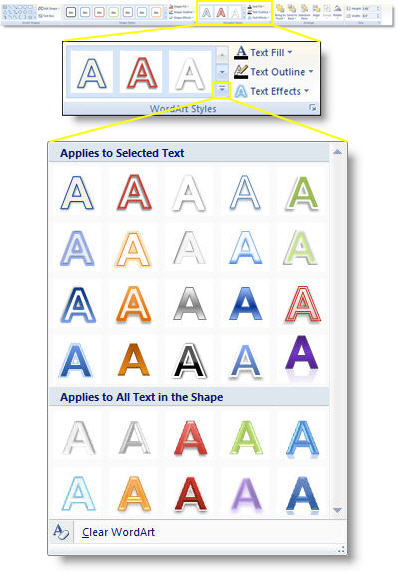
One of the nice features is the new preset effects. Once text is selected you can use any of the preset visual effects to easily add a dynamic look.
– Troy @ TLC
Image Fills to Text
Just like a shape, an image can be used for the fill on text. Here is an example where I selected the text desired and filled with an abstract image that becomes further abstract by being stretched across the width of the selected text and compressed to just the height of the text.
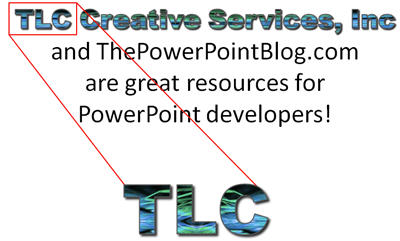
Just like previous examples, this remains editable text and is applied to select text within one text box.
– Troy @ TLC
Gradient Fills to Text
I showed this effect earlier – but it is definitely worth looking at again. Here I have applied a gradient fill to the two key elements of the text box. The great thing is that gradient fills can also be applied to select text within one text box.
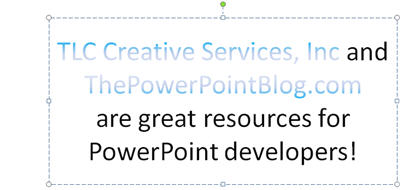
For design purposes on this one, I reversed the gradient so the top text goes from dark-to-light and the bottom text is the reflection of the gradient going from light-to-dark. And again, all of this remains editable text too. There is a lot of design potential with this feature!
– Troy @ TLC