
NXPowerlite Soon for Office 2007
Over the past few days I have been testing a beta version of the next NXPowerlite. Tommy over at Neuxpower Solutions contacted me at a perfect time, as I have been working exclusively in PPT 2007 for two large projects and have plenty of test subjects.

NXPowerlite is compression software for PowerPoint, Word and Excel files. I have been using this software for at least 3 years, so it has a proven track record with me. Version 3.5.1(beta) works with the new .xml format of Office 2007 files (ie. pptx, docx, etc.). The results have been great. One file produced an error, but they are still working out the kinks of embedded objects. The rest of my files did as promised – they got small, without visible quality loss. As example:
File 1: lots of large images and several charts created within Powerpoint. Original 20.8MB, after compression (at the ‘excellent’ level) 12MB.
File 2: LOTS of large images. Original 146MB, after compression 44MB!
When I hear the new product is available I will let you know. In the mean time, you can get the details about NXPowerlite here.
– Troy @ TLC
What is it; Macromedia or Adobe Flash?
Mergers and acquisitions even effect the most seemly stable companies. So the question came up that a client could not find the Macromedia Flash Player, would the Adobe Flash Player work?

Both are the same thing. The Flash format was developed by Macromedia, hence – Macromedia Flash (player). Recently Macromedia was purchased by Adobe and now the Macromedia Flash products have been rebranded Adobe Flash.
– Troy @ TLC
Animation Contest Showcase
Received an email from PowerPoint MVP, Tohlz (Shawn)of PPTHeaven about a PowerPoint Animation Contest held by Korea’s PowerPoint Expert Club.
Shawn has posted the 1st and 2nd place presentations on his site. These are worth the effort to download and look at – lots of great animation effects!
Click here to download and view the winning entry by Coolguy7.
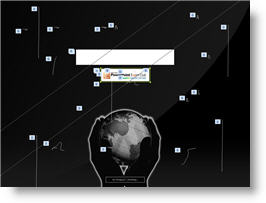
(Note: image shows all of the animations on slide)
Click here to download and view the 2nd place entry by Zzagdol.

– Troy @ TLC
More Office 2003 Menus in Office 2007
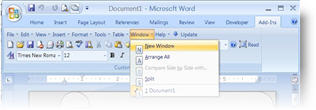
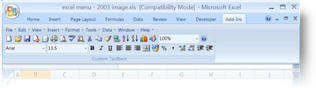
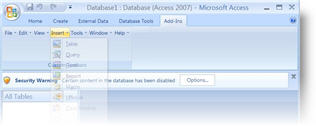
As a follow-up to the previous post. The same developer has add-ins to bring back the familiar Office 2003 menus to Office 2007 application for several applications:
Word
Excel
Access
– Troy @ TLC
Put PPT 2003 buttons and menus back in PPT 2007
Okay, the time has finally arrived. I am doing a major project in PowerPoint 2007! It is not that I have a problem with PPT 2007, I just have not had a client request. So up until now I have actually used PPT 2007 more when it was in Beta that after its release. Well, like many I am finding it somewhat tedious to learn where everything is in the new interface. I am also working under some tight timelines, so I do not have the luxury of learning at a leisurely pace. So for me a short term solution has been to add back some of the familiar PPT 2003 tool buttons.
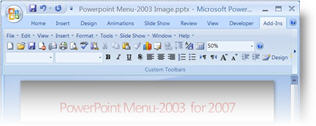
This is a limited interface – it does not give you all of your customized layout from PPT 2003 (I wish!), but it does give a familiar look and feel to things. This is a free add-in that can be downloaded from here.
– Troy @ TLC
Organize and Enhance Movies in Presentation (3)
To add a professional touch to the aesthetics I create a feathered edge rectangle in Photoshop and save it as a .png with a transparent background.

I make sure it is sized just slightly larger than the movie image/placeholder and then send it BEHIND them. This provides a great aesthetic to the slide by adding some depth to the movie and making it float a bit off the background.

– Troy @ TLC
Organize and Enhance Movies in Presentation (2)
How does the person reviewing a printout of the slides know which movie is to be played, or even if it is a movie? When a movie is inserted on a slide it adds an image of the first frame of the movie. Sometimes this provides enough information to identify it. Other times it is something abstract or even black.
For all of my projects I take advantage of the fact that a movie will always play on top of all other content. I create a rectangle autoshape that is the same size as the movie image and place it ON TOP of the movie. I then add descriptive text.

Now anyone reviewing the slides in PowerPoint or from a printout knows exactly what is going to happen on this slide. Another benefit of this is that is does hide that first frame image of the movie that PowerPoint created – we’ve all seen the awkward image of the person with their mouth open – eyes closed – and out of focus, it’s a good thing to hide it!

Again, the movie is UNDER the autoshape, but during show mode it will “pop” to the front and hide the autoshape.
– Troy @ TLC