
Double-Click Launches WRONG Version of PPT
If you have multiple version of PowerPoint installed on your computer, you most likely just experienced this issue (or you are about to). The latest round of updates & patches for Office reset the registry entry for Office, so it reverts to Office 2000 (if installed). What this means is that the quick-launch, when you double click an icon, opens the document in Office 2000. Kind of frustrating, but here is the fairly quick and easy solution:
(1) Close PowerPoint.
(2) Go to START >> RUN >> BROWSE
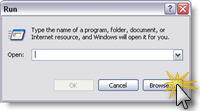
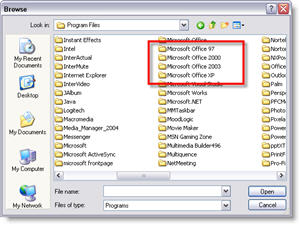
(3) Go to MY COMPUTER >> C: >> MY PROGRAMS and open the most current version of Office (the one you want quick launches to open)
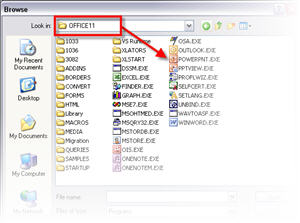
(4) Inside the Office Folder locate the PowerPoint .exe file (careful NOT to select the PowerPoint Viewer) and click okay.
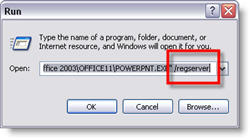
(5) The Run menu has automatically added the path to PowerPoint, at the end of this information (outside the quote mark) add /REGSERVER
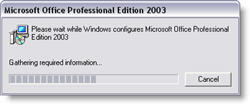
(6) You will get an INSTALL, then a CONFIGURE dialog. When it is done, you are back to the quick launch doing what you expect 🙂
– Troy @ TLC
Selling Power Magazine Article
A few weeks ago an interview I had with Selling Power Magazine was posted. It is based on the Pre-Show Checklist I posted back in March. The article goes into a bit more detail, giving samples of why each item is important to address and is overall a great write-up.

Click here to visit Selling Power Magazine and read the article (requires free registration). Or search for “Prevention” from the home page.
Click here to see the original post and link to PDF on the TLC website.
-Troy @ TLC
Animation vs. Animation
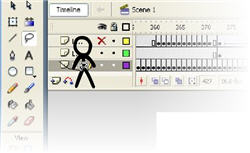
Okay, this is not PowerPoint (all Flash), but it is just too fun to miss!
What happens when the Flash animation character is let loose inside the Flash Application – click here to see.
– Troy @ TLC
Zoom In on the Advanced Animation Timeline
I know I have covered this as part of other tutorials, but here a quick recap of this highly useful trick.
Here is the situation: you want to create a “waterfall” animation for your text (where each line fades in, overlapping the previous fade in animation). You apply the animation, view timeline in Advanced view and go to slide each animation bar but get frustrated with it jumping around…
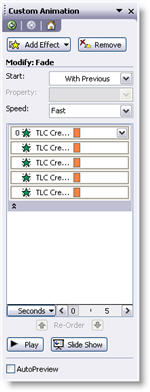
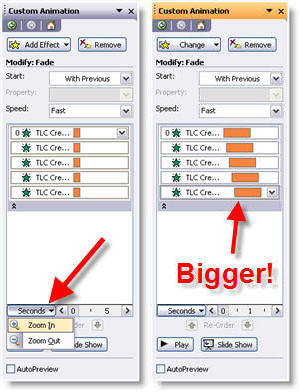
Try this: click on the word “SECONDS” at the bottom. Choose “ZOOM IN” and do this 2-3x’s. Now the animation pane has been zoomed in and the animation bars are much wider – making it easier to slide them precisely where you want!
– Troy @ TLC
OneSheet on Office 2007 UI
If you are looking forward to Office 2007, or at least curious, here is a quick read that describes what the developers at Microsoft view as the essentials to the new UI.
Click here to download the 1 page PDF.
-Troy @ TLC
Perspector 3 Update
This week Steve Hards from Perspector sent me an notice that they have released a minor update to its recently released version 3. The update installs on top of existing versions and in addition to fixing some minor bugs, has a huge upgrade to the image quality!
Perspector is a 3D add-in that allows you to convert any object or text on a slide to a true 3D element. It has a great library of 3D template objects which can be easily modified to match your slide.

Check out Perspector and download the update here.
-Troy @ TLC
Animation Sample – Move and Grow
This is a quick animation sample that I created based on yesterday’s posted tutorial. Here I start with a small image and combine a MOTION PATH with a GROW EMPHASIS and finally a fully size image FADE IN. The result is some visually dynamic onscreen action, that overcomes one of PowerPoint’s raster graphic limitations.

Click here to download the PowerPoint file (500k).
-Troy @ TLC