
Clipchamp and Apple ProRes Videos

Apple ProRes is a video CoDec (a video codec is the process of COmpressing a video into a file format, as example .MP4, .AVI or .MOV, and then DEcompressing it when played). Apple ProRes is a super high quality codec, but unfortunately Windows OS does not recognize Apple ProRes, making it difficult to work with these super high quality, and generally professional video files on a Windows computer.
An amazing thing we discovered at TLC Creative is Clipchamp recognizes ProRes videos – on a Windows computer! This means Clipchamp can be used, on a Windows computer, to convert a PreRes video to a standard .MP4 video that Windows, and PowerPoint can use.
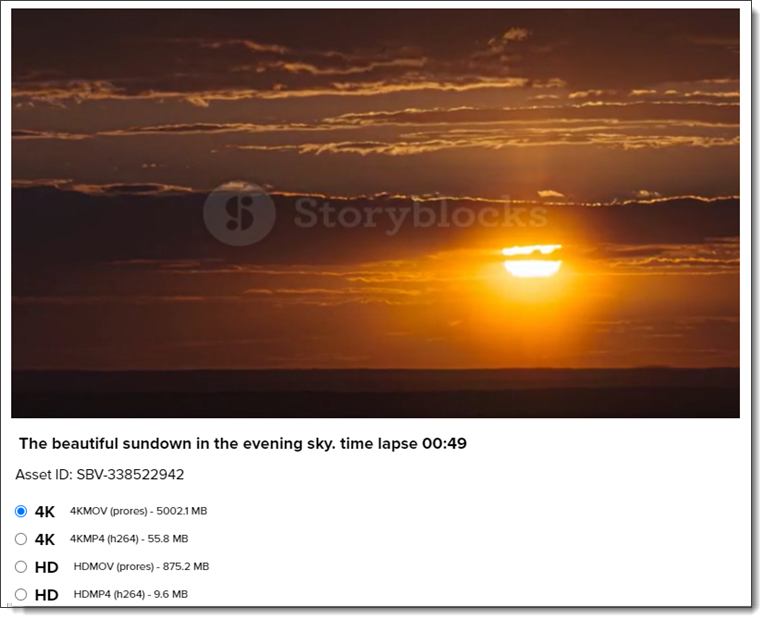
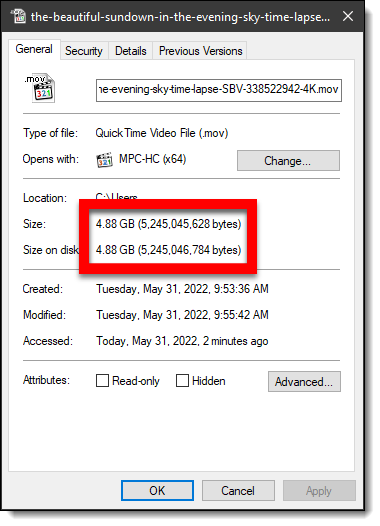
Here is my test video. It is a whopping 4.88GB (!) and .MOV file format in Apple ProRes.
- First – launch Clipchamp
- TIP: running Clipchamp as a local app is going to be MUCH faster to load the 5GB file vs. having it upload to the Clipchamp servers if running as a web-app.
- Open the ProRes encoded video in Clipchamp.
- Add to video timeline.
- Export the video.
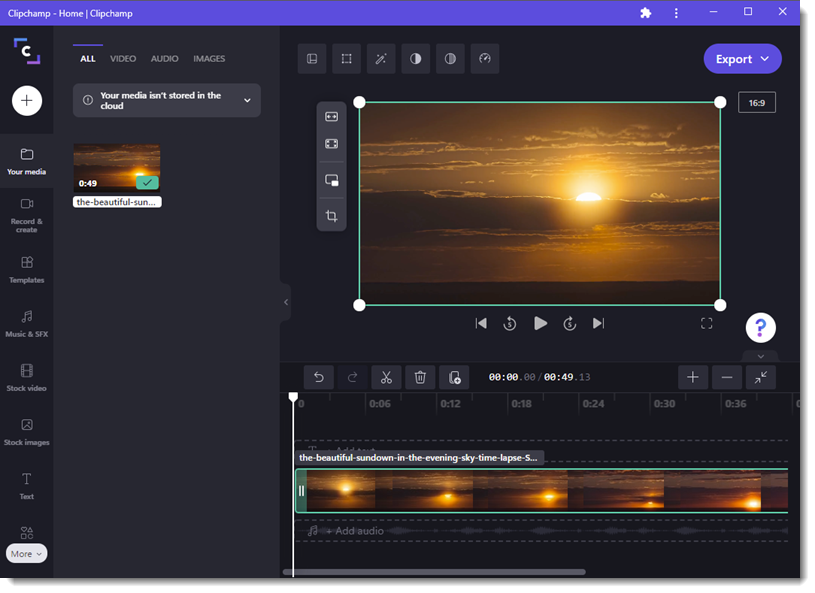
TIP: Clipchamp only creates .MP4 video files, which work on all computers, all web browsers, and all applications.
And the final task is to add the new version of the video to your presentation!
Podcast release

A new episode of The Presentation Podcast releases today! We have a great conversation about accessibility, and using PowerPoint for accessible presentations. One definition of accessibility is “…making information, activities, and/or environments sensible, meaningful, and usable for as many people as possible.”. For us in the presentation world, accessibility is a consideration for slide design. And slide design can address accessibility categories of contrast, font size, captioning, screen reader setup, alt text, and much more. But the real question is, are there tools within PowerPoint to enable presentation designers to make a presentation accessible? This episode of The Presentation Podcast we are joined by Stephy Hogan a great conversation about presentation design with accessibility considerations.
Listen here!
Clipchamp – Create an Instagram Video Compilation
A common presentation request (for TLC Creative) is “Let’s add these videos from our Instagram account.” So, for this post let’s download some Instagram videos and create a video collage for the presentation (4 videos that transition at :20, :38, 1:15, 1:39).
Downloading Instagram videos is the first step. There are many third-party apps and websites for downloading videos from links.
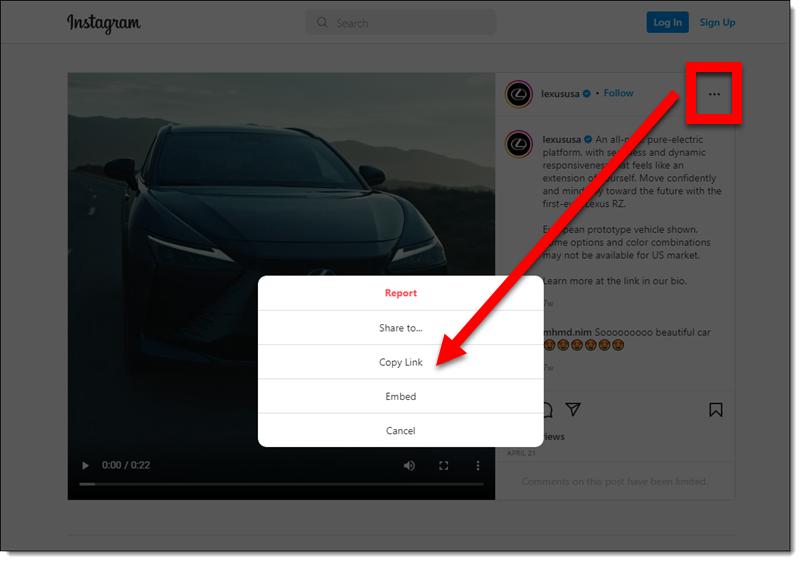
- Open the Instagram video on the Instagram site.
- Click the 3 dot menu in the upper right.
- Use the third-party app/website of your choice to download each video (which is generally pasting the Instagram video link into the app).
Create your video in Clipchamp:
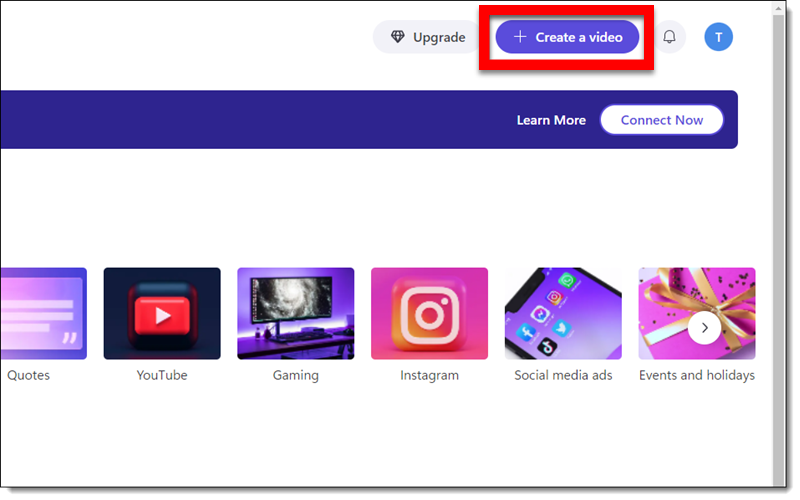
- To create the video collage for the presentation, open Clipchamp and click “Create a video.”
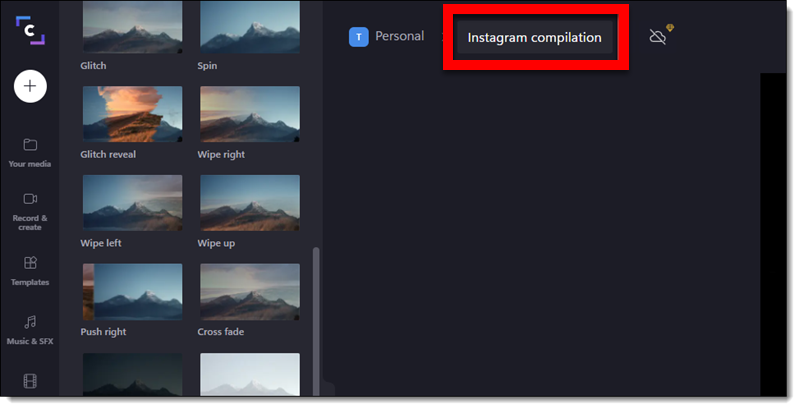
- Name the video by clicking on the “untitled video” (I called this one “Instagram compilation”).
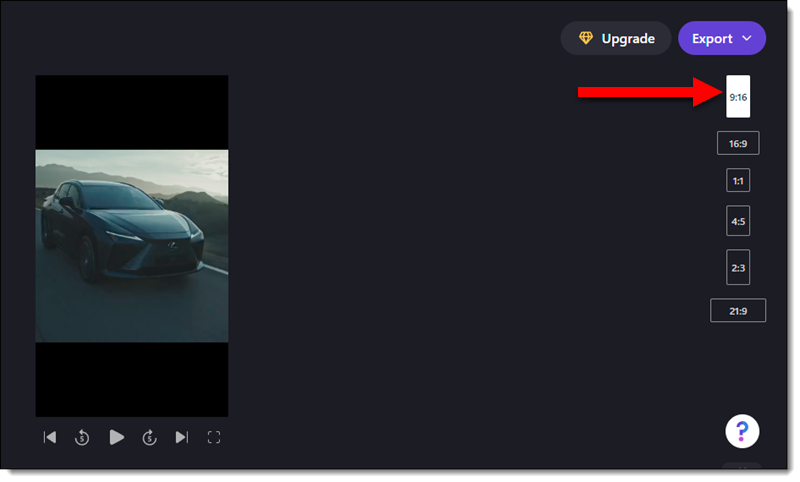
- Instagram is a tall, or portrait, aspect ratio. Use the aspect ratio button on the right and change the aspect ratio to 9:16.
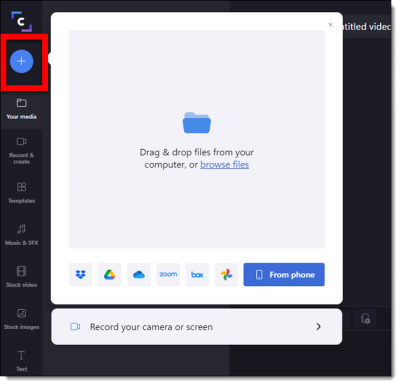
- Add the Instagram videos. Click the “+” button on the left menu and drag-and-drop videos.
- Add videos to the timeline, and confirm playback order.
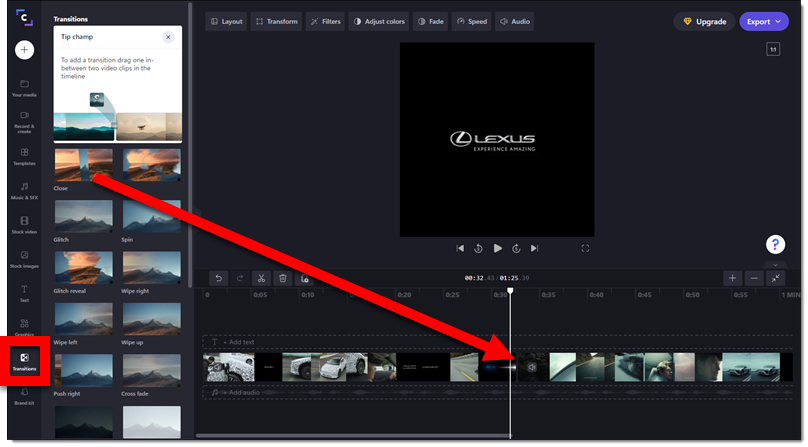
- Add transitions between each video. Select a transition effect on the left and drag it to the “+” icon between the videos (a pop-up that says “Add transition” will appear).
- Add videos to the timeline, and confirm playback order.
- Add transitions between each video. Select a transition effect on the left and drag it to the “+” icon between the videos (a pop-up that says “Add transition” will appear).
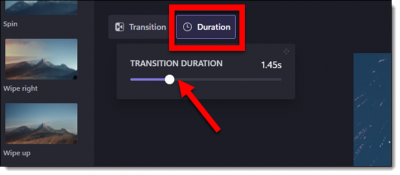
- TIP: the transition duration can be adjusted. Click the transition between the videos, then the “Duration” button at the top, and adjust.
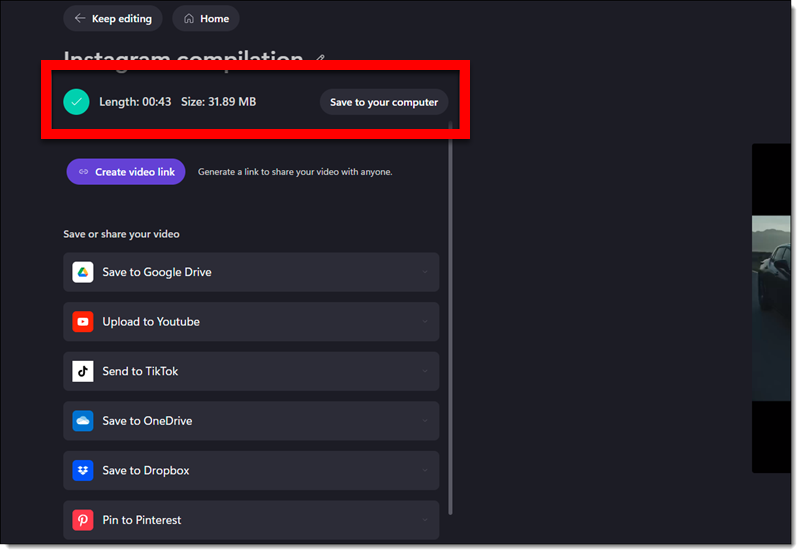
- Export the video and add to the presentation!

- Your video will start to render. Once it’s completed, you can download it to your computer or share it with Clipchamps other options.
Once the video has downloaded to your computer, you can insert it into a PowerPoint slide. This is a great way to piece together multiple videos, which PowerPoint doesn’t feature yet.
Clipchamp – Create a Custom Presentation Video
When you open Clipchamp there is a lot of social media video templates, but we focus on using Clipchamp as a video editing app. As example, creating a video for a PowerPoint presentation.
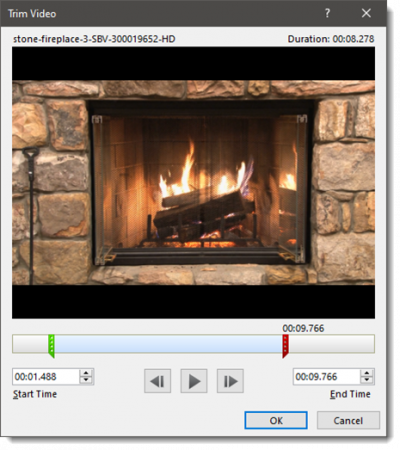
Note: PowerPoint has some very good video editing tools and styling features. Like the ability to trim the beginning and/or end of a video. Easily adjust the playback size of a video, crop a video, or even recolor a video. But when the goal is to remove a middle section of a video, or merge multiple videos into a single video, a more full feature video editor is going to be the solution. While we are a very Adobe centric design studio (ie.Adobe Premiere and After Effects), ClipChamp is quickly becoming a favorite for these quick video edit needs that are beyond PowerPoints native video tools.
The read time on this is most likely longer than the actual edit time (under 5 minutes to create the video for this tutorial). We are merging two videos with a fade transition from one to the other, rendering and adding the new single video to a slide.
- Open Clipchamp (TIP: use as a local app vs. web-based browser app – this will save time on not needing to upload video clips to Clipchamp servers).
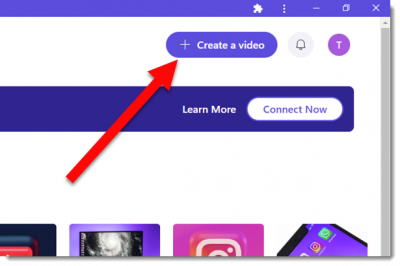
- Click on the “Create a Video” button on the upper right corner of the screen.
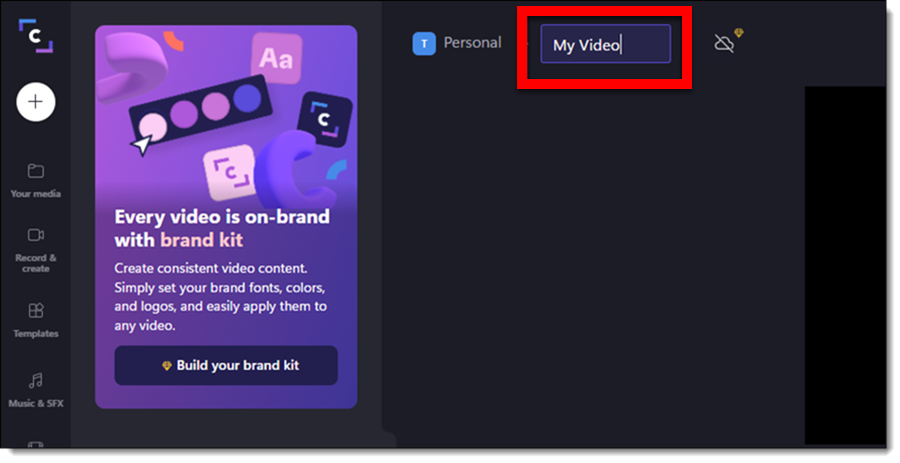
- Name the video by clicking “Untitled Video” text in the upper left hand (TIP: this will be the file name in your project list and the name used for the rendered video).
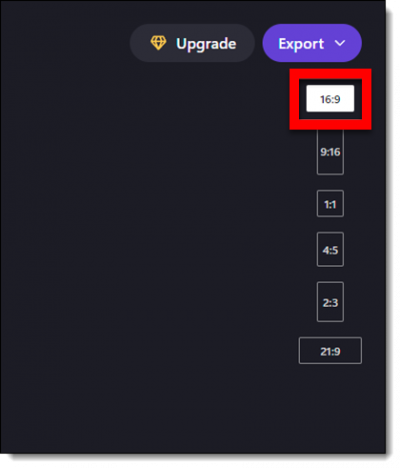
- The default video aspect ratio is 16:9. But other aspect ratio options are available. Click the “16:9” button on the right below the “export” button and pick an option from the drop-down list.
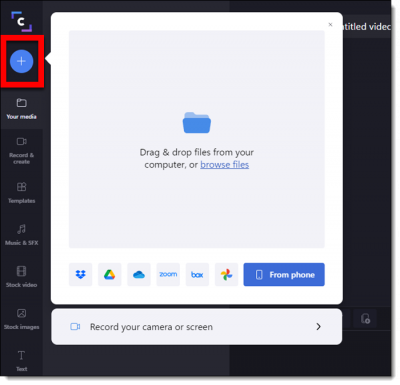
- Add media for the project (videos, images, audio files, etc.) by clicking the “+” icon on the left and drag-and-drop.
- We have added 2 videos and added them to the editor timeline (in the order of playback). Use the “scissors” tool to trim videos if needed.
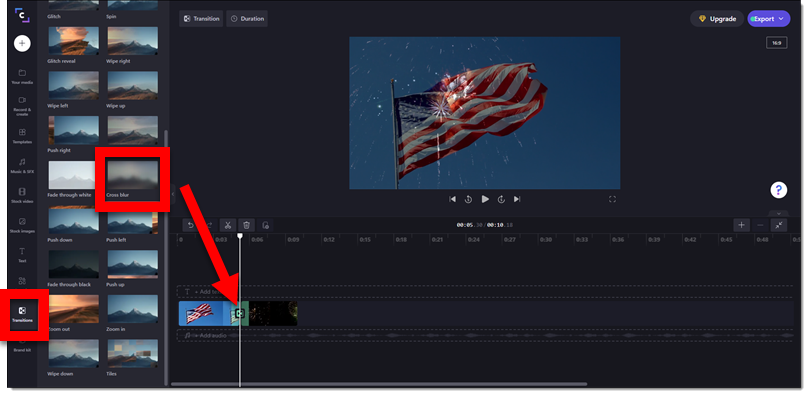
- To add a fade transition of your choice between videos by clicking the “Transitions” tab on the left menu (the example video uses the “Cross blur” transition) and drag the transition from the left to “+” icon between the video clips.
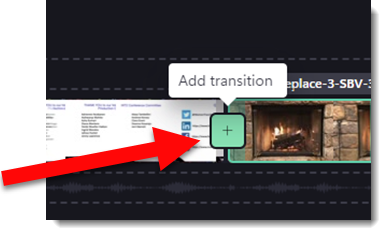
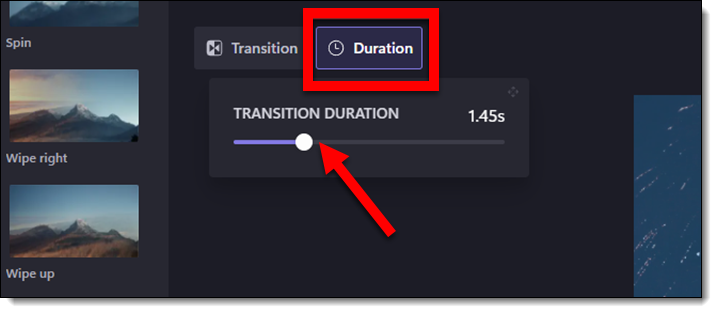
- TIP: transitions can be adjusted by clicking the “+” icon and then in the top left either TRANSITION (to change what transition effect is used) or DURATION (to change the length of the duration).
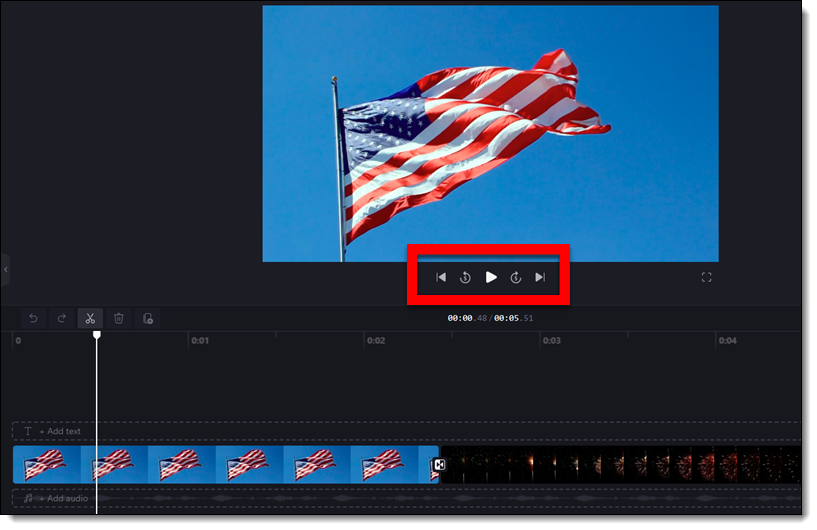
- Preview the video with the playback buttons.
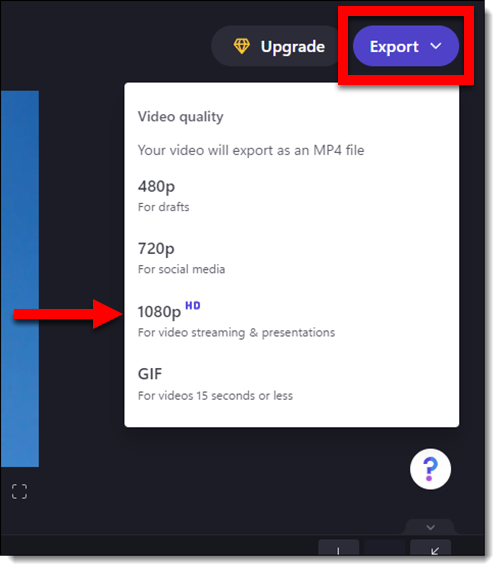
- Create the video (eg. render the video) by clicking the “Export” button on the top right. From the drop-down menu, select a resolution – we are using the standard HD, 1920×1080 option.
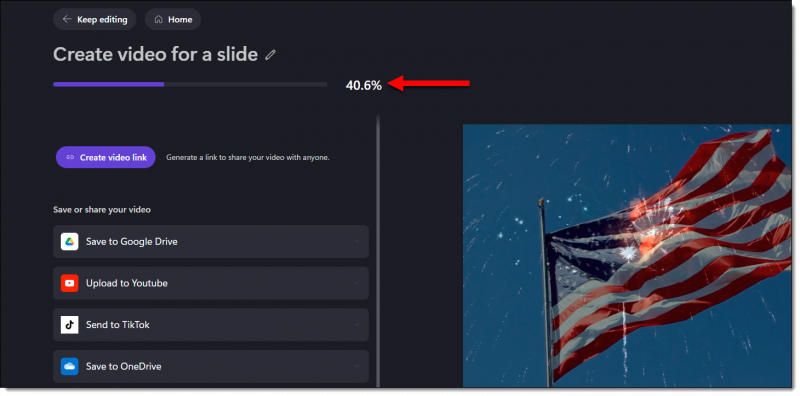
- The progress bar show a percentage complete, but unfortunately does not show an estimated time remaining. The video downloads to the computer DOWNLOADS folder. Other options to create a shareable link or upload direct to other online destinations are available.
And here is our video on a slide!
Clipchamp – Install Guide
Clipchamp is a video editing app that focuses on making video editing simple and fun. It was purchased by Microsoft with the goal to “empower creators.” Users can edit videos for a variety of social media platforms, such as YouTube and Instagram, or video to be used in a PowerPoint presentation. The app focuses on their template designs, but ignore that, import your own media, and have an easy to use video editor that exports professional file formats.
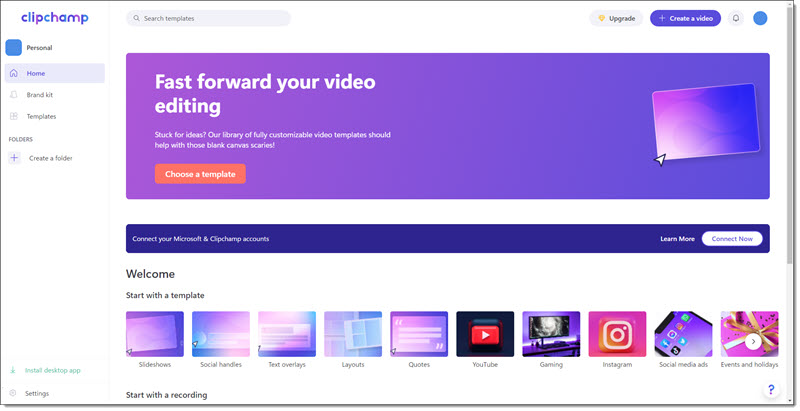
Getting Clipchamp has many options right now; download from the Clipchamp website, download from the Microsoft App Store, or the mobile version (review of the mobile app later in this series) at the Apple or Android app stores. One note, ClipChamp is not available for Mac computers currently.
At TLC Creative our focus is presentation design, so here is the process of installing on a Windows computer.
1. Open the Microsoft app store and search for “Clipchamp”.
2. Click on Clipchamp and “get” to download.
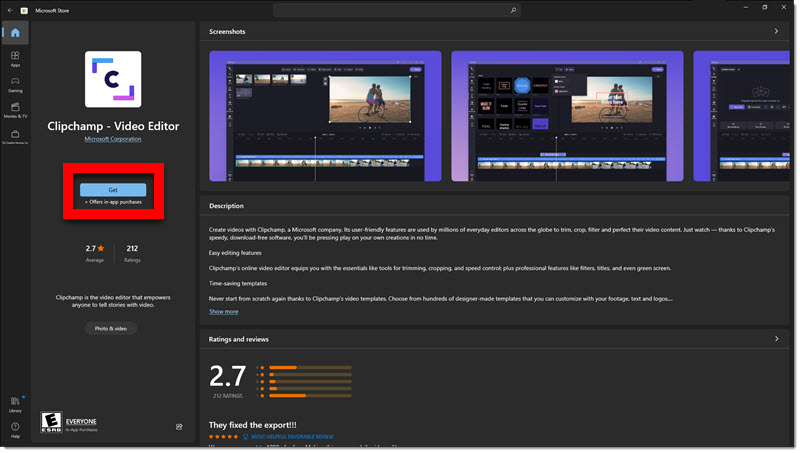
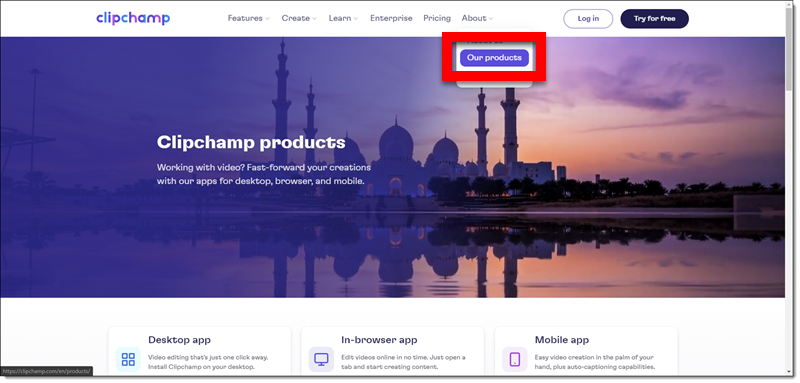
3. Alternately, go to the Clipchamp website, which ultimately takes you to the Microsoft app store to install. Hover over the “About” link in the top navigation menu and click on “Our products” from the drop-down menu.
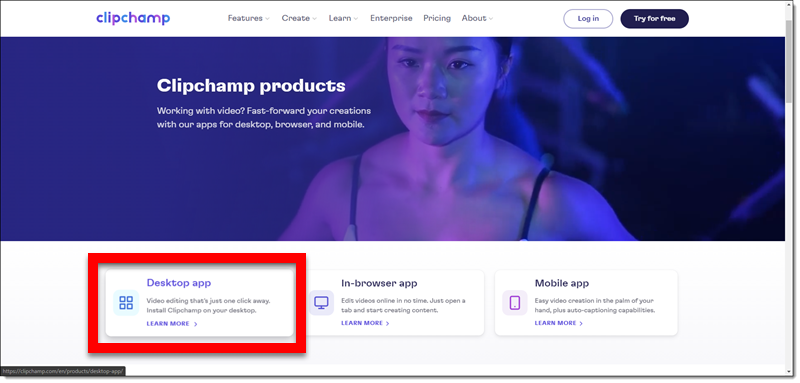
4. On the product information page, click “Desktop app”.
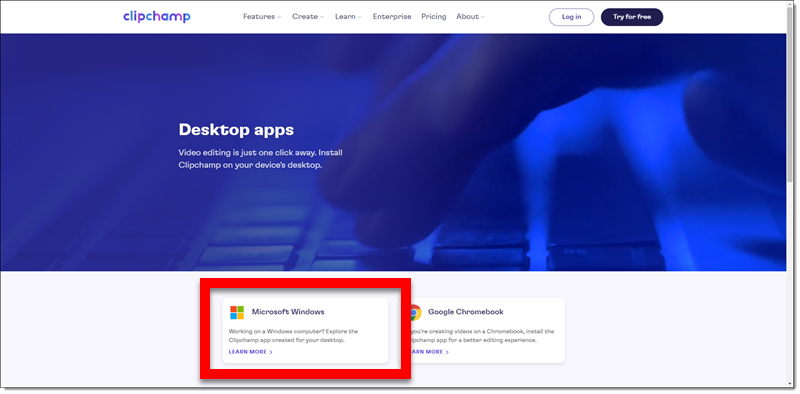
5. Then click the option that you need (eg. “Microsoft’s Windows”).
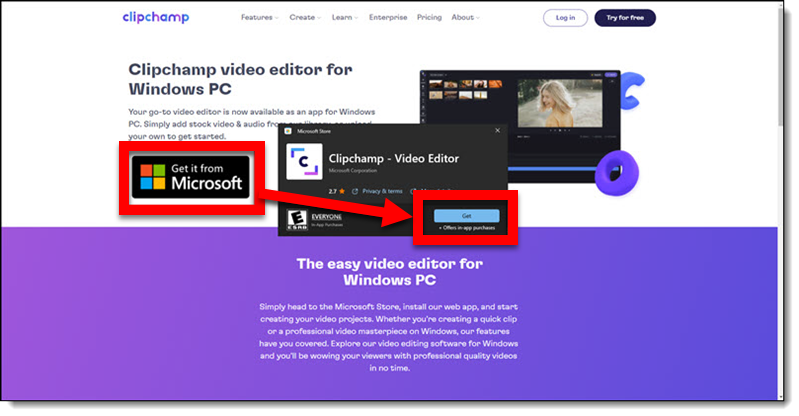
6. Then click “Get it from Microsoft” button. The pop-up window is the Microsoft Store. Click “get” to download and install.
When installed on a computer, the app interface is virtually the same as the web-based interface, but you do not need to upload media (eg. videos, photos, audio) and can work on them as local files.
More to come!
Karen @ TLC
Clipchamp – A New Video Editor
Climpchamp is a video editing app that focuses on making video editing simple and fun. Microsoft recently acquired the company and is adding clipchamp to its array of features. Microsoft notes the goal is to “empower creators” – and as presentation designers, we are creators!
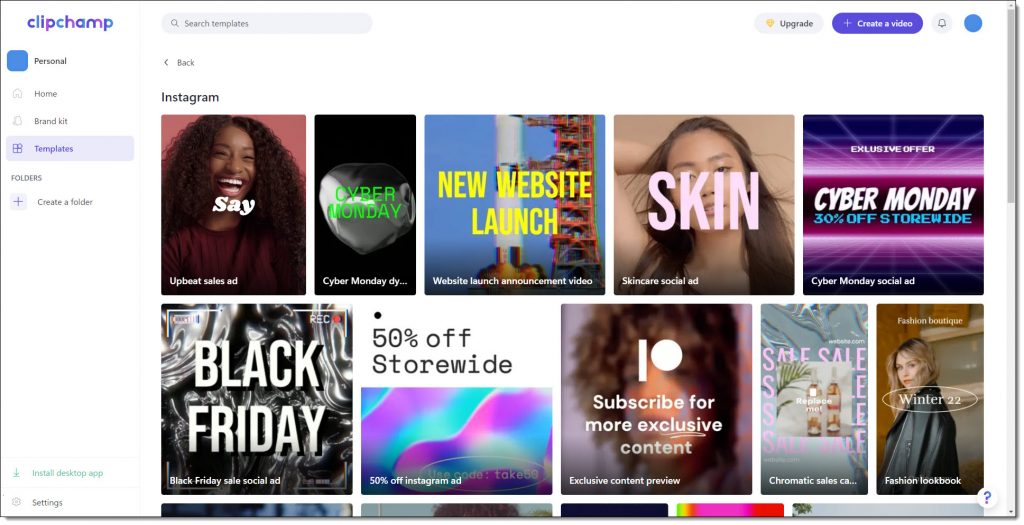
Clipchamp is a very capable (eg. real) video editing application. It does have a strong focus on video for social media; YouTube, Instagram, etc. – but this blog series is focused on using clipchamp for videos to be used in presentations.
Microsoft acquired Clipchamp, the Australian based video-editing app, in early September 2021 for an undisclosed amount. Clipchamp will soon be pre-installed on Windows 11 computers and is available to all now if they search, download and install. Clipchamp is also unique in that is as a mobile app, web-based browser app, and installed as a local/desktop app.
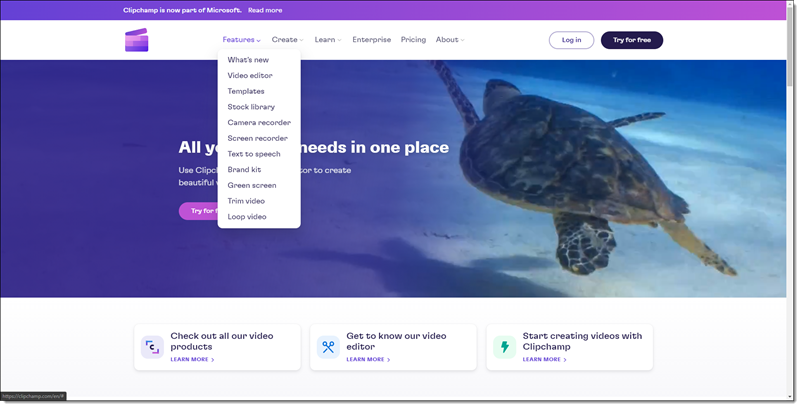
Troy here at TLC Creative Services has been testing Clipchamp, and already used it on several client projects – which prompted adding this blog series. I heard Troy say he thinks as a Microsoft standard app, clipchamp will become a standard video workflow option for presentation designers.
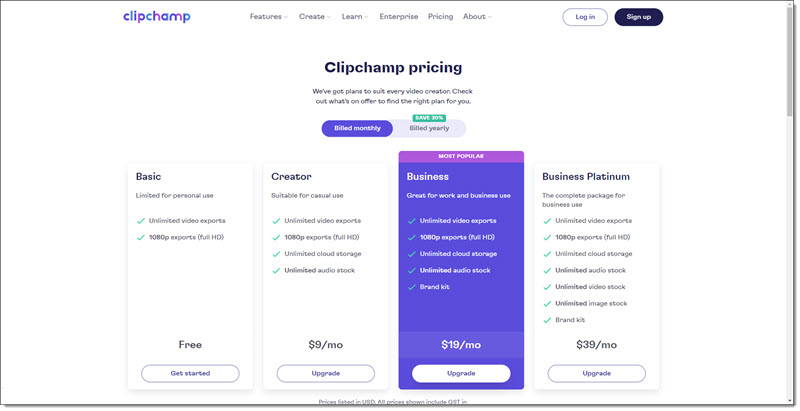
The app is free to use, but is currently a “freemium” app where there is a subscription to add some of its features, such as unlimited cloud storage, unlimited stock media, and create a brand kit.
Clipchamp’s other great features include text-to-speech, video captions, essential tools for trimming and cropping, fade effects, and even green screen. Standby for each to be covered in upcoming blog posts.

Talking about The Present to Succeed Conference on the latest Presentation Podcast episode

The 2nd annual Present to Succeed conference was April 7-8, 2022. This fully online conference’s tagline is, “a lineup of world-class speakers you can’t find anywhere else.” This episode we have coordinated the global time zones and have a great conversation with Boris Hristov about the Present to Succeed conference.
Listen here.