
Mac Computer-to-Computer AirDrop is Amazing!
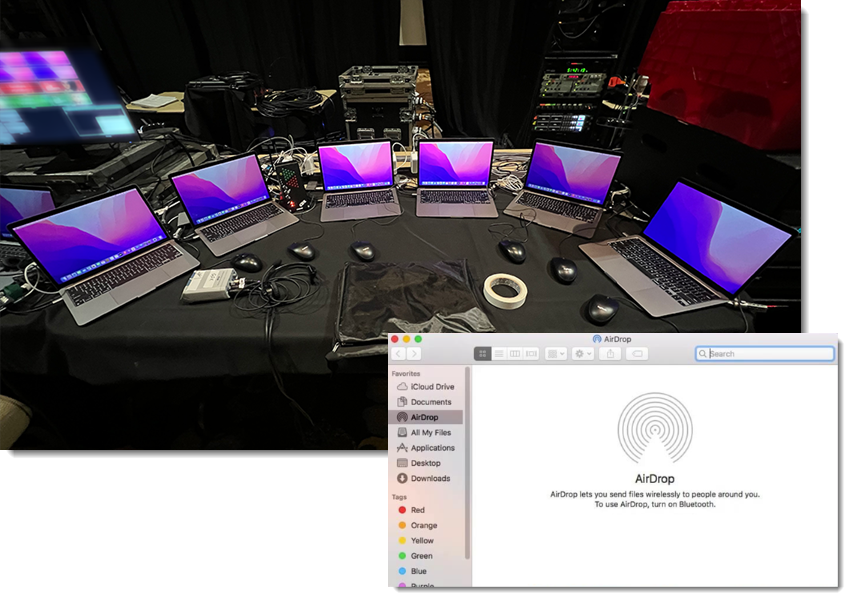
This week’s office for me is surrounded by a fleet of Macbook Pro’s for this event (running Mac PowerPoint). I am definitely a Windows person, but every time I have Macs to work on the magical tool is using the Mac OS AirDrop to seamlessly transfer files between computers – it is absolutely amazing (and missing on Windows computers)!
Troy @ TLC
Remove Text Margins – in 1 Click!
Here is something I do dozens, if not hundreds of times per day. Select a text box > open the Format Shape pane > find the inner margin settings.
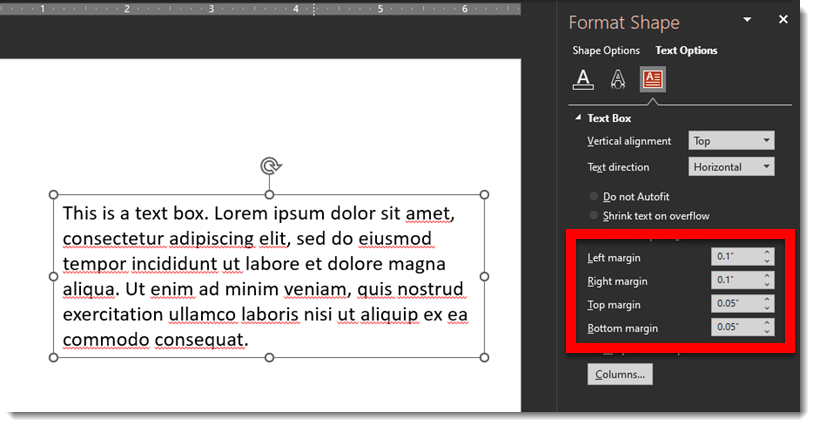
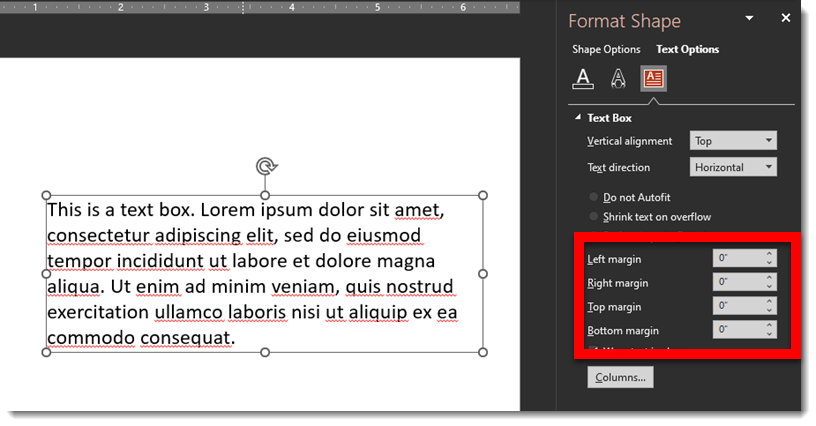
Then change all to zero’s
Recently I added this amazing icon to my QAT
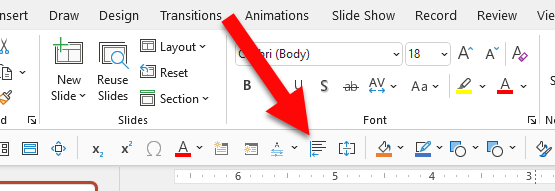
It is the “Remove (inner margins) from Selection” feature now in Brightslide.
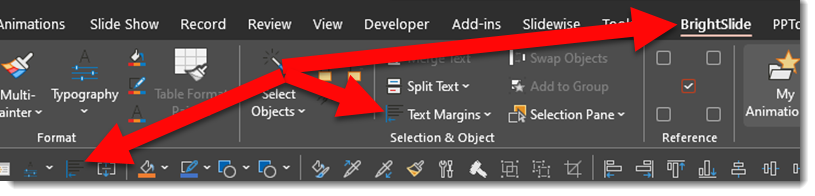
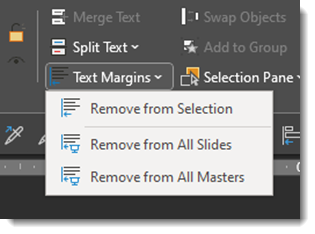
The Brightslide “Text Margins” has 3 options for removing inner margins; from selected shape (this is the one added to my QAT), from every text box on every slide (wow!) or from all Master Layouts (which means any text box associated with a master placeholder will have the inner margins set to zero, but all individual text boxes on slides not connected to a master layout will remain as set).
And the Brightslide PowerPoint add-in suite is FREE from the super people at BrightCarbon!
Troy @ TLC
You’re a Pill!
For a recent project (can we all say “pharma deck”) I needed a medication/pill icon.
- Option 1, which i will admit is my primary option, is to open the Noun Project in PowerPoint, find the icon, copy to slide, modify as needed (because the icons are editable .svg graphics!).
- Option 2, go to Adobe Illustrator and quickly create the needed pill icon (and shortcut the process by selecting – copying – pasting into PowerPoint – which is an editable .svg graphic!).
- Option 3, add a PowerPoint shape, give it a color fill and add text (into the shape – not as a text box on top of the shape!) that labels that shape as a “Pill”. This is a common solution when formatting a 200+ slide deck and have a time constraint budget.
But on this recent project I created option 4, which is really spending some additional time on Option 3 and making it great! Here are a few of my full editable, resizable, recolorable, ready to use “pill” PowerPoint shapes.
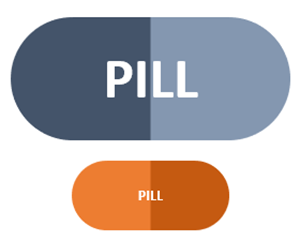
The pill shape is simply a rounded rectangle PowerPoint shape with the rounded corner adjuster moved inward to create fully rounded ends to the rectangle.
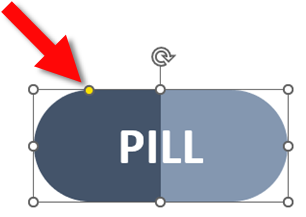
It is also a 2 color gradient, with 4 color stops.
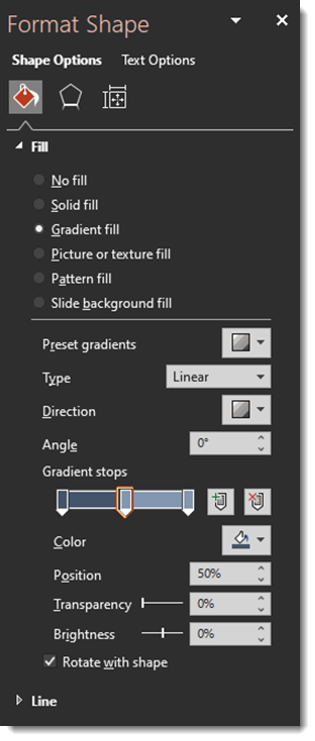
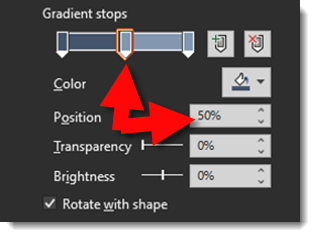
The tricky part is manually entering the middle color stop positions vs. click-and-drag. Set both to 50%, which eliminates any gradient soft edge and completes the 2 color pill icon.
For my presentation, I also moved away from a flat icon styling to a slight 3D bevel look by using PowerPoints 3D shape option.
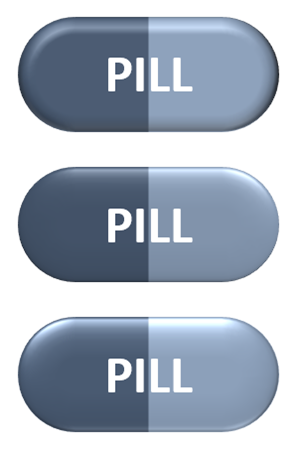
Download the PowerPoint Pill Shape on a slide HERE
Troy @ TLC
Still Waiting for the Office Refresh?
I just worked with another designer that noted that their Office had not yet updated to the new “Windows Refresh” – the updated app styling. Sure enough, PowerPoint on their computer had the “rectangle” interface still.

The solution, at this time because the “refresh” has rolled out to all Office 365 accounts now, is to click the “Upcoming Features” megaphone icon.
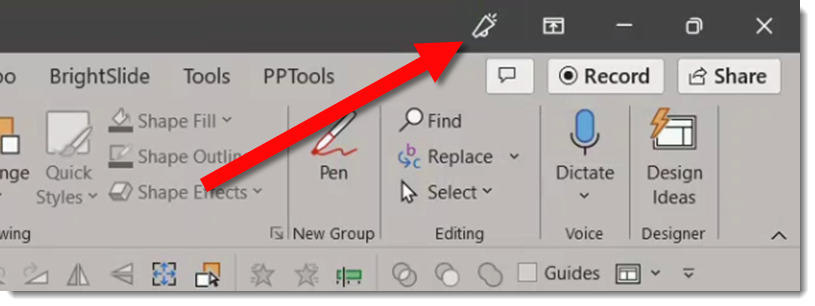
Scroll down the Coming Soon content, find the “Try the Experience” toggle, turn it on, and restart PowerPoint.
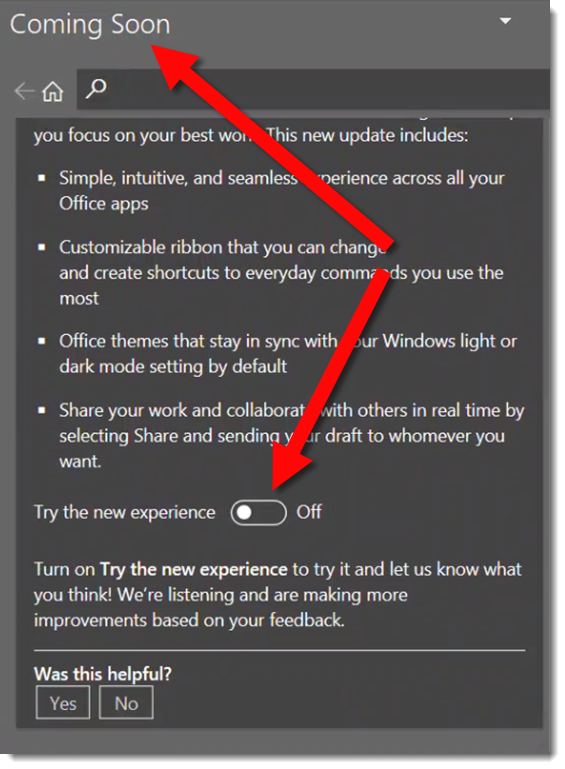
The app interface for all Microsoft Office should now be on the most recent, “rounded corner” interface 😊

Troy @ TLC
New Presentation Podcast Episode!

What’s it like to design presentations on the Mac? Longtime Mac users Jole Simmons and Mike Parkinson join Nolan for a conversation about the good, the bad, and the ugly on using PowerPoint and Keynote and Google Slides on a Mac. What are the disadvantages and what are the advantages to Windows? Is the animation timeline really that important? Is it more expensive or less? And how does Keynote stack up next to PowerPoint?
Presentation Podcast Release
This episode has a backstory. As projects continue to spin up with wonderful client requests, internally at TLC Creative Services, we have been revisiting our rate sheet, project timelines and project terms. The Presentation Podcast’s focus on the business of presentation design is a great resource, that I found myself (Troy Chollar) using. This episode we revisit a conversation Sandy, Nolan and myself had back in 2017 were we discuss presentation project Deposits, Terms and Rates. Virtually every part of the conversation is relevant today, so much so that it is worth bringing back to the surface episode 28 and hopefully encouraging you to evaluate your project options and assuring things are advantageous for both sides of the project; the designer and recipient. Enjoy.
Listen to the conversation here.
Talking About PowerPoint Templates
Troy, Nolan and Sandy enjoy a fun time talking about PowerPoint templates on this episode of The Presentation Podcast. Listen here.