
PowerPoint Gradients – All Month!
At the 2021 Presentation Summit one of my speaking sessions was an indepth look at design options using PowerPoint gradients. Time to share some of the great PPT Gradients examples from that talk here on The PowerPoint Blog!
-Troy @ TLC
The Presentation Podcast – Before the Mic with Glenn Gibson
New podcast episode released today. “Before the Mic” is a new book in the presentation space. It focuses on the presentation message and structure – everything that needs to happen before the presenter is ‘before the microphone’ and presenting. This episode Troy, Sandy and Nolan talk with Glenn Gibson, author of “Beyond the Mic” for a very fun, very informative conversation!
Pantone Color of the Year Inspired PowerPoint Duotone Photo Effect
Duotone is the process of converting an image to two colors. Like a greyscale photo, which is two colors, black and white, but with colors. For this example, I unintentionally cheated by starting with a greyscale image vs a full color image. Working with a real PowerPoint template, such as the Very Peri Wellspring template we released earlier this month, creating duotone images is amazingly easy in PowerPoint – and can be a great styling option.
The Wellspring template was based on the Pantone Very Peri inspired color scheme, that Pantone named “Wellspring”. The TLC Creative design team developed a template that highlighted the Pantone color scheme – and preset the PowerPoint colors to use the Pantone color scheme colors.
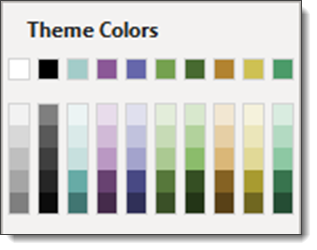
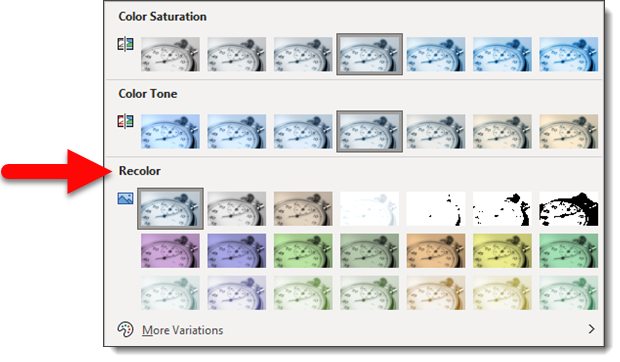
Any image in the deck can be selected. Go to PICTURE FORMAT > ADJUST tab > COLOR drop down > RECOLOR. The template theme colors are available in the preset options. Any color can be assigned to the Recolor (aka duotone) with the MORE VARIATIONS option.
For this example, I opened the Very Peri Wellspring template TLC Creative developed. Searched the Microsoft image library and selected the stopwatch image. (1) The image was sized and cropped to fit the template Full Frame layout. (2) An inner shadow was applied to the image. (3) using the Recolor feature, I opted for the Very Peri purplish color. (4) Last was to find a “time” related quote and do some typesetting for the layout.
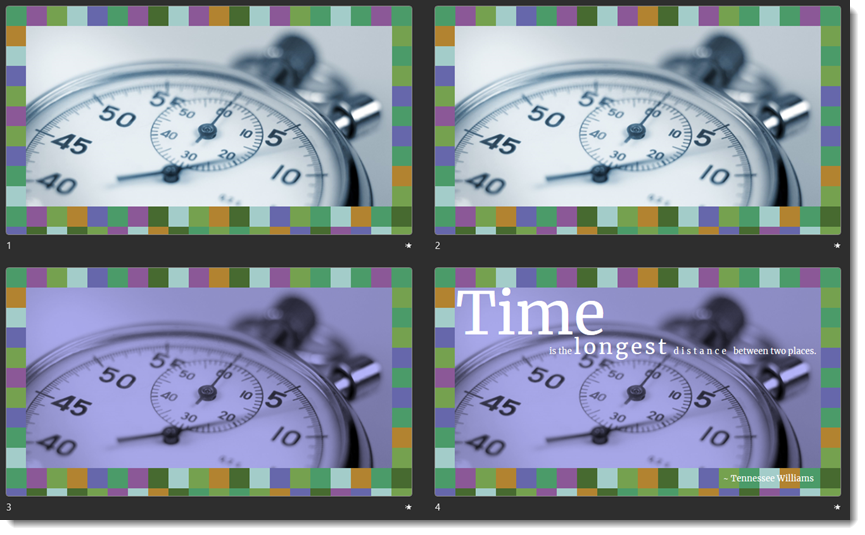
Download the slide set Here.
Troy @ TLC
Free PowerPoint Template – Inspired by Pantone’s “Star of the Show” Color Scheme
Pantone’s Color of the Year, “Very Peri” and their inspired color scheme “Star of the Show.” Described as “a palette of classics and neutrals whose essence of elegance and understated stylishness convey a message of timeless sophistication.”
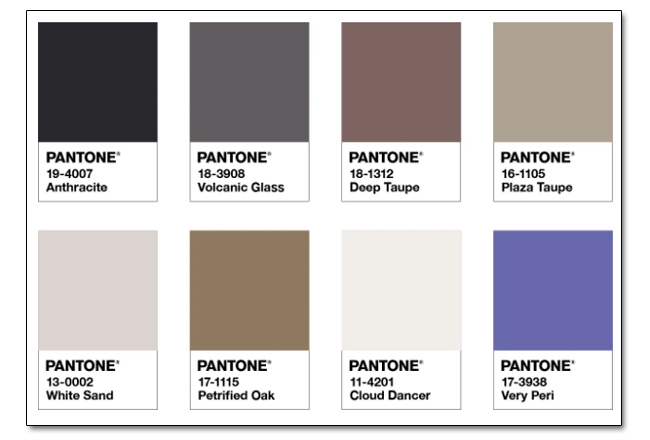
Troy on the TLC team has created a full PowerPoint template based on the fairly drab “Star of the Show” Pantone color palette.
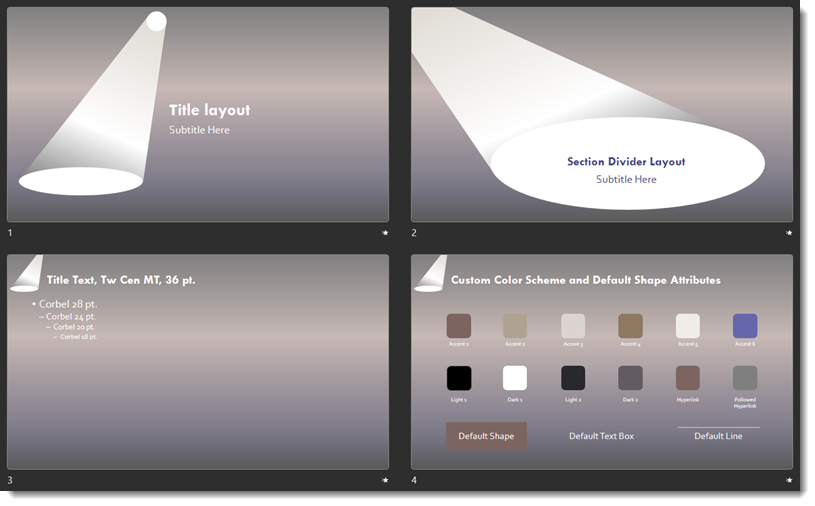
Download our color scheme inspired PowerPoint template, free to use, HERE.
Troy @ TLC
Pantone Very Peri “Balancing Act” PowerPoint Template – Free
Using Pantone’s Very Peri Color of the Year and their “Balancing Act” color scheme, Troy on the TLC Creative presentation design team has created a full feature PowerPoint template everyone can download for free!
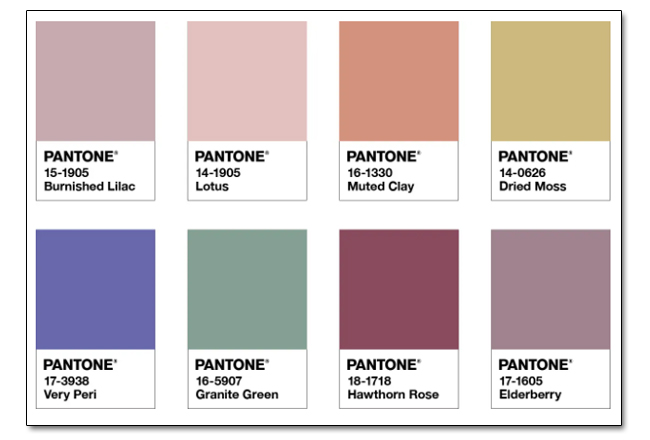
Pantone’s website describes “Balancing Act” as a “palette of color whose natural balance of warm and cool tones support and enhance one other. The brilliance of PANTONE 17-3938 Very Peri is intensified within this artfully calibrated palette, injecting a feeling of liveliness and visual vibration.”
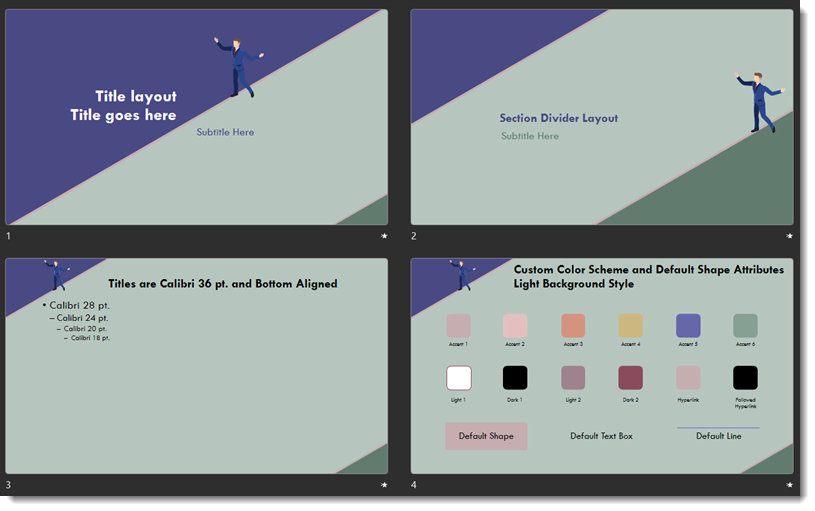
download the FREE PowerPoint template HERE.
Troy @ TLC
Pantone Very Peri “Amusements” PowerPoint Template – Free
And Pantone’s fourth Very Peri Color of the Year inspired color scheme is “Amusements”. A “joyous and whimsical color story of irrepressible fun and spontaneity is amplified by the carefree confidence and joyful attitude of PANTONE 17-3938 Very Peri, a twinkling blue hue whose playfulness emboldens uninhibited expression and experimentation.”
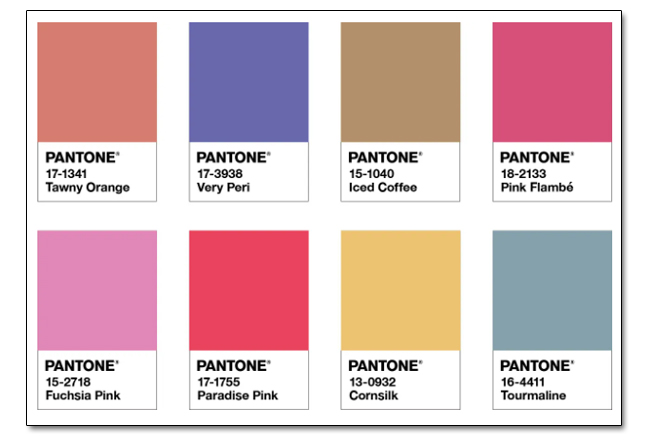
TLC Creative staff designer, Jake took on this bright color pallet and developed this colorful, geometric inspired PowerPoint template.
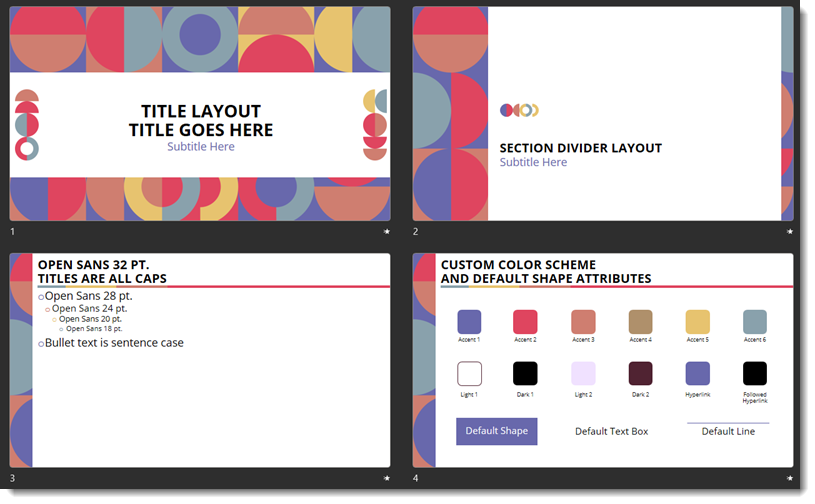
Download the FREE PowerPoint Template HERE!
Troy @ TLC
Presentation Guild Event Today! Ask Microsoft Anything
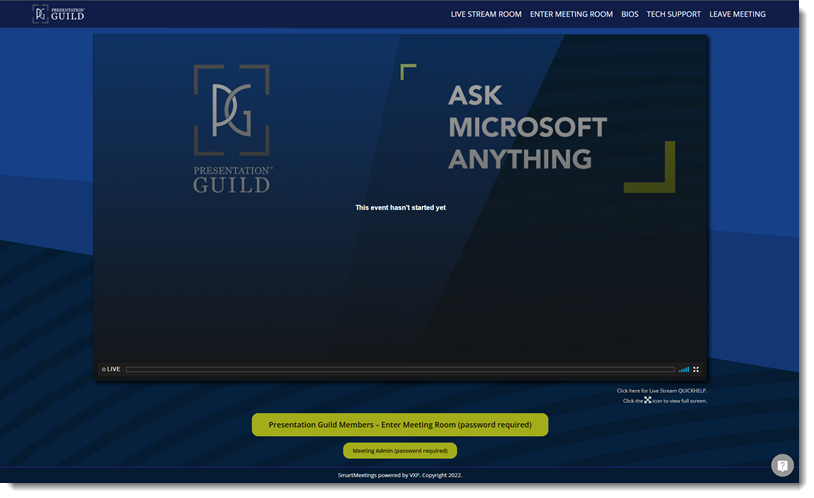
Today is the day – join The Presentation Guild, Ask Microsoft Anything event!
Everyone is welcome (live stream view for all, be in the meeting room with the Microsoft team for Presentation Guild members).
2:00pm-3:00pm Eastern Standard Time zone
Login opens at 1:00pm EST
Go to the event here: PresentationGuildEvents.com
(and shameless promo – this event is being hosted on the TLC Creative Services, VXP Meeting platform)
Troy @ TLC