
New Podcast Available Today!

Head to The Presentation Podcast and listen to Troy, Nolan and Sandy discuss the expenses; things to buy, to subscribe to, things to just have to be a presentation designer. We are listing off the many expenses we have to plan for to run our businesses, and the costs of being a presentation designer!
Happy Valentine’s Day – Free PowerPoint Template!
Download this great Valentine’s themed PowerPoint template HERE.
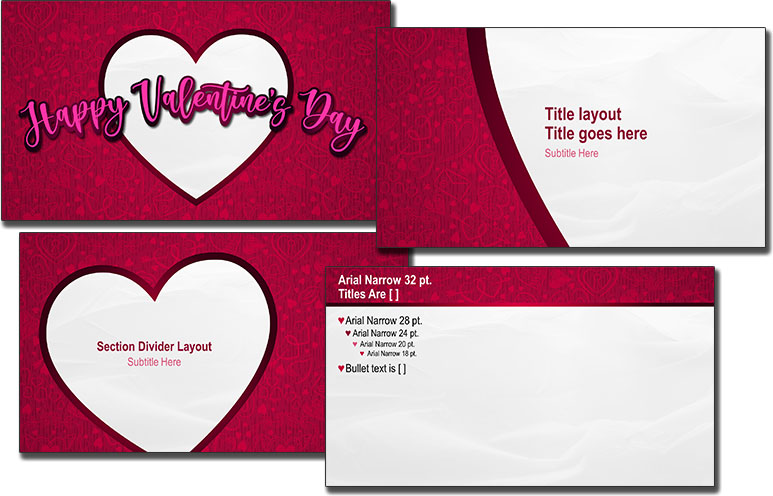
Many thanks to Jake on the TLC Creative presentation design team for creating this fun and heart filled template!
Pantone Very Peri “Wellspring” PowerPoint Template – Free!
Using Pantone’s Color of the Year for 2022, Very Peri – Wellspring color scheme as the inspiration, Karen on the TLC Creative design team created a full feature PowerPoint template.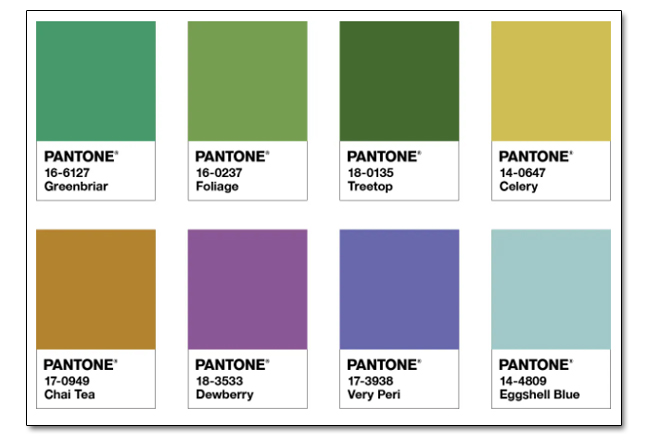
The Wellspring palette is described as “A holistic and harmonious blend of nature infused shades, Wellspring highlights the compatibility of the greens with good-natured PANTONE 17-3938 Very Peri, and the health-giving properties of these deliciously subtle and nourishing hues.”
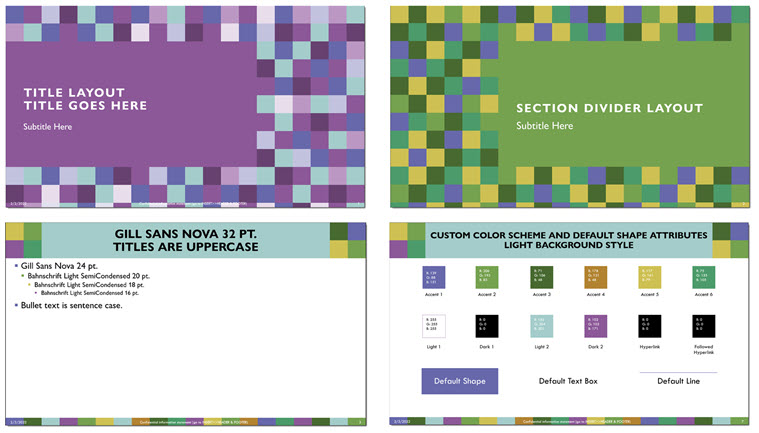
Download this FREE PowerPoint template Here.
Troy @ TLC
Pantone Released a PowerPoint “Template” with the 4 Very Peri color schemes
I am uncertain if Pantone created this PowerPoint file or if Microsoft created it, but everyone can download a Pantone 2022 Color of the Year inspired PowerPoint template on the Microsoft Office Templates site here.
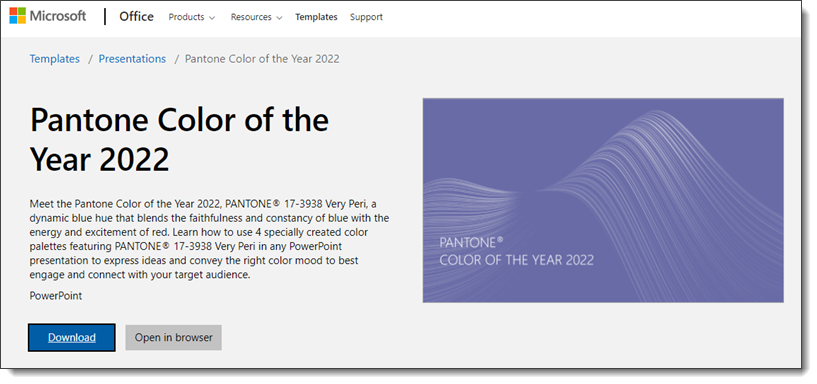
It is a set of PowerPoint slides with some slide layouts and image treatments.
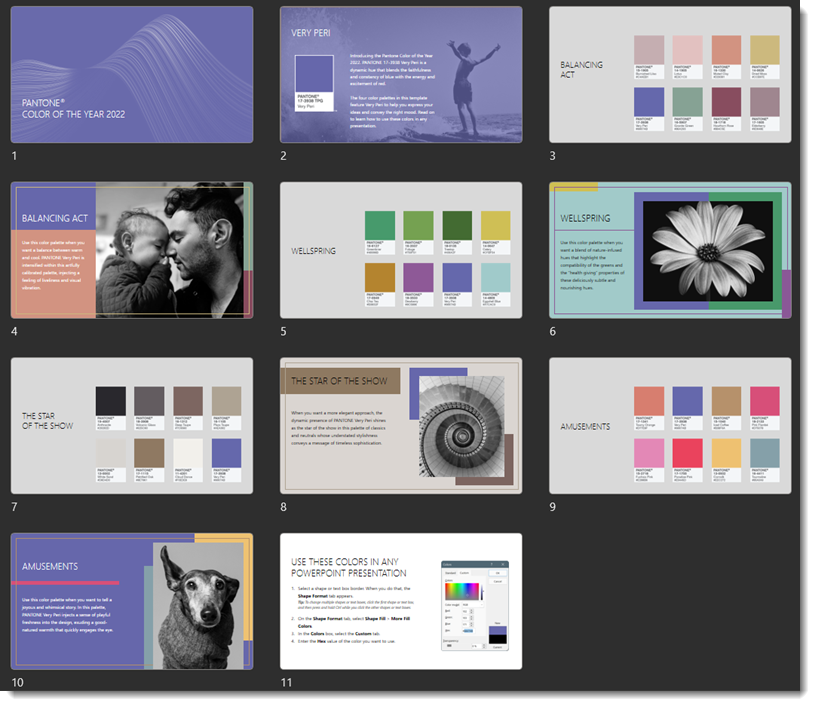
The file has 4 separate Master Slides, each with one of the Pantone Very Peri inspired color schemes. But I cannot call this a “template” as it is missing too many of the fundamentals that make a PowerPoint template, a template. Aside from missing all standard layouts, each master slide is void of any styling and preset layouts that trickle down to master layouts for the master slide.
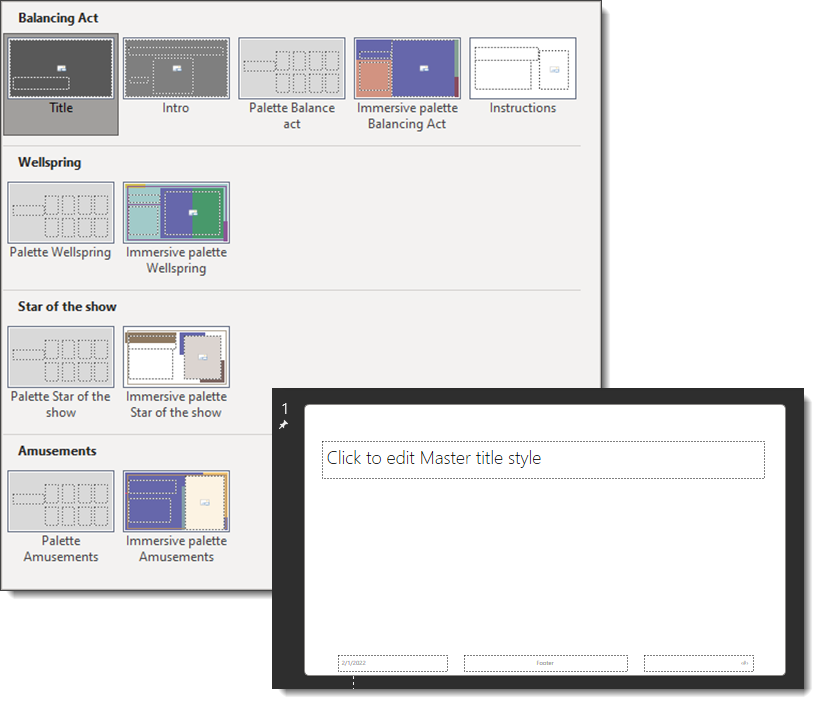
The TLC Creative design team has taken up the Pantone 2022 Color of the Year, Very Peri and developed 4 full feature PowerPoint templates, one per Pantone color scheme. Standby, each will be a free download over the next few weeks of posts!
Troy @ TLC
Very Peri – Pantone’s Color of the Year
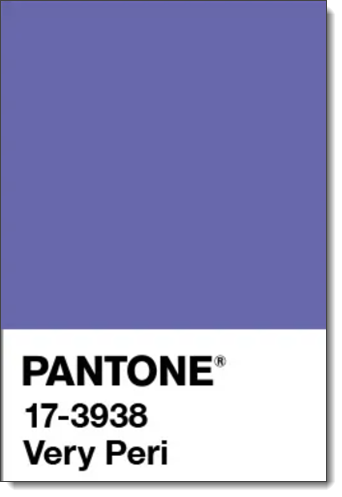
Pantone’s color of the year for 2022 is VERY PERI. Technically it is Pantone #17-3938, described as “A New Pantone Color Whose Courageous Presence Encourages Personal Inventiveness and Creativity.”
The TLC Creative Services design team agrees Very Peri is a winner and will be great for use in slide, and template design!
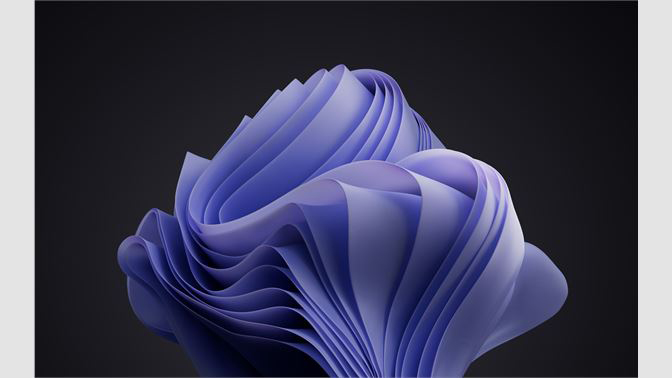
Even the big companies have adopted Very Peri for 2022. Check out Microsoft’s Windows 11 “Windows Bloom” re-imagined using the Pantone Color of the Year 2022 (available here).


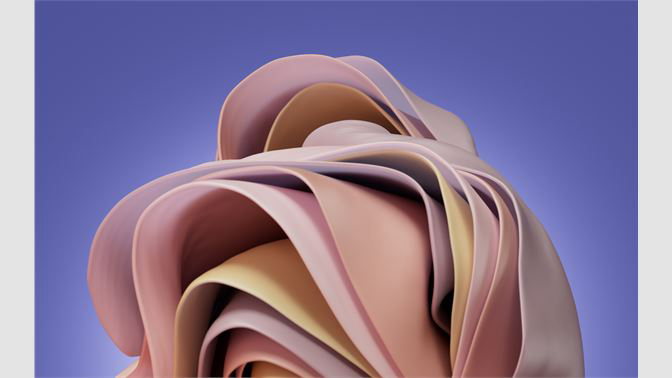
Visit the Very Peri official page on the Pantone site here.
New Presentation Podcast Episode!
Eyeful Presentations recently released a new presentation industry report, “The NEW New Normal – Hybrid Presentations.” This episode of The Presentation Podcast, Troy Chollar has opportunity to talk with Simon, Jack and Alex from Eyeful Presentations about their report and hear some additional insights into the topic of hybrid presentations. Listen to the conversation here.
Mark Your Calendars – Presentation Guild Gathering, February 17!
Do not miss this amazing opportunity to be in the same room with the Microsoft PowerPoint team! The Presentation Guild’s “Ask Microsoft Anything” event is open to everyone to view. Guild members can enter the meeting room direct (chat and ask questions direct to the Microsoft team)!
The Presentation Guild “promotes the presentation design and production industry as a profession, recognizes the skills and expertise of presentation creation specialists, and provides opportunities for members to expand their knowledge and abilities.”
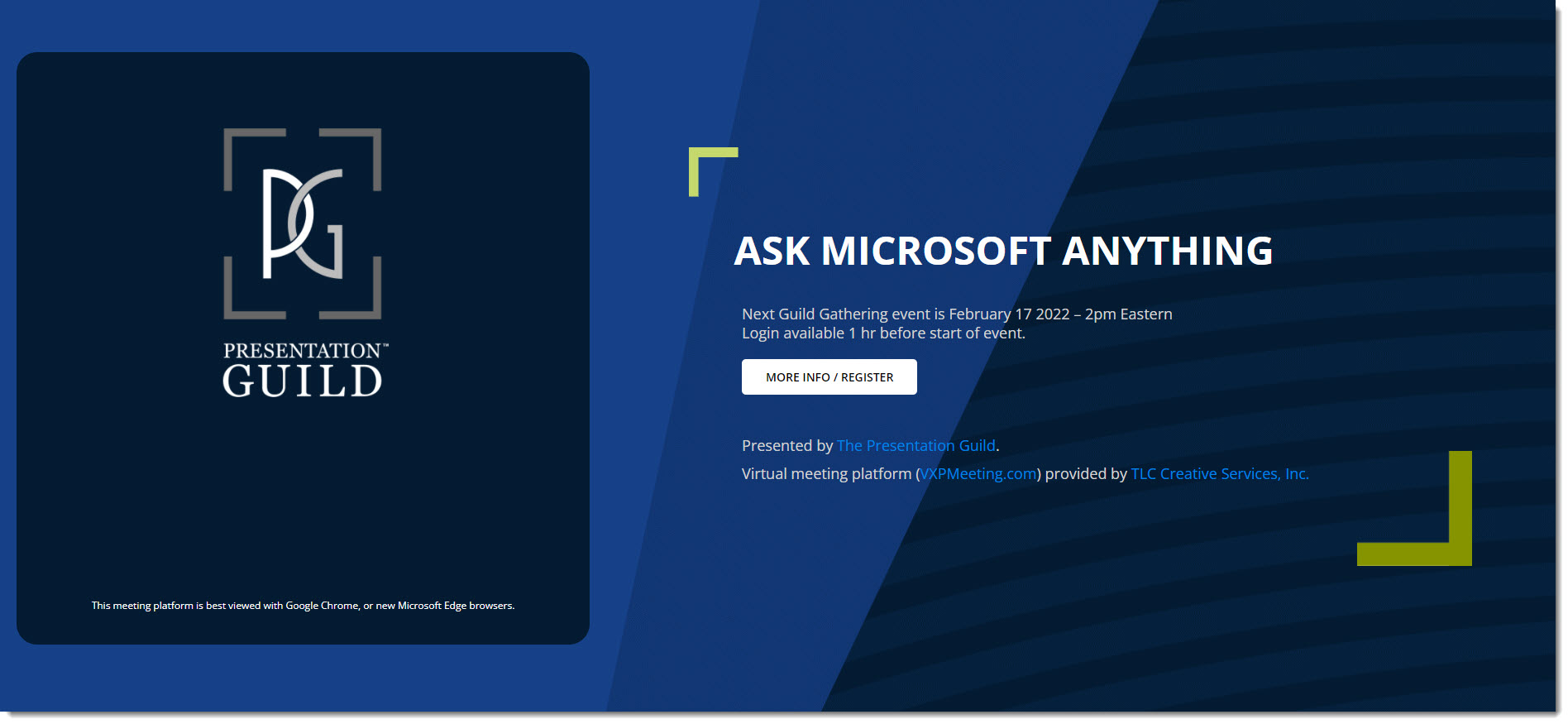
Click the button below for more information and pre-register at the Presentation Guild.
Go direct to the meeting platform here.
Event Date: Thursday, February 17 @ 11am PST | 2:00pm EST.