
TLC Creative’s 2019 Top 10 – #7
2019 is the year we found the right person to turn over lots of the financial tasks too – which has freed Lori and Troy to focus more on design, clients and other operation needs. Lane Romanick is our go to person for invoices, payroll and financial reports!
TLC Creative’s 2019 Top 10 – #8
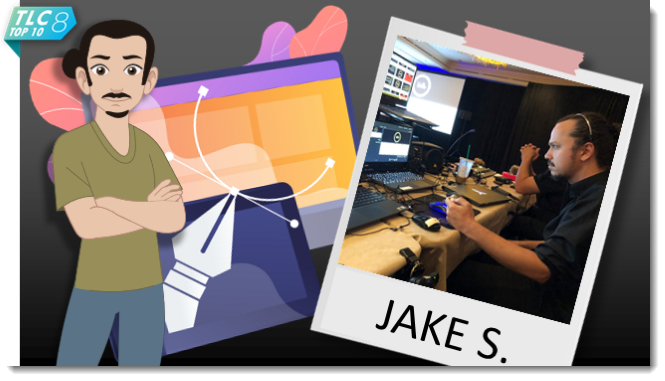
2019 had several staff updates. A highlight is Jake Seeyle joining the fun at TLC Creative and translating his design skills to PowerPoint presentation design AND becoming another showsite GFX op! Good to have you here Jake!
TLC Creative’s 2019 Top 10 – #9 (& new Podcast Release Today)!
Two items today:
First, I was successful in recording and producing all 24 podcast episodes – and releasing all on time!
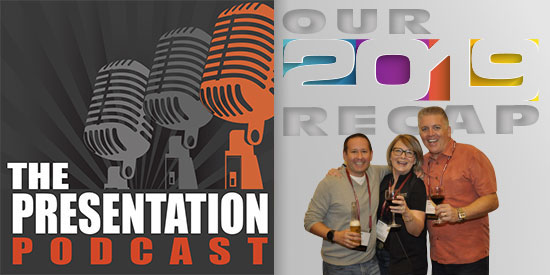
Second, episode 92 – the final episode of 2019 releases today. Listen in here.
TLC Creative’s 2019 Top 10 – #10
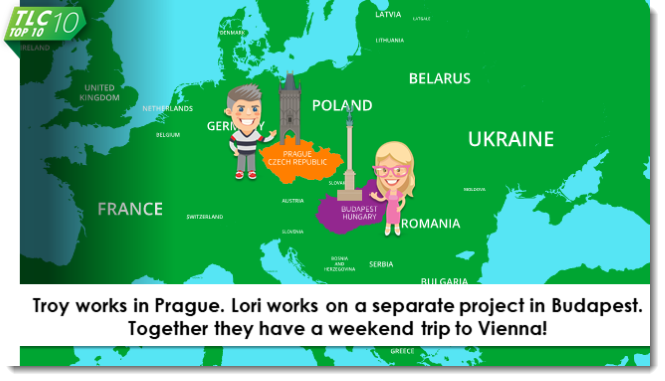
Sometimes things work together amazingly. This is a first for us – and it was great. Troy and Lori had separate shows in Europe, were able to coordinate an extended stay and enjoy a weekend in Vienna before flying back together!
TLC Creative’s 2019 Top 10!

We are wrapping up December, and 2019, with a look back at our Top 10 moments here at TLC Creative Services. Each day’s image for composited in PowerPoint (hey, it’s what we do!) and the last day of the year will be the animated version.
“New” Shape Styles Presets
So why the quotes around “new” for this post’s title? Well, this is not really a new feature in PowerPoint, but it has come up on conversations enough recently for me to realize this addition to shape styling that has been in PowerPoint since January of this year (maybe earlier), has not been noticed by everyone.
PowerPoint Format Presets
Shape styles are preset formatting options for PPT vector shapes. Color options are based on the template color scheme, accents 1-6 and either the light or dark background style. When content is moved to a new presentation, the colors auto update to that presentation color scheme. In the latest roll out of updates, Microsoft expanded to include a new level of these styles called “presets.”
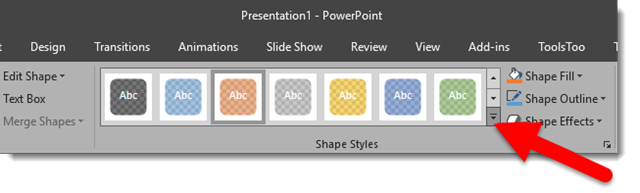
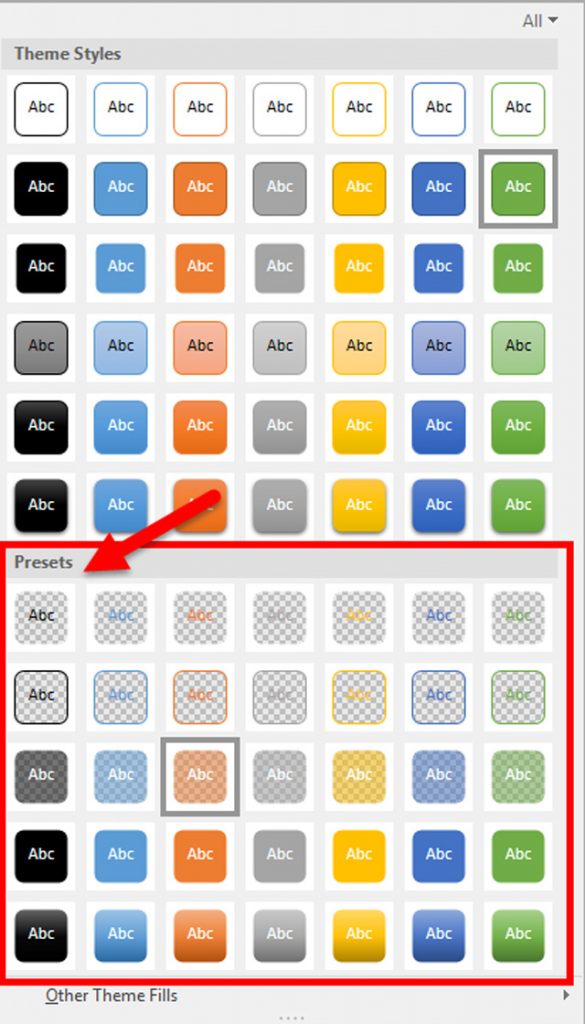
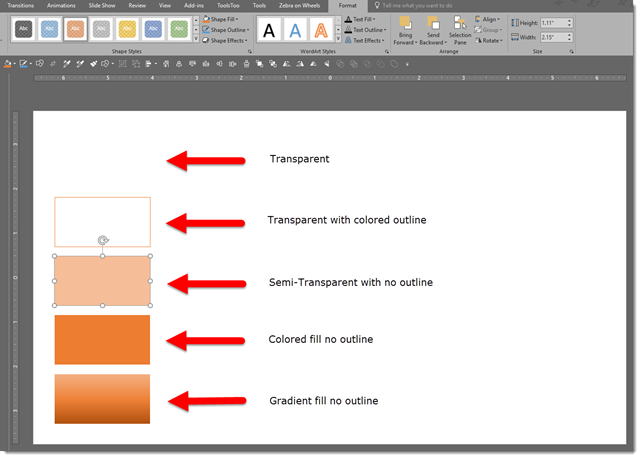
These new shape styles presets include five styles: transparent, transparent with colored outline, semi-transparent with no outline, colored fill with no outline, and lastly, gradient fill with no outline. These styles can quickly be applied to any shape with a click of a button. Happy stylizing!
-Troy @ TLC
Using Morph As Part of the Slide Design
Morph is one of the most powerful animation/motion tools in PowerPoint. Most instances of morph I see leverage Morph for simple movement of content. Here is an example from one of the TLC Creative design team where morph is used for elements that make up each slides background styling and provide movement within the presentation that is not directly moving top level content.
[KGVID]https://thepowerpointblog.com/wp-content/uploads/2019/12/unnamed-file-2.mp4[/KGVID]
There are 5 slides in this demo, and no on-slide animation, just Morph transitions.
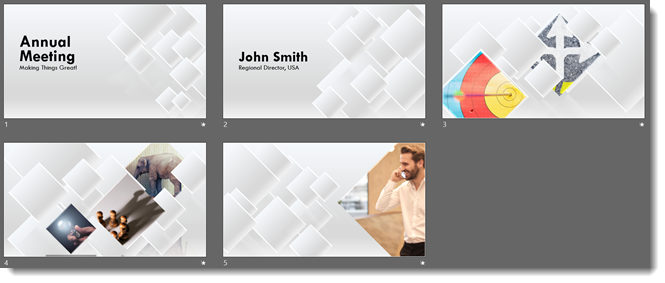
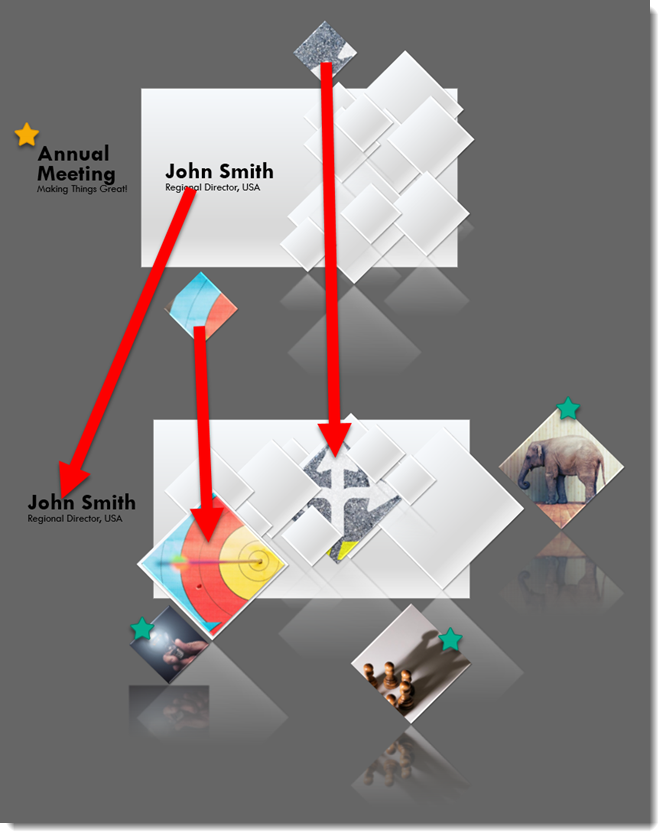
As with all Morph effects, all content must be at the slide level. Content on Master layouts cannot be a part of the morph effect. And Morph relies on content being on the slides before and after the current slide (red arrows show images from slide 1 and where they go on slide 2. Yellow star is content end position from previous slide. Green stars are content start position for next slide).
Troy @ TLC