
PPT Photo Album + Brightslide Match Size
I hinted at this great design trick in the previous post. Let me walk through process in more detail. The goal is to quickly (within minutes of receiving a folder of images) build a slideshow of full frame images, that are cropped and centered, can run as a photo loop.
Step 1: Use a native PowerPoint add-in (that has been hidden in the app for literally years and years). Go to INSERT > PHOTO ALBUM drop down > NEW PHOTO ALBUM

Step 2: Select FILE/DISK > navigate to folder of images > select your images > CREATE
This will create a NEW document with a title page as page 1. Delete page 1.
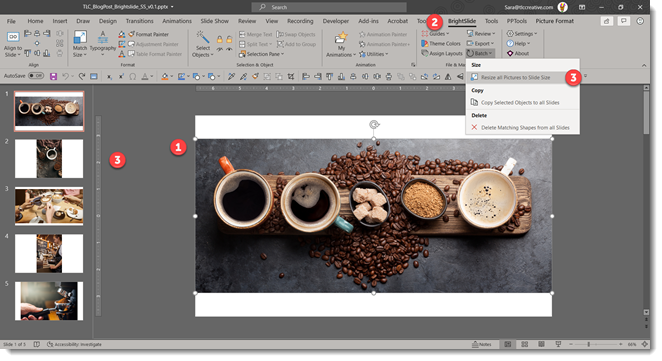
Then go to the BrightSlide tab > BATCH > and resize all images.
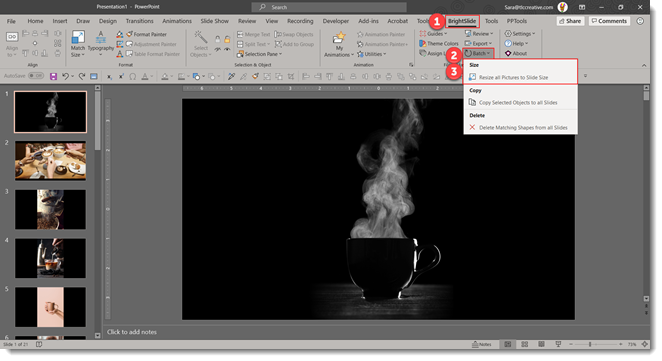
Step 3: Select all slide > apply a slide transition of your choice (FADE is a safe and professional default option) > set slides to auto advance after 8 seconds (or speed your feel is best for your meeting)

Step 4: Go to SLIDE SHOW > SET UP SLIDE SHOW > select LOOP UNTIL ESCAPE.
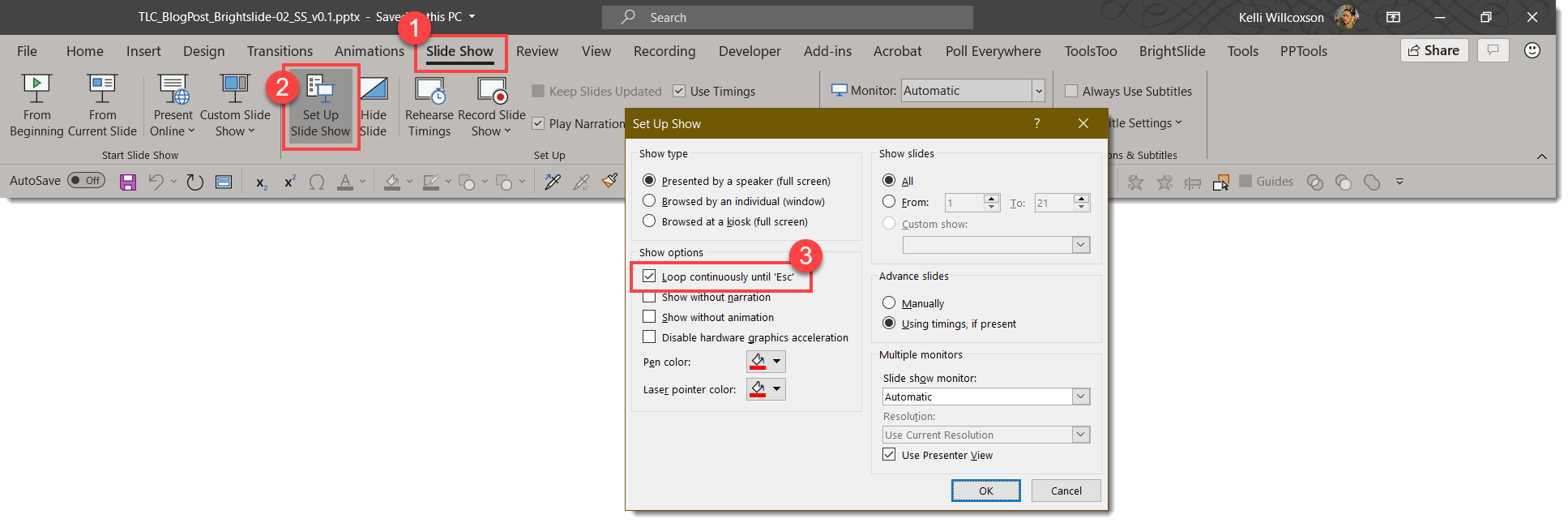
Done! A looping photo slide show built in just a few minutes!
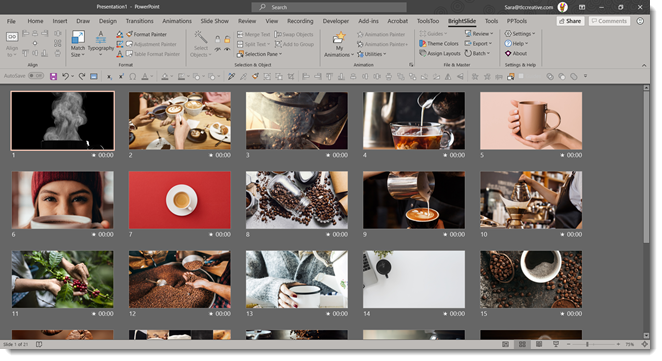
A few more details on the BrightSlide resize image feature. First, it is wonderful! Second, it was added into Brightslide within days of detailing what I thought would be a great add-in tool for many presentation designers (thank you Jamie Garroch and BrightCarbon development team!). What this add-in is doing is scaling each image to fill the slide, adding a crop so the image remains the size of the slide, and centering the image within the crop.

As a final step, which is optional, I run NXPowerlite to resave the images to their crop at an optimized 1920×1080 for an easy to manage file size (because generally I am receiving the images from a professional photographer, and while the images look great, they are huge file sizes!).
The BrightSlide add-in for PowerPoint can be downloaded for free at: https://www.brightcarbon.com/brightslide/
Troy @ TLC
Podcast 105 announce
A new episode of The Presentation Podcast is available today! Join Troy, Sandy and Nolan as they test PowerPoint Live Presentations, talk about their experience and things to be aware of when you use it).
Listen on Apple Podcasts, Stitcher, Google Play, Spotify and Soundcloud – or search The Presentation Podcast for “Presentation Live is Here!” or go direct to the episode page here: https://thepresentationpodcast.com/podcast/105
BrightSlide Image To Fit Slide
The BrightSlide PowerPoint add-in has so many great features it is impossible to say what the “favorite” feature it. But I will list this as one of my top 3! BrightSlide’s ‘Match Size’ tool is brilliant.
Through a series of emails with the BrightSlide lead developer I detailed the process I would go through on virtually every large presentation event to create a custom photo loop for the meeting walk-in, generally being given a folder of images with minutes until doors open! The result was an addition to the Match Size options (thank you BrightSlide!).
The scenario is, an image does not scale to fill the full slide. The fastest solution is now to select the image, go to the BrightSlide tab, and click the Match Size button. There are actually 3 options in the drop-down: Match Size, Match Width, Match Height. But the top level, Match size, button is all that is needed.
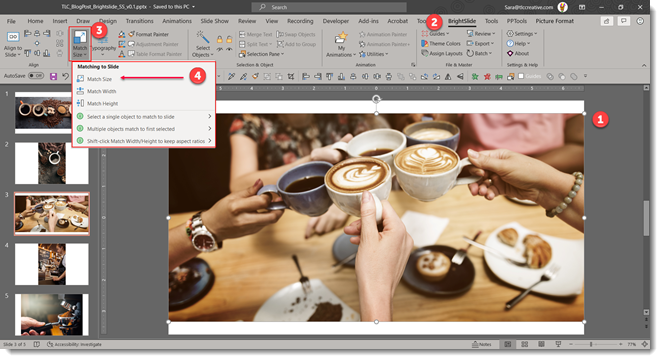
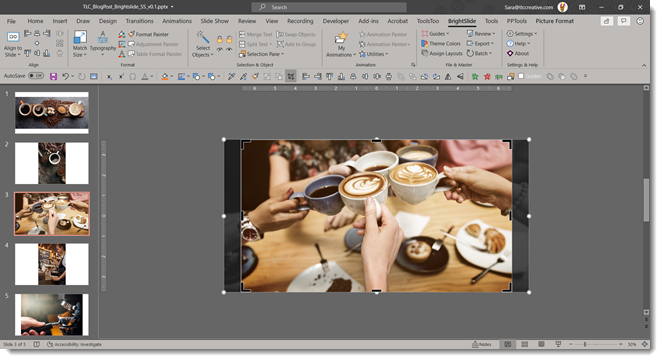
Select the image, click Match Size and the image is not distorted or stretched, but it is cropped to fill the slide. AND it is centered within the crop! Position within the crop can be adjusted by selecting the image and the crop tool to adjust what is the live/visible image.
If resizing all photos in a slide deck, such receiving a folder of images, importing them into a slide deck using PowerPoint Photo Album feature, then use BrightSlides BATCH tool to apply the resize and crop to every image in the deck instantly!
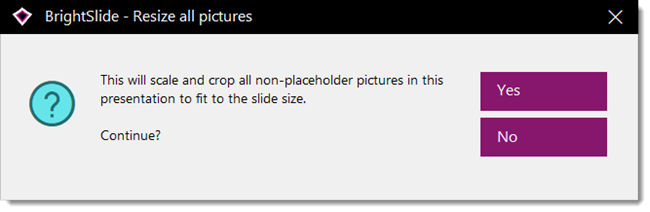
Using the Batch tool brings up this dialogue, where you want to select yes.
The end result is nearly instantly created beautiful full bleed images that fit the slidet!

The BrightSlide add-in for PowerPoint can be downloaded for free at: https://www.brightcarbon.com/brightslide/
Troy @ TLC
Poll Everywhere’s LiveSlides is being Retired
Poll Everywhere is an audience response system (ARS) that we have used at TLC Creative for many years. LiveSlides is from the same company and it’s core mission was to “embed any website seamlessly in PowerPoint and Keynote slides,” which does very well.
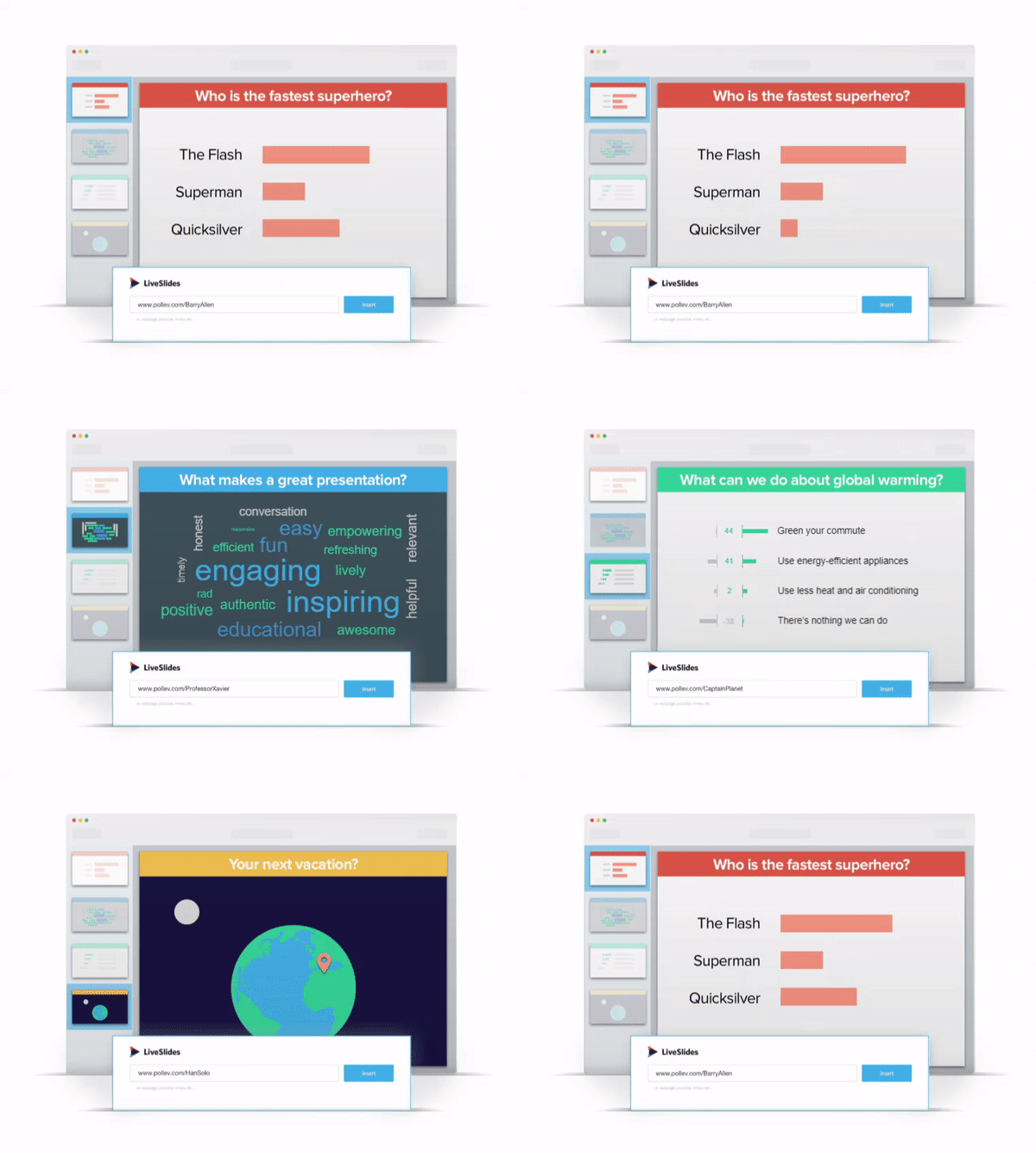
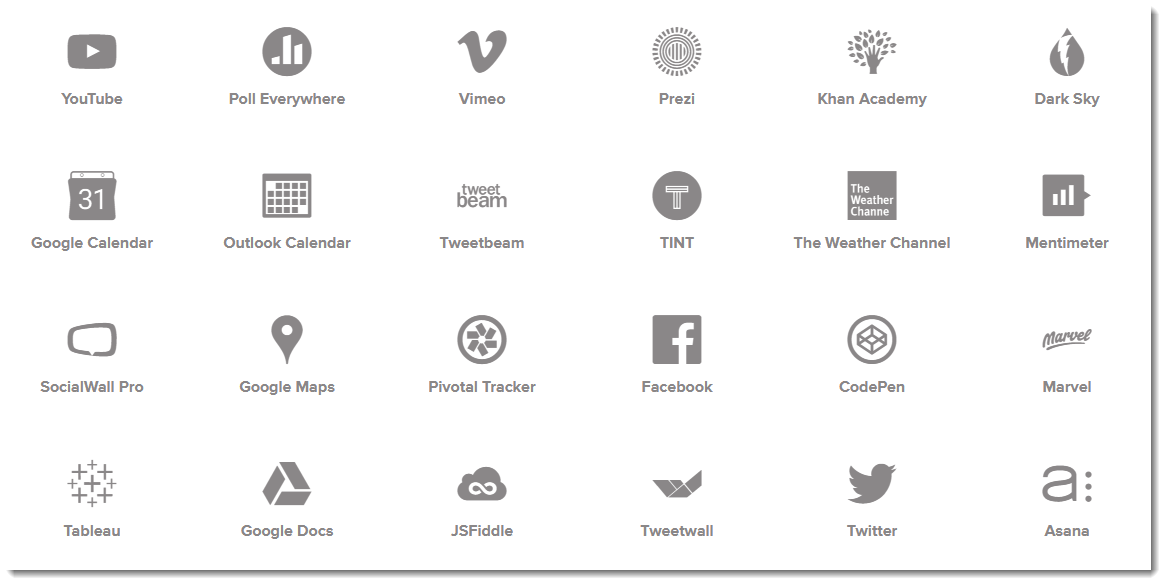
I think it was mostly used for adding YouTube videos, social media feeds (which was a great option), interactive maps, and polling. It offers an impressive list of integrations where it can get content from all of these sites into PowerPoint slides:
Alas, Poll Everywhere has announced LiveSlides is being retired.
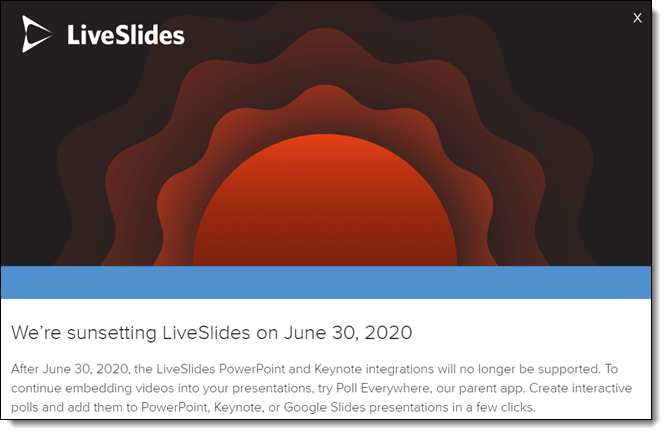
But for those of us that are Poll Everywhere users, it is not a bad announcement! The macOS version of Poll Everywhere already includes all of the LiveSlides features. The Windows version has some of the integrations and I am hopeful it will be built out to include them all as well.
More info at the Poll Everywhere website.
Troy @ TLC
PowerPoint Live: Personalized Subtitles for Every Viewer
As talked about in the previous post, PowerPoint has two different options for displaying live transcription. One from PowerPoint, which displays a single selected language on the presentation screen, and another as part of the Presentation Live feature which adds the transcription to the viewers device, leaving the presenters slides clear of additional content. This will likely never fully replace live spoken translators, but for remote meetings and audience joining in from virtually anywhere, it’s a fantastic alternative.
[KGVID]https://thepowerpointblog.com/wp-content/uploads/2020/06/unnamed-file.mp4[/KGVID]
One amazing feature I only referenced in the earlier posts, is that every audience member has the ability to switch the transcription to the language of their choice. It is a very intuitive interface, just click the language button in the lower left (on a mobile device in portrait orientation) and choose from the list of 60+ languages.

[KGVID]https://thepowerpointblog.com/wp-content/uploads/2020/06/PresentationLive-3.mp4[/KGVID]
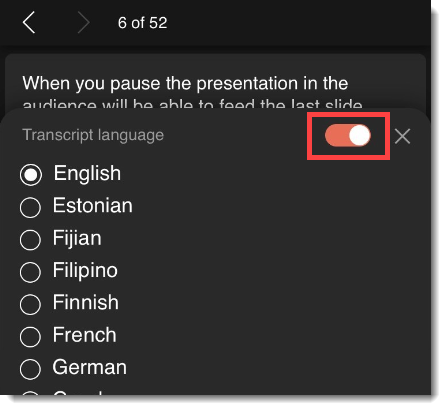
One nice feature, that is a bit more hidden, is that if the audience member speaks the same language as the presenter, they may not want to have the transcription scrolling up as it repeats what the presenter is saying. Click the same language button and in the upper right is a toggle to turn the live transcription on or off.
Troy @ TLC
PowerPoint Subtitles (Different than Presentation Live Translation)
We are super excited about all the features included with Microsoft’s new release of PowerPoint Live Presentations; remote audience seeing your slides and hearing the presenter on their mobile device, seeing earlier slides, and – most impressive of all – live transcription of the presenter’s speech in the language choice of each viewer.
But the last item, live transcription, can be confusing. Presentation Live’s transcription is different than the existing PowerPoint Subtitles (which is also a live transcription feature).

I believe both services are powered by the same engine (which does a very good job, and is improving with expanded use). Here is the way I am describing each, and how they differ:
PowerPoint Subtitles – These display on the presenter’s slide in one selected language.
PowerPoint Live’s Live Transcription – These display on the screen of anyone logged in and viewing the presentation. They do not display on the presenter’s screen, because everyone can choose what language is displayed on their own screen.
Both features need access to the presenter’s microphone, and both have the ability to instantly translate into 60+ languages .
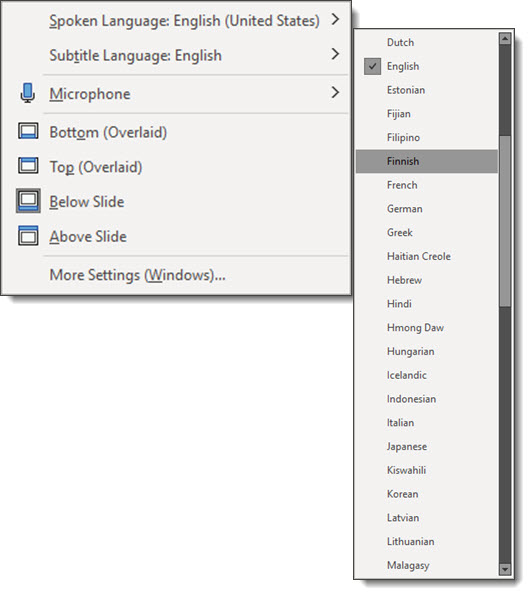
See the previous few posts for examples of Presentation Live’s live transcription. For the balance of this post, I am going to overview the PowerPoint Subtitles feature.
When you start a presentation with subtitles turned on, this info dialog greets you (same cartoon character styling as the Presentation Live QR Welcome screen)
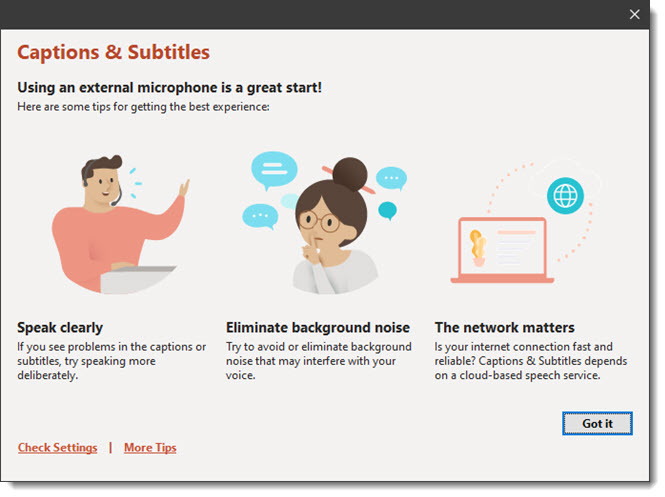
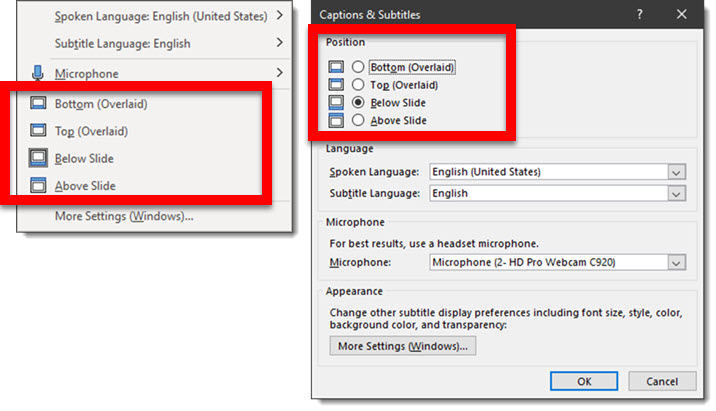
Before the slide show starts, most of the subtitle settings can be accessed directly in the ribbon. After the slide show starts, clicking CHECK SETTINGS from the info dialog gives you another chance to set details for how the subtitles will display. As example, from the ribbon and check settings dialog, where the subtitle text will display can be set.
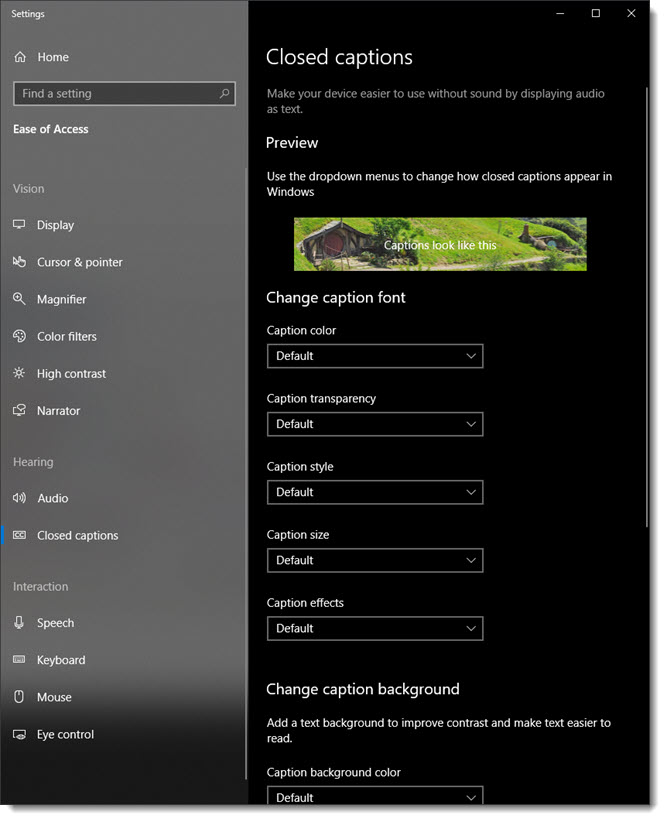
Click MORE SETTINGS (WINDOWS) and the Windows Closed Captions settings options opens (assuming you are running PowerPoint for Windows). This is a great clue that many of the new services are not exclusive to Office, but a collaboration among several Microsoft development teams.
And here is the sample presentation in slide show using the default “Below Slide” position. Note: I am not a fan of how this was implemented. The slide maintains the correct aspect ratio, is sized down to make room for 3 lines of subtitle text and leaves the unused area on the left and right as part of a thick black border. I understand my ideas for making this more eloquent require a lot of coding, but I cannot justify this simple approach as an onscreen display for a professional meeting.

If I was to use PowerPoint subtitles in a professional meeting, I would have a template that integrates a clear area in the lower section and use the BOTTOM (OVERLAID) position. The slides would remain full screen, the sub-titles would have a branded area to display on, and the presenters would need to adhere to the clear area in their slide design.
The important point is, PowerPoint Subtitles and Presentation Live transcription are different features, display the translation in different locations, and can actually be used at the same time (I will leave it to you to experiment with that idea 🙂 ).
Troy @ TLC
PowerPoint Live Gotcha’s
PowerPoint Live is an amazing addition to presenting with PowerPoint. I am excited for the potential of this feature in use, especially with the sudden surge of online and remote meetings and conferences. As side note, just this week at TLC creative, a client conversation was about how to handle multiple languages for their meeting. At past, onsite events, there was translation booths at the back of the ballroom with translators providing live translation. But in the new virtual meeting world, this is a different process. I tossed out the idea that Microsoft’s new Presentation Live feature may be an option. Reading a transcription is not as powerful as translation, but PowerPoint Live is now a very easy-to-offer solution for a virtual meeting. No decision on this meeting yet, but this new feature has already made it into project conversations for me.
As great as PowerPoint Live is, there are many “gotchas” we have already discovered.

Setup and Logistics
You need to use an updated browser. Not only will Presentation Live not work, if you are the presenter, the option may not even be available. The official list of supported browsers is Microsoft Edge version 80+, Google Chrome version 72+, Mozilla Firefox version 68+, or Opera version 60+ on Windows or Mac. Currently Safari is not supported for presenters, but works fine for audience members.
The presenter must have a Microsoft 365 account, but the audience does not need a subscription, or need to be signed in to a Microsoft account to participate. But it’s not that easy.
There are two “share” options, my organization and anyone. The default setting for sharing a presentation is “Only People in my Organization.” This means anyone connecting to see the presentation will need to sign into their Microsoft 365 account to prove they are in the presenter’s organization. So much for the note about the audience does not even need a Microsoft account, now they need a Microsoft 365 account, with the same domain.
To enable anyone, with or without a Microsoft account to watch the presentation, the presenter must change the audience option to “Anyone” (every time they start a presentation).
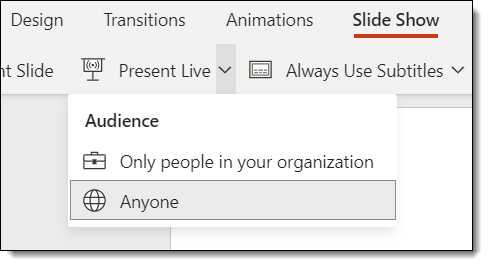
Running the Presentation
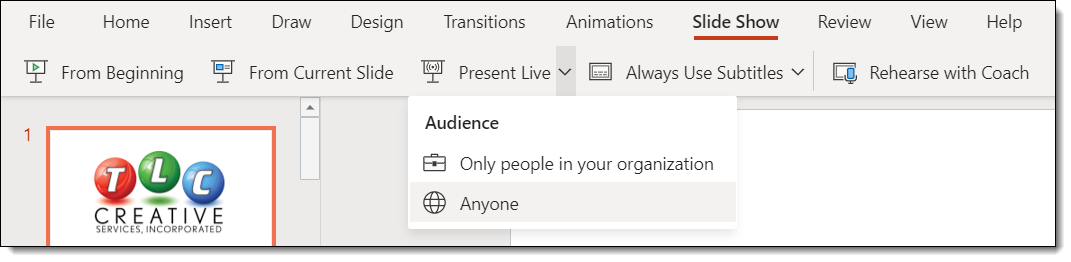
Presentations must run from PowerPoint Online. And PowerPoint Online has two options for the toolbar: Expanded Ribbon, which is more similar to the desktop app, and the Simplified Ribbon, which is a very streamlined set of options. The PRESENT LIVE button is in the SLIDE SHOW tab (which makes sense) on the Simplified Ribbon!
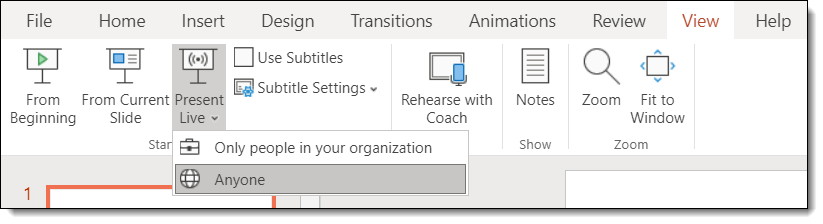
In the Expanded Ribbon, it’s more hidden. Go to the VIEW tab to find it.
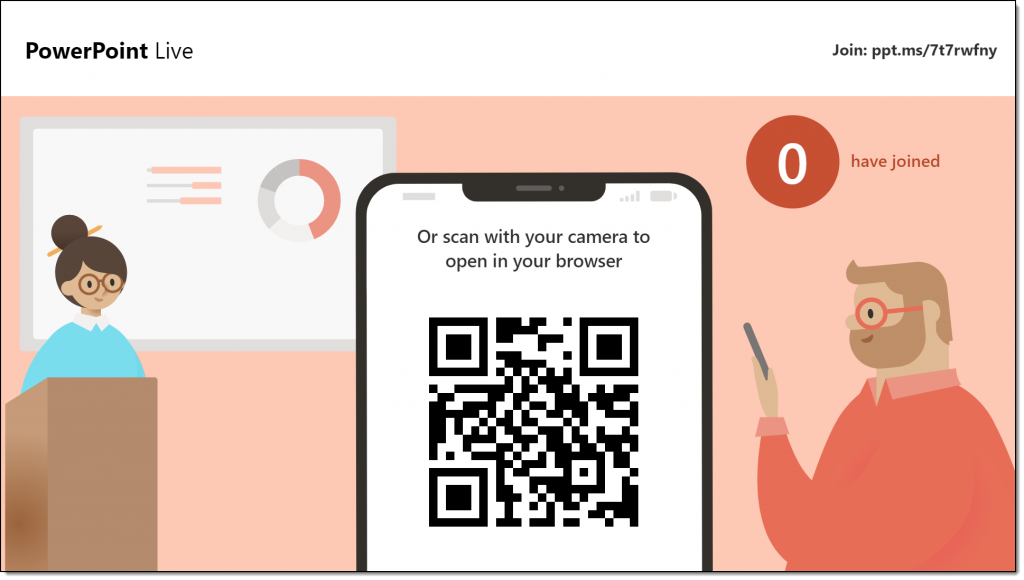
When the presentation starts, you’ll see this Welcome Screen that allows audience members to join your presentation by just pointing their phone or tablet at the QR code (the process is easy and works flawlessly – even if I am not a fan of the cartoon like styling that does not align to my clients corporate style guide).
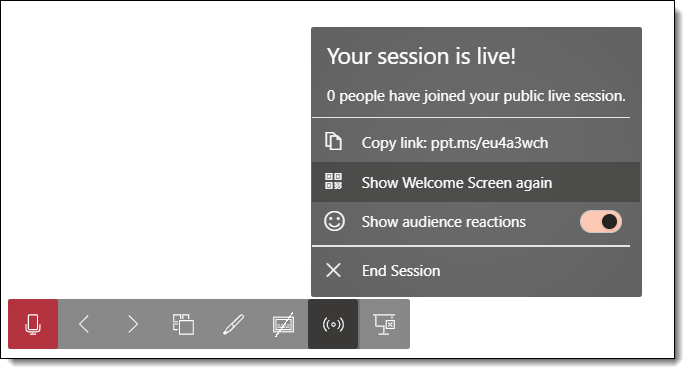
The slide show pop up tool bar has a new icon and options. Show the Welcome Screen again any time. Go to the Live Menu and select SHOW WELCOME SCREEN AGAIN.
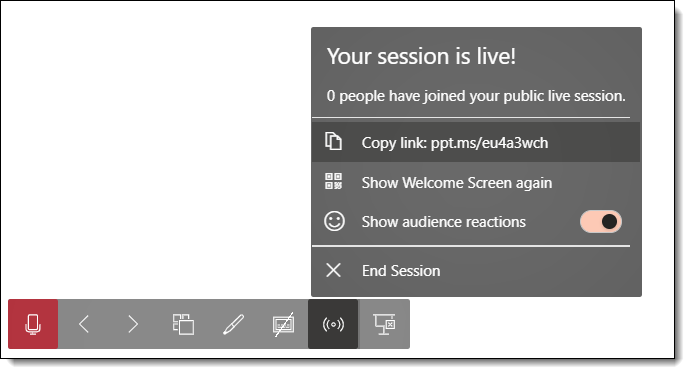
You can also copy the URL link and send as a quick email or chat.
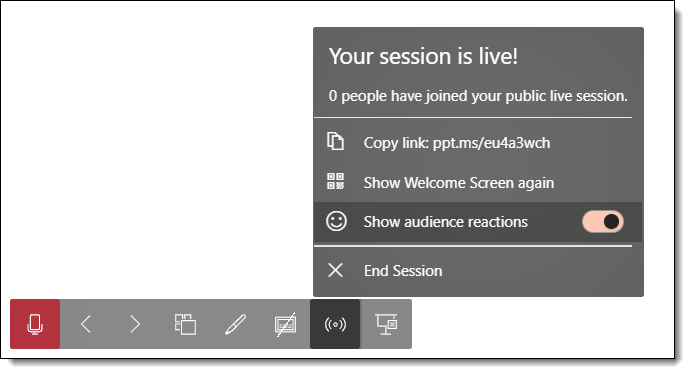
The audience has the option to send “Reactions”in real time while you are presenting (small emojis that float up on the presenter’s screen).

These only show up on the presenter’s screen. The audience viewing on their own devices do not see them. Of course, if the presenter is at a large meeting with the presentation on the screens, or if they are screen sharing their monitor, then everyone can see what you see, which includes the floating emojis. TIP: If you find the emoji reactions distracting or just don’t like seeing them, they can be turned off in the Live Menu (note that audience members can still send them; you just won’t see them).
Also important to note is the difference between pausing the presentation broadcast and ending the presentation session. You can pause the presentation any time you click away from PowerPoint. Pausing stops any animation and stops the live transcription. The presenter see this yellow band below the Ribbon:

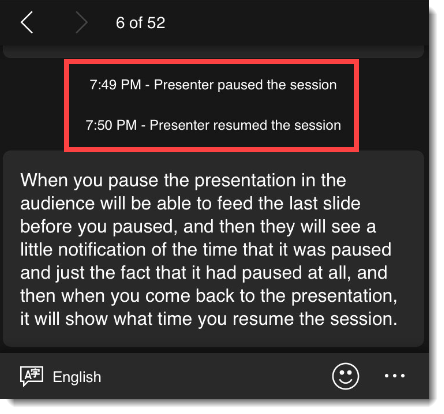
The audience will see the last slide before the presentation was paused (so make it a good one!) and a notification that the presentation is paused.
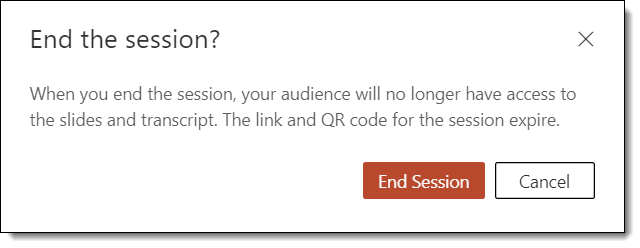
ENDING a presentation clears the screen for anyone watching and the URL/QR code is no longer valid. The presenter needs to click the END SESSION button to truly end the presentation (vs. pause it). TIP: A presentation can be paused for 30 minutes, and then its broadcast auto-expires. There is also a countdown in the yellow notification bar.
The Audience Perspective
Viewing a presentation on a cell phone can be portrait (vertical) or landscape (rotated to horizontal) orientation. We found in landscape view, the transcription text seems finicky and does not always display on the screen.
One of the very exciting features is the ability for the audience to go back to a previous slide on their device, any time. Equally important is they cannot get ahead of the presenter and see upcoming slides. If the presenter goes back a few slides, everyone goes back a few slides. That slide is the ‘current slide’ no one can advance past, even if slides past it were shown earlier. When someone goes back to see an earlier slide, a CURRENT SLIDE button is active as a one click way to quickly get in sync with the presenter.
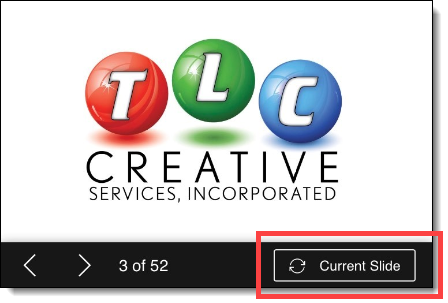
Warning: you may accidentally scare someone! Presentation Live tries to be helpful, but I feel showing the audience how many slides are in the deck may be a scare for some. As example, you have a sales deck of 400 slides, but the presentation is only using 20 of them. The audience sees the total number at 400 (and they fear a ‘death by PowerPoint’ meeting is happening)!

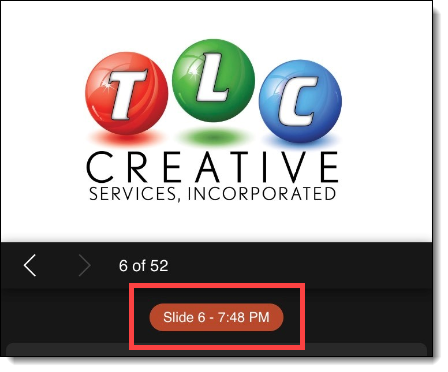
Also be aware, everyone will know where you are (sort of). Again, maybe this is a little too helpful. Presentation Live displays what your local time is (or is this the local time of the person viewing? – something I need to test). To me, this makes it easy for the audience to calculate how long you have been on each slide…
TIP: a mobile device screen is small. Good news, viewers can zoom in on the slides! Pinch to zoom is supported.
Let everyone know they can turn off the transcription feature – they are in control of that. It is in the language selection dialog, on the audience interface, and they can turn off transcription.
Evaluations and feedback. Yes, every audience member is shown a Microsoft feedback form (no we cannot change its content – or styling – or turn it off). Don’t worry, Microsoft is not keeping your presentation evaluations. Presenters receive an email after the presentation with the feedback (see previous posts for an example). The Microsoft Forms are not kept on Microsoft servers for long, I believe under 10 days.
Final Thoughts
Last, and perhaps the biggest question to those new to PowerPoint Live (oh wait, it’s brand new – that’s all of us!), is; what is ‘present live’? What is presentation live? What is PowerPoint Live Presentations? I feel Microsoft does an overall poor job in naming products (how many different services are called the same name; Skype, OneDrive, Office 365, Windows…). Maybe someone noticed this trend and decided to go in the opposite direction? Now we have 1 feature with three different names… For the record, the official name of the live presentation feature is PowerPoint Live Presentations, but it goes by the shorthand of PowerPoint Live. And ‘present live’ is the action you take to begin your live presentation.
Troy @ TLC