microsoft

Microsoft Office 365 Video – What We Know So Far

Microsoft recently unveiled a new video sharing system that will be hosted on Office 365 accounts called “Office 365 Video.” Think of it as a business’s private YouTube for their videos. And there are some references to PowerPoint and Office App integration (which is the part that really got my attention!).
 

Office 365 Video


 Technical:

Office 365 Video is cloud based (ie. videos are not stored on your computer) and the streaming technology optimizes playback for each end users connection speed and viewing device. Microsoft is bringing its cloud based power with Azure’s Media Services, which was used by NBC for its Winter Olympics online video. By being a part of the Office 365 ecosystem, video content will encrypted and secure by following the established Office 365 Trust Center guidelines, something YouTube and Vimeo can’t provide such strict assurances of. The video format support covers all of the industry standard codecs; H.264, MPEG-1, MPEG-2, MPEG-4 v2, VC-1, Windows Media Video, DV and Grass Valley HQ. And more video formats than Office apps support; .3pg, .3g2, .3gp2, .asf, .mts, .m2ts, .avi, .mod, .ts, .vob, .xesc, .mp4, .mpg, .mpeg, .m2v, .ismv and .wmv. It is easy to use with drag-and-drop video uploads.

One big limitation is that Office 365 Video currently uses Adobe Flash Player. The Adobe Flash Player needs to be installed to view a video, so no Apple IOS devices are going to be able to use it at this time.

Who and When:

This new corporate video portal started its roll out in November 2014 and extends into early 2015. Currently it is only available a select Office 365 user (First Release customers) and expanding to Enterprise and Academic plans. Business plan users (which TLC Creative operates on) do not have an option yet… This is an add-on service to plans at $8 user/month with an annual commitment.

Summary:

This is just my personal opinion, based on a very limited look at Office 365 Video, and I am excited about it. The option to seamlessly integrate web-based video content into PowerPoint presentations is an exciting concept. Corporate clients are going to embrace Office 365 Video because it gives them an secure platform to roll out video content within their enterprise. Having a corporate library of video content for presentations, that is searchable and easy to add to slides is going to be a great presentation tool.

The Microsoft info page (ignore the ‘compare plans and pricing’ link, it does not include Office 365 video options as of now) is here.

– Troy @ TLC

By |2016-08-10T09:12:19-07:00December 26th, 2014|Resource/Misc|

Microsoft MVP for PowerPoint Again!

A personal note, but one I am very proud of – Microsoft sent the below email this week awarding/renewing me as a Microsoft MVP (Most Valuable Professional) for PowerPoint for 2014! There are approximately 35 PowerPoint MVPs globally and I have been awarded by Microsoft annually since 2004. I am honored to have Microsoft recognize and support all of the PowerPoint work, expertise and community (that’s you!) contributions.

MVP2014


– Troy

By |2016-08-10T09:26:01-07:00October 3rd, 2014|Personal|

My Microsoft Surface Pro Setup

I have been using the Microsoft Surface Pro since they debuted (I have not spent the money upgrading to the Surface Pro 3, but it looks great!). The Surface Pro is not my primary computer, it is not powerful enough to run everything I use on daily basis and also cannot compete with the 2TB of storage (almost all used) on my primary design laptop. But I do use the Surface Pro as my travel computer – carrying lots of project files on an external drive and using VPN access to the office server a lot, and as a backup show computer. The Surface Pro has proven it is a real computer.

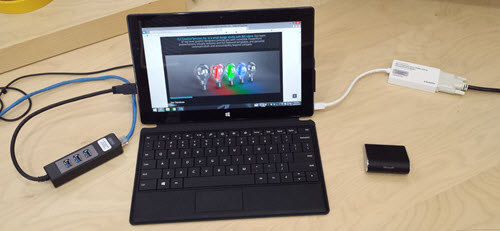
(Surface Pro 2 with all of the below accessories) SurfacePro-4

Over the past 6 months I have received a number of calls from various friends and emails about how I set my Surface Pro up and what accessories I recommend. So here is my recommendation list (note: all items apply to Surface Pro, Surface Pro 2, Surface Pro 3):

1. Classic Shell: This not just for the Surface Pro, but for every Windows 8/8.1 computer!  It is free and lets your computer go direct to the “Windows 7” interface where we are all more productive and do our real work. Website link.


2. Unitek USB 3.0 hub with Ethernet (model Y-3045): The Surface Pro has 1 USB slot, which is not enough for productivity. It also has no Ethernet port for wired internet/network access. This small unit takes care of both shortcomings (note: this unit also works with MacBook Pro laptops that do not have Ethernet or enough USB ports). Amazon link.


3. Mini DisplayPort to HDMI/DVI/VGA Adaptor: carry one adaptor for all video connections! Handles HD (1920×1080) perfect and I have used every connection option (note: this unit also works with MacBook Pro laptops Thunderbolt™ Port). Amazon link.


4. Bluetooth Mouse: the Surface Pro only has 1 USB port (it is USB 3.0, but it is still only 1). Don’t occupy it, or one of you hub ports, with a mouse USB dongle, go Bluetooth.

If you are using the Surface Pro for light duty, I really like the Microsoft Wedge Mouse – Amazon link.

If you are using the Surface Pro for more daily work, I like the Microsoft Sculpt Comfort Mouse ( model H3S-00003) – Amazon link.


5. Type Cover Keyboard: the Surface Pro does not come with a keyboard, we all get to choose which one we want – and pay additional for it. First, get the Microsoft keyboard vs. third party, it just works. I have several and for real work I definitely recommend the keyboard with ‘real’ keys. The ultra thin and light touch cover keyboard does not provide any typing feedback and I have not found anyone saying it is a great experience for real work. For the Type Cover keyboard there are a few variations – I will say I prefer the version with the ‘real’ touchpad that has clickable left/right buttons. Amazon link. 

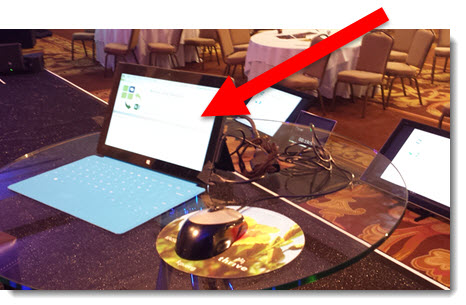
(MS Surface Pro on Stage running software demo)SurfacePro-3


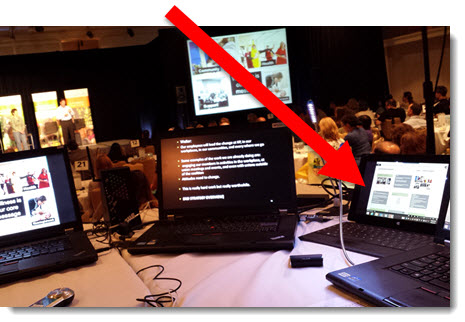
(MS Surface Pro as Backup Show Computer)
SurfacePro-2


– Troy @ TLC

By |2016-08-10T09:26:27-07:00October 1st, 2014|Resource/Misc|

Force Office 2013 CTR to Update

If you have the CTR (Click-to-Run) Office 2013 install, it is supposed to automatically update when you are online. Last week, 3 days after the SP1 release Office had still not updated. I forced Office to check for updates and SP1 was installed.

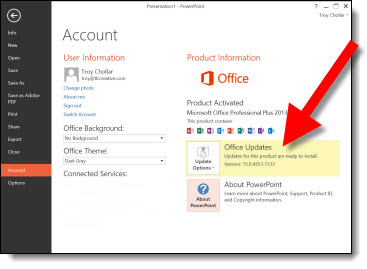
Go to FILE >> ACCOUNT >> right pane.

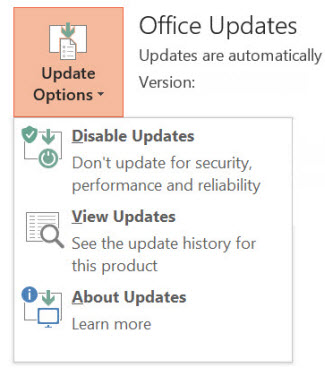
Click the UPDATE OPTIONS drop down menu.

Select DISABLE UPDATES and yes to the warning dialog that will pop up.

Then click the UPDATE OPTIONS drop down menu again and select ENABLE UPDATES.

This forces Office to go online and check for new updates.

After clicking Enable within 2 seconds I had an update notice and SP1 was installed!

– Troy @ TLC

By |2016-08-10T09:49:51-07:00March 5th, 2014|Tutorial|

Office 2013 SP1 Released

Last Wednesday, Microsoft released the first Service Pack (SP) for Office 2013. The list of updates to PowerPoint is fairly short and deals only with stability issues – no new features or refinement of current features. If you want the details, here is the Microsoft KB article on Office 2013 SP1.

The world of MS Office is now split into two types of installs: MSO (installed from an actual installer app) and CTR (click-to-run which is a cloud based install). How you get SP1 depends on what type of install you have.

Unfortunately, there are not labels on the About Screens that tell if an install is MSO or CTR. Here is one way of identifying the install type:
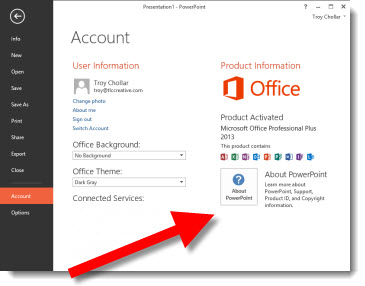
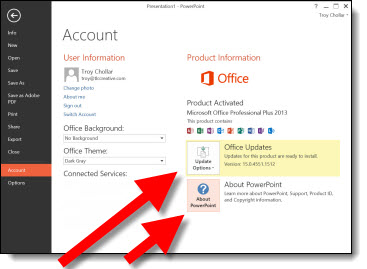
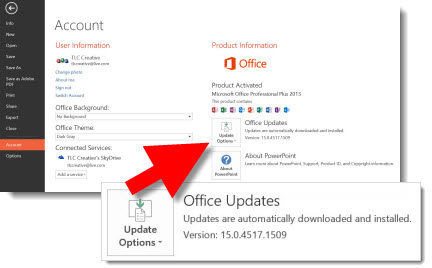
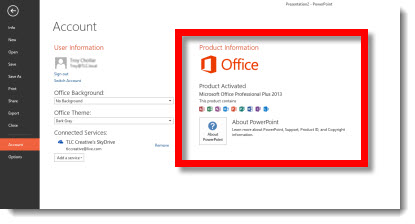
Go to FILE >> ACCOUNT >> look at the info in right pane.

If there is only 1 box “About PowerPoint” – it is an MSO install.

If there are 2 boxes “About PowerPoint” and “Office Updates” – it is a CTR install.

If you have MSO (traditional installer), the update should be available through Windows Update. Or, you can go direct to Microsoft and download the SP1 installer.
32-bit Office = https://www.microsoft.com/en-us/download/details.aspx?id=42017
64-bit Office = https://www.microsoft.com/en-us/download/details.aspx?id=42006

If you have CTR, SP1 will automatically install when you are online.

– Troy @ TLC

By |2016-08-10T09:50:12-07:00March 3rd, 2014|PowerPoint, Resource/Misc, Tutorial|

Atari is Back!

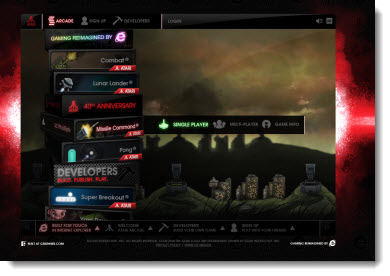
Microsoft has partnered with Atari to bring a number of classic games to your web browser – assuming you are using Internet Explorer 10. What fun!

Open Internet Explorer and go here: https://atari.com/arcade#!/arcade/atari-promo Very addictive for someone that grew up with the classic Atari 2600 and arcade games.

And they work with the touch screen version of E10 (tested on my Surface Pro – extensively).

– Troy @ TLC

By |2016-08-10T10:16:39-07:00September 20th, 2013|Personal, Resource/Misc|

Do I have MSI or CTR Installed?

The previous post defined the two Microsoft install methods. But determining if your install of PowerPoint 2013 is from an MSI (full standalone installer) or CTR (streaming download installer) is not easy to determine. Microsoft has not given its end users any useful information in determining this. Here is one method that will tell you.

Open PowerPoint 2013.
Go to FILE >> ACCOUNT.
In the far right pane under PRODUCT INFORMATION.

If the computer has a CTR install, there will be an UPDATES option.

If the computer has an MSI install, the UPDATES option is not available.

At this point, that is the only easy to access information piece within the application that I have found (thanks Glenna!) that indicates which version is being run. And lets not get into which Service Packs and Updates are installed! Office 2013 has taken away all of the familiar information to help troubleshoot issues…

For more info on CTR and MSI, the PPTFAQ has this page with a great overview and links to more details.

– Troy @ TLC

By |2016-08-10T10:20:51-07:00August 30th, 2013|Resource/Misc|

What is MSI and CTR?

MSI and CTR are both install methods for Microsoft Office.

MSI is “Microsoft Installer.” It is an installer file that has the full product in it. So it is a large file and most commonly used when installing from a DVD, but with high bandwidth internet, it has become more common to download the large installer file and then install the software.

CTR is “Click to Run.” It is a streaming installer that downloads the installation files during the install process. One of the key traits is the core application is installed, and can be used, while the additional features continue to install in the background. In general, a high bandwidth internet connection is needed (or lots of time to wait for the installer to stream the data needed to install). The technology was introduced with Office 2010, but with poor results. Today, CTR is most commonly used when installing Office 2013 as part of an Office 365 subscription or Office 365 Home Premium subscription.

– Troy @ TLC

By |2016-08-10T10:21:25-07:00August 28th, 2013|Resource/Misc|

PowerPoint Video Slides/Templates By TLC Creative Services (Free!)

At the beginning of last year, Microsoft posted a series of PowerPoint 2013 slides and templates that TLC Creative Services, Inc. developed (for Microsoft Office.com). These were the items referenced in the previous blog post that many emailed and asked about.

There are a lot of templates and sample slides available at Office.com. Just go here and search in the Templates and then PowerPoint.

Here is a direct link to PowerPoint slides and videos with templates, many were created here at TLC Creative Services, and all are free to download and use!

– Troy @ TLC

By |2016-08-16T08:42:56-07:00March 6th, 2013|Resource/Misc, Templates/Assets|
Go to Top