powerpoint

Modern Design in 2017

My fellow Microsoft MVP and presentation trainer, Ellen Finkelstein made a post entitled “10 Tips for Modern Design in 2017” (see post here). She then organized a blog roundup on the same topic.

modern design in 2017

Here is the TLC Creative Services list of Modern Design Trends we see for 2017:

  • More Motion:

    Morph has simplified adding complex animation to presentations and allowed a greater number of users to now add motion to their slides without investing hours into a single slide.

  • Color Blocks:

     We see a merging of flat design (no bevel, reflection, etc.) and a move away from textures and gradients to the use of large color blocks as the accent graphics and layout framing devices.

  • More Visual Layouts

    Even if not used, the addition of Designer in PowerPoint (see post here for review), is raising awareness of how slide layouts can be improved over simple (and often boring) bullet lists. For years, TLC Creative has developed what we call “Visual Layouts” for bullet list slides, and we are excited to see more awareness and requests for more professional slide designs in 2017.

  • More Navigation:

    PowerPoint has always had Custom Shows, but they are tedious to setup. With the addition of Zoom, setting up elegant non-linear navigation is much cleaner and intuitive.

  • Better Organization:

    Sections have been available sense PowerPoint 2010, but only recently have we seen more presentations leveraging the Sections tool. The small feature improvements, such as ability to copy a Section and its slides to another presentation, are making Sections a more powerful and flexible tool to use.

  • More Vector:

    Vector graphics, those that can be resized without quality loss and modified using PowerPoint’s fill-outline-styling tools, will get a huge boost with the new .SVG file format support (look for a full blog post series on SVG later this month!).

– Troy @ TLC
By |2016-12-23T10:14:45-08:00December 23rd, 2016|Resource/Misc|

Save AND Apply PowerPoint Chart Styles

Formatting the visual styling of charts can be… tedious. When a presentation has a number of charts, all needing the same visual styling, saving a chart template can be a huge time saver!

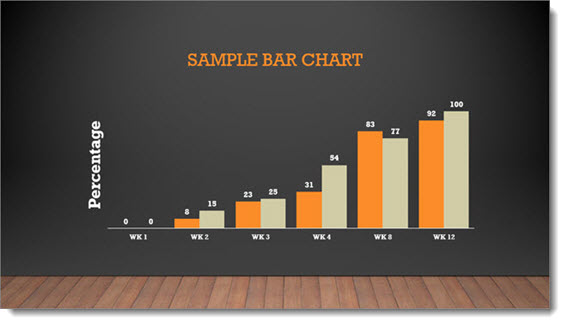
  1. Format a chart with all of the visual styling. Here is the sample stylized chart for this tutorial.
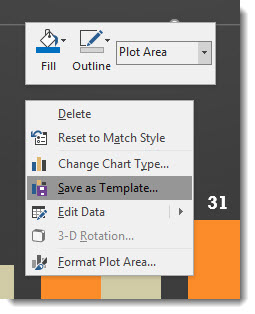
  2. Right click the chart and select SAVE AS TEMPLATE

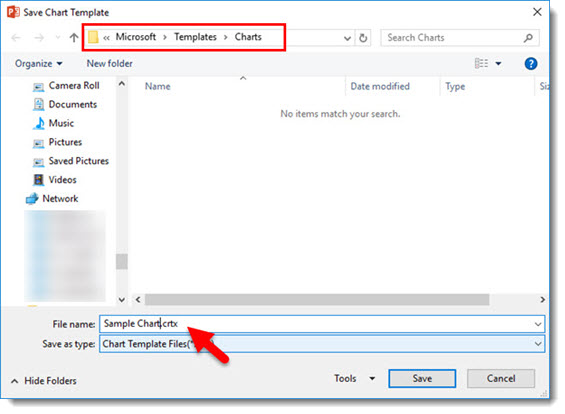
  3. In the SAVE CHART TEMPLATE dialog, give the chart template a (short) name that helps identify the styling (ie. project name, type of chart, colors used, etc.). The Chart Template is automatically saved into the Microsoft/Templates/Charts folder (and must be in this folder for PowerPoint to use it).
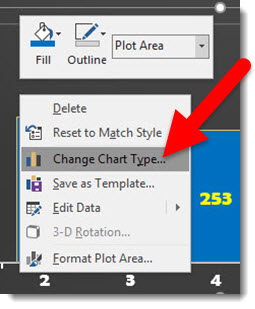
  4. To apply the chart template styling to a chart, select a chart, right click and select CHANGE CHART TYPE
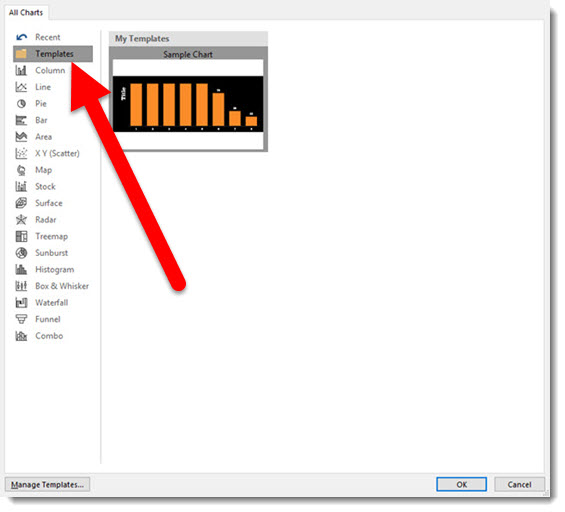
  5. In the Charts dialog, select TEMPLATES and the custom template to apply
  6. Click OK and done!


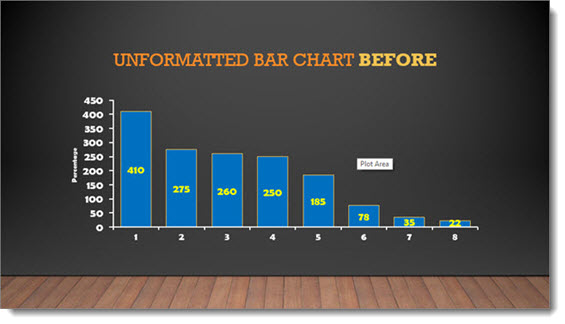
Here is an unformatted chart.

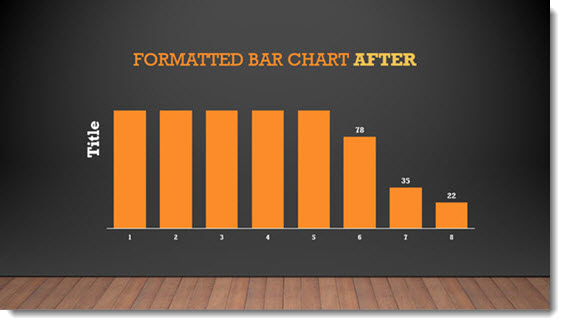
And here is the same chart with the above chart template (4 clicks and formatted!).

NOTES:

  • Chart Templates are local to a computer, they DO NOT travel with a presentation.
  • Chart Template thumbnails are very limited in the visual and description, so if you have many it can be difficult to tell them apart.
  • Right-click to Save Template was introduced with an Office365 PowerPoint 2016 update, I have not tested in previous versions. 


Troy @ TLC

By |2016-12-13T14:51:28-08:00December 21st, 2016|Tutorial|

Yes, We Can Copy PowerPoint SECTIONS!

PowerPoint’s Sections are not new (introduced with PowerPoint 2010), but they are very unutilized. Just this past month, the updates to PowerPoint (for Office 365 subscription version) included the ability to copy sections to another presentation, or different location in the same presentation. While there are more improvements needed to help PowerPoint Sections become a truly easy to use and helpful organization resource, this is a great improvement (and it lets us know the Microsoft Dev Teams are looking at Sections and making progress on improving them!).

As an example, if there are sections in the deck, copying the entire section is easy.

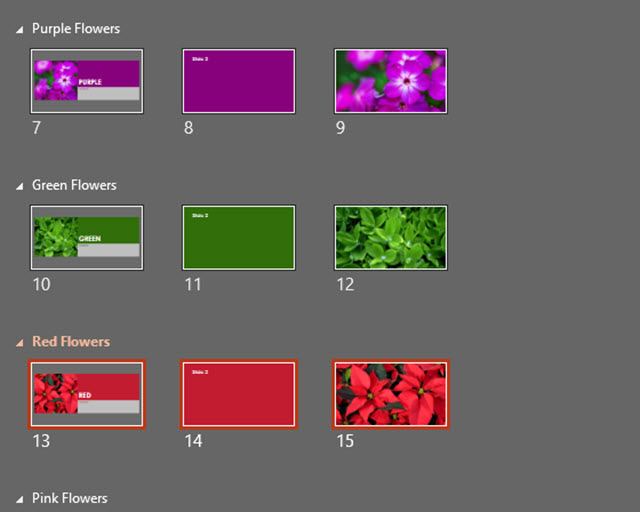
  • Find the Section name either in Slide Sorter View or the left thumbnail Panel
  • Click the section, which highlights all the slides in the selected section
  • CTRL + C to copy the section
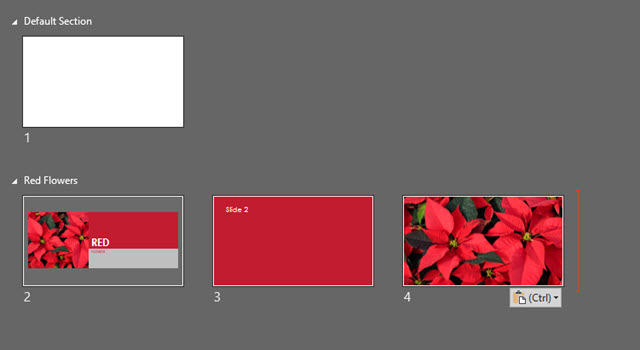
  • Go to other presentation (or other location in same presentation) and CTRL + V to paste in the section name and all of its slides!

Here is my sample presentation with sections. I am going to copy the RED FLOWERS section into a new presentation.

PowerPoint Sections

PowerPoint Sections

Notes:

  • Right-click dialog on a section name does not have copy or paste commands, so must use keyboard shortcuts. But you can right-click the insert location and use the standard PASTE OPTIONS in the right-click dialog.
  • Drag-and-drop copying does not work (yet)
  • Currently only able to select one section at a time
  • If pasting into a presentation that does not have sections added, the pasted in section – and its name – are added to presentation and all slides above go into an automatically created section. But all slides after the insert point are added to the new (pasted in Section)

Troy @ TLC

By |2016-12-12T15:56:55-08:00December 12th, 2016|Tutorial|

NXPowerlite Black Friday 50% Off Deal

nx-1

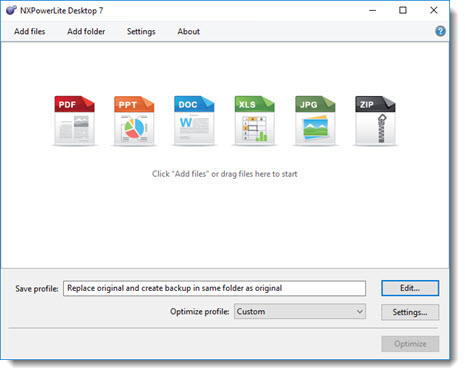
TLC Creative Services has been a long-time user of NXPowerlite to quickly optimize presentation files to manageable sizes – without losing image quality (see this post on the TLC’s custom NXPowerlite settings). Microsoft’s internal image compression has improved a lot over the past few generations of PowerPoint, but I still find 3rd party tools do a better job. No sponsorship here, just letting everyone know that the NXPowerlite Black Friday sale is a good deal to take advantage of if you do not have an add-in to optimize presentation files.

NXPowerlite Black Friday

The Windows Desktop version is regulary $50. Purchase Friday, November 25th at 50% off. $25 is a great value and a smart addition to any designer’s toolbox. Go here for the Neupower sale page.

nx-3

-Troy @ TLC

By |2016-11-29T15:12:23-08:00November 23rd, 2016|Software/Add-Ins|

PowerPoint Change Shape

All PPT shapes are vector (meaning they can be resized with no quality loss and are very small in file size). One great feature of PowerPoint (that has been in many versions but hasn’t been discovered by everyone), is the ability to change shape to any other shape – AND maintain all format styling and animation!

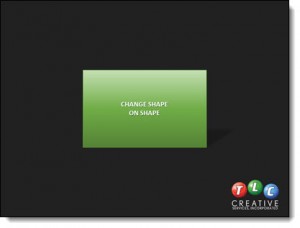
Here is an example, a rectangle with gradient fill, text styling and cast shadow.

1. Select any shape on a slide.

Change Shape 1

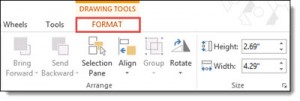
2. Go to the FORMAT TAB.

Change Shape 9

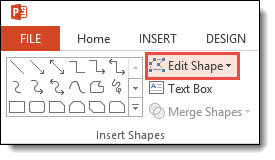
3. Click the EDIT SHAPE drop down menu.

Change Shape 8

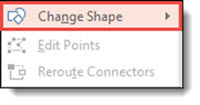
4. Select the CHANGE SHAPE menu

Change Shape 7

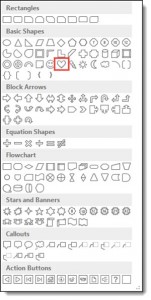
5. From this PPT shape gallery, select the new desired shape – for this example, we are choosing the heart shape.

Change Shape 11

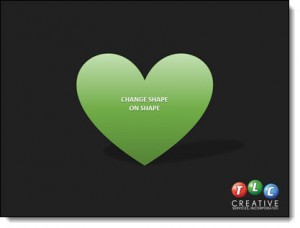
6. The rectangle changes to a heart shape – and the color file, drop shadow, gradient, text font-color-styling and animation are all still there!

Change Shape 2

-Troy @ TLC

By |2016-09-20T09:50:40-07:00November 18th, 2016|PowerPoint, Tutorial|

PowerPoint Animation Thanking U.S. Veterans!

Here is an animation developed using only PowerPoint, and exported as a video (using PowerPoint’s video export). Thank you to all that serve and have served in the U.S. armed forces!

[KGVID]https://thepowerpointblog.com/wp-content/uploads/2016/11/unnamed-file-1.mp4[/KGVID]

By |2019-10-31T22:10:41-07:00November 11th, 2016|PowerPoint|

Office 365: Current Channel vs. First Release

Microsoft Office 365 has been a huge leap forward for PowerPoint (and all Office apps) if nothing more than it has enabled Microsoft to easily release updates small and large to the applications. One item that is causing lots of confusion is the idea of “Current Channel” and “First Release.”

Here is how to determine what your install of Microsoft Office is.

  1. Open PowerPoint
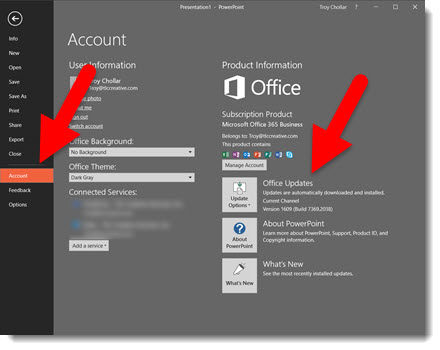
  2. Go to File > Account
  3. On the right side under Product Information and Subscription Product, look for the OFFICE UPDATES section
    First Release 1
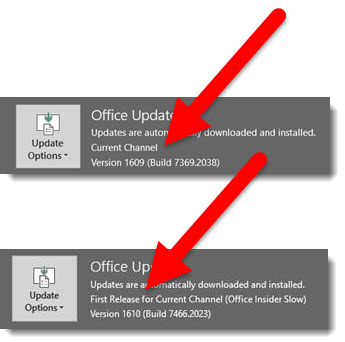
  4. This will list either CURRENT CHANNEL or FIRST RELEASE
    First Release 2


Note: the FIRST RELEASE option is also called OFFICE INSIDER, which has 2 levels: Insider Slow and Insider Fast.

Next Post: how to change which channel you have in the Office 365 Admin console.


-Troy @ TLC

By |2016-11-07T15:39:37-08:00November 4th, 2016|Resource/Misc|
Go to Top