
PowerPoint “Paste Special” Tip – Add an Image of a Slide, to a Slide
Need an image of a slide, on your slide? We do – often! Here is a quick PowerPoint trick that will create a full-size image of any slide in just a couple of clicks.

This is built into PowerPoint, if you know about using Paste Special to convert a slide into a PNG or JPEG instantly.
Here’s how to do it:
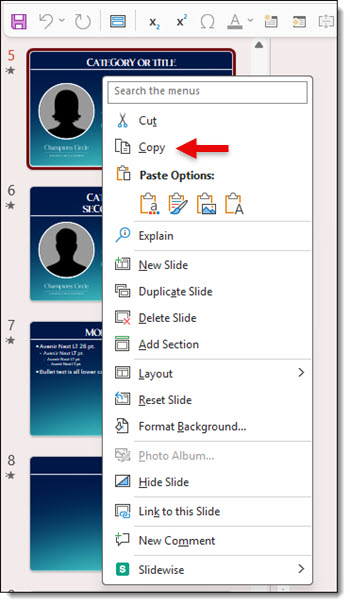
1. In the thumbnail pane on the left side of PowerPoint, select the slide to convert to an image and right-click the thumbnail
2. Choose COPY or press CTRL + C
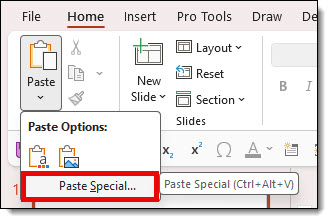
3. Go to HOME tab
4. Click the PASTE drop-down

5. Select PASTE SPECIAL
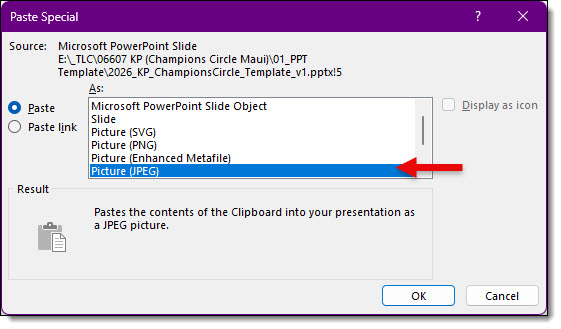
6. Choose an image format and click OK
That’s it! PowerPoint creates a full-resolution image of the entire slide, which is inserted as a single picture. Unlike the original slide, the image can’t be edited object by object, but it can be resized, cropped, rotated, or have picture formatting applied (inserted here slightly smaller than the slide to see it is an image of the original slide, on a new slide, all created in just a few clicks!).

TIP: Make this a 1-click formatting option. If you haven’t already added Paste Special – PNG to your QAT (Quick Access Toolbar), check out the on how to add this super helpful shortcut to your PowerPoint setup. This of course is if you are working in PowerPoint Windows desktop app. See the July 16, 2026 post, PowerPoint “Paste Special” Tip – Make it a QAT Button.
-Troy and the TLC Creative presentation design team