
PowerPoint “Paste Special” Tip – Optimize a Single Image
Sometimes you know an image is just huge and needs to be optimized. Using paste-special is a great option to instantly create an optimized version of an image.
Presentations can quickly become bloated with large image files, even when the images appear small on the slide. One common reason is that PowerPoint stores the original image dimensions and resolution – not just the size you see on the slide. This means a small-looking image may contain a much larger image file behind the scenes.

Using Paste Special as PNG, you can create a new optimized version of an image that matches the actual size on the slide. Copying and pasting as a PNG image will optimize the image dimensions and remove unnecessary resolution + data which results in a smaller file size.
The TLC Creative presentation design team uses the Paste Special PNG shortcut on the Quick Access Toolbar (covered in our previous post) to quickly optimize individual images.
Here’s how:
- Select the image you want to optimize
- Copy the image (CTRL+C)
- Delete the original image (trust us, it’s okay to delete it)
- Use Paste Special > Picture (PNG)
- The new PNG image added to the slide is created based on the original image, but at the size it was copied at, creating an optimized exactly to the display size image!
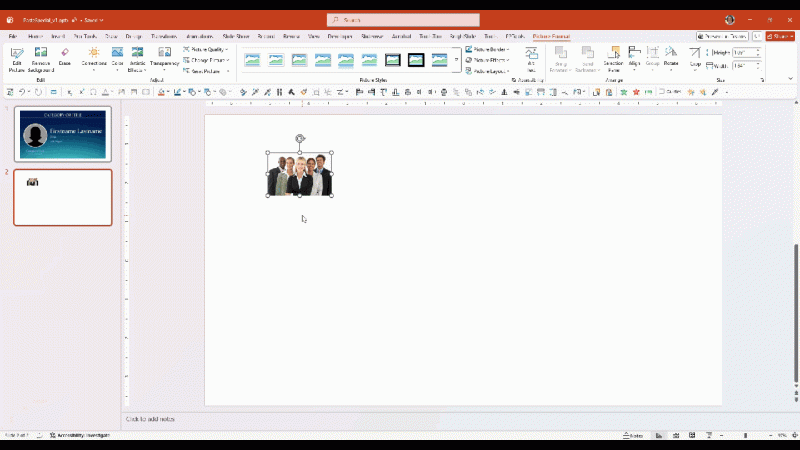
Here is an example of the original image, that is small on the slide, but really a massive file size in the PowerPoint file:
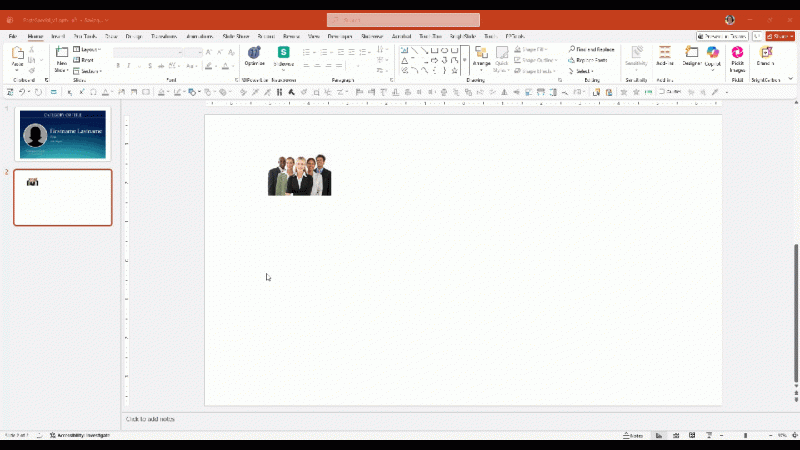
Here is the Paste Special PNG version of the image – what you see is the file size in the PowerPoint file:
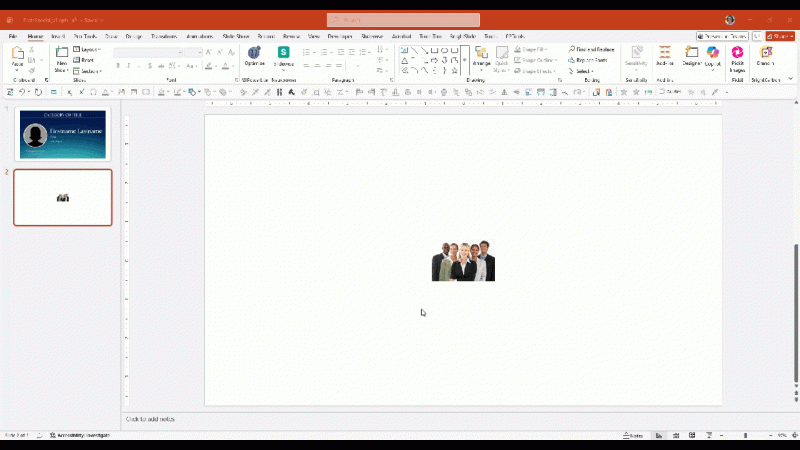
Now when the image is reset, its no longer the unnecessarily large image – which results in a smaller file size for the presentation:
For entire presentations with many images, PowerPoint’s build in Compress Pictures feature can also help (but the TLC Creative design team trusts NXPowerlite for optimizing full presentations vs. PowerPoint’s built in option). But, when you need more control over individual images, PowerPoint’s Paste Special is a built-in option that works fast and really great, giving you a targeted way to optimize specific problem images!
-Troy and the TLC Creative presentation design team