
PowerPoint “Paste Special” Tip – Create Custom Shapes & Images
PowerPoint is a POWERFUL design tool. Why? Because it allows us to create graphics using editable objects like shapes, icons, and SVG files. And in most cases, keeping those objects editable is exactly what we want… But there are times when a finished graphic needs to become a single image.
That’s Where Paste Special > PNG Comes In
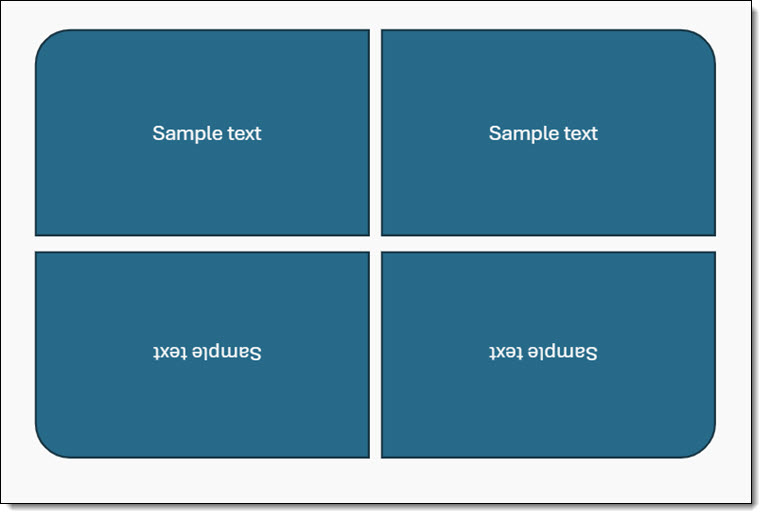
Take this 4-box quadrant for example with text set inside each shape. The goal is a rounded corner SWAT style grid accomplished with the PowerPoint shape “Single Rounded Corner Rectangle.” But when the shape is flipped vertically and horizontally to create rounded corners in all 4 quadrants, a problem arises with the text in some of the shapes ☹️. As you can see in the screen capture below, PowerPoint limits text box orientation when a shape is flipped. That means that embedded text does not work for the bottom two shapes.
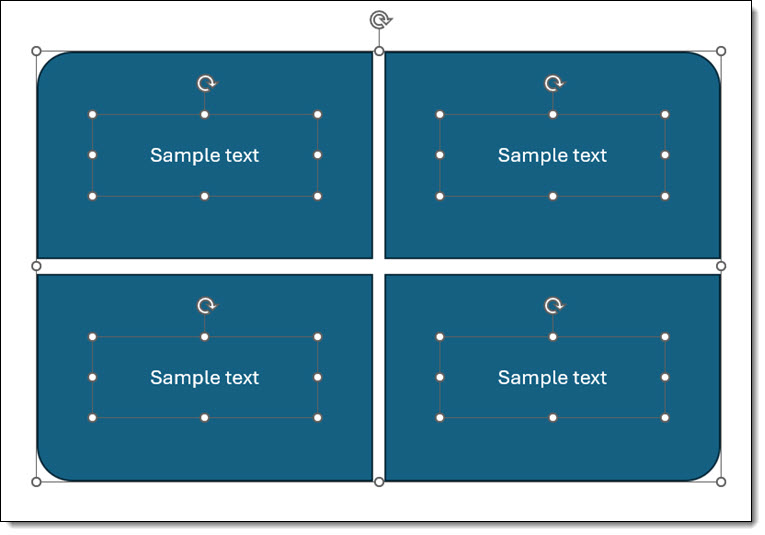
Here’s what you do to work around this limitation: copy the 4 shapes removing any text inside them first (Select all > CTRL + C), delete the shapes, then Paste Special > PNG. The resulting PNG image has the 4-quadrants with the rounded corners, and as a PNG image the background around the quadrant shapes is transparent.
The downside is, since it’s one large image, these PowerPoint shapes are not editable. That means that for this example, additional text boxes need to be added and placed on top of the image.
TIP: Make this a 1-click formatting option. If you haven’t already added Paste Special – PNG to your QAT (Quick Access Toolbar), check out the on how to add this super helpful shortcut to your PowerPoint setup. This of course is if you are working in the PowerPoint Windows desktop app. See the July 16, 2026 post, PowerPoint “Paste Special” Tip – Make it a QAT Button.
-Troy and the TLC Creative presentation design team