The PowerPoint® Blog

I work with PowerPoint on a daily basis and I am very honored to be a Microsoft PowerPoint MVP. We have a talented team of presentation designers at TLC Creative Services and ThePowerPointBlog is our area to highlight PowerPoint tips, tricks, examples and tutorials. Enjoy! Troy Chollar

Introduction to VideoBlocks

Presentations often feature videos. But where can designers get quality videos? VideoBlocks.com is a subscription-based site with unlimited downloads from a library of professional stock video footage. TLC Creative Services has used VideoBlocks for several years, going back to purchasing DVDs from their pre-online business.

VideoBlocks Photo 1

VideoBlocks has an in-depth library with over 115,000 studio-quality videos, motion backgrounds and after effects clips. Additional videos are added every month. VideoBlocks members have two download options – videos included in the subscription (great value) or videos from an a la carte Global Marketplace where professional videos are uploaded and sold individually (average $49 per video).

In addition to variety (more on that in a moment), quality and value, one thing that distinguishes VideoBlocks from their competitors is their royalty free permissions on all videos (at least those in the subscription library). Videos are pretty much permitted to be used for any project, with any level of distribution and they include global usage rights. Other VideoBlocks customers include big companies like ABC, MTV, and even National Geographic, so we are in good company!

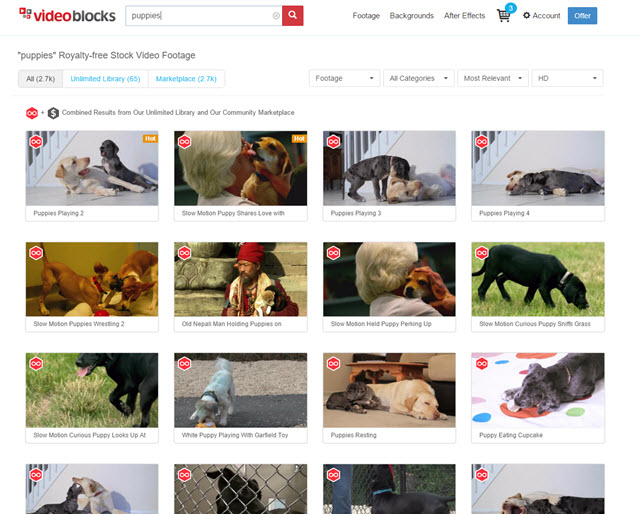
For variety, my sample search for puppies gave me over 27K results! That broke down to 65 videos in the free Unlimited Library and 27,000 in the a la carte Marketplace. Sixty-five puppy videos is a good result AND I found the perfect one for my presentation.
VideoBlocks Photo 2

The search can be filtered only to show videos included in the subscription library or to include those available in the Global Marketplace. It can also be filtered by category or resolution (more on this in a moment). In addition, VideoBlocks has 15 preset categories that range from Business and Professions to Holidays and Celebrations. All in all, the TLC Creative Design Team has little trouble using the search options to find a video clip suitable for their presentations.

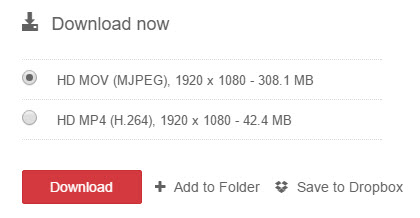
MP4 and MOV file formats are available for all video clips. Resolution sizes vary from SD 480p to full HD 1080p but almost all videos are 1080p. You can also look under the “Red Camera” category for a good selection of 4K resolution videos.
 

VideoBlocks Photo 3

After a quick search on the site, I found that a one-year subscription is currently $149. The subscription price is a huge value and something TLC Creative has renewed annually for several years so we always have a video resource for our projects. They also have specials a few times per year that drop the price to $99. And you will be locked in at that special rate for renewals. I asked and received a referral link that will get anyone a $50 discount. Click here to bring the current price down to $99 a year!


-Troy @ TLC
By |2016-08-10T08:35:12-07:00March 7th, 2016|Resource/Misc|

Interlaced vs Progressive with Powerpoint

When it comes to exporting video in PowerPoint, or any other program, there are many factors that play a role in the final quality.

One of those factors is the concept of interlaced or progressive.

All PowerPoint videos export as progressive, but why?

In order to understand the answer, we first need to know what progressive vs. interlaced really means.

Here is the simple explanation:

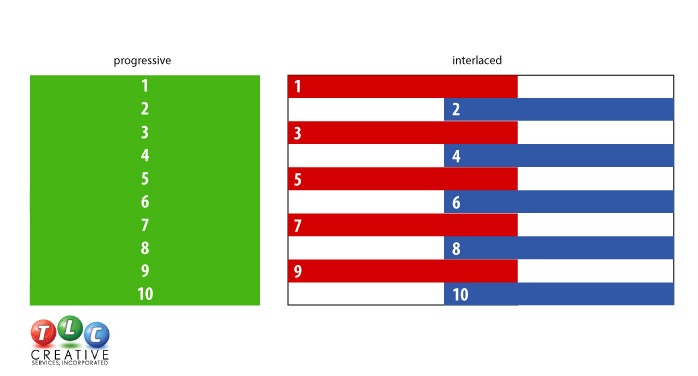
  • Interlaced is sending half the picture in 1 frame and the other half in the next frame. When done fast enough, the human eye sees a full picture.
  • Progressive is sending the entire picture on every frame.

progressive and interlaced video example

Interlaced video was made popular with television and over the air TV transmission (in the dark ages, before Cable TV). Interlaced video sends half the data and bandwidth, so it made TV signal transmission easier. For video editors, it made digital editing and processing faster because you were working with half the amount of data.

With current technologies of HD and beyond, computer monitors, television monitors and projectors, the idea of interlaced (or 1/2 quality) video is virtually a thing of the past. So 720p and 1080p stand for “progress video” at that resolution. 720i & 1080i means the video is interlaced at that resolution. If there is not an “i” or “p” after the resolution it is assumed to be progressive “p.”

Because progressive video has more data than interlaced video (entire picture in each frame vs. half the picture in each frame), it appears sharper and richer in color.

Progressive

progresive video

This technique, however, is not ideal for broadcasting, due to the amount of data that needs to be transmitted. This brings us to Interlaced video. For the most part, interlaced video is used by TV broadcasters. It outputs from two adjacent frames one after the other, blending odd and even lines to form each image.

Interlaced

interlaced video

Quite a difference, right? To answer the original question “Is all PowerPoint video progressive?” – the answer is yes. PowerPoint’s video export only has profiles for progressive video, with 3 different resolution options. There is no practical need for interlaced video on any computer playback. If you are sourcing a video for a presentation and one of the options is progressive or interlaced, choose progressive.

-Troy @ TLC

By |2016-08-10T08:35:32-07:00March 4th, 2016|PowerPoint, Resource/Misc|

Recolor Content with Powerpoint Tools

In PowerPoint, you can place content on top of a video background to create a dynamic and dimensional design.

Find a great example we created here:

[KGVID]https://thepowerpointblog.com/wp-content/uploads/2016/03/unnamed-file-7.mp4[/KGVID]

Here’s how to create a similar effect to your video

1

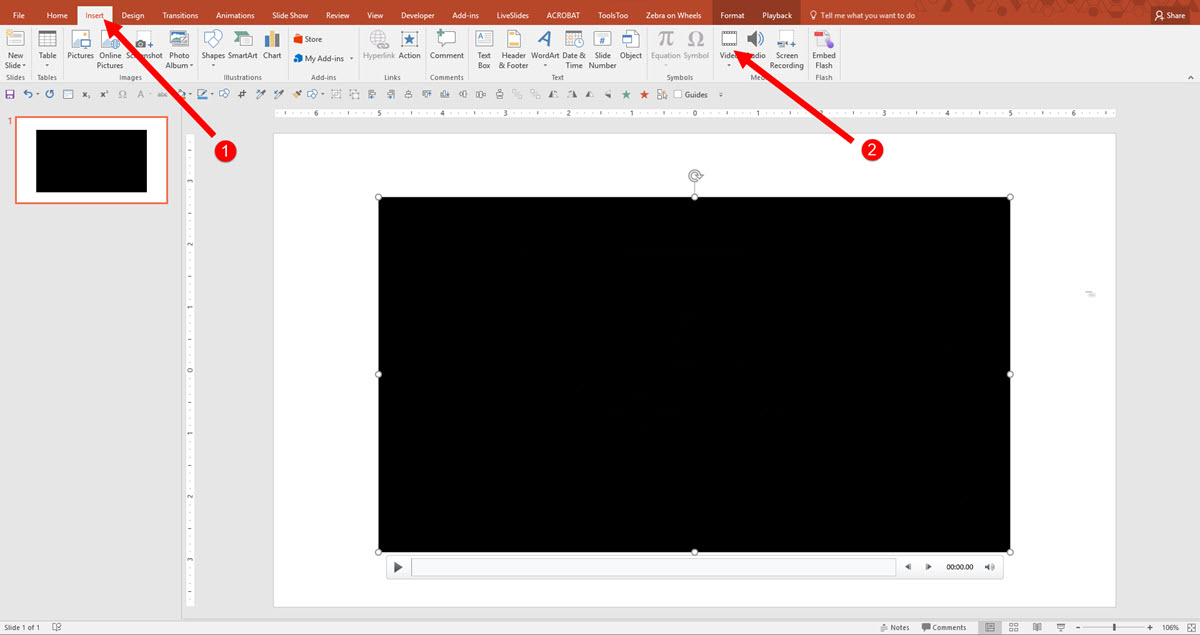
Insert  (1) Video onto your Canvas , click (2) Video and select your Video.

2016-03-01_11-02-20


2

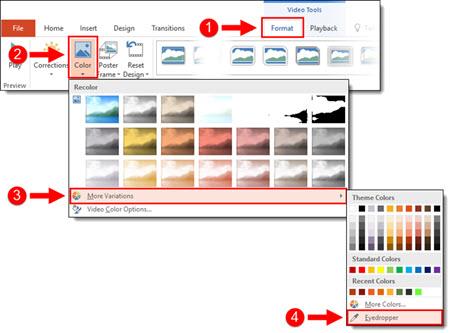
To recolor your video, click on (1) Format Tab, select (2) Color tool in the drop down, you get Recolor options.You can add custom colors by Selecting the (3) More Variations or using the (4) Eyedropper tool.

1_ Recolor Content Over Video


3

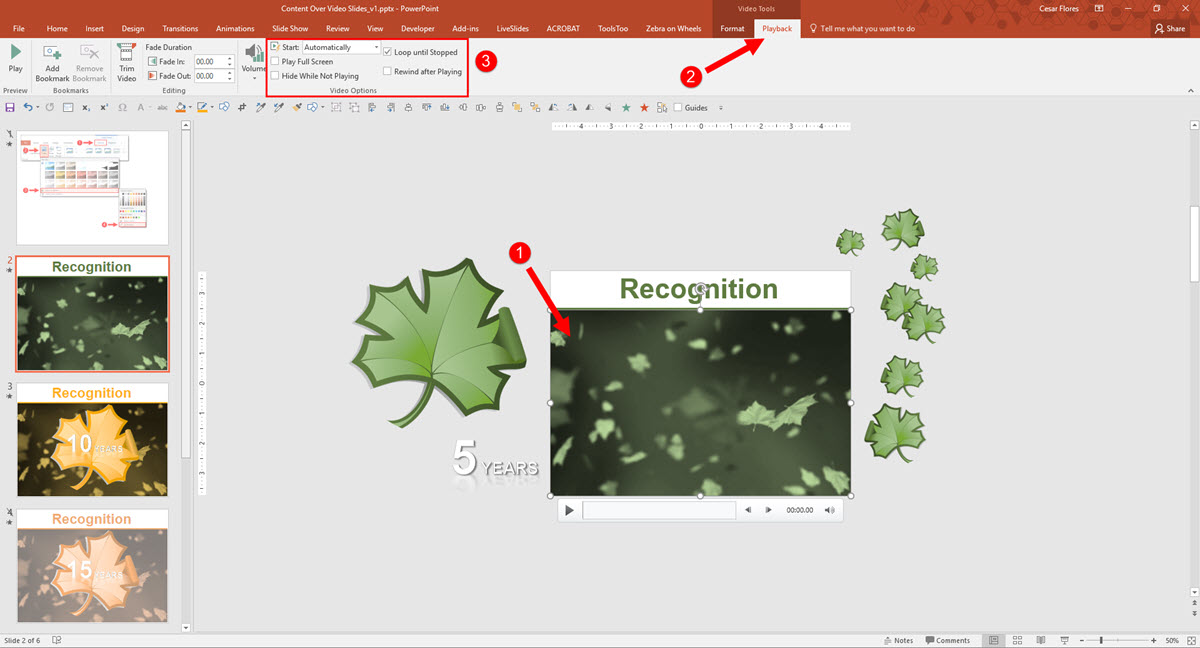
Once you are satisfied with the styling of the video, select your (1) video on the Canvas, select (2) Playback, set the video to (3) Start Automatically and Loop until Stopped.

2016-03-01_11-35-523

4

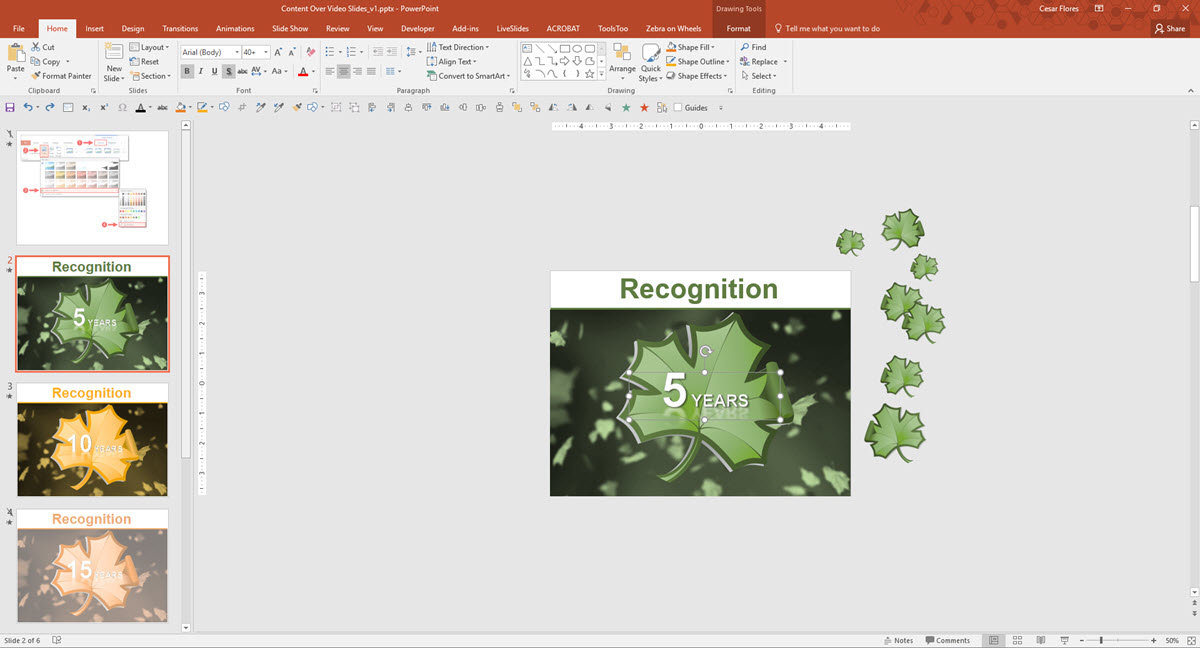
Next, add stylized text and graphics directly on top of the video and animate as desired. The end result is a slide with content that animates directly on top of the video background.


2016-03-01_11-54-45


-Michelle @ TLC

By |2019-11-12T11:50:22-08:00March 2nd, 2016|PowerPoint, Tutorial|

Powerpoint 2016 New Morph Demo

We let the TLC Creative Presentation Design Team loose to experiment with PowerPoint 2016’s new Morph transition/animation – the results are fun, great and inspirational!

Here is our design team’s Morph ideas compiled and output as a video.

– The Design Team @ TLC

By |2016-08-10T08:36:39-07:00February 26th, 2016|Portfolio, PowerPoint|

Office Insider for Office 365

Get early updates to Office 365 as an Office Insider

Office Insider is an early release program, sort of equivalent to a Beta Release. For Office 365 subscribers, it’s called “Office Insider” and for Business subscriptions, it’s called “First Release.”

Both programs get new features automatically added to Office programs such as: PowerPoint, Word, Outlook, Skype, Excel.

The Office Insider program is free and easy to add to your subscription. The Office Insider program includes: PowerPoint for Windows Desktop, Mac, Android, and Mobile.

EarlyRelease2

Here’s how to be an Office Insider

This example is based on Office 365 Business, which is the version we use at TLC. Your subscription might be different so take a look at the version of Office 365 you have.

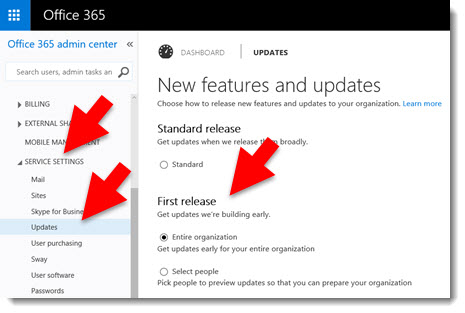
1. Log into your Office 365 account to access the Admin Center (Note: The Admin option is only available to those with admin permissions). This Account Admin is not the same as the individual Admin inside PowerPoint or any Office app.

There’s different logins for different Subscriptions. Click this link for more information: Office 365 Login

2. Go to the Account Admin > SERVICE SETTINGS > UPDATES > NEW FEATURES AND UPDATES > EARLY RELEASE and select the option you want.

Office Insider for Office 365 1

Office 365 Updates and who gets them

First, Office 365 Home, Personal, or University subscribers get the updates. Next, Office 365 Business subscribers, that do not have Admin restrictions, receive early release features. And finally, approximately 3-5 weeks later, the new features will install to all O365 subscribers.

Here is a page with details for Office 365 Early Release Options.

Here is a page that details each of the Office 365 Subscription Options .


-Troy @ TLC

By |2016-08-10T08:37:20-07:00February 24th, 2016|Resource/Misc|

Create a Picture Frame Using a Video

Here’s how we created a Video Picture Frame in PowerPoint

My example is a standard 4×3 slide. The goal was to create a picture frame that was full slide size and for the picture frame to have motion. By layering a video under the photo and sizing it to the same aspect ratio as the photo, the result is a dynamic motion picture frame. The steps to make it happen are pretty easy.

Step 1

Add the photo to the slide (we prepped this image in Photoshop by making it semi-transparent and saving out as a .png).

Video Picture image 01

Step 2

Add the video to the slide, send to back, resize and crop to proportionally be a bit larger than the photo.

Video Picture Frame-centered


Step 3

Fine tune position of video and photo. Select both and use the ARRANGE > ALIGN > ALIGN CENTER and ALIGN MIDDLE to make them exactly centered on each other.

Video Picture image 03

Step 4

Set video animation. Select the video, remove the current trigger animation, add a new PLAY animation set to WITH PREVIOUS.

VideoFrame Animation

Step 5

Set video to loop. Select video, go to PLAYBACK > VIDEO OPTIONS > LOOP UNTIL STOPPED.

Powerpoint Video Picture Frame 6

Step 6

Stylize video with an outline and drop shadow. Stylize photo with an outline and inner shadow.

Video Picture Frame with Shadow

Step 7

View in slide show!

[KGVID]https://thepowerpointblog.com/wp-content/uploads/2016/02/unnamed-file-1.mp4[/KGVID]

-Troy @ TLC


By |2019-11-15T09:42:16-08:00February 22nd, 2016|PowerPoint, Tutorial|

How to Turn Off PowerPoint 2016 Auto Layout Designer

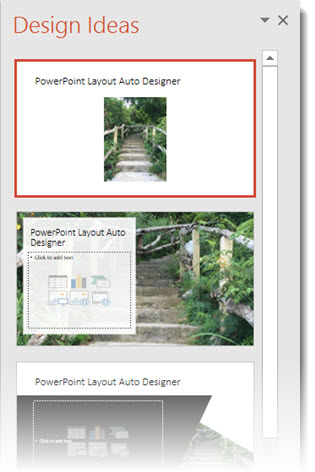
PowerPoint 2016 Auto Layout Designer is a new feature in this version. I wrote a post earlier this month with a review and example. It really is a great feature.

PowerPoint 2016 Auto Layout Designer 1

But, if you do not use Microsoft templates (or themes) for your presentations, the Designer tool is not helpful. Using a custom template does not stop Designer from popping open its action pane and offering to help design slides (even though it currently cannot). I have opted to turn off the Designer feature – at least until it has expanded use to work with custom templates.

Here’s how to turn Designer on/off

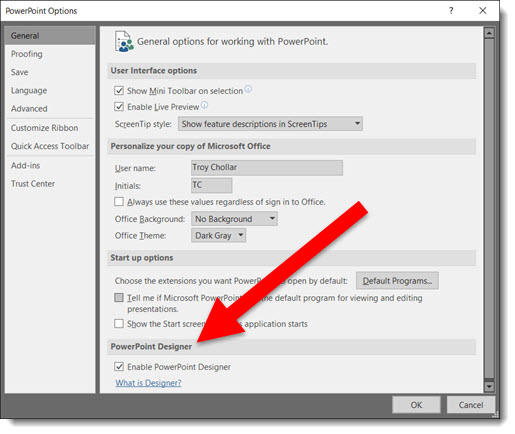
1. Go to FILE > Options > General Tab > PowerPoint Designer

2. Check or Uncheck to turn on or off

3. Click OK

PowerPoint 2016 Auto Layout Designer 2

-Troy @ TLC
By |2016-08-10T08:38:00-07:00February 19th, 2016|PowerPoint|

New Chart Types in PowerPoint 2016

How to insert New Chart Types in PowerPoint 2016

New Chart Types in PowerPoint 2016 for subscription users of Office 365 are being automatically added to your app (Note: This is only in subscription users of Office 365, PowerPoint 2016, and I have only looked at the Windows version).

There is bigger news than just some new styles. Microsoft is moving all charting to a new charting engine, and these new charts are coded with this new engine. Eventually, all legacy charts will be ported to the new charting engine, and, fortunately, this is still an in-process engine development (I am certain everyone will encounter a chart limitation depending on their chart data and the way they create charts) – so my take on things is “Yay new charts! But the new charting engine is not fully functional, so some options in the new charts are not fully functional yet.”

The good news is even though only subscription users can create these charts, all versions of PowerPoint (dating back to 2010 and Mac versions) can display chart types – editing and animation is somewhat limited when using previous versions…

Here are 4 of the new chart types currently available (we will continue to see more chart variations added over time, look for another new chart type in the February updates).

Follow these Steps:

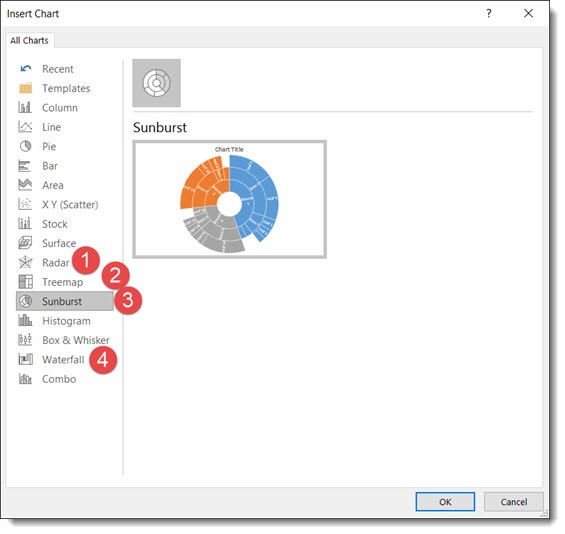
Go to INSERT > CHART

New Chart Types in Powerpoint 2016


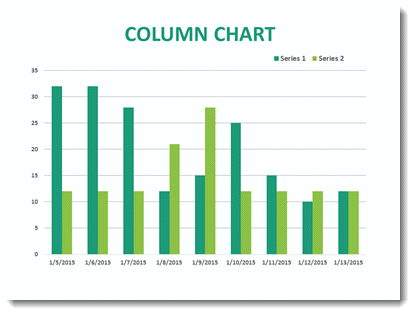
The Column Bar Chart

A standard Chart.

New Chart Types in Powerpoint 2016

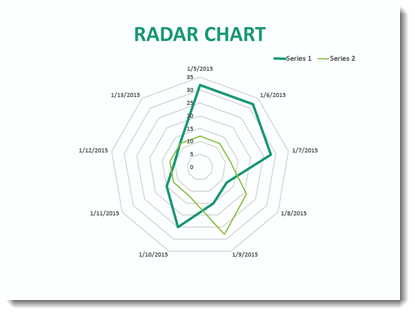
1. Radar Chart

That same data in the Bar Chart can instantly be updated.


New Chart Types in Powerpoint 2016

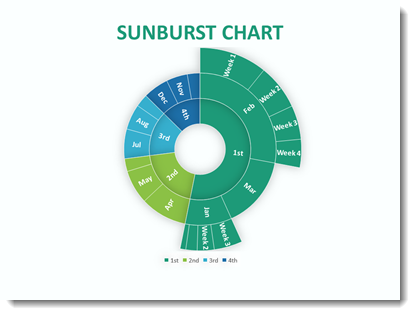
2. Sunburst Chart

This a great addition to the native PowerPoint chart options vs. going to external charting apps to develop.


New Chart Types in Powerpoint 2016

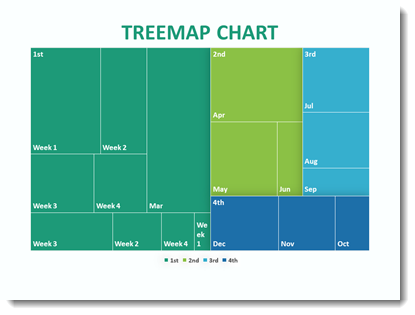
3. Treemap Chart

This Chart is new to PowerPoint 2016 native chart options.

New Chart Types in Powerpoint 2016

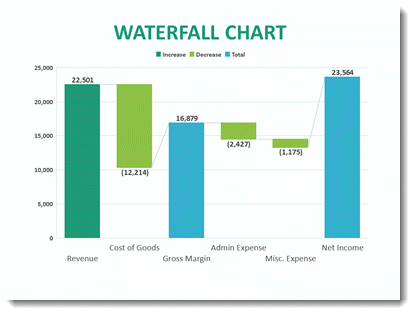
4. Waterfall Chart

This standard Column chart with negative data.

New Chart Types in Powerpoint 2016

-Troy @ TLC

By |2025-03-29T11:04:35-07:00February 17th, 2016|PowerPoint|

PowerPoint 2016 User Interface Color Options

How to change your User Interface Colors in Powerpoint

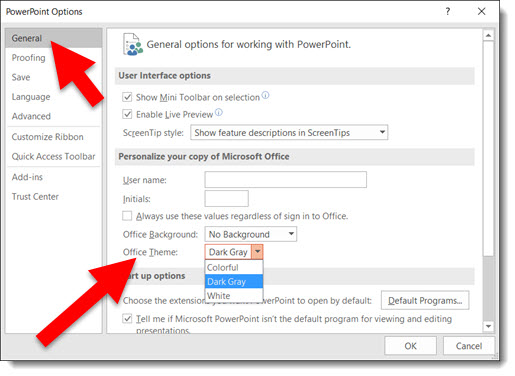
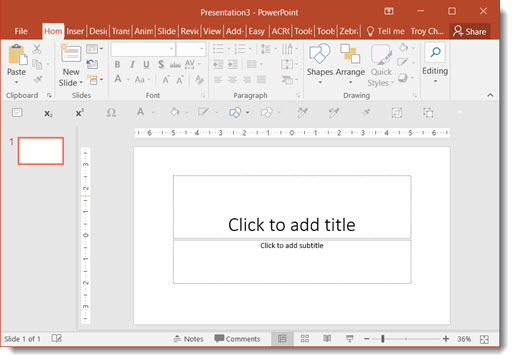
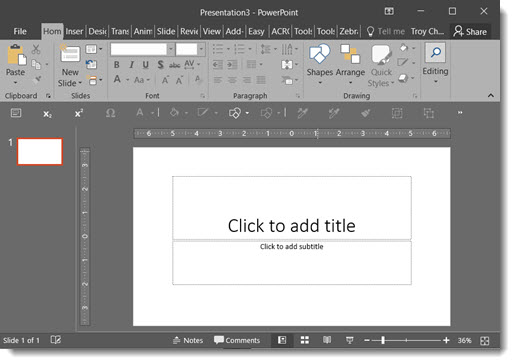
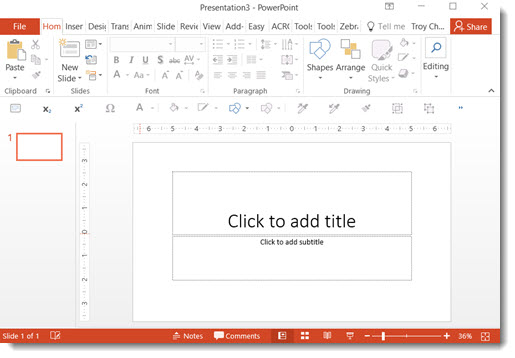
PowerPoint 2016 User Interface Color Options allow you to modify your interface by choosing up to 3 preset color schemes: Colorful (Orange), Dark Grey, White. You can change the ribbon, border and canvas area outside the slide.

Ideally, we, the users, could modify the color scheme to meet our needs – but that’s not something available. All three options are available and can be changed at any time. (Note: This is an Office wide update, so all other Office apps such as Outlook, Word, Excel, etc. will also get the same User Interface color scheme.)

Here’s how to Personalize your PowerPoint 2016 User Interface Color Options

To adjust, go to FILE > OPTIONS > GENERAL tab. Then, go to OFFICE THEME drop down menu.

PowerPoint 2016 User Interface Color Options 1

Colorful (Orange on light grey):

PowerPoint 2016 User Interface Color Options 2

Dark Grey (Only option with no orange):

PowerPoint 2016 User Interface Color Options 3

White (Less Orange on White):

PowerPoint 2016 User Interface Color Options 4


-Troy@TLC

By |2016-08-10T08:38:46-07:00February 15th, 2016|PowerPoint|
Go to Top