The PowerPoint® Blog

I work with PowerPoint on a daily basis and I am very honored to be a Microsoft PowerPoint MVP. We have a talented team of presentation designers at TLC Creative Services and ThePowerPointBlog is our area to highlight PowerPoint tips, tricks, examples and tutorials. Enjoy! Troy Chollar

Tineye – Find Images Online (2)

TinEye, the reverse image search site can also be used for some detective work.

Let’s use TinEye to check if an image is being used by another website without permission. Here is a beautiful photo by my friend and incredibly talented photographer, Rikk Flohr, from his webpage.

1. To do a quick web search for non-permitted use of this photo, I loaded it into TinEye using the drag and drop feature.

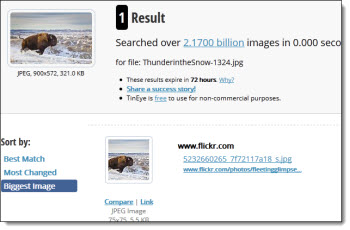
2. TinEye’s search only found 1 result, which is actually Rikk’s Flickr account.

3. Of course, no search engine covers the entire internet. TinEye is constantly crawling webpages and updating the image database. And this image search proves it is possible other instances of an image exists online. The test image was found on Rikk’s Flickr account, but missed it on his actual webpage. I assume TinEye hasn’t yet crawled Rikk’s site or it is possible the site is already protected in which case TinEye can’t get the image information.

– Troy @ TLC

By |2016-08-16T08:53:47-07:00December 19th, 2012|Resource/Misc, Tutorial|

Tineye – Find Images Online (1)

TinEye is a reverse image search engine. It can be a great resource for presentation design.

TinEye lets you upload, or link to an online image, and see where it came from, find higher resolution versions, how/where it’s being used and if there are modified versions. It is the first image search engine to use image identification technology rather than keywords, metadata or watermarks. When you upload an image to be searched, TinEye creates a unique digital signature for it, and then compares this signature to every other image in their index to find matches. In our tests, TinEye did not generally find similar images, but exact matches – including those that have been cropped, edited, or resized.

The free service allows 50 searches per day, up to 150 searches a week. There is a paid version of TinEye which allows for more searches.

TinEye is easy to use. Here is our sample image and the goal is to find a high res version.

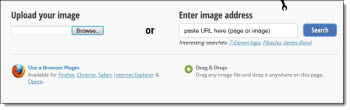
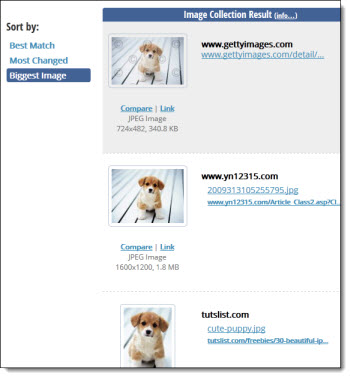
1. On the TinEye webpage, click “Browse” to upload the image. The sample image is fairly small at 350×520 pixels.

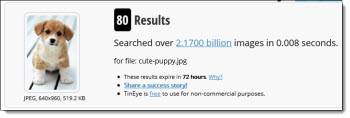
2. TinEye search of its database for this image found 80 matches.

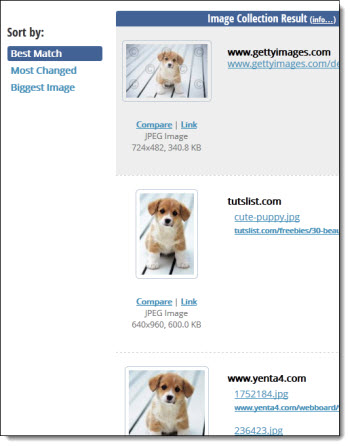
3. The default search result is set to Best Match.

4. Changing the sort by Biggest Image, I find a link to the same image that is 1600×1200 pixels!

Note: Most images found online are protected by copyright. If you would like to use any image found through TinEye for commercial purposes, you should confirm it is available under Creative Commons, or contact the image owner for permission.

– Troy @ TLC

By |2016-08-16T08:54:05-07:00December 17th, 2012|Resource/Misc, Tutorial|

Microsoft Security Update Causes Fonts Not to Display in PowerPoint

I was contacted by another presentation designer yesterday about a really bad presentation issue he experienced after installing Microsoft updates (thanks Don!). Then, a number of other users started posting their issues on MS Answers.com. This is a big deal for many presentation designers!

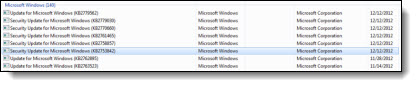
ISSUE: After installing Microsoft Security Update KB2753842, PowerPoint is unable to display certain fonts.

FONTS AFFECTED: OTF, Open Type Fonts. Microsoft ships TT (True Type) fonts, so all standard Microsoft fonts are unaffected.

WHAT HAPPENS: PowerPoint behaves normal and in edit view, all fonts display fine. When run as a slide show, all Open Type Fonts (OTF) do not display.

FIX:
– Remove Microsoft Security Update KB2753842
– To Remove:
Start >> Control Panel >> Unistall a Program >> View Installed Updates(link on left) >> scroll to Microsoft Windows section >> search for “Security Update for Microsoft Windows (KB2753842)” >> right click >> select Uninstall >> say “Yes” to confirmation >> restart computer

Update 12/20/12: MS has confirmed “An updated security patch has been released at 10:00am today, fully tested this week by Office teams.” So PPT is once again safe to use.

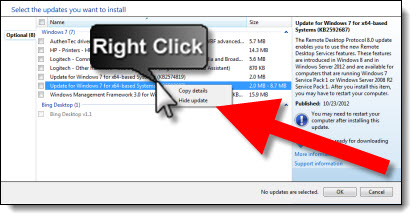
Update 12/17/12: Earlier note that the update has been pulled is not completely accurate. The update has been ‘pulled’ from the auto install status, but still shows up in the optional installs. If you see it in the optional installs, see note below on how to hide update.

Update 12/16/12: This issue is much larger than only affecting OTF fonts. In PowerPoint and Word (2010), several TTF fonts (you can test with Myriad Pro) will also disappear is any formatting (shadow, outline, bevel, etc.) is applied. This text will actually disappear in the edit view, as well as in slide show. Plus the KB update creates similiar issues in several other applications (Flash, Corel Draw, etc.).

Update 12/15/12: Microsoft has a KB information article on the issues caused by installing KB2753842 here.

Update 12/14/12: Microsoft has confirmed that it has pulled the update and working on a fix. So if you have not installed, it should not show up. If you uninstall, it will not be an option to install again. And if you are in an enterprise environment with automatic group policy updates, it will not reinstall again the next day.

Update 12/14/12:  If the update KB2753842 has not installed, but is pending (ie. downloaded automatically, but not automatically installed), it will not show up in the above Uninstall a Program instructions. Launch WINDOWS UPDATE >> view available updates >> if KB2753842 is listed >> Right-click >> select HIDE UPDATE.

– Troy @ TLC

By |2016-08-16T08:54:26-07:00December 13th, 2012|Tutorial|

U.S. Economy Stat Slide

This is a slide developed for a recent executive presentation. The goal for the presentation was speaker support visuals, lots of photos, key message only and viewable as a static image.

– Troy @ TLC

By |2016-08-16T08:55:15-07:00December 7th, 2012|Portfolio|

Web Fonts in Presentations

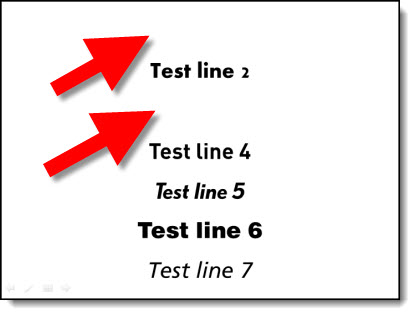
Web Fonts have been a big topic recently and several companies are offering them. TLC staff designer, Amber, spent some time researching them for us and put together a good overview and example of their use with the Google Web Fonts.

– Troy @ TLC

———————————————–

Web Fonts are a font format with a specific license that permits web designers to use real typography online without losing the benefits of live text (dynamic, searchable, and accessible content). Until recently, type on the web was very limited. Most sites could only display the small selection of system fonts installed on user’s computers. Designers who wanted to integrate individuality to their pages would need to create jpeg images (which don’t get read for Google search results) or use Flash or JavaScript to render their fonts, even though not all end-users had started using that software.

Now, there is a CSS declaration called @font-face that web designers can use to specify a font. The font file will either be saved on your server like images are, or it can be hosted by a third party.
The issue that is still being debated is achieving an approximate consensus on how the producers of fonts could continue to control and therefore profit from their work.

Click here for a list of commercial font foundries which allow @font-face embedding.

Cick here for a list of fonts available for embedding.

Google offers a library of web fonts with no restrictions here.
Plus, all of the Google Web Fonts are offered under the Open Font License which means you can use them even in commercial projects without having to worry about licensing issues.

You can utilize Google’s Web Fonts in your PowerPoint presentations too. Although I am not using it as a true “web” font, but really adding it to my computer as a custom font, here are the steps for use:

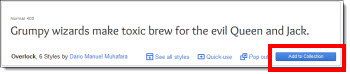
1. In the Google Web Font library, select the font you would like to use in your presentation, and select “Add to Collection.”

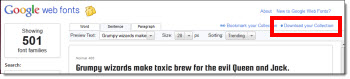
2. Once you’re done adding fonts to your collection, click the “Download your Collection” link at the top right of the page.

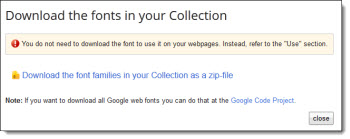
3. A window will pop up letting you know that you don’t need to download the font to use on the web – however, we do need to download to use in PowerPoint, so click the link to download the font collection as a zip file.

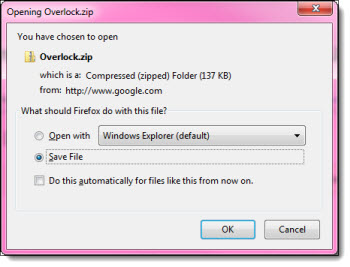
4. Once you’ve downloaded and extracted the font file from the zipped folder, you can install the Web Font on your system and use in your PowerPoint presentation. (Note: If you are planning on sharing your presentation, you will need to also provide the font or risk having the font default to a generic font when PowerPoint can’t find the file installed on others’ computers).

By |2016-08-16T08:55:32-07:00December 5th, 2012|Tutorial|

Sample Video of 4×3 and 16×9 Aspect Ratios

“What is the aspect ratio?” It has become one of the first questions for presentation and video projects. It is still a very confusing concept for many people. We use a simple video of each aspect ratio for clients to see the difference. It is the same video footage, which makes it easier to see the 4×3 aspect ratio is taller and the 16×9 aspect ratio is wider.

4×3 aspect ratio
[youtube src=”https://youtube.com/embed/gQaXbSPQoDQ?rel=0″]

16×9 aspect ratio
[youtube src=”https://youtube.com/embed/NTRV8ISqE1A?rel=0″]

– Troy @ TLC

By |2016-08-16T08:55:56-07:00December 3rd, 2012|Resource/Misc, Tutorial|

Tech Area for LA Auto Show

Just wrapping up at the LA Auto Show where I handled the presentation design and running of the press event for Honda. Event screen was a 200′ long L-shape screen LED wall, my computers and equipment is along the bottom (with the green background).

– Troy @ TLC

By |2016-08-16T08:56:23-07:00November 29th, 2012|Personal, Portfolio|

Template Concepts To Final

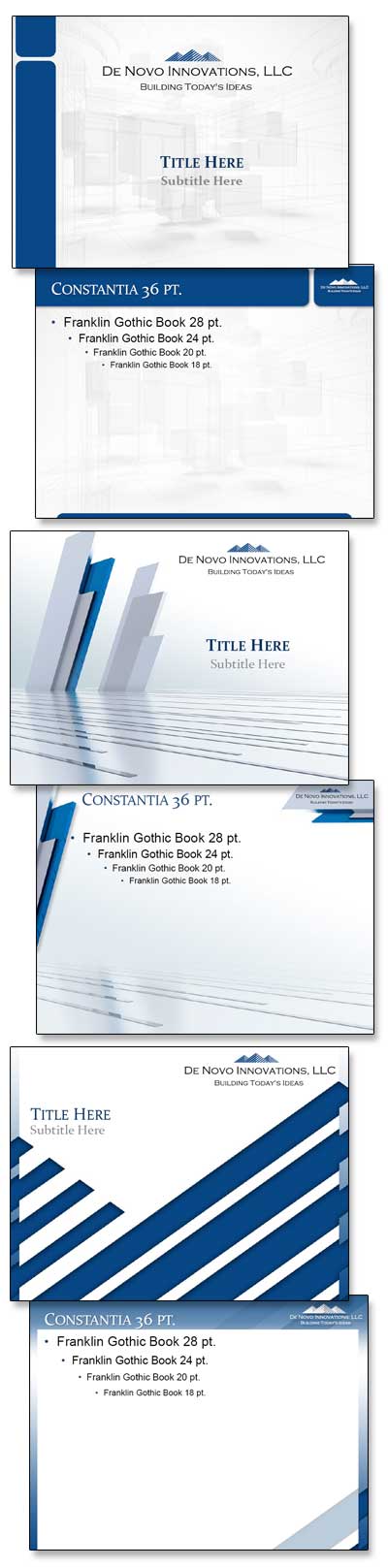
TLC Creative Services develops a lot of PowerPoint templates each year. Most templates begin with developing a series of concepts which are refined to meet each client/project needs. Here is an example of a recent project and 3 initial concepts developed (client chose the top option with some revision requests).

– Troy @ TLC

By |2016-08-16T08:57:06-07:00November 19th, 2012|Portfolio|
Go to Top