The PowerPoint® Blog

I work with PowerPoint on a daily basis and I am very honored to be a Microsoft PowerPoint MVP. We have a talented team of presentation designers at TLC Creative Services and ThePowerPointBlog is our area to highlight PowerPoint tips, tricks, examples and tutorials. Enjoy! Troy Chollar

Stack of Nexus 10 Tablets

Friday we were loading a completed interactive brochure project onto Nexus 10 tablets to be shipped to the client’s tradeshow event (can you guess which tablet is our staff test one…).

So how was PowerPoint involved in a 300+ page interactive brochure? The full project was storyboarded as a slide deck so the client could review and do copy edits before moving to the HTML5 coding.

– Troy TLC

By |2016-08-10T10:41:24-07:00June 3rd, 2013|Resource/Misc|

Google and its New Image Searches

Click here to read the full commentary article on Google’s new/refined image search process.

“I did a Google search for the image” has become a standard phrase I hear a lot. It is said without thought of image quality (which often is why I am asking where the image was sourced from, in hopes of getting a higher resolution image to work with), ownership or copyright issues. Recently, Google has revised its image search display process to simplify the process. For presenters, this may be helpful, but I can definitely understand the loss of website recognition and ease of “borrowing” images.

Example of the “old” Google search results (shows source website in background):

Here is what is seen from a Google image search today (shows only image, mage specs, and related images):

– Troy @ TLC

By |2016-08-10T10:42:19-07:00April 22nd, 2013|Resource/Misc|

Is This Dangerous – or Bad?

AV equipment is pretty amazing. It is shipped all over the country, connected-unconnected continuously (unlike the cable monitor on your desktop that was connected once and then ignored for its life) and usually setup and used in fairly dark venues. With all of this use in harsh environments, I get to see some pretty spectacular uses and failures.

This poor cable has met the end of its life (although it was setup for me to connect one of my show computers too). And just like in “A Christmas Story,” this may be a scary power setup.

– Troy @ TLC
By |2016-08-10T10:42:47-07:00April 19th, 2013|Resource/Misc|

Guy Kawasaki and Me

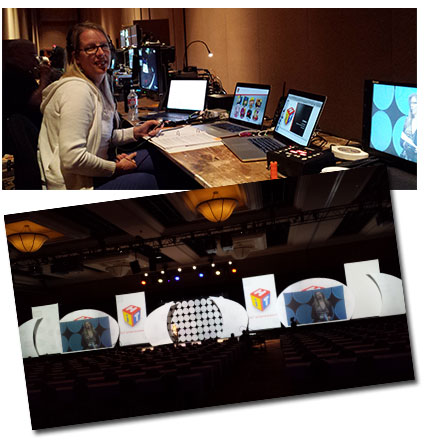
At a recent show, the keynote presenter was Guy Kawasaki, who remains a fantastic speaker. I did some refinement of his presentation slides, made sure the multimedia worked in PowerPoint, enjoyed his talk, and received a very nice thank you for the effort.

– Troy @ TLC
By |2016-08-10T10:43:25-07:00April 15th, 2013|Personal|

Microsoft Launches New MVP Award Website

I count being awarded as a Microsoft MVP for PowerPoint since 2004 as one of the “career” recognitions I am very proud of. The PowerPoint MVPs are fantastic, good friends and people you can trust to provide real answers to presentation questions.

Today, Microsoft launched a new version of MVP Award public website at https://mvp.microsoft.com. And this year is the 20 year anniversary of the program (pretty big accomplishment considering most software companies have not been around for 20 years yet).

Not a lot for you to see, but it is a good resource if you want to see who the MVPs for any Microsoft application are, and something I am humbled to be listed at.

– Troy @ TLC
By |2016-08-10T10:43:49-07:00March 25th, 2013|Personal, Resource/Misc|

Widescreen Presentations – Size Matters

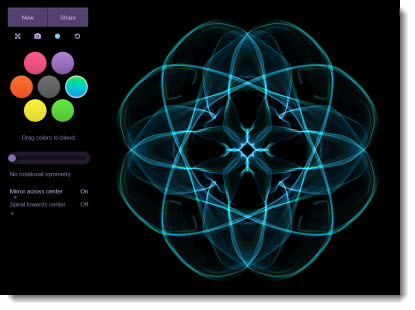
PowerPoint 2013 has updated itself to use widescreen presentations as its default (which I believe is good). And the PAGE SETUP has changed as well. The aspect ratio is the same (16:9). My friend, and Microsoft PowerPoint MVP, Echo Swinford has a great description of the page setup change here.

– Troy @ TLC
By |2016-08-10T10:44:08-07:00March 20th, 2013|Tutorial|

PowerPoint Leprechaun Animation (How To)

If you did not download the FREE 16×9 St. Patrick’s themed widescreen PowerPoint template on Friday, you missed the great Leprechaun flipping a coin animated title slide!

Here is Amber’s description and tutorial on creating the animation:

The animation is the leprechaun coming onto the slide and flipping a coin into the pot of gold. The elements used to create the effect are:
– Leprechaun with no hand on left
– Hand of leprechaun
– Gold coin
– Sparkle
– Pot of gold
– Grass and shamrocks for scenery

1. It’s always helpful to name your pictures in the selection pane before animating. (HOME tab > ARRANGE > Selection Pane). The names carry through to the animation pane, which is super helpful in knowing which picture you’re adding animation to. I’ve arranged my elements to have the grass on top, and the leprechaun in between the pot of gold and shamrocks.

2. Select the leprechaun, his hand, and the coin. Arrange them on the slide, I have him so he is peeking out right next to the pot of gold.

3. In the animation pane, apply ENTRANCE > FLY IN > FROM RIGHT > WITH PREVIOUS > .50 second duration.

4. Now that the leprechaun flies in, next we need to make his hand move in a flipping motion. The animation we are going to apply is spin, which spins from the middle of the picture. This won’t work with the bounding box the way it is currently. We need the hand to swivel from the base, not the middle of his fingers. Select the hand, and go to FORMAT > CROP. Pull the cropping edge down so the middle of the image will be the base of the hand. Now the bounding box is extended, filled with empty pixels in our PNG image.

5. With the hand selected, apply the EMPHASIS > SPIN > AFTER PREVIOUS > .25 second duration.

6. Right click on the animation in the animation pane and open the Effect Options. We want the spin to be a small angle, and come back to original position. Under amount, enter custom 19° Counterclockwise and check the Auto-reverse box. Now the hand is making a coin flip motion.

7. For the coin flip, we need to add a motion path. Select the coin, click the ADD ANIMATION button and apply CUSTOM PATH under the Motion Path section in the animation pane. WITH PREVIOUS > 1.25 sec duration > .10 second delay. Draw a loopy sort of path that goes up and end ends at the top of the pot of gold. You can always make fine adjustments by selecting the path, right click, edit points.

8. Coins spin when they flip, so we need to select the coin, hit ADD ANIMATION > EMPHASIS EFFECTS > SPIN > WITH PREVIOUS > 1.0 sec duration > .40 sec delay.

9. Right click the SPIN animation and click EFFECT OPTIONS. Under amount select TWO SPINS. Make sure this animation ends at the same time the custom motion path animation ends. We don’t want the coin to continue spinning once it lands in the pot of gold.

10. Now the leprechaun comes in and flips the coin into the bucket. The last element is the sparkle. Position the sparkle so it will be on the coin once it is in the bucket. Under animation pane apply ENTRANCE EFFECTS > ZOOM > OBJECT CENTER > AFTER PREVIOUS > .50 sec duration.

11. Your animation is complete! Here is what the animation pane should look like:

Download the PowerPoint template, which has this animation on the Title Master Layout here 1.8MB

– Troy, and Amber, @ TLC

By |2016-08-16T08:41:08-07:00March 18th, 2013|Tutorial|

St. Patrick’s Day 16×9 Template

Have a great St. Patrick’s Day this weekend! We are ending the week with a free widescreen, 16×9 St. Patrick’s Day themed PowerPoint template created by Amber here at TLC Creative Services.

Developed as a native .pptx format (PPT 2007, 2010, 2013), in 16×9 aspect ratio. Download here 1.8MB.

– Troy @ TLC

By |2016-08-16T08:41:31-07:00March 15th, 2013|Templates/Assets|
Go to Top