The PowerPoint® Blog

I work with PowerPoint on a daily basis and I am very honored to be a Microsoft PowerPoint MVP. We have a talented team of presentation designers at TLC Creative Services and ThePowerPointBlog is our area to highlight PowerPoint tips, tricks, examples and tutorials. Enjoy! Troy Chollar

PPT 2013 – Datasheet is Back!

I admit, I am not a number person. That also means I am not an Excel person. So when PPT 2007 came out and the simple Datasheet editing of chart data was replaced with a full Excel experience, I was not the happiest designer in the building. Of course, in the long run, it has forced me to face Excel much more and become much more proficient with it.

Now, with PPT 2013, it the best of the old and new! Insert or edit a chart and PowerPoint offers the nice, simple and easy to use Datasheet.

But this is not the Datasheet of old. It is more like Excel Lite, as it is not an independent application like the legacy version, but a simplified Excel editing window. So, if you love Excel, or need more functions than the Datasheet offers, just click the Excel icon.
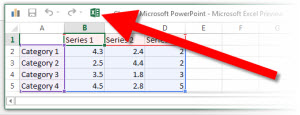
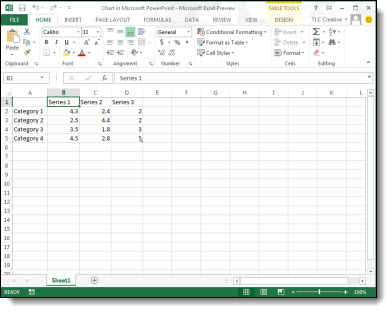
Now the chart data is being edited in the full Excel experience.
– Troy @ TLC
By |2016-08-16T09:12:38-07:00August 24th, 2012|PowerPoint|

PPT 2013 – Comments

Comments, notes from a reviewer to the presenter or presentation designer, have been a feature of PowerPoint for several versions. With PPT13, the comments interface gets a makeover and greatly enhances their usability.

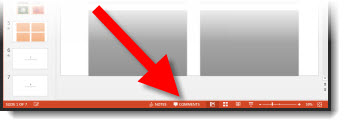
Along the bottom of the UI is a new “Comments” button.

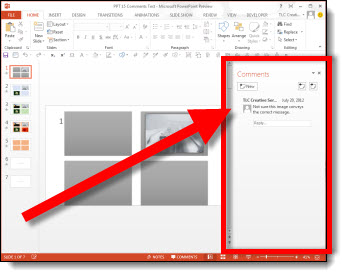
Click the “Comments” button and a new information pane opens that is a central information area for all comments in the presentation.

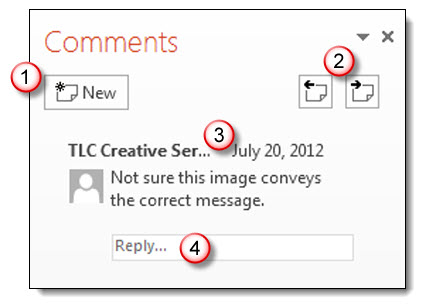
1. Add a new comment to a slide with this button.
2. To go to the previous or next comment use these buttons. This will automatically jump slides as needed.
3. Each comment shows who authored the comment, the date/time it was added, their comment and if they are a contact in your Outlook or Lync with an avatar – it will also show.
4. Reply direct to a comment in the Comments pane.

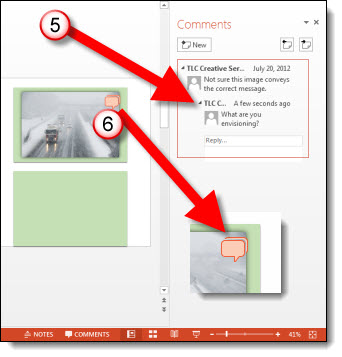
5. Each comment will show all replies. In addition, the onslide indicator (which is only visible while editing the slides and hidden from view during slide show) stacks to show multiple answers.

The ribbon also has a new section with the Comments tools, all of which can be accessed through the comments pane.

To remove/delete a comment, there are lots of options:
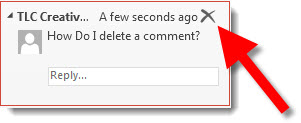
– Click the X next to the comment.
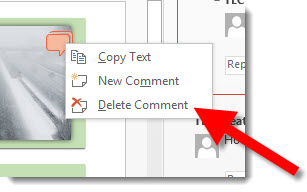
– Right-click the comments icons and select delete.
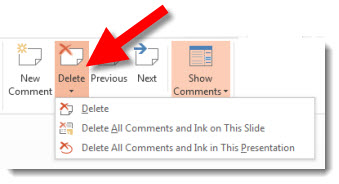
– On the ribbon in the Comments section, select delete.

I feel this is a great usability advancement for the tool and will go a long way in making this a more common use tool. Also, the comments work in legacy versions (PPT 2010, 2007, 2003) with no problem – but without the new Comnents Pane.

– Troy @ TLC
By |2016-08-16T09:12:56-07:00August 22nd, 2012|PowerPoint|

PPT 2013 – ClipArt is Gone!

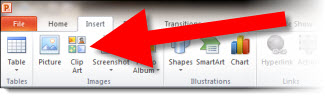
The long use name “ClipArt” can easily be argued that it has outlived is namesake. ClipArt has me imagining simple, flat, and generally bad vector images. So, with that image in our mind, it is often difficult to click the INSERT CLIPART button in PowerPoint 2010.

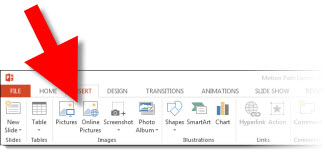
PPT 2013 has progressed and the “Insert ClipArt” button has been replaced with “ONLINE PICTURES”

The “Online Pictures” button brings up a new dialog. The “Office.com” search goes to the same image catalog as the previous “Insert Clipart” function. The Bing Image Search is a nice addition to have work directly in PPT. And the options can be customized to your workflow. The Public Beta links to a Skydrive account, Office 365 account, Flickr – and the future should offer us many more options as third party companies add the coding to tie in with Office 2013!

– Troy @ TLC

By |2016-08-16T09:13:26-07:00August 20th, 2012|PowerPoint|

PPT 2013 – Motion Paths

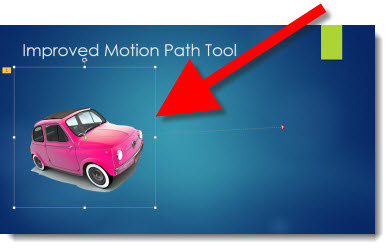
The Motion Path tool has the same features – ie. no changes to the type of motion paths or how they are executed. But there is a big change in the editing functionality.

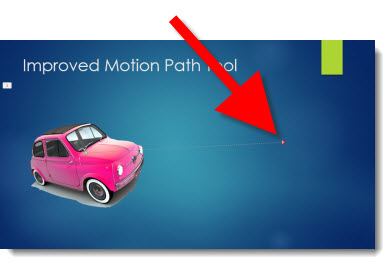
Here is my slide with a Motion Path applied to the car image.

Selecting the object (the car image in this demo) is all the same functionality.

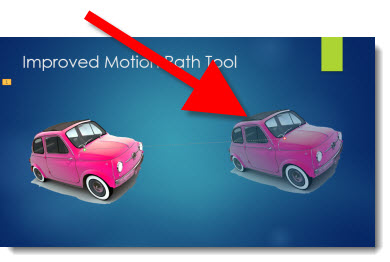
But when the actual Motion Path line is selected (ie. the dotted line), a ghosted (semi-transparent) image in the end position is seen!

This is a great function addition to this tool.

Note: If you work with Motion Paths, in any version of PPT, I highly recommend the free Motion Path Tools add-in here.

– Troy @ TLC
By |2016-08-16T09:14:23-07:00August 17th, 2012|PowerPoint|

PPT 2013 – Equidistant with the New Smart Guides

Smart Guides were introduced in PowerPoint 2010 and are a great feature. PowerPoint 2013 has made the good tool even more usable. Smart Guides can now visually show when shapes are equally spaced apart from one another.

This feature is easier to see than explain, so here is a demo showing 6 boxes being aligned and equally spaced (and another great selection of background music).
[youtube src=”https://www.youtube.com/embed/vZmppYSsuhI?rel=0″]

– Troy @ TLC
By |2016-08-16T09:14:48-07:00August 15th, 2012|PowerPoint|

PPT 2013 – The Eye Dropper is Here!

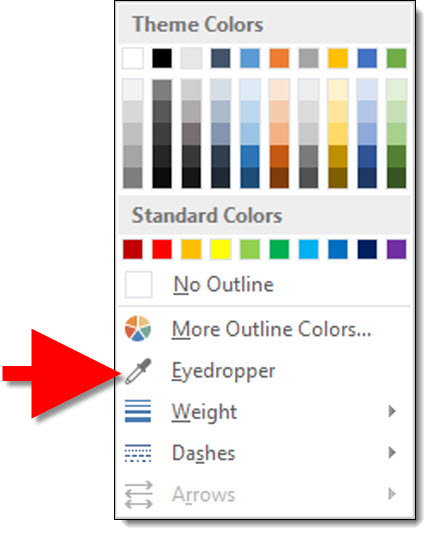
The Eye Dropper tool is common in virtually all image and graphics programs – but not PowerPoint. An Eye Dropper tool lets you select a color from anything on your screen, without entering a color value (RGB, CMYK, Hex, etc.). It is just a point-click-select-done tool. For many years, I have made great use of the PPTXtreme Color Picker add-in to add the Eye Dropper tool to PowerPoint and it has been invaluable.

PowerPoint 2013 introduces a new Eye Dropper tool!

Here is the Eye Dropper in use (and the music is kind of catchy…).
[youtube src=”https://www.youtube.com/embed/14jC_a3jtdk?rel=0″]

– Troy @ TLC
By |2016-08-16T09:15:06-07:00August 13th, 2012|PowerPoint|

PPT 2013 – New Page Curl Transition!

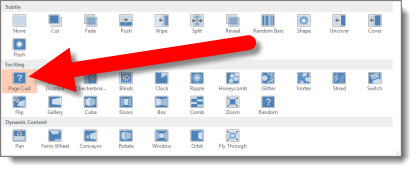
PPT 2013 has lots of subtle updates and additions. One great addition is a new slide transition – Page Curl.

The transition does exactly what its name implies, it visually mimics a book page being turned.
[youtube src=”https://www.youtube.com/embed/TAH85_q8R-U?rel=0″]

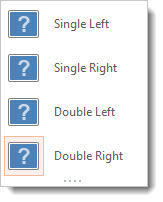
There are 4 options: 2 mimic a single large page turning and 2 mimic an open book and one half turning over the other half.

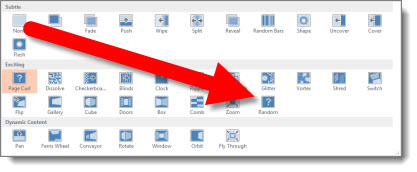
In the Public Beta of PowerPoint 2013, one additional transition is in the options – Random. This transition option disappeared in PPT 2007, so it is not really new.

I am guessing (hoping) more exciting options will be in the full release (time will tell).

– Troy @ TLC
By |2016-08-16T09:15:43-07:00August 10th, 2012|PowerPoint|

PPT 2013 – New Format Picure Dialog

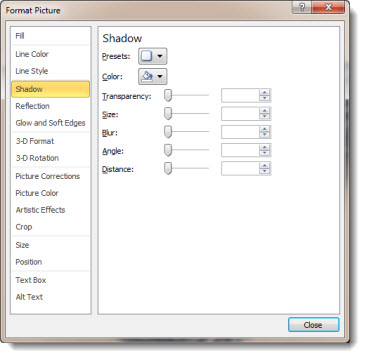
Here is the familiar Format Picture dialog from PPT 2010:

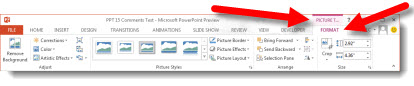
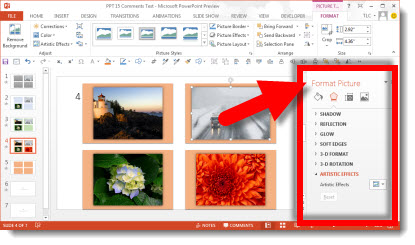
In PPT 2013, the tools options and features remain the same, but the dialog gets a remake. The Format Picture ribbon shows the Metro icons:

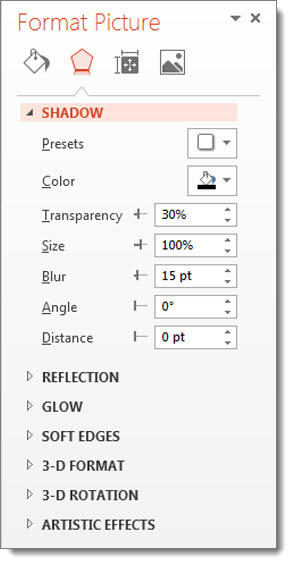
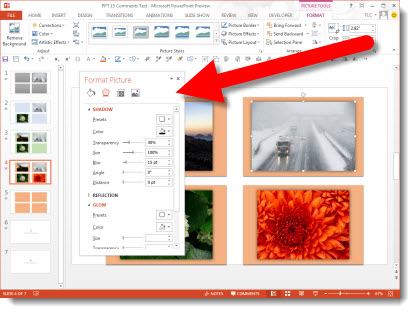
Opening the Format Picture dialog opens a new pane on the right:

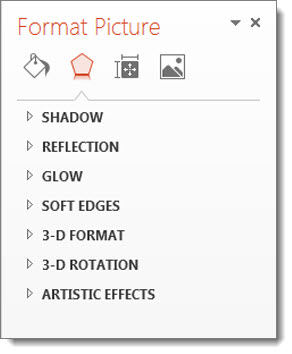
This new single pane is where all of the formatting options are accessed:

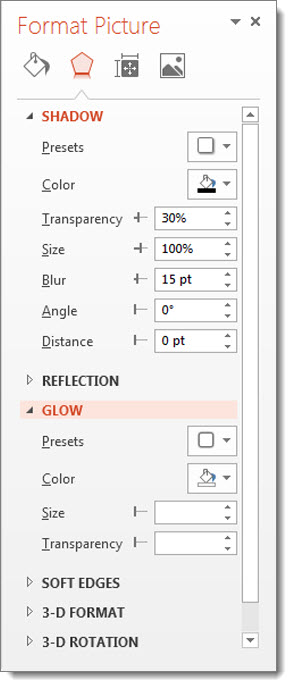
Select a tool and the dialog box extends to show the formatting options.

Select another tool and the box continues to extend and reveal those formatting options.

In addition, the Format Dialog pane can be detached from the UI and become a free floating dialog box. When floating, the same expanding list and organization of tools is seen. The floating dialog is not bound to the application window and can be positioned on a second monitor.

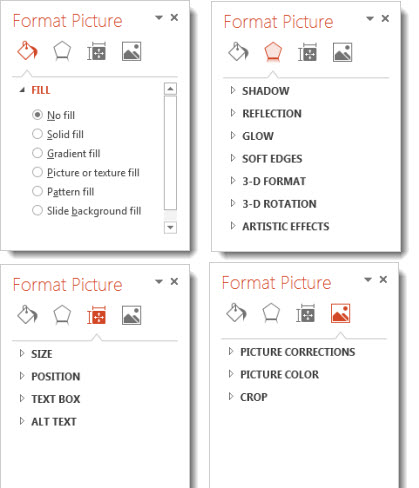
Using the icons across the top of the Format Dialog brings up the options for:
– Fill and line
– Effects
– Size and properties
– Picture

– Troy @ TLC
By |2016-08-16T09:16:02-07:00August 8th, 2012|PowerPoint|

Office 13 App Icons

Every version of Office has its own variation of the application icons. Here is a quick history:

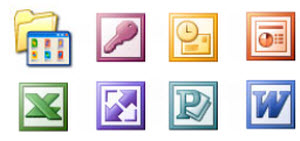
Office 2003 used square “chiclet” icons:

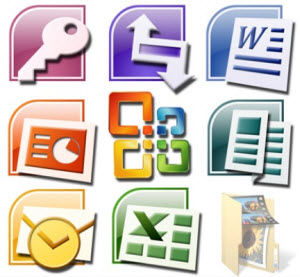
Office 2007 used alpha transparency for unique, non-square, icons and added gradients throughout:

Office 2010 used the solid square of 2003, filled with the icons and gradients of 2007, and added uniform identifying letters for each app (despite the full application suite had 3 “P” icons):

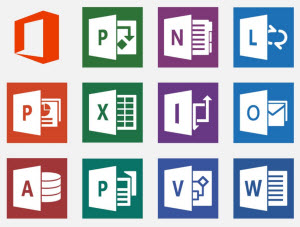
Office 2013 has both a solid square version and a alpha transparency version. The icons are developed direct from the Microsoft Metro style guide, which is simplified icons, but retaining the identifying letters (and yes, still 3 P’s):

When PowerPoint 2013 is launched, one of the immediate reactions is the orange bars and accents in the UI. One of the constants for Office is each application has an identifying color. Looking through the generations of icons, PowerPoint is orange, Word is blue, Excel is green, OneNote is purple, etc. So by the luck of history, the most visual application, PowerPoint, has one of the most offending/conflicting/glaring colors associated with it… I can say, based on the early builds of PowerPoint I looked at, the UI could have been much more distracting.

– Troy @ TLC

By |2016-08-16T09:16:21-07:00August 6th, 2012|Resource/Misc|

PPT 2013 – Updated Ribbon “Metro” UI

When you first launch PowerPoint 2013, it looks similar and different at the same time.

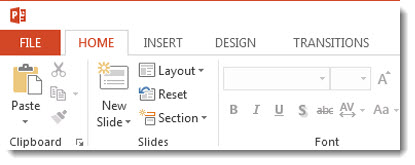
If you look at the ribbon, everything is in the now familiar locations and order.

When viewed more closely, you can see all of the aesthetics are new – in the “Metro” style. The Metro style was developed by Microsoft for the Windows Phone 7 interface. It is a success and has now become the basis for the Windows 8 UI and the Office 2013 UI, plus the MS website and many other interfaces.

Ironically, one of the original design reasons for Metro was “a key design principle of Metro is better focus on the content of applications, relying more on typography and less on graphics.” But, PowerPoint’s interface is definitely icon oriented and where typography is used, it has mixed reviews (ie. all caps for the ribbon tabs).

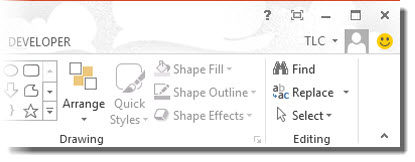
Also new is the logged in user option (for my Beta install the user is “TLC”). There is a lot of new features around the user account, which are overviewed in upcoming posts.

The happy face icon on the far right is a standard feature of Microsoft beta software. Clicking it brings up a dialog box to submit feedback, bug reports, etc. you discover while using the application. The smiley will not be a part of the retail version.

While the new aesthetics are not going to be everyone’s favorite, they are what is coming to a computer near you.

– Troy @ TLC
By |2016-08-16T09:17:33-07:00August 3rd, 2012|Tutorial|
Go to Top