The PowerPoint® Blog

I work with PowerPoint on a daily basis and I am very honored to be a Microsoft PowerPoint MVP. We have a talented team of presentation designers at TLC Creative Services and ThePowerPointBlog is our area to highlight PowerPoint tips, tricks, examples and tutorials. Enjoy! Troy Chollar

Being In The Audience…

On most projects my work area is setup backstage. But on this particular project, there was no backstage (front projection), and the tech table was completely in use. So I basically setup shop in the audience.

– Troy @ TLC

By |2016-08-16T10:52:41-07:00October 27th, 2010|Personal|

Green Screen Video for PPT Slides

On a recent show I was asked to develop the speaker IMAG slides with a curved design to match the set design (IMAG = Image MAGnification, and for this event it was live video of the speaker). The solution was to work with the video switch department and setup a green screen video area. Here is my slide:

We went with the standard green screen green. The key was to assure no slide had any solid green on the left half of the slides. During the show, the video switch would bring in the camera shot (rectangular) and it would fill the curved green area to create a custom speaker IMAG window.

– Troy @ TLC

By |2016-08-16T10:53:00-07:00October 25th, 2010|Personal, Resource/Misc|

Small Textures for Big Images

This is can be a great visual effect that can make large images out of very small files. The concept of using repeating pattern images to fill a large object has been used, by me, since the 1980’s for web design. It is still a valuable tool to use for presentations today. Here is an example:

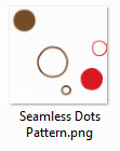
1. Here is my very small image. It is a .png image, 102×102 pixels and only 2KB file size.

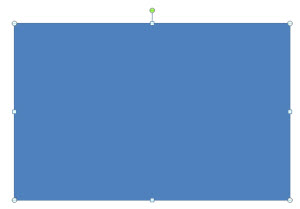
2. Here is the large rectagle shape on my slide.

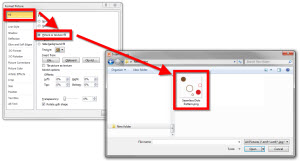
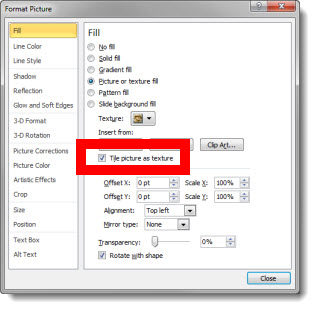
3. I then change the fill from SOLID to PICTURE OR TEXTURE FILL, then FILE and finally choose my seamless texture image.

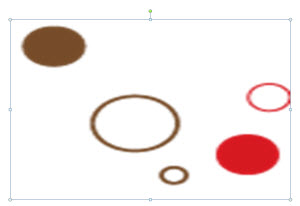
4. This is the first result – which is not the final result.

5. Click TILE PICTURE AS TEXTURE.

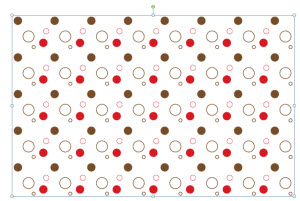
6. This is now the same image. It can be resized, to any size and the pattern background does not distort or loose quality.

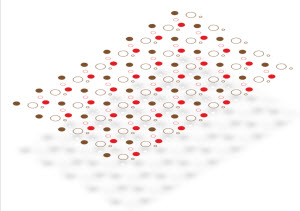
7. In addition any of the formatting options can be applied, because it is a PowerPoint shape. Here I used the 3D Rotation and a drop shadow to create a new, very small file size, image for my slide.

– Troy @ TLC

By |2016-08-16T10:54:04-07:00October 23rd, 2010|Tutorial|

Presentation Summit – MVPs

The 2010 Presentation Summit concluded today and it was a really great event. It is the one public event each year that has a large gathering of the Microsoft PowerPoint MVPs – and Microsoft PowerPoint developers and managers.

Here is our MVP group this year:

Glen Millar, Elen Finkelstein, Julie Terberg, John Wilson, Troy Chollar, Echo Swinford, Glenna Shaw, Ric Bretschneider, Geetesh Bajaj, Sandy Johnson (not pictured)

– Troy @ TLC

By |2016-08-16T10:54:58-07:00October 21st, 2010|Personal|

Presentation Summit – Garr Reynolds

Garr Reynolds (author of Presentation Zen) was the morning keynote speaker at this year’s Presentation Summit – live from his home in Japan.

This was probably one of the most engaging remote/webcast presentations I have seen.The small rectangle in the lower left is the webcam Garr had of the audience. He managed a very entertaining and audience interactive presentation.

– Troy @ TLC

By |2016-08-16T10:59:57-07:00October 19th, 2010|Personal|

Mac – Windows – It’s Doesn’t Matter To Me

When the client does image research and finds the perfect image – great! But when the perfect image has a Windows PC vs. a Mac it is time for some Photoshop work.

Here is the original image with the “windows” monitor.

And after a quick photoshoot of an iMac and some Photoshop work, the new version:

– Troy @ TLC

By |2016-08-16T11:01:17-07:00October 17th, 2010|Portfolio|

Gradients for Custom Text

Final gradient sample (for this series). In this slide the gradient fill is used for the text outline, the box outline and the box fill.

One of the really great features is the ability to make lines gradient. On the text close-up it is easier to see the outline is opaque white at the top and gradients into a semi-transparent grey.

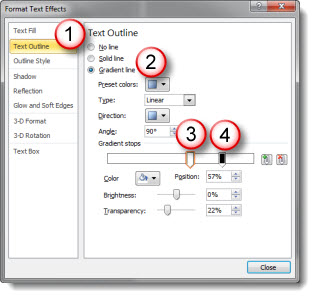
1. Select text, open the Format Text dialog and choose TEXT OUTLINE
2. Change Text Outline to GRADIENT LINE
3. Add a white gradient stop. I moved mine to the right to extend the amount of solid white at the top of each letter
4. Add a 2nd stop that is black and semi-transparent (or use an opaque grey for same effect)

For the lower box I combined a gradient fill and a gradient outline. This is great to be able to create a single element with custom design and text all in one element.

For the box fill, the gradient is right-to-left:
1. Choose FILL and angle is 180
2. White stop that is slightly semi-transparent
3. Black stop that is transparent

For the box outline, the gradient is left-to-right:
4. Choose LINE COLOR and GRADIENT FILL with angle 0
5. White stop that is slightly semi-transparent
6. Black stop that is transparent

Also, I set the right indent on the TEXT BOX section to .3 to inset the text equally on all slides.

Download the Gradient Text slide here (34k) .

– Troy @ TLC

By |2016-08-16T11:01:47-07:00October 15th, 2010|Tutorial|

Gradient Triangle Accent Elements

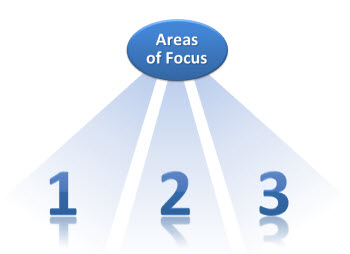
This is another layout recently developed for a project. The goal was to avoid a bulleted list and create a more dynamic, and memorable, graphic layout.

1. Create a tall triangle

2. Using the gradient fill options modify the triangle to move from semi-opaque to transparent

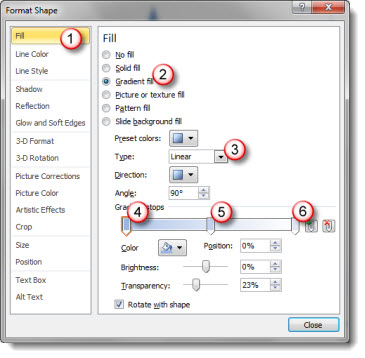
1. Open the FORMAT SHAPE dialog and go to the FILL section
2. Select GRADIENT FILL
3. Make certain the type is LINEAR
4. Stop 1 (top of triangle) is desired color and 20-25% transparency
5. Stop 2 (middle of triangle) is a lighter color and 40-50% transparency
6. Stop 3 (bottom of triangle) is any color and 100% transparency

3. The result transforms the triangle to this

4. And here is an example layout using all PPT shapes and text

5. The great thing is the triangles use transparency and not white, so they can be used on any background

Click here to download the slide layout (29K).

– Troy @ TLC

By |2016-08-16T11:02:24-07:00October 13th, 2010|Tutorial|
Go to Top