The PowerPoint® Blog

I work with PowerPoint on a daily basis and I am very honored to be a Microsoft PowerPoint MVP. We have a talented team of presentation designers at TLC Creative Services and ThePowerPointBlog is our area to highlight PowerPoint tips, tricks, examples and tutorials. Enjoy! Troy Chollar

PPT 2003 to 2007 Commands

If you have installed PowerPoint 2007, you know the User Interface with its new Ribbon layout is very different! Keep this Microsoft website handy as you begin to relearn how to do everything.
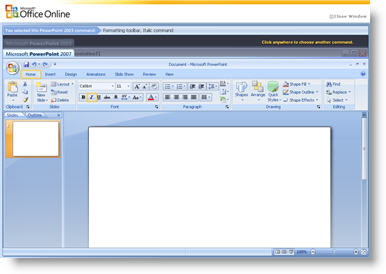
This interactive Flash page allows you to click and choose almost any feature in a PPT 2003 simulation and then it shows where to find the same command in PPT 2007. Click here to try it.

– Troy @ TLC
By |2016-11-17T15:56:05-08:00April 12th, 2007|Software/Add-Ins, Tutorial|

Backstage

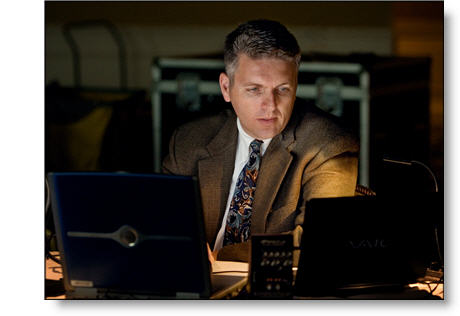
On a recent project in Dallas (the one that took me 10.5 hours on the plane to arrive from San Diego (should be a 2.5 hr flight)), the event photographer took this photo and emailed it me – thanks Sal!

The nice side lighting is actually a combination of another laptop monitor and the 12×9 screen in front of me. Despite the great photo, I am as usual working in the dark…

– Troy @ TLC

By |2016-11-17T15:55:24-08:00April 10th, 2007|Personal|

Existing Presentation to Widescreen (pt 2)

For the best quality layout and graphics when converting an existing presentation to widescreen I go through several steps. Note: 1-4 assure that new widescreen presentation maintains all formatting such as fonts, custom bullets, default color scheme, header/footer, etc.

1. Open existing presentation

2. Save As (name)_WideScreen.ppt

3. Delete all slides

4. Change page size to needed widescreen size

2. If background artwork is developed in Photoshop, modify in Photoshop to create new version of artwork that is setup for new widescreen aspect ratio

3. Update the master slide(s) with modified artwork and adjust formatting to fit widescreen layout

Now I have a widescreen template of my presentation.

– Troy @ TLC

By |2016-11-17T15:54:14-08:00April 6th, 2007|Tutorial|

Existing Presentation to Widescreen

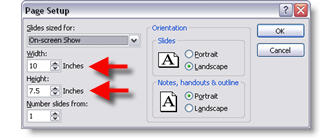
So you have an existing presentation, created as a standard 4×3 aspect ratio (10″x7.5″). But you have a wide screen for your next meeting. EASY, from the previous post you know to go to FILE >> PAGE SETUP and modify the size — DOHHH, everything is messed up now!

Here is a standard 4×3 presentation (10″x7.5″)

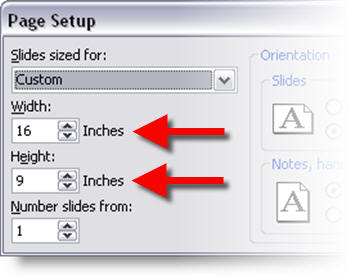
After changing the Page Setup to 16″x9″ you end up with this

Note:
– Imported graphics and autoshapes all distort
– Standard PowerPoint text keeps its aspect ratio

There is no instant or easy way to do this… but in the next post I will give a few suggestions.

– Troy @ TLC

By |2016-11-17T15:53:22-08:00April 4th, 2007|Tutorial|

Other Widescreen Page Setup Options

Depending on some variables such as client preference or AV equipment available, I go with 1 of 3 options when developing a widescreen presentation.

Option 1:
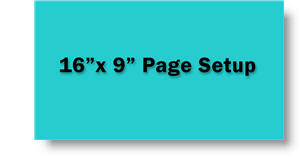
– Page setup = 16”x9”
– This is the easiest to work with and tends to be the least confusing for people inexperienced with widescreen shows
– Problem is all graphics should be created at full size, not upsized from an existing 4×3 presentation

Option 2:
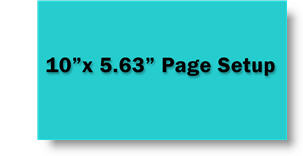
– Page setup = 10”x5.63” (or 8”x4.5”)
– Best size to use if have to use existing graphics from a 4×3 presentation and if client wants to reuse elements in their (4×3) presentations
– Problem is it really confuses people unfamiliar with widescreen shows and aspect ratios

Option 3:
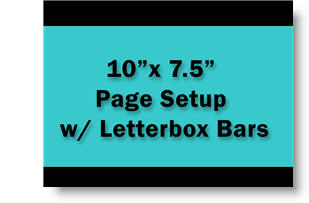
– Page setup = 10”x7.5” (standard 4×3 presentation)
– Add black letterbox bars to top and bottom leaving a 16×9 “active” area
– Again, good for using existing 4×3 presentation graphics or need to supply images for client to repurpose into their presentations
– Also good for multi-source shows as lower letterbox area can contain quick reference syncing information (eg. L1, C1, R2 (left 1, Center 1, Right 1))
– Problem is needs to have real scaler that can cut off unused portion sent to project and a good projector as not all pixels are being used

– Troy @ TLC

By |2016-11-17T15:52:46-08:00April 2nd, 2007|Tutorial|

Going Wide Screen

The era of the wide screen presentation is here. Computer monitors are wide screen, plasma and lcd TVs are wide screen, and wide screen projectors have dropped in price. So how do you create a widescreen presentation to use all of this great “realestate”?

1) Open a new presentation

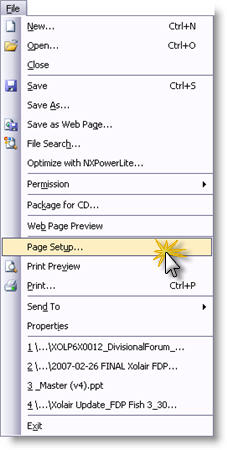
2) Go to FILE >> PAGE SETUP

3) Here is the standard, 4×3 aspect ratio, presentation

4) Change the 10″ x 7.5″ to 16″ x 9″

Now you have a wide screen presentation set to fit the industry standard 16×9 aspect ratio.

– Troy @ TLC

By |2016-11-17T15:52:25-08:00March 31st, 2007|Tutorial|

Small Can Be Better

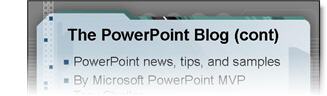
Here is a common element that really does not get much attention. Note the “(cont)” at the end of the header.

It is the same font, same color, same size as the rest of the headline. But it really is not a part of the headline content. When I need to add this to a presentation header I do a little formatting like this

The additional item is now non-bold and several font sizes smaller. It conveys the needed information (that this is the same topic continued onto another slide), but is less obtrusive and does not compete with, or alter the header message.

– Troy @ TLC

By |2016-11-17T15:51:33-08:00March 29th, 2007|Tutorial|

Vista and PowerPoint Add-Ins

I am grappling with Vista and its new file structure and security ‘features.’ One thing I have discovered, and this affects several add-ins for PowerPoint, PhotoShop and Dreamweaver so far is the permissions settings for the PROGRAM FILES folder. It looks like Vista has made these default to read only, or non-accessible for many add-ins. Of course this is only a problem is the add-in installs itself in the Program Files folder (which almost all do).

I can offer two recommendations:
1. Give all users full permissions on the Program Files folder (Note: this may lead to other security issues as Microsoft has seen fit to change this globally)
2. Change where the add-in is installed. Create your own folder like C:Add-Ins (Note: the application will need to know to look for add-ins here)

Ah the joys of new technology… Maybe I will be able to get back to designing presentations soon.

– Troy @ TLC

By |2016-11-17T15:50:46-08:00March 26th, 2007|Software/Add-Ins|

What Takes Up My Time…

Okay, a bit of guilt here. First I lock myself out of the blog and spend over a week figuring out how to hack into it. I have been in Seattle, San Francisco, Big Bear, Los Angeles (3Xs), Boston and Orlando in the past 3 weeks – so time has been spent traveling and working onsite at many corporate events.

But the BIG thing that has taken my time is this new computer (actually I had a number of these delivered, but this is the one I am configuring first). It is running Windows Vista Ultimate and has a ton of power (2.16Ghz Dou Core 2, 2GB ram, 512MB video card, 160GB hard drive, etc – and it is a laptop!). Vista is stunning, but I am spending lots of time working through issues with various software to assure they work and are stable.

So my time has been taken up with airplanes, taxi’s to hotels and the nuances of Vista. Stay tuned, I have a backlog of great tutorials and information series that will start showing up soon!

— Troy @ TLC

By |2016-11-17T15:49:42-08:00March 24th, 2007|Personal|
Go to Top