The PowerPoint® Blog

I work with PowerPoint on a daily basis and I am very honored to be a Microsoft PowerPoint MVP. We have a talented team of presentation designers at TLC Creative Services and ThePowerPointBlog is our area to highlight PowerPoint tips, tricks, examples and tutorials. Enjoy! Troy Chollar

Morning Nutrition Is A Must

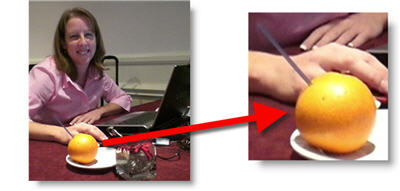
PowerPoint can be very time consuming – up before anyone else and ending after all have gone. This past week one of Lori’s co-workers on a large show “helped” her by supplying fresh Florida (we were working in Florida) Orange Juice for breakfast as she was too busy to get any… thanks Chris!
– Troy @ TLC
By |2016-11-17T15:36:59-08:00February 5th, 2007|Personal|

Allocating Desk Place

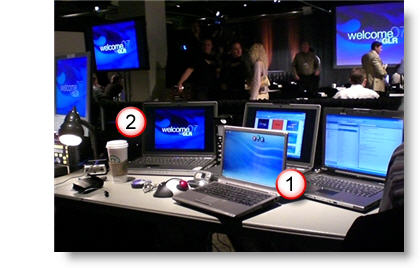
Setting up a mobile graphics office is sometimes a challenge on a smaller table/desk. At this recent show I was literally stacking computers two deep to get all of the graphics horsepower within reach.

Of course there is always room for an espresso drink (see #2)!

– Troy @ TLC

By |2016-11-17T15:35:46-08:00February 1st, 2007|Personal, Portfolio|

PPT Requires A Lot of PSD

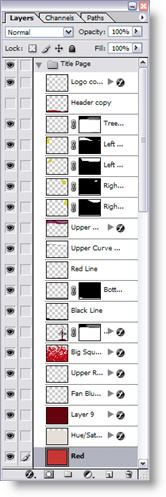
Here is just the title slide to a very visually stunning presentation Lori recently developed for a client (maybe later I will upload some of the highly stylized content slides).

The key with this entire project, is that the amount of time spent in Photoshop was more than double the amount of time spent working in PowerPoint. Here are the layers created in Photoshop to end up with the above template background (and this one is pretty straight forward/easy in the number of layers and effects).

– Troy @ TLC

By |2016-11-17T15:34:39-08:00January 30th, 2007|Portfolio|

From This To That (Technical Architecture Slide)

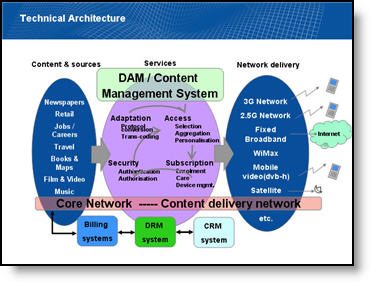
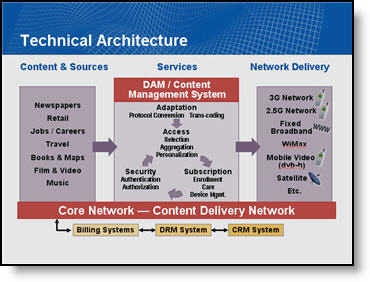
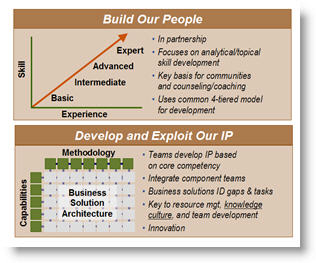
With a recent project I began to feel that part of my duties were interpreter. All the information was there, but I did not have the presenter available to explain the industry and what the message of the slide was. All is done and very well received, but thought I would share a some before-and-after slides.

Before:
Lots of information, sort of compartmentalized, lots of colors, lots of confusion and of course, clip art.

After:
Took a while to figure out the message, then recreate with a new layout that allows everyone to see the interaction of the elements, a more limited color palette and no more stock clip art.

– Troy @ TLC

By |2016-11-17T15:33:57-08:00January 28th, 2007|Portfolio|

Lights, Camera, PowerPoint

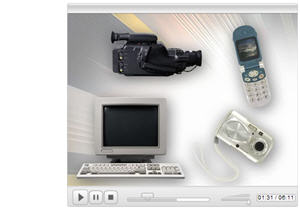
Here is a link to a recent project. Thought it would be appropriate to share here because in creating this video tutorial for a client I used Camtasia for the video screen captures, Vegas Video, Photoshop and to make things simple I used PowerPoint for a few things:
1. My storyboard of topics covered (sent to client for approval)
2. Created all of the static image layouts as PowerPoint slides and exported as .jpg’s (which were added to the video timeline)

click here to view the video.

– Troy @ TLC

By |2020-05-31T21:27:56-07:00January 26th, 2007|Portfolio|

Seating for 2,500+ Please

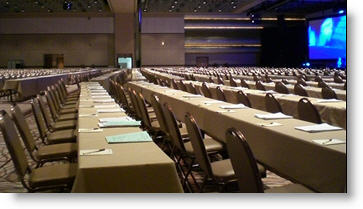
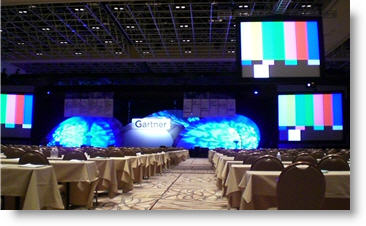
I spent last week in Las Vegas working on, and running, the presentations for a large corporate event. Walking into a ballroom, before anyone is there, for a group this size is always “big.” Just a few quick photos of the main ballroom seating.

Note the ‘flying’ screens. With a room this large a second set of screens hang suspended above the audience so people in the back can read the slides.

– Troy @ TLC

By |2016-11-17T15:32:49-08:00January 24th, 2007|Personal, Portfolio|

Add Align Tools to a Toolbar

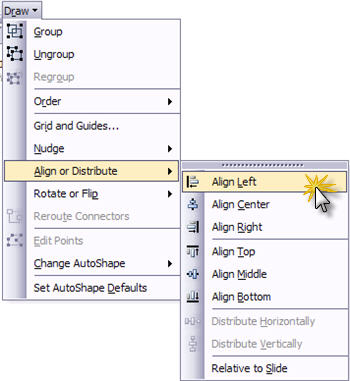
I use the Align and Distribute tools constantly. But accessing them by going to the DRAW button and then into the ALIGN OR DISTRIBUTE tab was just to much work. I added these important tools to my Draw toolbar, which now has a number of addtional buttons – all to make my work faster and easier.

– Troy @ TLC

By |2016-11-17T15:32:04-08:00January 22nd, 2007|Software/Add-Ins, Tutorial|

What’s Wrong With It? (Alignment!)

In working through many, many presentations this week a large part of my time was spent not only improving the overall visual content and layout, but giving the small, but professional, tweaks to elements. As example:


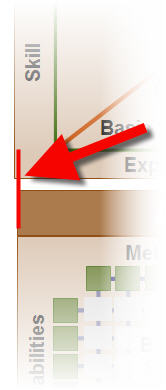
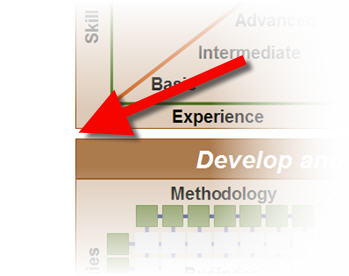
Here are two elements, as provided. They screamed out to me, but what was the problem…


Zooming in we can see that the two equal size boxes are not aligned.


The solution is very easy in PowerPoint.
Select both boxes.
Go to DRAW >> ALIGN OR DISTRIBUTE >> ALIGN LEFT.


Now both boxes are perfectly aligned! (and all is good with in my world… just 200-300 more slides to go).

– Troy @ TLC

By |2016-11-17T15:31:46-08:00January 20th, 2007|Tutorial|

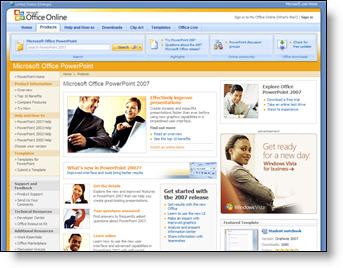
MS PowerPoint Homepage

Everyone here uses PowerPoint, but how many have explored the PowerPoint section of the Microsoft website?

Amongst the advertising, hype and standard Microsoft info is a lot of good information, tips, and files. Click here to go straight to the PowerPoint homepage.

– Troy @ TLC

By |2016-11-17T15:31:18-08:00January 18th, 2007|Software/Add-Ins|
Go to Top