The PowerPoint® Blog

I work with PowerPoint on a daily basis and I am very honored to be a Microsoft PowerPoint MVP. We have a talented team of presentation designers at TLC Creative Services and ThePowerPointBlog is our area to highlight PowerPoint tips, tricks, examples and tutorials. Enjoy! Troy Chollar

Here is the Design Challenge #5 Isometric Chart

Our very creative design team took this week’s highly collaborative challenge and turned it into something incredible! Not only did they communicate and collaborate efficiently and effectively, but they took the idea of a bar chart to a new dimension (or perspective)!

The TLC Creative design team kicked off the project with a group call using a Teams’ video meeting. The discussion was focused on ideas of what they wanted the result to visually be, how to divide the tasks, and assign roles and responsibilities. They used the Posts tab in the designated channel to post a recap of what was covered on the call for those that couldn’t make it:
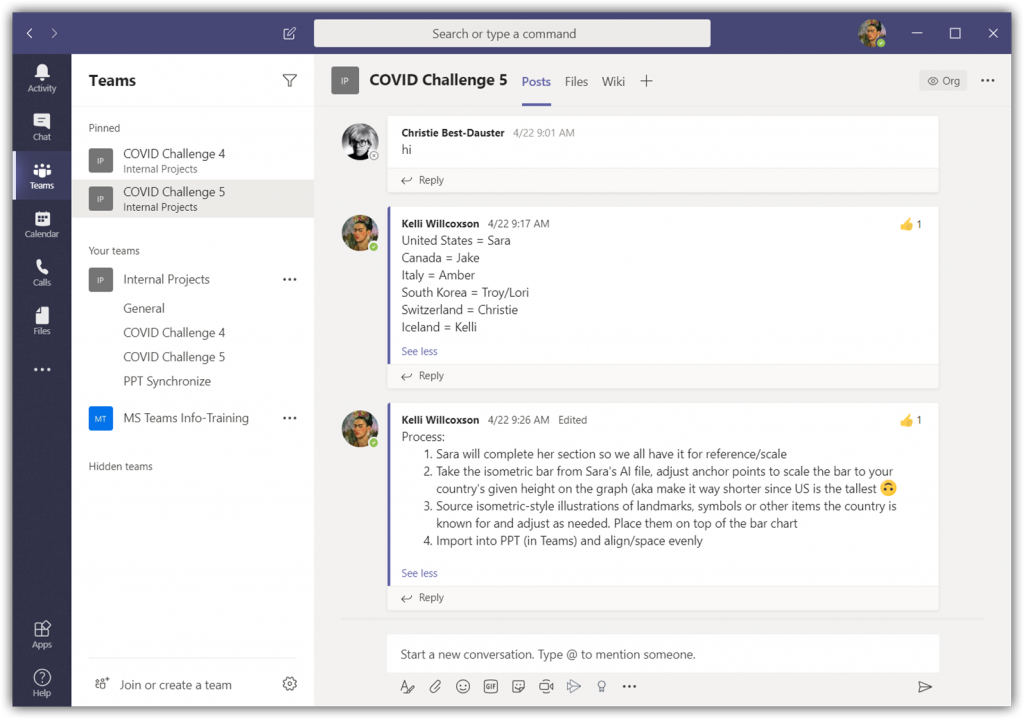
The design team decided to maintain the bar chart concept, but with a more decorative and visual styling. Color scheme identified, perspective agreed upon, and graphic style to represent each country established. Each team member created their assigned country’s artwork and data viz graph. Each was merged into the core PowerPoint file hosted in the Microsoft Team.
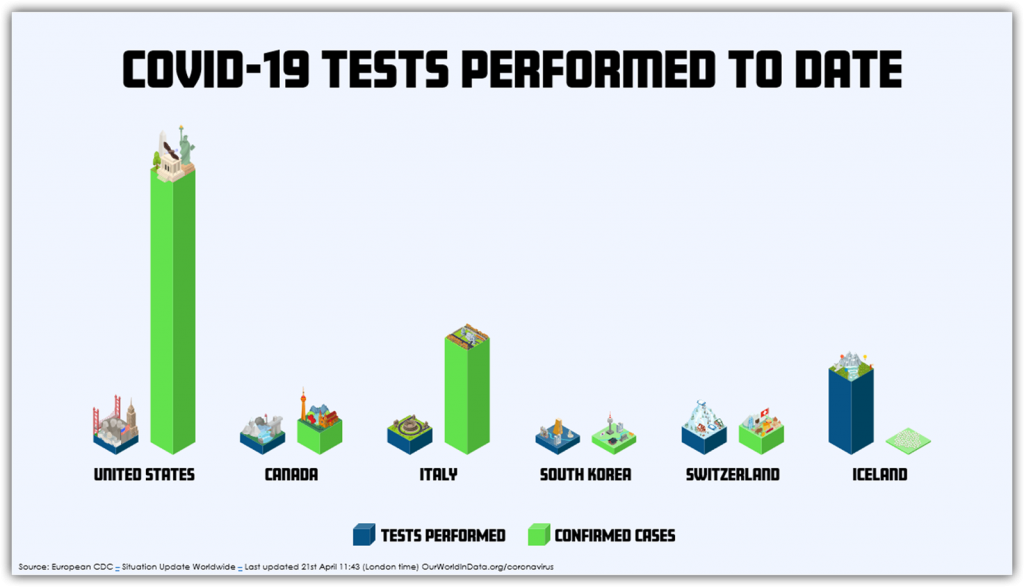
The next phase was another group collaboration meeting to discuss options for moving from good to a great visual. Here is the final team collaboration chart and slide layout:
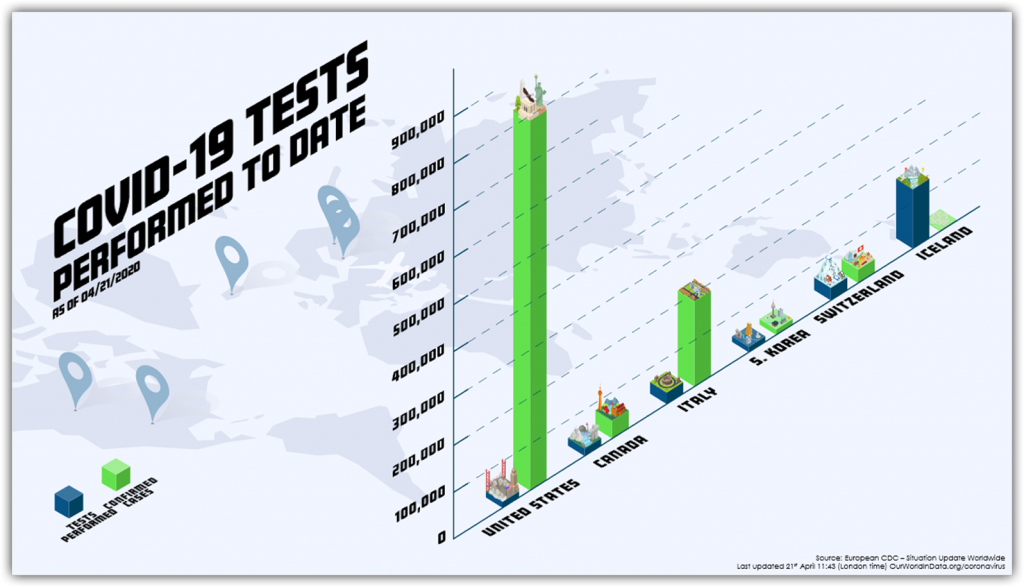
All text is editable in PowerPoint. All elements are imported .svg graphics that can be adjusted in PowerPoint. The entire process of working from a central Teams file with everyone’s edits automatically incorporated for the other designers to instantly see and work in tandem with each other was a success! Our design team did a great job on this challenge and, as a bonus, our design studio is using Microsoft Teams more than ever now for communication and collaboration!

Troy @ TLC
By |2020-06-03T22:16:30-07:00June 10th, 2020|Personal, Portfolio|

What is the TLC Creative Design Challenge #5?

With a whole month of COVID Challenges under the team’s belt, it seemed time to work on something more timely! Building off the previous design challenge (where our design team worked from files hosted in a Microsoft Teams team), we decided to explore the collaborative features of Microsoft Teams even more. The TLC Design Team was sent this prompt (via a designated channel in Teams!) to start the week:

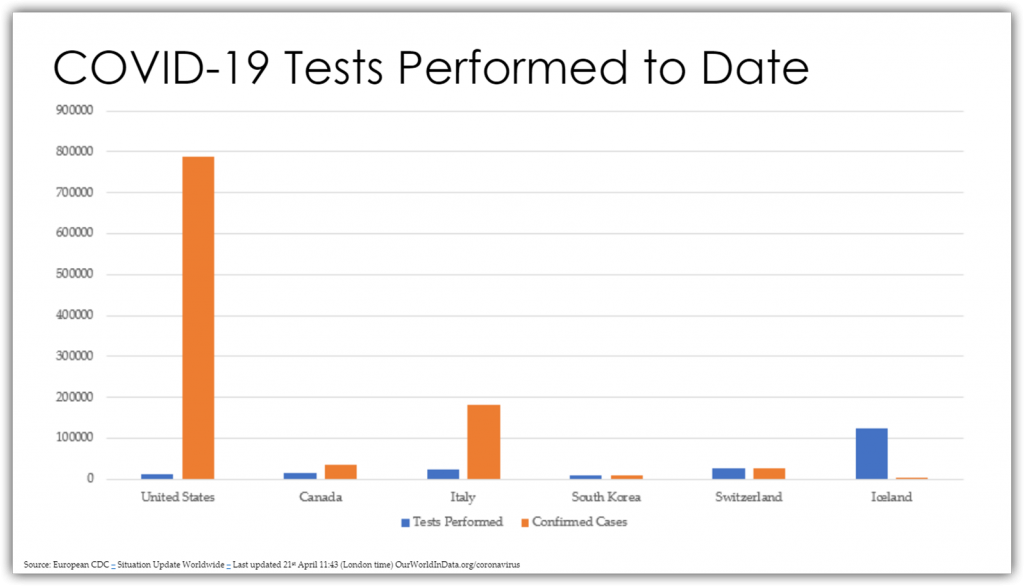
Welcome to Challenge 5! In the Files tab, you’ll see a single slide with a chart comparing the number of COVID-19 tests performed to date with the number of confirmed cases being reported. Each of you will pick one country and design those two bars of the chart. The goal is to focus on two things: design (do something amazingly creative with your piece of the chart) and communication (work together as a team to determine how you’re going to go about sharing the work). 

Key takeaways: the final design will be just 1 slide that all 6 designers worked on, and it will all be done with Microsoft Teams’ collaborative environment.

This is what our designer team was given to work with (in Microsoft Teams, of course):

Check back in a couple days for the incredible results!

By |2020-06-08T14:11:24-07:00June 8th, 2020|Resource/Misc|

Tabs in PowerPoint

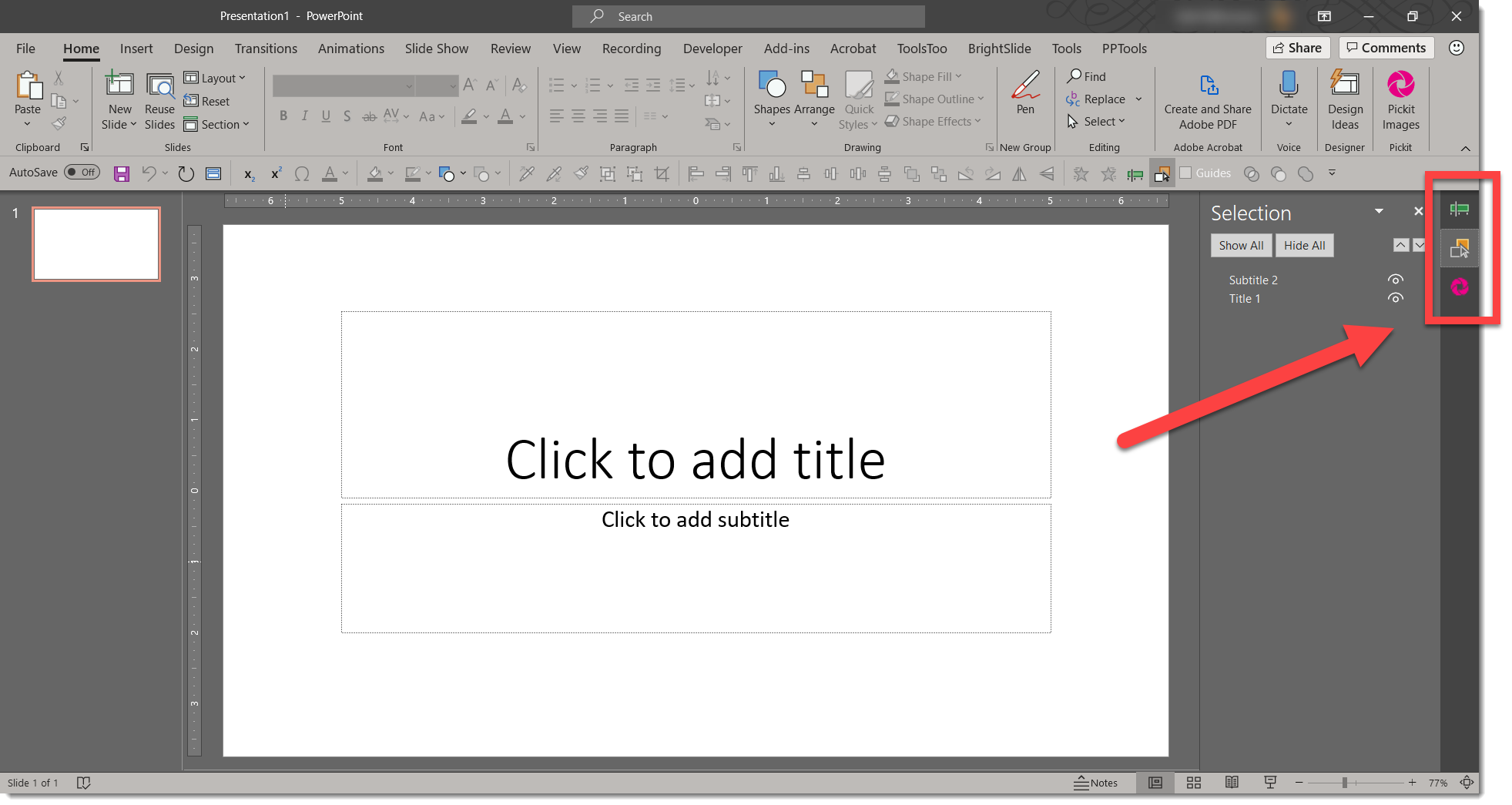
It’s official: PowerPoint has made its first major addition the Ribbon interface since its inception with PPT 2007. The addition provides no additional functionality, but it does greatly speed up production and design! It is the seemly simple, but wonderful, tabs for the right action pane, called “Tabbed Panes.”    

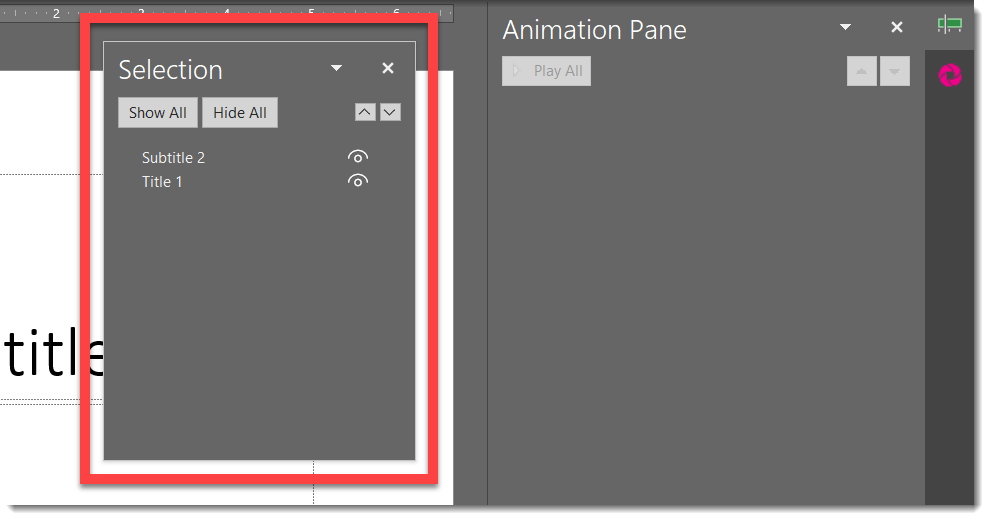
As a task pane is opened, a tab for it is included along the right column. To change which tab is available, click the icons. Tabs are not closed unless you click the X icon. Tabs include: Format, Animation, Selection Pane, Comments, and Version History.

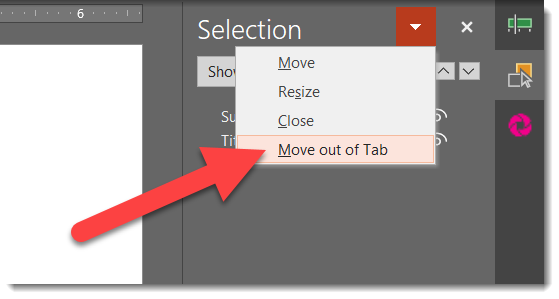
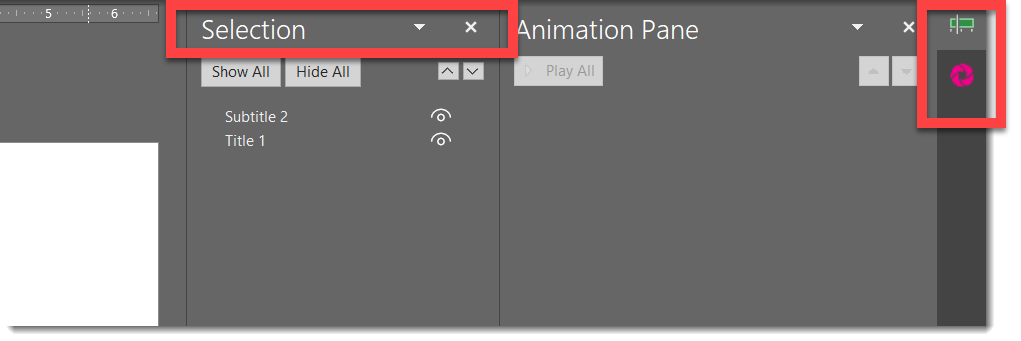
There are a few things to note with this added feature: first, you must have 2 or more task panes open to see the tabs; just one will appear just as it always has. Also, there is a nice interface to allow side-by-side view of multiple tabs you select (as example, I often have the animation and selection pane tabs open side-by-side when working on a complex animation). View the tab you want on the “left” and select “move out of tab”.

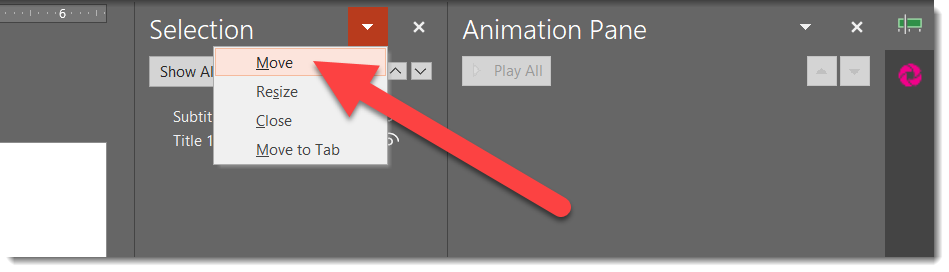
It is still possible to make any pane undock and become free floating (as example, to place on a second monitor).

However you choose to arrange your panels, here’s a tip: to navigate to a pane with keyboard, double-tap press F6 – first to focus on the active pane, and second to focus on the tab icons. Use the up/down arrow keys to select different tabs, and then press enter to bring them to front.

This is a great update that increases the usability of PowerPoint even more. However, I have a few questions in to Microsoft: What is the official name of these “tabs”? When were they added? How do we see multiple task panes side-by-side now (It is common to have the animation and selection panes open at the same time)? Can the tabs be preset to be present when PPT is launched?

Reference information: https://blog-insider.office.com/2020/02/20/improved-pane-management/

Troy @ TLC

By |2020-06-01T15:25:35-07:00June 5th, 2020|Resource/Misc|

PowerPoint Synchronize – a new and exciting presentation feature!

Microsoft has just added a new feature to PowerPoint! This feature allows you to make changes to slides while presenting – and it is amazing!! The important thing is the presentation must be accessed from OneDrive or SharePoint. If you are a Microsoft Teams user, when you add a file to the FILES section, you are set, and I am going to use Teams for my example.  

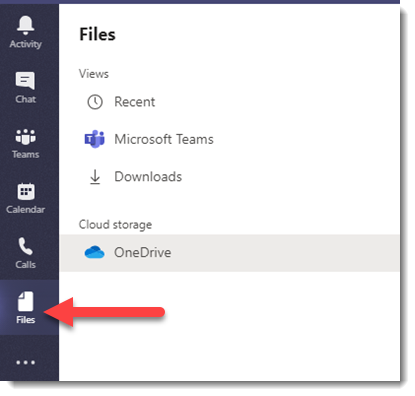
In Microsoft Teams, and on the side menu bar, navigate to the “Files” button  

Click Files and on the next menu, click upload and go through process of moving the presentation from your computer to OneDrive (it is seamless and easy when done through Microsoft Teams) 

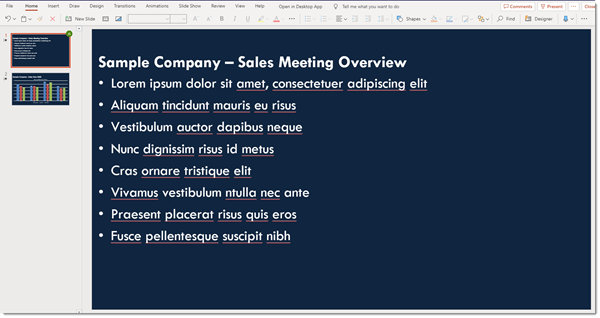
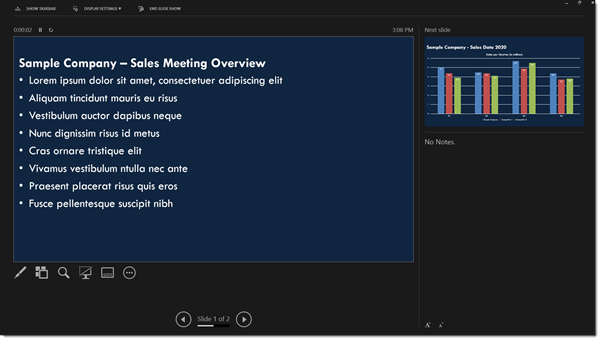
Here is the sample 2 slide presentation  

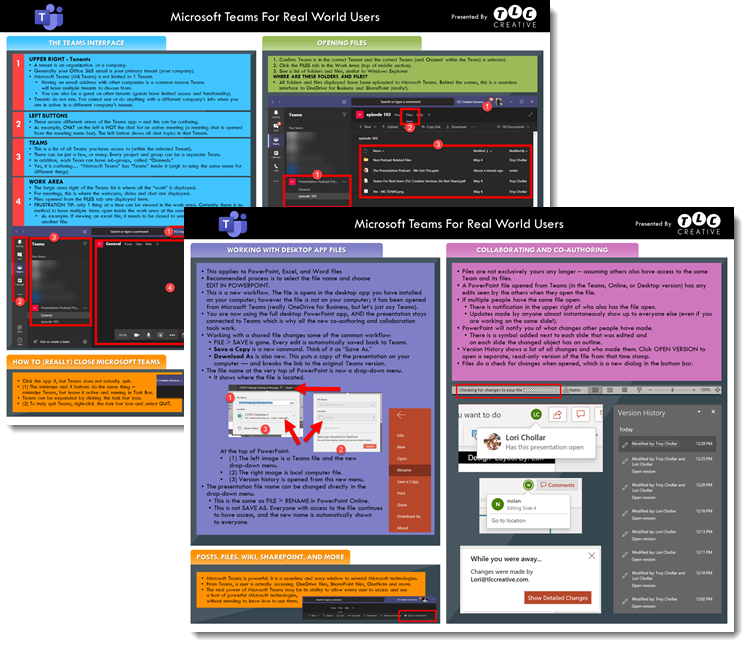
To demonstrate, here is the file opened from Microsoft Teams. 

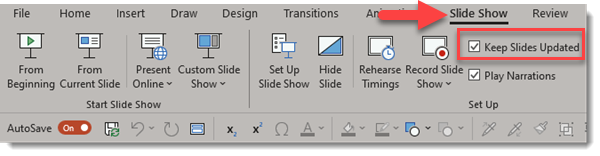
In the SLIDE SHOW tab is a new option, KEEP SLIDES UPDATED. Keep Slides Updated, or PowerPoint Synchronize, is where teamwork comes into play. While presenting a slide show, another person can make edits from a separate computer, and those edits will be in the active slide show! Remember, for this to work the file needs to run from a OneDrive location, be shared with at least one other person, and the “Keep Slides Updated” option enabled.

Here I am presenting the first slide.  

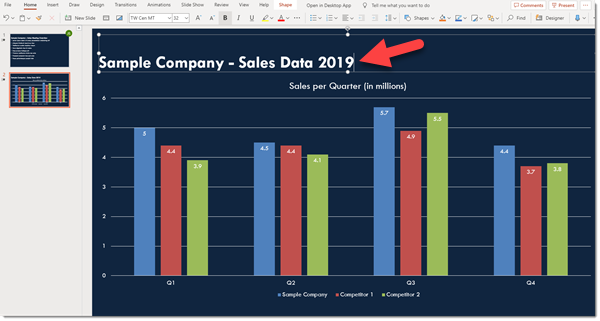
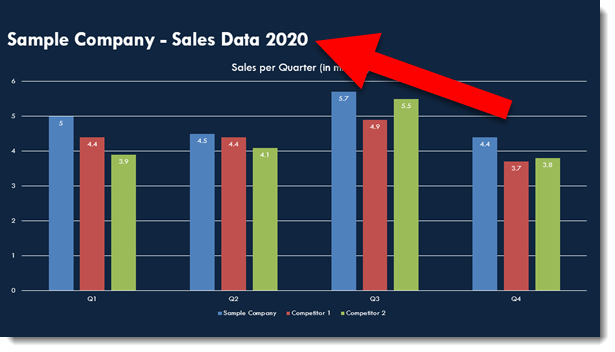
There is an error on the next slide with the chart listed as 2019, but it really is 2020 (no one experiences wrong info in their slides!). But the deck is shared with our colleague and they have got us covered. 

While we talk about slide 1, my colleague updates slide 2 on their computer so when I go to slide 2 it has the correct year – all while I was in slide show and presenting!  

Troy @ TLC

By |2020-06-03T19:24:32-07:00June 3rd, 2020|PowerPoint, Tutorial|

Podcast Episode 103 is Available Today!

A new episode of The Presentation Podcast is available today! Troy, Nolan and Sandy talk with Jackie Gartner-Schmidt in depth about how the voice works and provide tips for presenters (rappers, sport enthusiasts and more). Listen on Apple Podcasts, Stitcher, Google Play, Spotify and Soundcloud – or search The Presentation Podcast for “Presenting with Your Voice (w/ Jackie Gartner-Schmidt of Voice Now)” or go direct to the episode page here: https://thepresentationpodcast.com/podcast/103


By |2020-05-30T22:36:43-07:00June 2nd, 2020|Resource/Misc|

Presentation Bandwidth of Screen Share vs. PowerPoint Online Present

This is on the technical, and geeky, side of presentations. In our current environment of remote presenting, we have been addressing questions and supporting remote meetings non-stop. Remote presenting has lots of technical obstacles, that are now the responsibility of each presenter to deal with (vs. showing up at a conference and knowing a professional AV team was in control of everything technical and you, as a presenter, just needed to focus on getting on stage and presenting).

I am sharing a video from Microsoft that demonstrates PowerPoint specifically. In my discussions over the past year with the Microsoft PowerPoint team I have been hearing about the advances they have accomplished in remote presenting and collaboration. Well, I am a believer and integrating PowerPoint Online presenting into several virtual meeting workflows.

The big takeaway is presenting to a remote audience, using a PowerPoint presentation uploaded to (OneDrive, SharePoint, Microsoft Teams) has amazing bandwidth savings for high quality visuals, video and animation over presenting a presentation shown as a shared screen.

Troy @ TLC

By |2025-05-12T10:20:03-07:00May 26th, 2020|PowerPoint, Resource/Misc|

The Presentation Podcast Collaboration PowerPoint Deck

In the most recent episode of The Presentation Podcast, “Is PowerPoint Collaboration in Microsoft Teams Good?”, was much more than myself and my two co-hosts talking about the features we have seen and read about – we lived it! It was also fun watching Nolan and Sandy squirm a bit as I encouraged (forced) them into the world of a Microsoft Teams workflow 😊

For this podcast episode, we wanted our conversation to be about PowerPoint and its many collaboration features and performance that Microsoft has been talking about for the past few years. Because we (TLC Creative Services) have few clients utilizing Microsoft Teams for content editing, and Nolan & Sandy have even fewer, I decided the best way for us to talk about this was to jump in and immerse ourselves in what is soon to become a common workflow for presentation design.

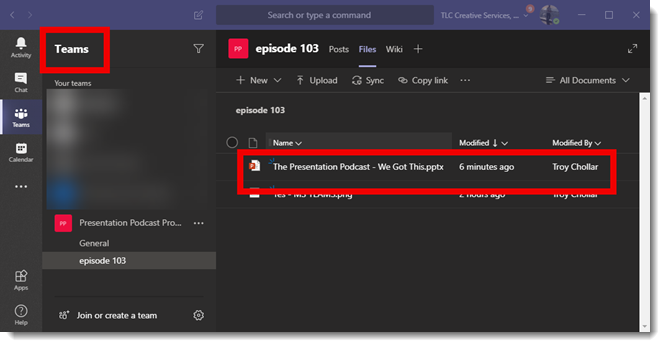
Step one was setting up a Team for this project within our TLC Creative Services account. Sandy, Nolan and myself were the only people able to access the files within it (Nolan and Sandy were guests to the TLC Creative Services Teams account, able to access only this one Team).

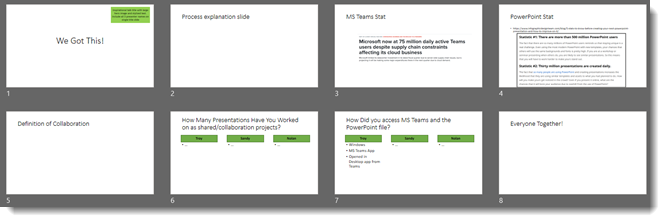
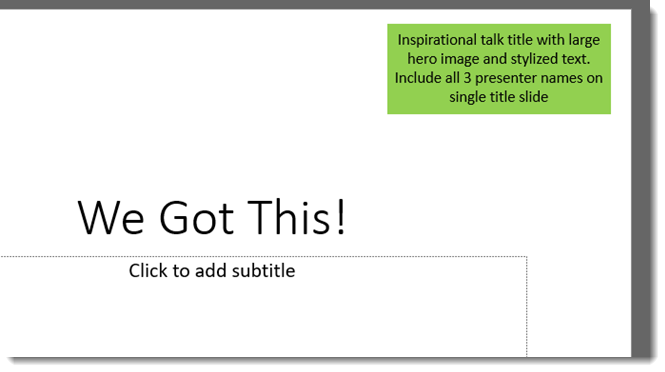
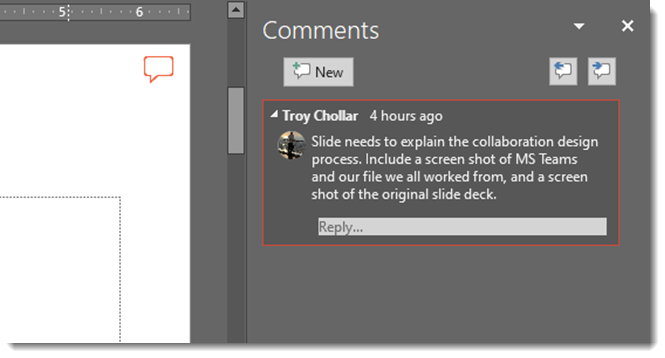
Working on the presentation design was typical. I put together sample slide deck that we each opened with the PowerPoint desktop application. Just like client notes, our sample deck had notes for content design throughout:

There were notes inside text placeholders.

It had notes as bright colored boxes on the slide.

And there were design notes as PowerPoint Comments.

Our shared experience was great (really)! The presentation we designed was great (really)! And we all unanimously agreed that the addition of Microsoft Teams to the workflow, being the hosting service and core for the shared presentation file was a success. If you missed it, listen in on our conversation on collaborating in PowerPoint here

Troy @ TLC

By |2020-05-18T22:24:47-07:00May 20th, 2020|Resource/Misc|

Podcast 102

A new episode of The Presentation Podcast is available today! Troy, Nolan and Sandy share their learnings of working on a co-authored presentation, hosted on Microsoft Teams. 

…if I’m going to get dragged kicking and screaming into the world of (Microsoft) Teams, I’m happy to have you do it.
– Nolan Haims in an email to Troy Chollar

Listen on Apple Podcasts, Stitcher, Google Play, Spotify and Soundcloud – just search for The Presentation Podcast for “Being a Remote Presenter (with Ken Molay)” or go direct to the episode page here: https://thepresentationpodcast.com/podcast/102

By |2020-05-24T20:16:09-07:00May 19th, 2020|Resource/Misc|

How to Make Excel Use a PowerPoint Custom Color Scheme

Microsoft Office; PowerPoint, Excel, Work, etc. have many shared components. PowerPoint tends to be the most visual design app of the suite and a common request we receive is how to add the colors from a PowerPoint we developed into Excel. You will need to add the custom color scheme to your computer, see the previous post. The process is fairly easy, here is an example and the action steps:

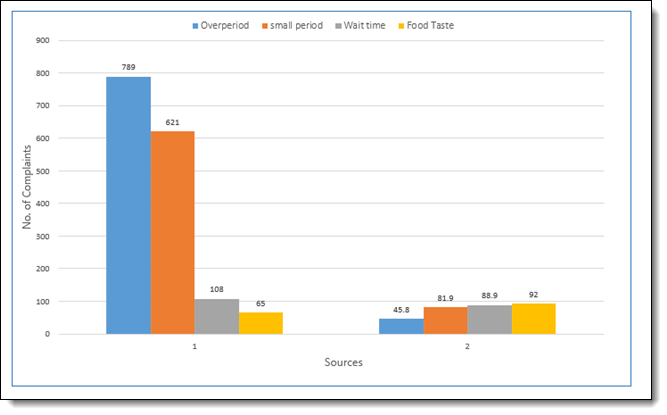
1. In Excel, our example chart uses the standard Office color scheme (boring!)

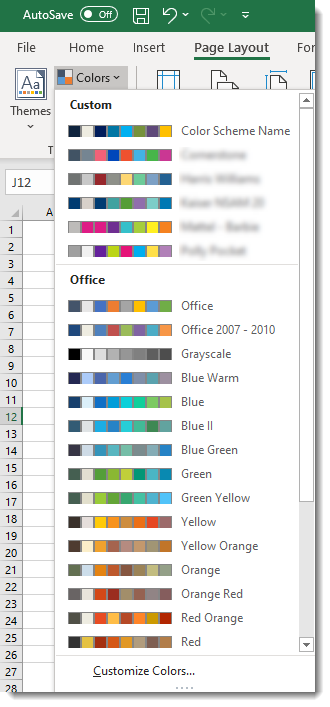
2. In excel go to PAGE LAYOUT > COLORS

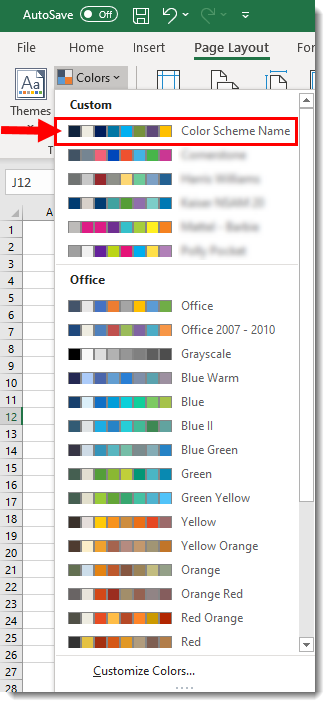
3. In the CUSTOM section, select the custom color scheme we saved from PowerPoint to the computer Office options. We are selecting the COLOR SCHEME NAME custom colors.

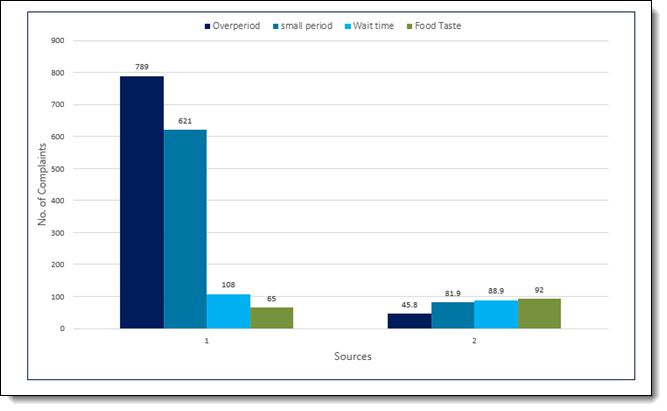
4. Now the excel file instantly updates charts to match the PowerPoint file!

Troy @ TLC


By |2020-05-20T11:46:50-07:00May 15th, 2020|Tutorial|
Go to Top